
AdsPower is widely used for managing multiple browser profiles from one workspace. Each profile can store its own cookies, fingerprint settings, login state, and proxy configuration. For users who work with multiple accounts or different regional environments, the proxy setting is one of the most important parts of the profile setup.
IPWeb proxies can be used in AdsPower to give each browser profile a separate IP address and network location. This is useful when you want a profile to open websites from a specific country, keep account access more consistent, or separate different browsing tasks from each other.
This guide walks through the full AdsPower proxy setup process, including where to enter IPWeb proxy details, how to choose the right proxy type, how to test the connection, and what to check before using the profile for real tasks.
What You Need Before Setting Up a Proxy in AdsPower
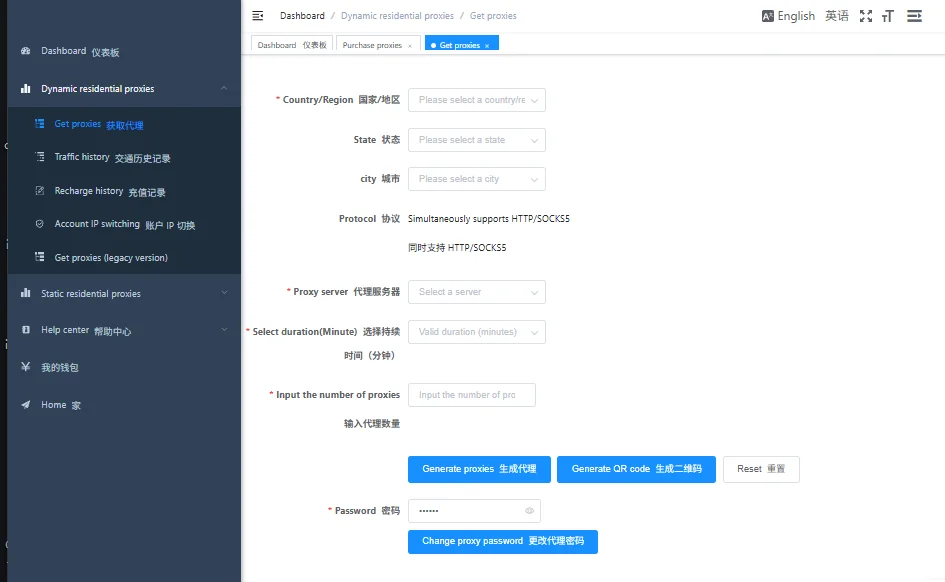
Before opening AdsPower, prepare your proxy information from the IPWeb Login Backend. AdsPower usually asks for the proxy details in separate fields, so it is important to know which part of the proxy string belongs to which field.
- Proxy type: HTTP, HTTPS, or SOCKS5
- Host: the proxy server address
- Port: the proxy port
- Username: your proxy authentication username
- Password: your proxy authentication password
- Country or region: the location you selected when generating the proxy
If your IPWeb proxy is shown as a full proxy string, it may look like this:
gate1.ipweb.cc:7778:your_username:your_passwordIn AdsPower, this should be entered as:
- Host: gate1.ipweb.cc
- Port: 7778
- Username: your_username
- Password: your_password
Choosing the Right IPWeb Proxy for AdsPower
Not every proxy setup is suitable for every AdsPower profile. The best choice depends on how the profile will be used.
| AdsPower Use Case | Suggested IPWeb Proxy Setup | Why It Matters |
|---|---|---|
| Long-term account login | Static or long-session residential proxy | Keeps the account network history more stable |
| Social media profile management | Residential proxy from the account country | Helps match the account region and browsing environment |
| E-commerce or seller accounts | Stable residential or ISP proxy | Reduces frequent IP changes during sensitive account activity |
| Regional website testing | Rotating residential proxy | Allows testing access from different locations |
| General browsing tasks | HTTP(S) proxy | Simple and compatible for most browser-based workflows |
| More flexible connection needs | SOCKS5 proxy | Useful when SOCKS5 compatibility is required |
For important accounts, avoid changing the proxy country too often. If an account usually logs in from the United States, it is better to keep using a US proxy and maintain consistent browser settings inside AdsPower.
Step 1: Create a New Profile in AdsPower
Open AdsPower and go to the profile management page. Click New Profile to create a new browser profile. You can also edit an existing profile, but for a first proxy test, creating a new profile is usually cleaner.
Give the profile a name that helps you recognize its purpose. For example, you can include the country, platform, or account group in the profile name.
US-social-profile-01
UK-marketplace-profile-02
DE-testing-profile-03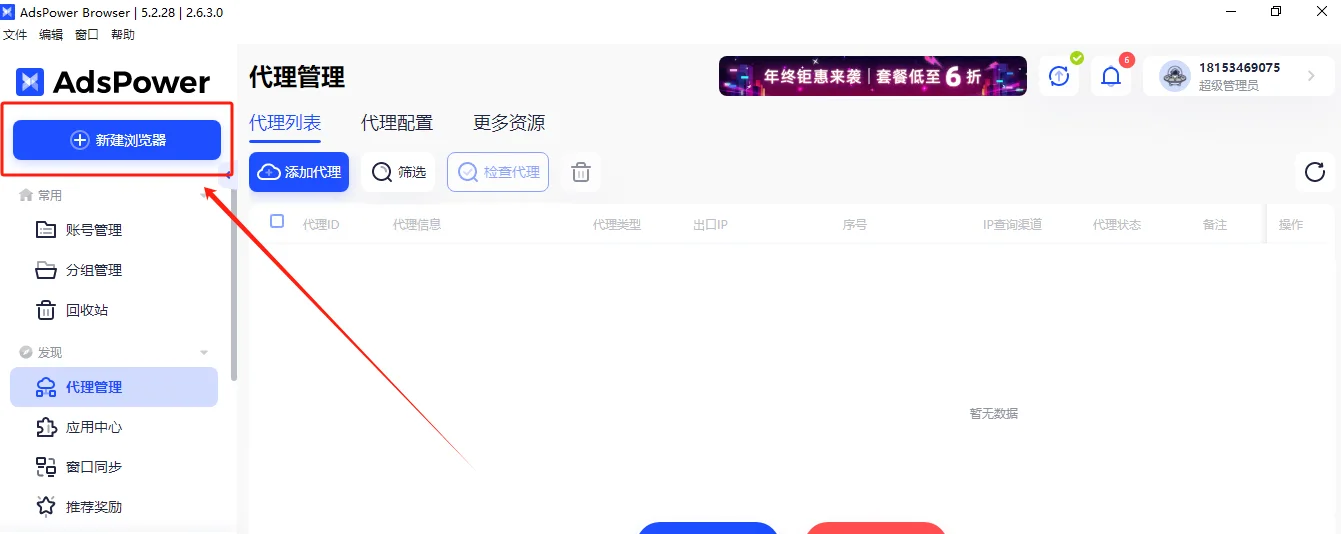
Step 2: Open the Proxy Configuration Section
Inside the profile settings, find the proxy configuration area. This is where AdsPower lets you define how the browser profile connects to the internet.
Choose the proxy type based on the proxy you generated in IPWeb. If your IPWeb proxy is HTTP or HTTPS, select the corresponding HTTP option in AdsPower. If your IPWeb proxy is SOCKS5, select SOCKS5.
The proxy type must match. If a SOCKS5 proxy is entered as HTTP, or an HTTP proxy is entered as SOCKS5, the proxy test will usually fail.
Step 3: Enter Your IPWeb Proxy Details
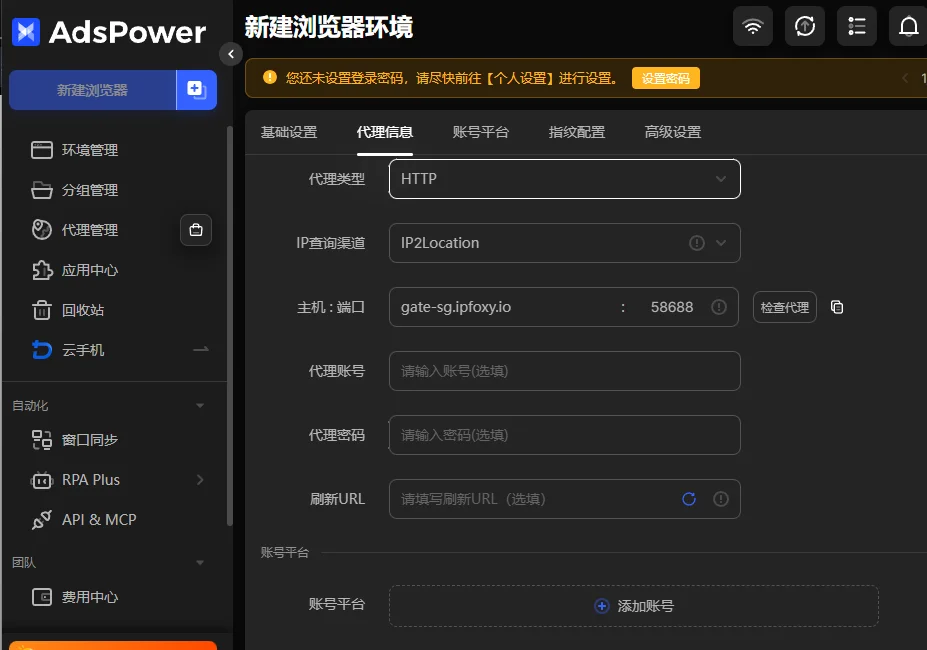
Enter the IPWeb proxy details into the AdsPower proxy fields. If AdsPower shows separate fields, do not paste the full proxy string into one field. Split it correctly.
Example IPWeb proxy:
gate1.ipweb.cc:7778:your_username:your_passwordAdsPower field mapping:
- Proxy type: HTTP, HTTPS, or SOCKS5
- Host: gate1.ipweb.cc
- Port: 7778
- Proxy account: your_username
- Proxy password: your_password
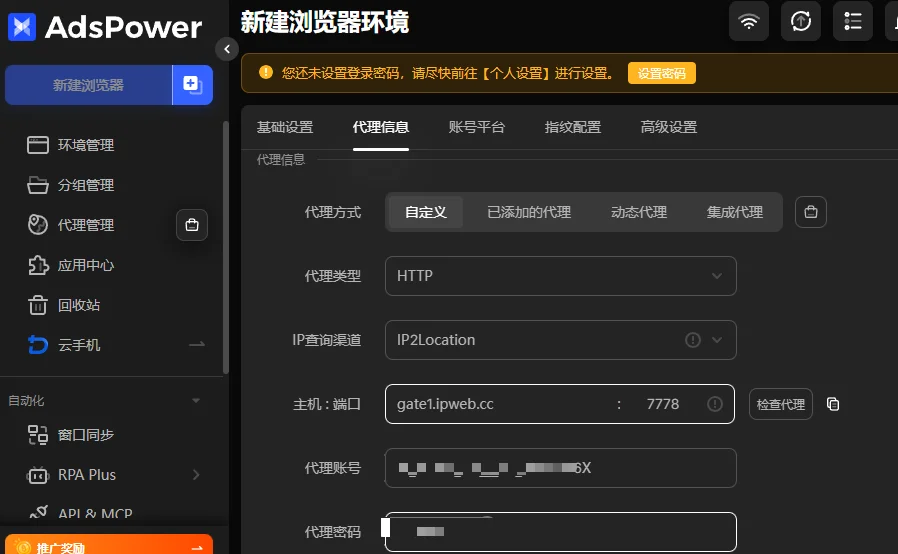
After entering the proxy details, save the profile settings only after you have tested the connection. This helps avoid saving a profile with incorrect proxy credentials.
Step 4: Test the Proxy in AdsPower
AdsPower provides a proxy check option inside the profile settings. Use it before launching the profile.
The proxy check helps confirm whether AdsPower can connect through the proxy server and whether the authentication details are correct. A successful result usually shows the proxy IP and location.
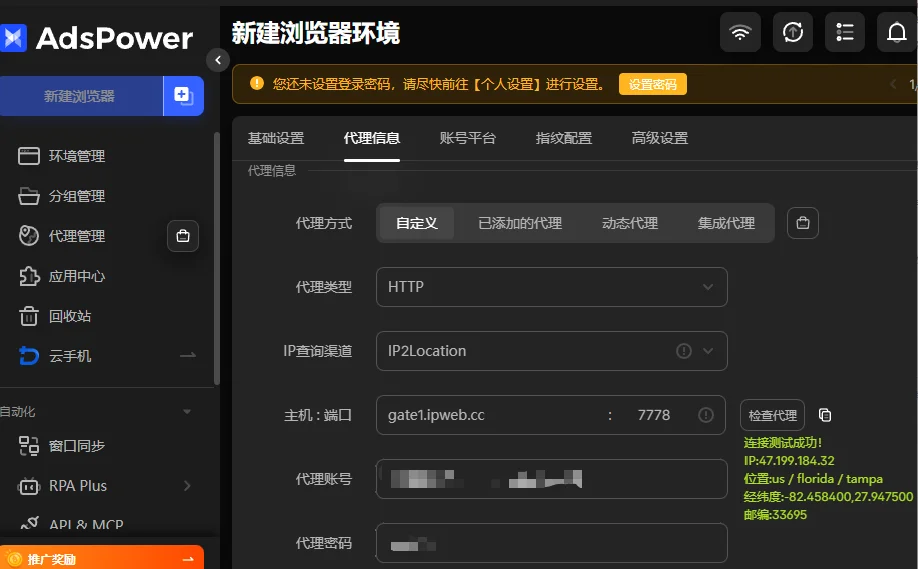
If the proxy check fails, do not continue to launch the profile yet. First check whether the host, port, username, password, and proxy type are correct. Most proxy setup errors come from one of these fields.
Step 5: Adjust Profile Environment Settings
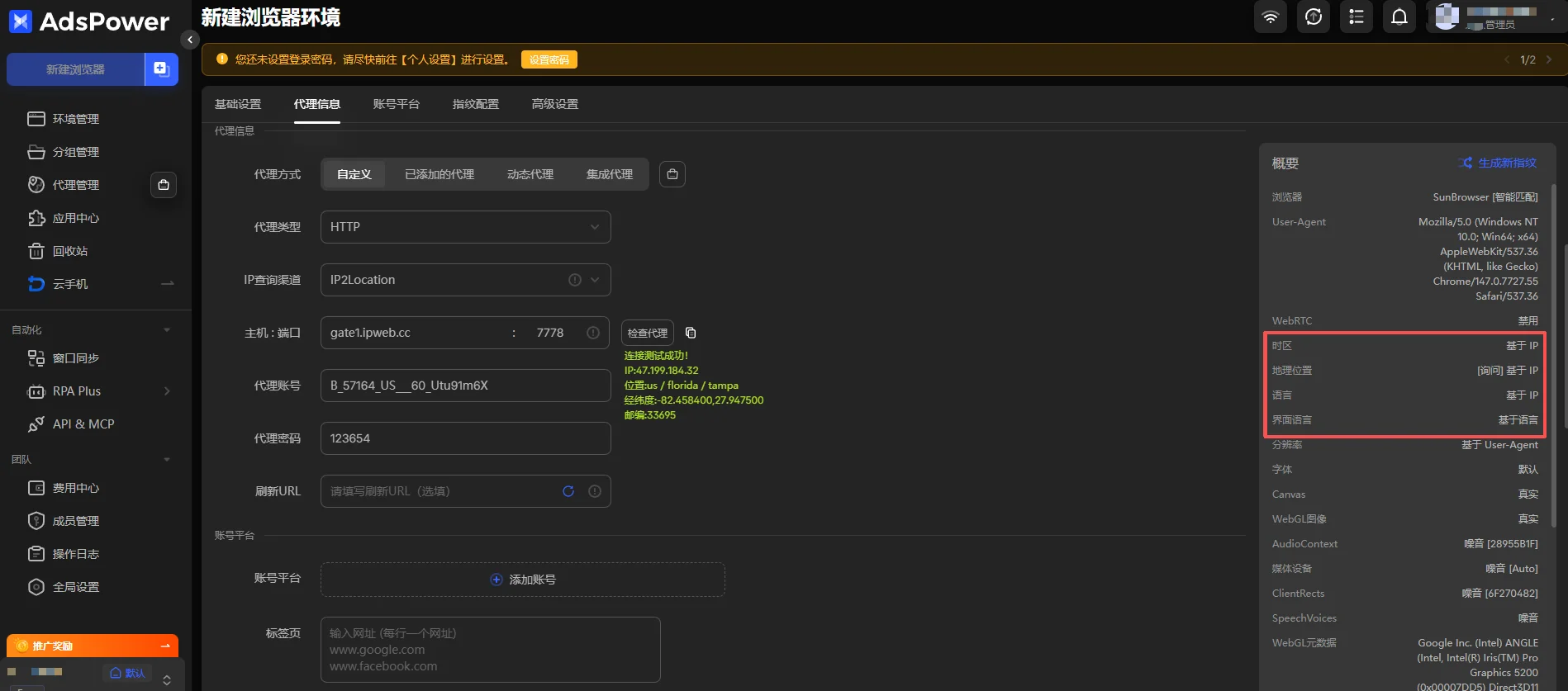
After the proxy test succeeds, review the profile environment settings. This step is important because the proxy location should not conflict with the browser environment.
For example, if you are using a US IPWeb proxy, the profile should ideally use a reasonable US-related setup. The time zone, language, and geolocation settings should not obviously point to another region.
You do not need to manually change every fingerprint option. The goal is to avoid obvious mismatches between the IP location and the browser profile environment.
Step 6: Launch the AdsPower Profile and Verify the IP
Once the proxy is saved and the profile environment looks consistent, launch the browser profile from AdsPower.
After the browser opens, use an IP checking tool to confirm that the profile is using the IPWeb proxy instead of your local IP address.
Check the following details:
- IP address
- Country or region
- City-level location, if needed
- ISP or network type
- DNS status
- WebRTC leak status
- Time zone
- Language and location consistency
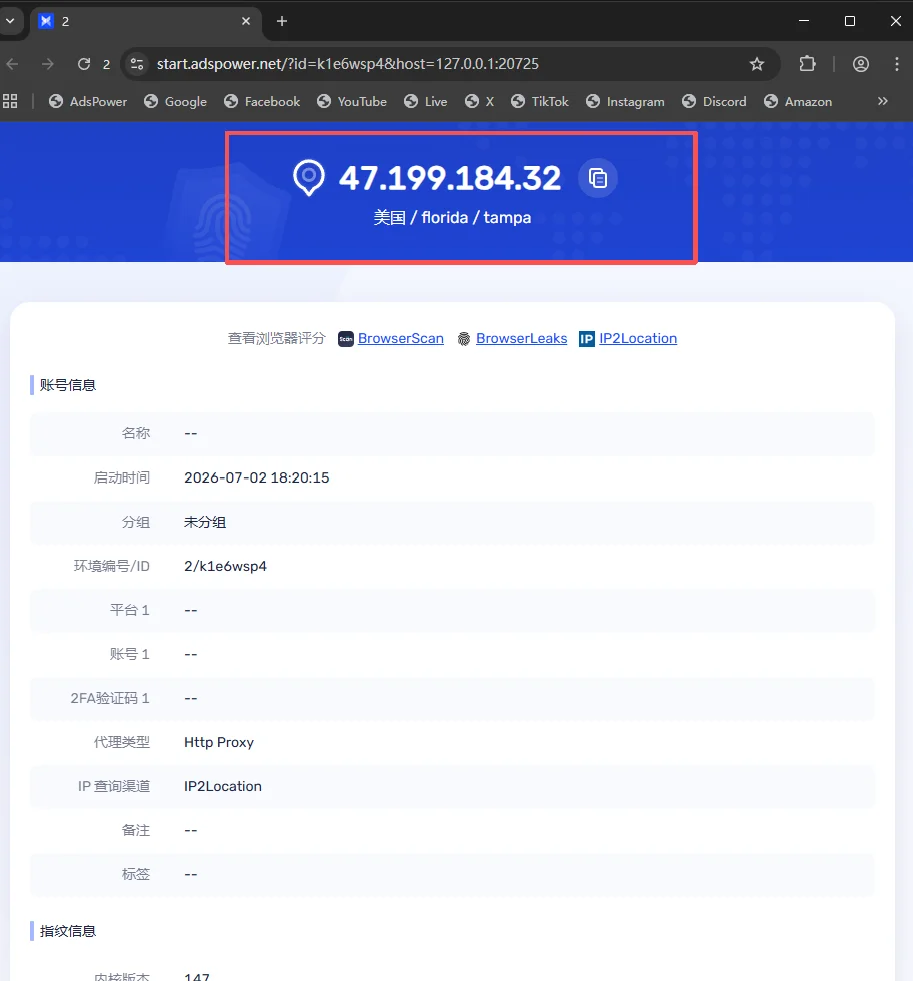
A successful proxy test inside AdsPower means the software can connect to the proxy. But the final check should always happen inside the launched browser, because that is the environment websites will actually see.
Using IPWeb Proxies for Multiple AdsPower Profiles
If you manage several AdsPower profiles, avoid treating proxies as random reusable resources. Each important profile should have a clear proxy assignment.
A practical workflow is:
- Generate proxies from IPWeb based on country or use case.
- Create AdsPower profiles for each task or account group.
- Assign one proxy to each important profile.
- Keep notes about which proxy belongs to which profile.
- Test the profile before logging into important accounts.
You can use naming rules like these:
US-TikTok-01
US-Shopify-02
UK-Testing-01
DE-Dashboard-01
This makes the workspace easier to manage, especially when you are handling different platforms, regions, or client projects.
Common AdsPower Proxy Problems and How to Fix Them
Proxy errors in AdsPower are usually caused by incorrect credentials, wrong proxy type, expired sessions, or a mismatch between the profile and the proxy location.
| Issue | Likely Reason | What to Do |
|---|---|---|
| Proxy check failed | Wrong host, port, or protocol | Recheck the IPWeb proxy details and proxy type |
| Authentication error | Incorrect username or password | Copy the proxy credentials again from IPWeb |
| Connection timeout | Proxy route is slow or unavailable | Try another proxy session or region |
| Wrong proxy country | The wrong region was selected in IPWeb | Generate a new proxy with the correct location |
| Browser still shows local IP | The profile did not save the proxy settings | Reopen the profile and confirm the proxy fields |
| Account still triggers verification | Proxy is working, but other profile signals may look inconsistent | Check cookies, fingerprint, time zone, DNS, WebRTC, and behavior |
Proxy Check Failed
Start with the basics. Confirm that the proxy type in AdsPower matches the proxy type from IPWeb. Then check the host, port, username, and password one by one.
If your proxy is shown as:
gate1.ipweb.cc:7778:your_username:your_passwordDo not put the full string into the host field. The host field should only contain:
gate1.ipweb.ccAuthentication Error
An authentication error usually means the proxy username or password is incorrect. Copy the credentials again from IPWeb and make sure there are no spaces before or after the text.
Proxy Works, but the Website Still Blocks Access
This does not always mean the proxy is bad. Websites may also evaluate browser fingerprint, account history, cookies, local storage, DNS, WebRTC, time zone, and user behavior. If the proxy is working but the account still receives checks, review the entire AdsPower profile environment.
The IP Location Looks Different
IP location databases are not always identical. One IP checker may show a slightly different city from another. If the country, region, and network type are generally correct, a small city-level difference is usually not unusual.
Best Practices for AdsPower Proxy Setup
Use one stable proxy for each important profile. This is especially important for long-term account management, where frequent IP changes can look unnatural.
Keep the proxy location and profile environment aligned. If the proxy is from the United States, the time zone and language should not obviously point to a completely unrelated region.
Do not reuse one proxy across too many unrelated profiles. If profiles are meant to be separate, their network environments should be separate as well.
Test the proxy before logging into important accounts. A quick proxy test can prevent avoidable login issues.
Keep a simple naming system for profiles and proxies. Clear names save time when your AdsPower workspace grows.
FAQ
Does AdsPower support proxies?
Yes. AdsPower allows users to configure proxies for browser profiles. You can enter proxy host, port, username, password, and proxy type in the profile settings.
How do I use IPWeb proxies in AdsPower?
Create or edit an AdsPower profile, open the proxy settings, choose the correct proxy type, and enter the IPWeb proxy host, port, username, and password. Then test the proxy and verify the IP after launching the browser.
Can I use SOCKS5 proxies in AdsPower?
Yes. If your IPWeb proxy supports SOCKS5, select SOCKS5 in AdsPower and enter the corresponding proxy details.
Should I use rotating or static proxies with AdsPower?
For long-term accounts, static or long-session proxies are usually better. For temporary testing or regional browsing, rotating residential proxies can be more flexible.
Can one proxy be used for multiple AdsPower profiles?
Technically, yes. But for better separation, important profiles should use different proxies. Reusing the same proxy across many profiles may make those profiles easier to associate with each other.
Why is my AdsPower proxy not working?
Common reasons include the wrong proxy type, incorrect host or port, invalid username or password, expired proxy sessions, unstable routes, or profile settings that were not saved correctly.
Final Thoughts
Setting up IPWeb proxies in AdsPower is straightforward when the proxy details are entered correctly. The key is to select the right proxy type, split the proxy string into the correct fields, test the connection, and verify the final browsing environment after launching the profile.
For simple testing, a basic proxy configuration may be enough. For long-term account management, consistency matters more. Use a stable proxy, keep the browser profile aligned with the proxy location, and avoid unnecessary IP changes. This gives each AdsPower profile a cleaner and more realistic network environment.