
Playwright is a browser automation framework for testing web apps across Chromium, Firefox, and WebKit. Developers use it for end-to-end testing, regional QA, screenshot checks, browser automation, public data workflows, and multi-browser test suites that need a real browser environment.
When Playwright runs without a proxy, all browser traffic usually comes from the same local IP address, cloud server IP, or CI runner IP. That may be fine for simple tests, but it is not ideal for checking country-specific pages, localized redirects, pricing, login behavior, search results, or content availability from different regions.
With a proxy configured in Playwright, browser traffic can be routed through a selected proxy server for regional testing, QA checks, and controlled automation workflows. This guide explains how to set up IPWeb proxies in Playwright, configure proxy authentication, use browser-level and context-level proxies, run regional Playwright Test projects, verify the final IP address, and fix common Playwright proxy errors.
What You Need Before Setting Up a Playwright Proxy
Before writing the script, prepare your development environment and your IPWeb proxy details.
- Node.js installed on your computer or server
- A code editor, such as VS Code
- Playwright installed in your project
- IPWeb proxy host
- Proxy port
- Proxy username
- Proxy password
- Proxy protocol, such as HTTP, HTTPS, or SOCKS5
- Target country or region
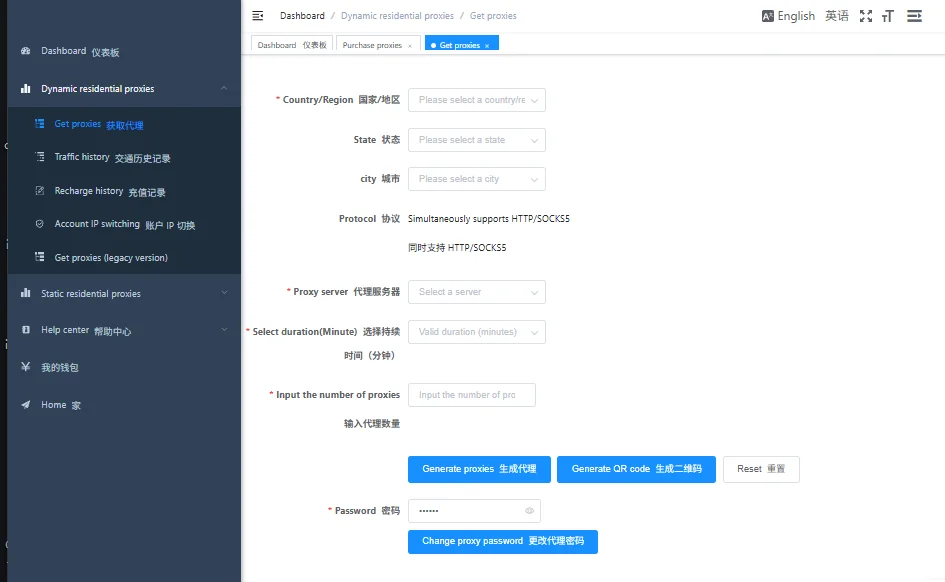
A typical IPWeb proxy string may look like this:
gate1.ipweb.cc:7778:your_username:your_passwordFor Playwright, you should split this into a proxy object:
- Proxy server:
http://gate1.ipweb.cc:7778 - Proxy credentials:
your_usernameandyour_password
The Playwright proxy object usually looks like this:
proxy: {
  server: 'http://gate1.ipweb.cc:7778',
  username: 'your_username',
  password: 'your_password'
}
This format is cleaner than putting the full proxy string into one URL. The server field contains the protocol, host, and port. The username and password are passed separately.
How Playwright Proxy Settings Work
Playwright has native proxy support, so you do not need to pass Chromium proxy flags manually for standard proxy setup. The proxy can be configured directly in Playwright options.
The most common setup uses one of three levels:
- Use
proxyinsidebrowserType.launch()to apply one proxy to the whole browser instance. - Use
proxyinsidebrowser.newContext()to apply a different proxy to an isolated browser context. - Use
use.proxyinsideplaywright.config.jsto apply proxy settings to Playwright Test projects.
The basic structure looks like this:
const browser = await chromium.launch({
  proxy: {
    server: 'http://gate1.ipweb.cc:7778',
    username: 'your_username',
    password: 'your_password'
  }
});
Unlike Puppeteer, standard Playwright proxy authentication does not usually require page.authenticate(). Proxy credentials should be placed directly inside the proxy object.
Step 1: Create a Playwright Project
Create a new project folder and install Playwright. If you only need a basic browser script, install the Playwright library:
mkdir playwright-ipweb-proxy
cd playwright-ipweb-proxy
npm init -y
npm install playwright
npx playwright install
If you plan to use playwright.config.js, Playwright Test projects, traces, screenshots, or test reports, install Playwright Test instead:
npm init playwright@latestOr add it manually to an existing project:
npm install -D @playwright/test
npx playwright install
After installation, create a file named index.js. This file will contain the Playwright proxy script.
Step 2: Add an IPWeb HTTP Proxy to Playwright
For most browser automation workflows, an HTTP or HTTPS proxy is the easiest option. Use the IPWeb proxy host and port in the server field, then pass the username and password in the same proxy object.
const { chromium } = require('playwright');

const proxyServer = 'http://gate1.ipweb.cc:7778';
const proxyUsername = 'your_username';
const proxyPassword = 'your_password';

(async () => {
  const browser = await chromium.launch({
    headless: true,
    proxy: {
      server: proxyServer,
      username: proxyUsername,
      password: proxyPassword
    }
  });

  const page = await browser.newPage();

  await page.goto('https://httpbin.org/ip', {
    waitUntil: 'domcontentloaded',
    timeout: 60000
  });

  const result = await page.textContent('body');
  console.log(result);

  await browser.close();
})();
This script launches Chromium, connects through the IPWeb proxy, opens an IP test endpoint, and prints the IP address seen by the destination website.
Step 3: Use a SOCKS5 Proxy in Playwright
If your IPWeb plan provides SOCKS5 proxy access, use the socks5:// protocol in the proxy server field. SOCKS5 authentication behavior may depend on the proxy provider and browser engine, so test the endpoint before using it in production. For most authenticated Playwright workflows, HTTP or HTTPS proxies are easier to configure.
const { chromium } = require('playwright');

(async () => {
  const browser = await chromium.launch({
    headless: true,
    proxy: {
      server: 'socks5://gate1.ipweb.cc:7778'
    }
  });

  const page = await browser.newPage();

  await page.goto('https://httpbin.org/ip', {
    waitUntil: 'domcontentloaded',
    timeout: 60000
  });

  const result = await page.textContent('body');
  console.log(result);

  await browser.close();
})();
If your SOCKS5 endpoint requires authentication, confirm the supported format in your IPWeb dashboard first. When username and password authentication is required, HTTP or HTTPS proxies are usually simpler for Playwright because credentials can be passed directly through the proxy object.
Step 4: Use Different Proxies for Browser Contexts
Browser contexts are one of the most important Playwright features. A context can keep its own cookies, storage, permissions, viewport, locale, time zone, and proxy configuration.
Use context-level proxies when one script needs several isolated regional sessions. For example, the same checkout flow, pricing page, login page, or landing page can be tested from different countries without mixing cookies or session state.
const { chromium } = require('playwright');

(async () => {
  const browser = await chromium.launch({
    headless: true
  });

  const usContext = await browser.newContext({
    proxy: {
      server: 'http://gate1.ipweb.cc:7778',
      username: 'us_username',
      password: 'us_password'
    },
    locale: 'en-US',
    timezoneId: 'America/New_York'
  });

  const ukContext = await browser.newContext({
    proxy: {
      server: 'http://gate2.ipweb.cc:7778',
      username: 'uk_username',
      password: 'uk_password'
    },
    locale: 'en-GB',
    timezoneId: 'Europe/London'
  });

  const usPage = await usContext.newPage();
  await usPage.goto('https://httpbin.org/ip', {
    waitUntil: 'domcontentloaded'
  });
  console.log(await usPage.textContent('body'));

  const ukPage = await ukContext.newPage();
  await ukPage.goto('https://httpbin.org/ip', {
    waitUntil: 'domcontentloaded'
  });
  console.log(await ukPage.textContent('body'));

  await usContext.close();
  await ukContext.close();
  await browser.close();
})();
This approach keeps the proxy location, browser locale, and time zone aligned inside each context. It is useful for checking localized pages, redirects, shipping options, pricing, or content availability from different countries.
Step 5: Configure Proxy in playwright.config.js
If you are using Playwright Test, the proxy should usually live in playwright.config.js instead of being repeated inside every test file.
This keeps test code cleaner and makes it easier to switch proxy settings between local development, staging, and CI.
// playwright.config.js
const { defineConfig } = require('@playwright/test');

module.exports = defineConfig({
  use: {
    proxy: {
      server: 'http://gate1.ipweb.cc:7778',
      username: process.env.IPWEB_PROXY_USERNAME,
      password: process.env.IPWEB_PROXY_PASSWORD
    },
    baseURL: 'https://example.com',
    trace: 'retain-on-failure',
    screenshot: 'only-on-failure'
  }
});
In this setup, all tests use the same proxy unless a project or test overrides it. The credentials are loaded from environment variables, so they do not need to be hardcoded in the repository.
Step 6: Run Regional Tests with Different Proxy Projects
Playwright Test projects are ideal for running the same test suite across different regions. Each project can use its own proxy, locale, time zone, browser, and device settings.
For example, you can create separate projects for US, UK, and Germany testing:
// playwright.config.js
const { defineConfig, devices } = require('@playwright/test');

module.exports = defineConfig({
  projects: [
    {
      name: 'US Chrome',
      use: {
        ...devices['Desktop Chrome'],
        proxy: {
          server: 'http://gate1.ipweb.cc:7778',
          username: process.env.US_PROXY_USERNAME,
          password: process.env.US_PROXY_PASSWORD
        },
        locale: 'en-US',
        timezoneId: 'America/New_York'
      }
    },
    {
      name: 'UK Chrome',
      use: {
        ...devices['Desktop Chrome'],
        proxy: {
          server: 'http://gate2.ipweb.cc:7778',
          username: process.env.UK_PROXY_USERNAME,
          password: process.env.UK_PROXY_PASSWORD
        },
        locale: 'en-GB',
        timezoneId: 'Europe/London'
      }
    },
    {
      name: 'DE Chrome',
      use: {
        ...devices['Desktop Chrome'],
        proxy: {
          server: 'http://gate3.ipweb.cc:7778',
          username: process.env.DE_PROXY_USERNAME,
          password: process.env.DE_PROXY_PASSWORD
        },
        locale: 'de-DE',
        timezoneId: 'Europe/Berlin'
      }
    }
  ]
});
This is more natural than manually switching proxy values inside every test. The Playwright report will also show which regional project failed, making proxy-related debugging easier.
Step 7: Verify the Proxy IP Address
A script can run without errors and still use the wrong network route, so always verify the final browsing environment. After launching the browser, open an IP test endpoint and confirm that Playwright is using the IPWeb proxy instead of your local IP or server IP.
You can test the IP address with:
await page.goto('https://httpbin.org/ip', {
  waitUntil: 'domcontentloaded',
  timeout: 60000
});

const result = await page.textContent('body');
console.log(result);
Check the following details when you test the final browser environment:
- IP address
- Country or region
- City-level location, if needed
- ISP or network type
- Proxy status
- DNS information
- WebRTC status, if your workflow uses browser APIs
Step 8: Store Proxy Credentials Safely
For quick testing, hardcoding the proxy username and password may be acceptable. For real projects, avoid putting proxy credentials directly in your source code, especially if the project is stored in Git or shared with a team.
A cleaner approach is to use environment variables.
If you store these values in a local .env file, install dotenv first:
npm install dotenvCreate a .env file in your project root:
IPWEB_PROXY_SERVER=http://gate1.ipweb.cc:7778
IPWEB_PROXY_USERNAME=your_username
IPWEB_PROXY_PASSWORD=your_password
Then read those values in your script:
require('dotenv').config();

const { chromium } = require('playwright');

const proxyServer = process.env.IPWEB_PROXY_SERVER;
const proxyUsername = process.env.IPWEB_PROXY_USERNAME;
const proxyPassword = process.env.IPWEB_PROXY_PASSWORD;

(async () => {
  const browser = await chromium.launch({
    headless: true,
    proxy: {
      server: proxyServer,
      username: proxyUsername,
      password: proxyPassword
    }
  });

  const page = await browser.newPage();

  await page.goto('https://httpbin.org/ip', {
    waitUntil: 'domcontentloaded',
    timeout: 60000
  });

  const result = await page.textContent('body');
  console.log(result);

  await browser.close();
})();
This makes the script safer and easier to move between local development, staging, and CI environments.
Step 9: Rotate IPWeb Proxies in Playwright
If your workflow needs different IP addresses across sessions, you can rotate proxies by choosing a different proxy before creating a browser context or launching a browser instance.
For simple rotation, prepare a list of proxies:
const proxies = [
  {
    server: 'http://gate1.ipweb.cc:7778',
    username: 'username_1',
    password: 'password_1'
  },
  {
    server: 'http://gate2.ipweb.cc:7778',
    username: 'username_2',
    password: 'password_2'
  },
  {
    server: 'http://gate3.ipweb.cc:7778',
    username: 'username_3',
    password: 'password_3'
  }
];

function pickProxy() {
  return proxies[Math.floor(Math.random() * proxies.length)];
}
Then create a browser context with the selected proxy:
const { chromium } = require('playwright');

const proxies = [
  {
    server: 'http://gate1.ipweb.cc:7778',
    username: 'username_1',
    password: 'password_1'
  },
  {
    server: 'http://gate2.ipweb.cc:7778',
    username: 'username_2',
    password: 'password_2'
  }
];

function pickProxy() {
  return proxies[Math.floor(Math.random() * proxies.length)];
}

(async () => {
  const browser = await chromium.launch({
    headless: true
  });

  const proxy = pickProxy();

  const context = await browser.newContext({
    proxy
  });

  const page = await context.newPage();

  await page.goto('https://httpbin.org/ip', {
    waitUntil: 'domcontentloaded',
    timeout: 60000
  });

  const result = await page.textContent('body');
  console.log(result);

  await context.close();
  await browser.close();
})();
For long-running browser workspaces, avoid changing IPs too often. Use a static or long-session proxy when the same workflow needs a stable network route. For public data workflows, regional checks, and short browser tasks, Dynamic Residential proxies can be more flexible.
Playwright Proxy Setup in Python
Install Playwright for Python first:
pip install playwright
playwright install
Playwright also supports proxy configuration in Python. The same proxy fields are used: server, username, and password.
from playwright.sync_api import sync_playwright

with sync_playwright() as p:
    browser = p.chromium.launch(
        headless=True,
        proxy={
            "server": "http://gate1.ipweb.cc:7778",
            "username": "your_username",
            "password": "your_password"
        }
    )

    page = browser.new_page()
    page.goto("https://httpbin.org/ip", wait_until="domcontentloaded")
    print(page.text_content("body"))

    browser.close()
Use the Python version when your automation stack is built around Python scripts, data workflows, or Python-based testing. For Playwright Test projects, the JavaScript configuration approach is more common.
Choosing the Right IPWeb Proxy for Playwright
Choose the proxy type based on the workflow, not only the protocol. A regional QA test, a public data workflow, and a visual monitoring task do not always need the same proxy setup.
| Playwright Use Case | Recommended IPWeb Proxy | Why It Works |
|---|---|---|
| Public web data workflows | Dynamic Residential proxies | Useful when browser sessions need flexible residential IP coverage |
| Long-running browser workspace | Static Residential proxies or Dynamic Long Session ISP proxies | Keeps the network environment more consistent across sessions |
| Regional QA testing | Residential proxy from the target country | Allows testing content, redirects, and pricing from a specific location |
| Account-based testing | Static Residential proxies | Keeps login behavior and session environment more consistent |
| Continuous browser workflows | Unlimited Residential proxies | Useful when traffic volume and concurrency are the main concerns |
| SOCKS-based workflows | SOCKS5 proxy | Useful when SOCKS5 compatibility is required |
For stable browser sessions, use Static Residential proxies or long-session proxies. For public data workflows and location testing, Dynamic Residential proxies are often more practical.
Common Playwright Proxy Errors and Fixes
Playwright proxy problems usually come from wrong proxy syntax, missing authentication, protocol mismatch, incorrect configuration scope, expired proxy sessions, or slow network routes. The table below covers the most common issues.
| Error or Problem | Likely Cause | How to Fix It |
|---|---|---|
net::ERR_PROXY_CONNECTION_FAILED |
Proxy host or port is wrong, or the proxy is unavailable | Recheck the IPWeb proxy host, port, protocol, and session status |
407 Proxy Authentication Required |
Proxy username or password is missing or incorrect | Check the username and password fields in the proxy object |
| Local IP still appears | The proxy is configured in the wrong place | Use launch({ proxy }), newContext({ proxy }), or project-level use.proxy |
| Only one project uses the proxy | Proxy was defined inside one Playwright project only | Move proxy to global use or define it for each project |
| Navigation timeout | Proxy route is slow, target website is slow, or the page waits too long | Increase timeout, use another proxy, or change the wait condition |
| SOCKS5 proxy does not work | Wrong protocol or unsupported proxy configuration | Use socks5://host:port and confirm SOCKS5 is enabled in IPWeb |
| Script works locally but fails in CI | Missing secrets, firewall restrictions, or blocked outbound proxy traffic | Check CI secrets, firewall rules, environment variables, and outbound network access |
407 Proxy Authentication Required
This error means the proxy server needs authentication or the credentials are wrong. In Playwright, proxy credentials should usually be placed inside the proxy object.
Use this pattern:
proxy: {
  server: 'http://gate1.ipweb.cc:7778',
  username: 'your_username',
  password: 'your_password'
}
Local IP Still Appears
If the IP test endpoint still shows your local IP, the proxy may not be applied to the browser or context you are actually using.
Correct browser-level setup:
const browser = await chromium.launch({
  proxy: {
    server: 'http://gate1.ipweb.cc:7778',
    username: 'your_username',
    password: 'your_password'
  }
});
Correct context-level setup:
const context = await browser.newContext({
  proxy: {
    server: 'http://gate1.ipweb.cc:7778',
    username: 'your_username',
    password: 'your_password'
  }
});
Navigation Timeout
Some proxy routes are slower than direct local browsing. Increase the timeout and avoid waiting for every background request if the page does not become fully idle.
await page.goto('https://example.com', {
  waitUntil: 'domcontentloaded',
  timeout: 90000
});
Best Practices for Using IPWeb Proxies with Playwright
Keep proxy credentials out of public code repositories. Use environment variables or a secure configuration system when running Playwright in production.
Test the proxy IP before running large jobs. A simple IP test request can prevent long browser workflows from running through the wrong IP.
Use browser-level proxy settings for simple scripts where one IP is enough for the whole run.
Use context-level proxy settings when one browser needs multiple isolated regional sessions.
Use project-level proxy settings when running Playwright Test suites across countries, browsers, or CI environments.
Align proxy region with Playwright context settings such as locale and time zone. This makes regional tests more realistic and easier to debug.
Add retry logic for timeouts and connection errors. Proxy networks are real networks, and occasional failures can happen during long-running jobs.
Review your concurrency settings. Even with a strong proxy pool, sending too many browser sessions too quickly can create failures that look like proxy problems but are actually timing, behavior, or rate-limit issues.
Always follow the target website's terms, robots.txt guidance where applicable, and applicable data protection rules when using Playwright for public data workflows.
FAQ
Can Playwright use proxies?
Yes. Playwright supports proxies through the native proxy option. You can configure a proxy at the browser level, browser context level, or Playwright Test project level.
How do I use IPWeb proxies in Playwright?
Copy the IPWeb proxy host, port, username, and password. Add the protocol, host, and port to the server field, then pass the username and password inside the same Playwright proxy object.
Can Playwright use different proxies for different browser contexts?
Yes. Each browser context can have its own proxy configuration. This is useful when one script needs several isolated sessions with different IP addresses, locales, time zones, or cookies.
Can Playwright use different proxies for different projects?
Yes. In Playwright Test, you can define multiple projects in playwright.config.js and give each project its own proxy, locale, time zone, and browser settings.
Can Playwright use SOCKS5 proxies?
Yes. Playwright supports SOCKSv5 proxies. If your IPWeb proxy supports SOCKS5, use the socks5:// protocol in the proxy server value, such as socks5://gate1.ipweb.cc:7778. If the SOCKS5 endpoint requires username and password authentication, test the supported format before using it in production.
Do I need page.authenticate() for Playwright proxy credentials?
No, not for standard Playwright proxy setup. Proxy credentials should usually be placed directly inside the proxy object with username and password. page.authenticate() is mainly used for HTTP authentication on a website.
Why is my Playwright proxy not working?
Common reasons include an incorrect proxy host, wrong port, missing authentication, invalid username or password, protocol mismatch, wrong configuration scope, expired proxy session, or CI network restrictions.
Should I use HTTP or SOCKS5 proxies with Playwright?
HTTP and HTTPS proxies are simple and work well for most browser automation tasks. SOCKS5 proxies are useful when SOCKS compatibility is required. The selected protocol must match the proxy generated in IPWeb.
Can I use IPWeb residential proxies for Playwright scraping?
Yes. Residential proxies are commonly used for Playwright-based public data workflows, regional testing, and browser automation because they provide real-user network routes. For larger workflows, use proper retry logic, conservative request rates, and proxy rotation.
Final Thoughts
Setting up IPWeb proxies in Playwright is straightforward once you understand where the proxy should live. Use browser-level proxy settings for simple scripts, context-level proxy settings for isolated regional sessions, and project-level proxy settings for Playwright Test suites that need multiple locations or CI environments.
For small tests, one HTTP proxy may be enough. For regional QA, public data workflows, or browser automation at scale, choose the right IPWeb proxy type, verify the final IP address, keep credentials out of source code, and add retry logic for timeout or connection errors.
You can also explore more proxy integration guides to learn how to use IPWeb proxies with other browser tools, automation frameworks, and proxy setup workflows.