
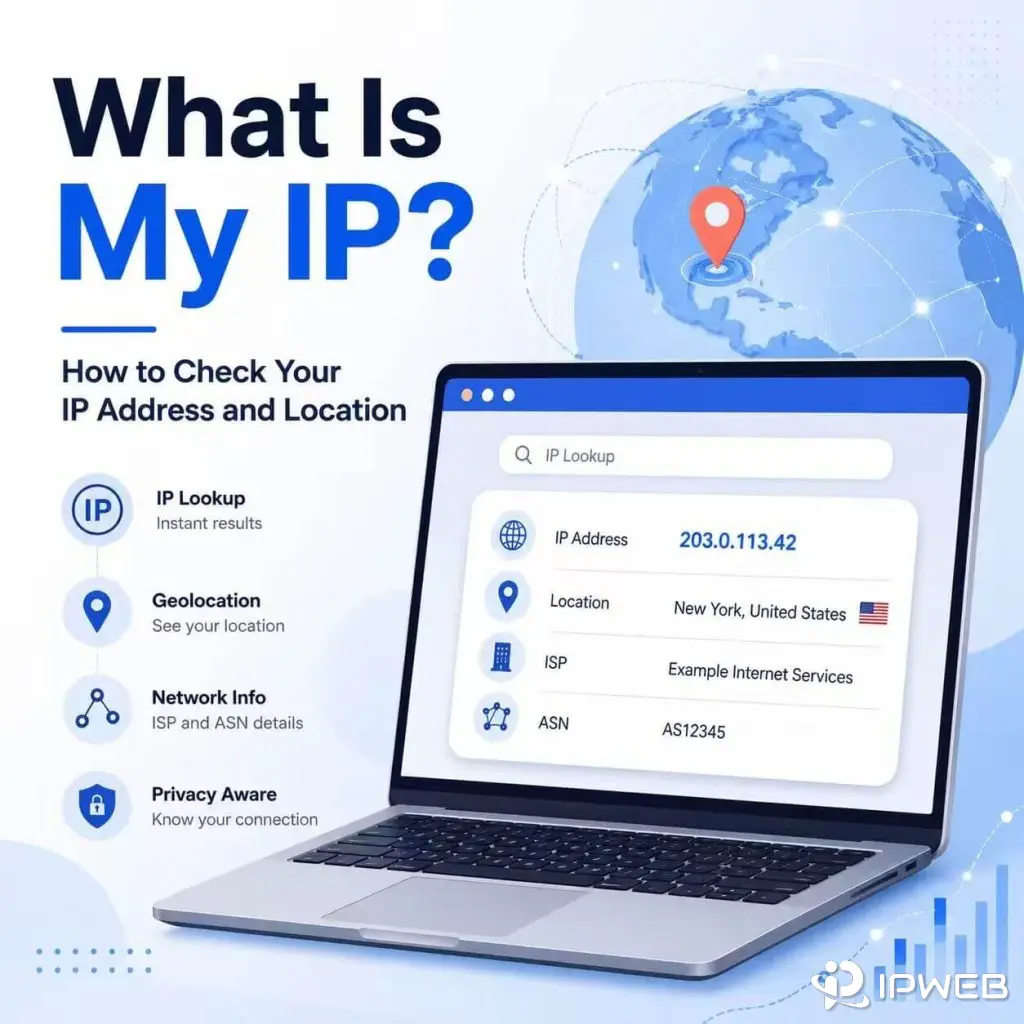
You might check your IP address because a website is showing the wrong region, a proxy does not seem to be working, or you simply want to know which public IP your browser is using right now. An IP lookup or IP locator gives you that starting point.
At first, the result looks simple: one IP address. But most IP lookup and IP address locator tools also show an estimated location, ISP, ASN, and basic network details. Those extra fields help explain where your connection appears to come from and why different tools may not always show the same result.
A useful IP check goes beyond finding the number itself. You can also locate your IP approximately, review the network behind it, compare results across databases, and confirm whether a proxy or other network setting is showing the IP you expect.
Your public IP address is the network address websites can see when you connect to the internet. An IP locator or IP lookup can show the appr oximate country, region, city, ISP, and ASN associated with that address, but it cannot normally identify your exact physical location.
- Your IP address is the public network address websites may see from your current connection.
- An IP lookup or IP locator can show your IP address, estimated location, ISP, ASN, and basic network details.
- IP location is database-based, so city-level results may vary across tools.
- An IP checker helps confirm which IP address your browser or device is showing right now, including whether the connection is using IPv4 or IPv6.
- If you use a proxy, comparing your original IP and proxy IP is the first step in checking whether the proxy is active.
What Does “What Is My IP” Mean?
“What is my IP” means “what public IP address is visible from my current internet connection?” When your browser visits a website, the site needs a network address to send data back to you. Your public IP address is part of that routing process.
ICANN describes an Internet Protocol address as a numeric value used to identify a device attached to the Internet and route message packets to their intended destinations. You can read ICANN’s definition of an Internet Protocol address for a more formal explanation.
For everyday users, checking “my IP” can confirm which connection they are currently using. For technical users, it is often the first step before checking IP location, ISP, ASN, proxy status, or regional network behavior.
In many cases, the public IP is assigned by an internet service provider, office network, mobile carrier, VPN service, proxy provider, or hosting environment. If you are browsing from home, it may be linked to your broadband provider. If you are using a server, it may show a datacenter network. If you are using a proxy, the visible IP should usually be the proxy IP rather than your original local network IP.
What Information Can an IP Lookup Show?
An IP lookup shows information associated with an IP address. The exact result depends on the lookup tool and database, but most IP lookup pages show several common fields.
| Lookup Field | What It Means | How to Read It |
|---|---|---|
| IP Address | The public IP address visible from your current connection. | This is the main result people look for when searching “what is my IP.” |
| Country | The country estimated by the IP geolocation database. | Usually more reliable than city-level location, but still database-based. |
| Region or State | The broader area associated with the IP address. | May be accurate for some networks and less accurate for others. |
| City | The estimated city linked to the IP address. | City results can vary across different lookup tools. |
| ISP or Organization | The internet provider, carrier, company, or hosting network behind the IP. | Useful for understanding whether the IP appears to come from a home ISP, mobile carrier, proxy network, or datacenter. |
| ASN | The autonomous system number associated with the network route. | Helps identify the larger network operator behind the IP address. |
| Network Type | A possible database label such as residential, mobile, ISP, or datacenter. | This describes how the IP may appear in lookup databases. It is not a personal identity label. |
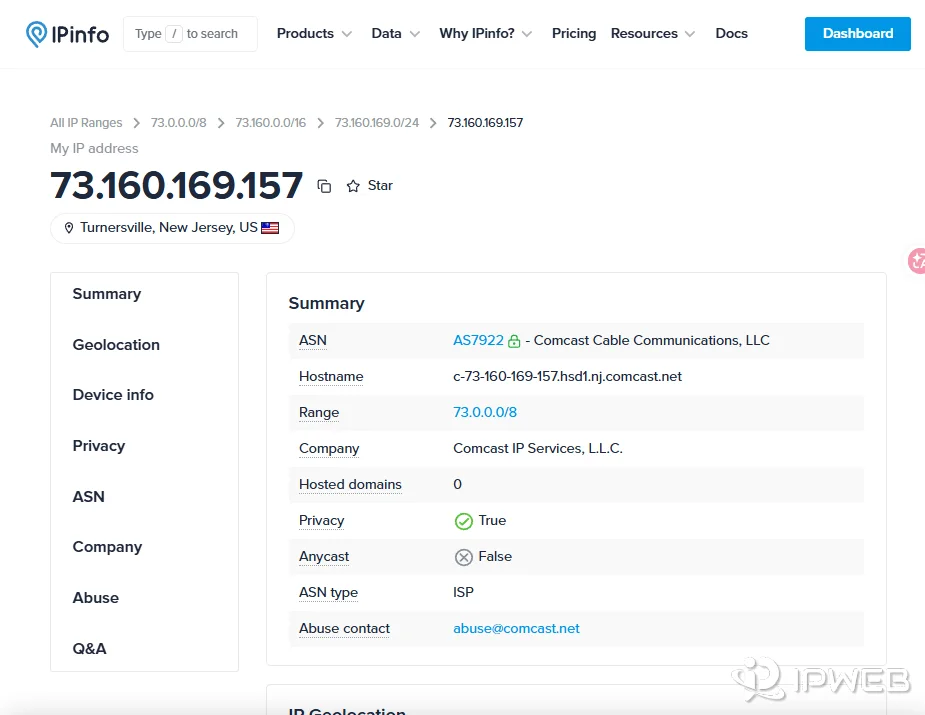
IANA explains that it coordinates Internet Protocol addressing systems and Autonomous System Numbers used for routing Internet traffic. If you want to understand where IP addresses and ASNs fit into the broader internet registry system, see IANA’s Number Resources overview.
The most important point: an IP lookup result is not a precise identity record. It can show useful network information, but it does not normally reveal an exact home address or a user’s personal identity.
How to Check Your IP Address
The easiest way to check your IP address is to open an IP checker or IP lookup page in the same browser or app you plan to use. The page will show the public IP address visible from that connection.
For a basic check, follow these steps:
- Open an IP lookup or IP checker page.
- Look for the field labeled IP address, public IP, or current IP.
- Check the country, region, city, ISP, and ASN shown below the IP address.
- If you recently changed networks or connected to a proxy, refresh the page and compare the result.
- If the IP address did not change when expected, check whether the proxy or network setting was applied correctly.
If you are checking a home or office network, one check is usually enough. If you are testing a proxy, browser profile, automation script, or regional connection, check the IP before and after changing the network setting.
Why Your IP May Show IPv4 or IPv6
Your public IP may appear as either IPv4 or IPv6, depending on your internet provider, device, network, and the website or service you are using. IPv4 addresses use the familiar dotted format, such as 192.0.2.1, while IPv6 uses a longer hexadecimal format designed to provide a much larger address space.
Some connections support both protocols at the same time. In that case, one IP checker may show an IPv4 address while another request uses IPv6. This does not automatically mean your IP changed unexpectedly. If you are testing a proxy or another network configuration, confirm which IP version that route supports and compare the visible address in the same browser or app.
How to Locate Your IP Address and Check Its Location
To locate your IP address, use an IP locator or IP lookup tool that shows country, region, city, ISP, and ASN. These fields help you understand where your IP address appears to be located according to the tool’s geolocation database.
If you search for “my IP locator” or want to geolocate your IP, the result is still an estimate rather than a precise physical position. An IP address locator usually maps the address to network and geolocation records, not to a specific home, office, or device location.
IP location is useful when you need to:
- Check whether your current connection appears in the expected country.
- Confirm whether a proxy IP is using the selected region.
- Test localized pages, regional search results, or country-specific content.
- Understand whether an IP belongs to a broadband ISP, mobile carrier, or datacenter network.
- Troubleshoot why a website shows content for the wrong region.
Still, IP location should be read as an estimate. Country-level results are usually more stable than city-level results. A city result may point to a nearby routing location, ISP registration area, mobile carrier gateway, or datacenter location rather than the exact physical place where a user or device is located.
Why Your IP Location May Look Different Across Tools
Your IP location may look different across tools because each IP lookup service can use a different geolocation database. One tool may show one city, while another tool shows a nearby city, region, or ISP location.
This does not always mean your IP is broken or misconfigured. IP geolocation is built from network records, routing information, ISP data, commercial databases, and historical signals. Those sources do not always update at the same speed.
MaxMind’s geolocation accuracy documentation also notes that country-level accuracy is generally stronger than state, region, or city-level accuracy, and that some networks are harder to locate precisely. You can review MaxMind’s geolocation accuracy explanation for more detail.
Common reasons include:
- Different databases: Each lookup tool may use its own data provider or update schedule.
- ISP registration data: An IP range may be registered in one city but used across a wider area.
- Mobile network routing: Mobile carriers may route traffic through centralized gateways.
- Datacenter location: Server IPs often show the location of the hosting provider or facility.
- Recent IP reassignment: If an IP range was recently moved, some databases may still show old information.
- Proxy location settings: A proxy IP may show a different city than expected if the provider, database, or routing path labels it differently.
For most use cases, focus first on whether the country, ISP, and network type make sense. City-level differences are common and should not be treated as absolute proof that an IP address is wrong.
If the country, city, ISP, or ASN looks different from what you expected, see why your IP location may look wrong and how to separate a normal geolocation mismatch from a network issue.
IP Locator vs IP Lookup vs IP Checker
IP locator, IP lookup, and IP checker are closely related, but they are not always used in the same way. An IP checker usually focuses on the IP address your browser or device is showing right now. An IP locator focuses on the approximate geographic location associated with an IP address, while an IP lookup usually gives broader details such as location, ISP, ASN, and network information.
| Term | Main Purpose | Best Used For |
|---|---|---|
| What Is My IP | Shows the current public IP address visible from your connection. | Quickly checking the IP address your browser is using now. |
| IP Checker | Checks the current IP address shown by your browser or device. | Confirming whether your visible IP changed after switching networks or applying a proxy. |
| IP Lookup | Finds details linked to an IP address, including location, ISP, ASN, and network type. | Understanding what an IP address shows in public lookup databases. |
| IP Locator | Estimates the geographic location associated with an IP address. | Checking the country, region, or city an IP address is associated with in a geolocation database. |
| IP Address Lookup | Looks up information for a specific IP address. | Checking a known IP address instead of only your current connection. |
| Proxy IP Check | Compares your original IP and proxy IP to confirm whether the proxy is active. | Testing proxy setup before using a browser, app, or script. |
In many tools, these functions appear on the same page. The difference is mostly about what you need: checking your current IP, locating an IP approximately, or looking up broader network details for a specific IP address.
How to Check Whether a Proxy IP Is Working
To check whether a proxy IP is working, compare the IP lookup result before and after connecting to the proxy. If the proxy is active, the visible IP address should change from your original network IP to the proxy IP.
Use this simple process:
- Check your original IP address. Open an IP checker before enabling the proxy and note the current IP, country, ISP, and ASN.
- Connect to the proxy. Apply the proxy in your browser, app, operating system, or browser profile.
- Refresh the IP lookup page. Check whether the visible IP address changed.
- Review the IP location. Confirm whether the country or region is close to the proxy setting you expected.
- Check the ISP and ASN. See whether the network information matches the type of connection you intended to use.
- Test inside the actual browser or app. Some tools use separate network settings, so always test the same environment you plan to use.
If the IP address does not change, the proxy may not be applied correctly. If the IP changes but the location looks different from what you expected, the issue may come from geolocation database differences, routing, or the specific proxy endpoint.
For proxy users, start with the basics: visible IP address, location, ISP, and ASN. If those results look correct but the browser still behaves unexpectedly, you can move on to deeper checks such as DNS, WebRTC, browser timezone, language, or IP reputation later.
Common IP Lookup Mistakes
IP lookup tools are easy to use, but the results are easy to misread. Here are the most common mistakes to avoid.
Assuming IP Location Is Exact
IP location is not GPS. It is an estimate based on network and database information. A lookup result may show the ISP location, routing area, mobile carrier gateway, or datacenter location instead of an exact user location.
Only Looking at the City
City-level IP data can vary across tools. If two tools show different nearby cities, that does not automatically mean the IP is unusable. Country, ISP, ASN, and network type are often more useful for practical checks.
Ignoring the ISP or ASN
The ISP and ASN can tell you more about the network behind an IP address. For example, two IPs may show the same country, but one may belong to a broadband provider while another belongs to a hosting company.
If you want to understand how IP addresses and ASNs are managed in North America, ARIN’s IP Addresses & ASNs page is a helpful reference.
Testing the Wrong Browser or App
If you apply a proxy in one browser but check the IP in another browser, the result may not reflect the proxy connection. Always run the IP check in the same browser, app, or profile that will use the network setting.
Expecting Every Lookup Tool to Match
Different IP lookup tools use different databases. If a result looks unusual, compare several tools before deciding that the IP address or proxy setting is wrong.
Confusing Public IP and Private IP
Your public IP is visible to websites. Your private IP is used inside a local network, such as a home router or office LAN. When people search “what is my IP,” they usually mean the public IP address, not the private local address.
Frequently Asked Questions
Final Thoughts
Checking “what is my IP” is a quick way to understand your current connection, but the result is more useful when you read it with context. A good IP lookup or IP locator helps you review your visible IP address, estimated location, ISP, ASN, and basic network type.
For normal browsing, that can help explain which connection you are using. For proxy users, developers, QA teams, SEO teams, and public web data projects, it is also a practical first check before moving into more advanced browser or network testing.
If you are checking IPs as part of a proxy setup, you can also read the IPWeb proxy integration guides for browser and automation examples.