You set up a proxy, refresh the page, and expect your IP address to change. But the result still shows your original IP, the location looks different from what you selected, or the website behaves as if nothing changed.
That does not always mean the proxy is bad. It may mean the proxy was not applied to the browser, the wrong app is being tested, the proxy credentials failed, the lookup database shows a nearby city, or the website is using signals beyond IP address.
This guide explains how to use a proxy checker properly, what fields to review, how to tell whether the proxy check passed, and what to troubleshoot when the visible IP, location, ISP, or ASN does not look right.
- A proxy checker helps confirm whether your current browser, app, or script is using the proxy route you configured.
- The first thing to check is whether the visible IP address changed from your original IP.
- A changed IP usually means the proxy route is active, but it does not guarantee that every browser or website signal is consistent.
- Country, ISP, ASN, protocol, credentials, and test environment matter more than city-level location alone.
- If the proxy IP changed but the website still looks wrong, cookies, account region, language, timezone, DNS, WebRTC, or website logic may be involved.
- 1. What Is a Proxy Checker?
- 2. What a Proxy Checker Can Show
- 3. How to Check If a Proxy Is Working
- 4. How to Know If the Proxy Check Passed
- 5. Proxy Checker vs IP Checker vs IP Lookup
- 6. Why Your Proxy IP Did Not Change
- 7. Why Your Proxy Location Looks Different
- 8. How to Test a Proxy in the Same Browser, App, or Script
- 9. Basic Proxy Checker Troubleshooting
- 10. What a Proxy Checker Cannot Tell You
- 11. When the Proxy Is Working but the Website Still Looks Wrong
- 12. FAQ
1. What Is a Proxy Checker?
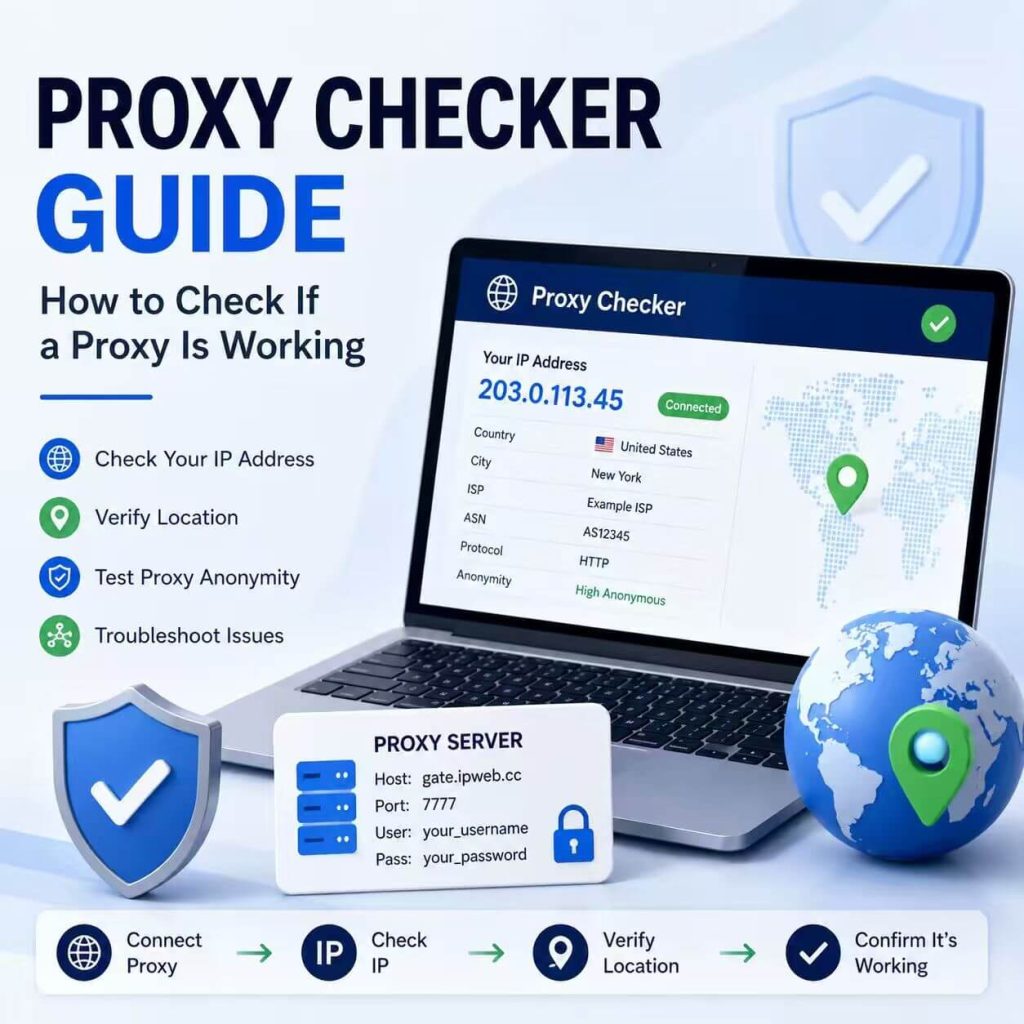
A proxy checker is a tool or test process that shows what IP address and network details are visible after a proxy is applied. Its main job is to answer one practical question: is this browser, app, or script actually sending traffic through the proxy endpoint I configured?
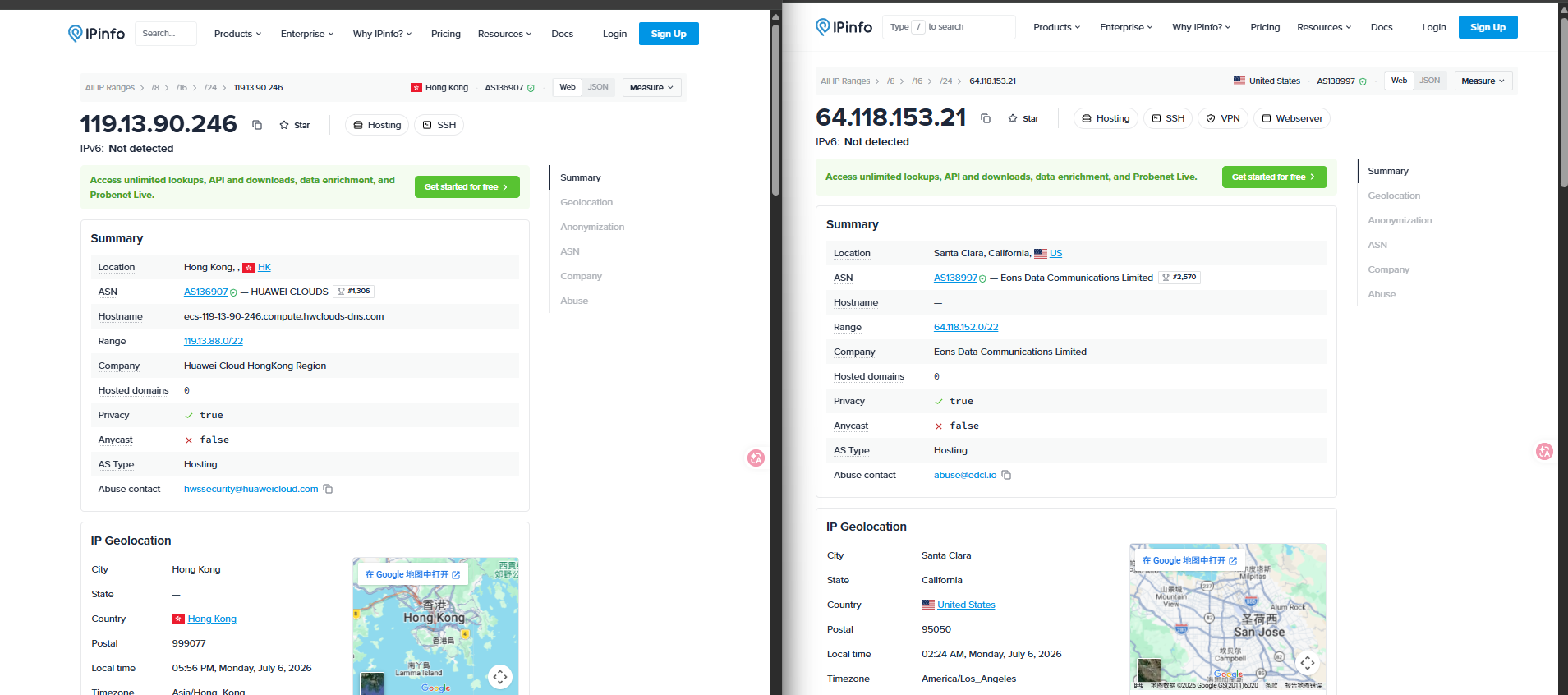
A basic proxy checker usually shows the visible IP address, country, region, city, ISP, ASN, and sometimes proxy or network type. That information helps you compare your original connection with the connection after the proxy is turned on.
A proxy checker is not magic. It cannot tell you why every website behaves a certain way, and it cannot guarantee that a target website will accept a connection. But it is the right first step when you need to confirm whether the proxy is active before you test a page, run a script, or start a browser workflow.
2. What a Proxy Checker Can Show
A useful proxy check should look at more than one field. If you only check whether the city changed, you may miss the real problem. Start with the visible IP address, then review country, ISP, ASN, and whether the test was run in the same environment where the proxy was configured.
| Field | What It Means | Why It Matters |
|---|---|---|
| Visible IP | The public IP address seen by the destination website. | This is the fastest way to tell whether traffic changed routes. |
| Country / Region | The estimated location of the IP according to the lookup database. | Useful for regional testing, localization checks, and content review. |
| City | The city-level estimate linked to the IP address. | Helpful, but less reliable than country-level results. |
| ISP / Organization | The provider, carrier, hosting network, or organization behind the IP. | Helps confirm whether the IP belongs to the expected network type. |
| ASN | The autonomous system connected to the IP route. | Useful for identifying the larger network operator. |
| Protocol | HTTP, HTTPS, SOCKS5, or another proxy protocol. | A protocol mismatch can make a valid proxy fail. |
| Test Environment | The browser, app, profile, script, or device where the check runs. | You must test in the same environment where the proxy is applied. |
For example, if your IP changes but the city looks slightly different, the proxy may still be working. If the IP does not change at all, the proxy was probably not applied to the browser, app, or script you are testing.
3. How to Check If a Proxy Is Working
The safest way to check a proxy is to compare the connection before and after the proxy is applied. Run both checks in the same browser, app, script, or device. Do not configure the proxy in one place and test the IP in another.
- Check your original IP address. Open an IP checker before turning on the proxy and note the visible IP, country, ISP, and ASN.
- Apply the proxy. Add the proxy host, port, username, password, and protocol in the browser, app, script, or operating system setting you want to test.
- Open the same IP checker again. Run the check inside the same environment where the proxy is enabled.
- Compare the visible IP. If the IP changed, the proxy route is likely active.
- Check country and network details. Confirm that the country, ISP, ASN, or network type matches what you expected.
- Repeat with another lookup tool if the location looks strange. City-level IP location can vary across databases.
- Test the actual website or workflow. A proxy checker confirms the visible route, but the real target may use more signals than IP alone.
4. How to Know If the Proxy Check Passed
A proxy check passes when the visible connection matches the environment you intended to test. In most cases, that means the IP address changes, the country or region makes sense, and the browser or script does not show an authentication or connection error.
| Result | What It Usually Means | Next Step |
|---|---|---|
| IP changed, country matches | The proxy is likely active. | Continue testing the target website or workflow. |
| IP changed, city differs | Often a geolocation database difference. | Compare another lookup tool before judging the proxy. |
| IP changed, ISP/ASN unexpected | The endpoint or network type may differ from what you expected. | Check the proxy endpoint, location, and provider settings. |
| IP did not change | The proxy was probably not applied to this environment. | Check the browser, app, script, or system proxy settings. |
| Proxy login prompt appears | The proxy requires authentication or the credentials are wrong. | Check username, password, and authentication format. |
| Connection timeout | The endpoint, port, protocol, or network path may be unavailable. | Check host, port, protocol, and endpoint status. |
| Website still looks wrong | The proxy may work, but the website may use other signals. | Check cookies, account region, language, timezone, DNS, or WebRTC later. |
The most important point is simple: a changed IP is a good sign, but it is not the whole story. A proxy checker confirms the visible network route. It does not validate every browser, session, or website-level signal.
5. Proxy Checker vs IP Checker vs IP Lookup
Proxy checker, IP checker, and IP lookup are closely related, but they are not exactly the same thing. Understanding the difference helps you avoid testing the wrong thing.
| Tool | Main Use | Best For |
|---|---|---|
| IP Checker | Shows the current visible IP address. | Quickly confirming which IP your browser or app is using right now. |
| IP Lookup | Shows IP address details such as location, ISP, ASN, and network information. | Understanding where an IP appears to come from. |
| Proxy Checker | Compares the connection before and after a proxy is applied. | Confirming whether the proxy setup is active and reasonable. |
| Target Website Test | Checks how the real website responds after the proxy is active. | Validating the actual workflow, page, login, search result, or regional content. |
If you are not sure what fields like IP address, ISP, ASN, or network type mean, start with our What Is My IP guide before running a proxy check.
When you compare proxy results, ASN is useful because it identifies the larger network behind the IP address. For readers who want the registry-level background, IANA’s Number Resources page explains how IP addresses and Autonomous System Numbers fit into Internet routing.
6. Why Your Proxy IP Did Not Change
If the proxy IP did not change, the proxy route probably was not applied to the environment you are testing. This is the most common proxy checker problem, and it is usually caused by configuration rather than the proxy endpoint itself.
The Proxy Was Not Applied to the Right App
You may have configured the proxy in one browser, extension, system setting, or script, but checked the IP in another environment. For example, setting a proxy inside Chrome does not mean a separate Python script will automatically use it.
Run the proxy checker in the exact browser, app, script, or profile where the proxy is enabled.
The Browser Is Still Using the Original Network
Some browsers use system proxy settings, some use extension-level settings, and some automation tools use their own proxy configuration. If the browser is still using the original network route, the IP checker will continue showing your original IP.
Check whether the active browser profile, extension profile, or automation context is actually using the proxy.
The Proxy Credentials Are Wrong
Many private proxies require a username and password. If the credentials are missing, pasted into the wrong field, or copied with extra spaces, the connection may fail or trigger a proxy login prompt.
When a proxy server requires authentication and the request does not include valid credentials, the browser or client may receive a 407 Proxy Authentication Required response. MDN’s 407 documentation explains this HTTP status code in more detail.
The Proxy Protocol Is Incorrect
A proxy endpoint may support HTTP, HTTPS, SOCKS5, or a specific protocol selected in your dashboard. If you choose the wrong protocol in your browser, app, or script, the connection may fail even when the host and port are correct.
Check whether the endpoint should be entered as HTTP, HTTPS, or SOCKS5. Do not guess the protocol based only on the port.
The Proxy Endpoint Is Unavailable
A proxy endpoint can fail because the host is wrong, the port is wrong, the plan has expired, the endpoint is temporarily unavailable, or the network cannot reach the proxy gateway.
Test another endpoint from the same provider, confirm that your account is active, and check whether your local network blocks the required protocol or port.
7. Why Your Proxy Location Looks Different
If the visible IP changed but the city looks different from what you selected, the proxy may still be working. City-level IP location is based on geolocation databases, and different lookup tools may map the same IP to different nearby cities.
A country mismatch is more important than a city mismatch. If you selected a United States proxy and the result shows the United States but a different city, the issue may be database-level location mapping. If the result shows a different country, check the proxy endpoint, selected region, and lookup tool more carefully.
If the proxy IP changes but the location looks different from what you expected, the issue may be IP geolocation rather than proxy failure. See our guide on why your IP location may look wrong for a deeper explanation.
8. How to Test a Proxy in the Same Browser, App, or Script
Testing in the wrong environment is the fastest way to misread a proxy checker result. A proxy can be active in one browser profile and completely inactive in another browser, app, or script.
| Proxy Setup | Where to Check the IP | Common Mistake |
|---|---|---|
| Chrome extension or SwitchyOmega | The same Chrome profile where the proxy profile is enabled. | Checking IP in another browser or another Chrome profile. |
| System proxy | A browser or app that actually follows system proxy settings. | Assuming every app uses the system proxy automatically. |
| Playwright | Inside the Playwright browser or browser context. | Checking IP in your normal browser instead of the test browser. |
| Puppeteer | Inside the launched browser instance. | Setting proxy flags incorrectly or testing outside the launched session. |
| Selenium | Inside the controlled browser session. | Assuming Selenium uses your local browser proxy settings. |
| Browser profile tool | The exact profile where the proxy is configured. | Checking a different profile with different settings. |
| API or script proxy | From the same script, request client, or runtime. | Checking the IP in a browser instead of the script. |
If you are testing a browser-level proxy, run the IP check inside the same browser profile where the proxy is enabled. For Chrome-based browser testing, our SwitchyOmega proxy setup guide shows how to create a proxy profile, enable it from the toolbar, and verify the visible IP before testing a website.
9. Basic Proxy Checker Troubleshooting
When a proxy check fails, start with the simple causes first. Most problems come from the wrong environment, wrong credentials, wrong protocol, or an endpoint that was not applied correctly.
| Problem | Likely Cause | Fix |
|---|---|---|
| IP did not change | The proxy is not applied to this browser, app, or script. | Check proxy settings in the same environment where you run the test. |
| Proxy login popup appears | Missing, wrong, or unsaved credentials. | Re-enter username and password, then save and apply the profile. |
| 407 error | Proxy authentication failed. | Confirm the username, password, and authentication format. |
| Connection timeout | Host, port, protocol, or endpoint is unavailable. | Check the proxy host, port, protocol, account status, and endpoint health. |
| Wrong country | Wrong endpoint, wrong region, or lookup database mismatch. | Check the selected proxy region and compare another lookup tool. |
| Same IP keeps showing | Sticky session, static endpoint, or reused browser session. | Check session settings or create a clean browser context. |
| Works in browser, not in script | The script has separate proxy configuration. | Add proxy settings inside the script or request library. |
| Works in script, not in browser | The browser is not using the proxy. | Configure the browser, extension, or profile-level proxy settings. |
Do not change everything at once. Fix one variable, test again, and compare the result. That makes proxy troubleshooting much easier.
10. What a Proxy Checker Cannot Tell You
A proxy checker is useful, but it has limits. It confirms what IP and basic network information are visible from the test environment. It does not explain every website response.
A proxy checker usually cannot tell you:
- Whether a specific website will accept or trust the connection.
- Whether cookies, account history, or login region are affecting the page.
- Whether the browser timezone, language, or profile settings match the proxy region.
- Whether DNS or WebRTC behavior is consistent with the proxy route.
- Whether the website is using its own localization or risk rules.
- Why a target website returns a specific error such as
403 Forbidden.
Use a proxy checker as the first check, not the final answer. Once the visible IP looks correct, test the actual website or workflow you care about.
11. When the Proxy Is Working but the Website Still Looks Wrong
Sometimes the proxy is working, but the website still shows unexpected content. For example, the IP checker shows the proxy IP, but the target website still shows your original region, old currency, previous language, or a login state tied to another country.
That can happen because websites do not always rely on IP address alone. They may also use cookies, account region, browser language, timezone, shipping address, previous visits, app settings, or website-specific localization logic.
For a clean test, try these steps:
- Open a fresh browser profile or private test profile.
- Clear cookies and site data for the target website.
- Make sure the proxy is active before opening the target page.
- Check that browser language and timezone do not conflict with the test region.
- Test without logging in first, then compare the logged-in result if needed.
- Run the same check in the actual browser, app, or script used for the workflow.
This keeps the test focused. If the proxy IP, country, ISP, and ASN look correct, but the website still behaves differently, the issue may be outside the proxy checker result.
12. FAQ
A proxy checker is a tool or process that shows the visible IP address and network details after a proxy is applied. It helps confirm whether traffic from your browser, app, script, or device is going through the proxy endpoint.
Check your original IP first, apply the proxy, then open an IP checker in the same browser, app, or script. If the visible IP changes and the country or network details match your setup, the proxy is likely working.
The proxy may not be applied to the environment you are testing. Check whether the proxy is enabled in the same browser profile, app, script, or system setting where you are running the IP check.
If the IP changed but the city looks wrong, the issue may be the IP geolocation database. Country-level results are usually more important than city-level results. If the country is wrong, check the proxy endpoint and selected region.
Not exactly. An IP checker shows the current visible IP. A proxy checker uses that result to confirm whether a proxy setup is active and whether the IP, location, ISP, or ASN changed as expected.
No. A proxy checker can confirm the visible IP and basic network details, but it cannot fully explain cookies, account region, browser signals, DNS behavior, WebRTC, or website-specific logic.
Yes. Always check the proxy in the same browser profile, app, script, or device where the proxy is configured. Testing in a different environment can make a working proxy look broken.
After the IP changes, check the country, ISP, ASN, protocol, browser profile, and target website behavior. If the target website still shows unexpected content, review cookies, account region, browser language, timezone, and related settings.
Final Thoughts
A proxy checker is the first step in proxy troubleshooting. It tells you whether the visible IP changed and whether the basic network details look reasonable. That is useful, but it is not the whole test.
Start with the simple checks: visible IP, country, ISP, ASN, protocol, credentials, and the exact environment where the proxy is applied. If those look right but the website still behaves differently, look beyond the proxy checker and review browser, account, cookie, DNS, WebRTC, and localization signals.
For browser-level proxy testing, keep the setup simple: configure the proxy, apply the profile, check the visible IP in the same browser, and only then open the target website.