
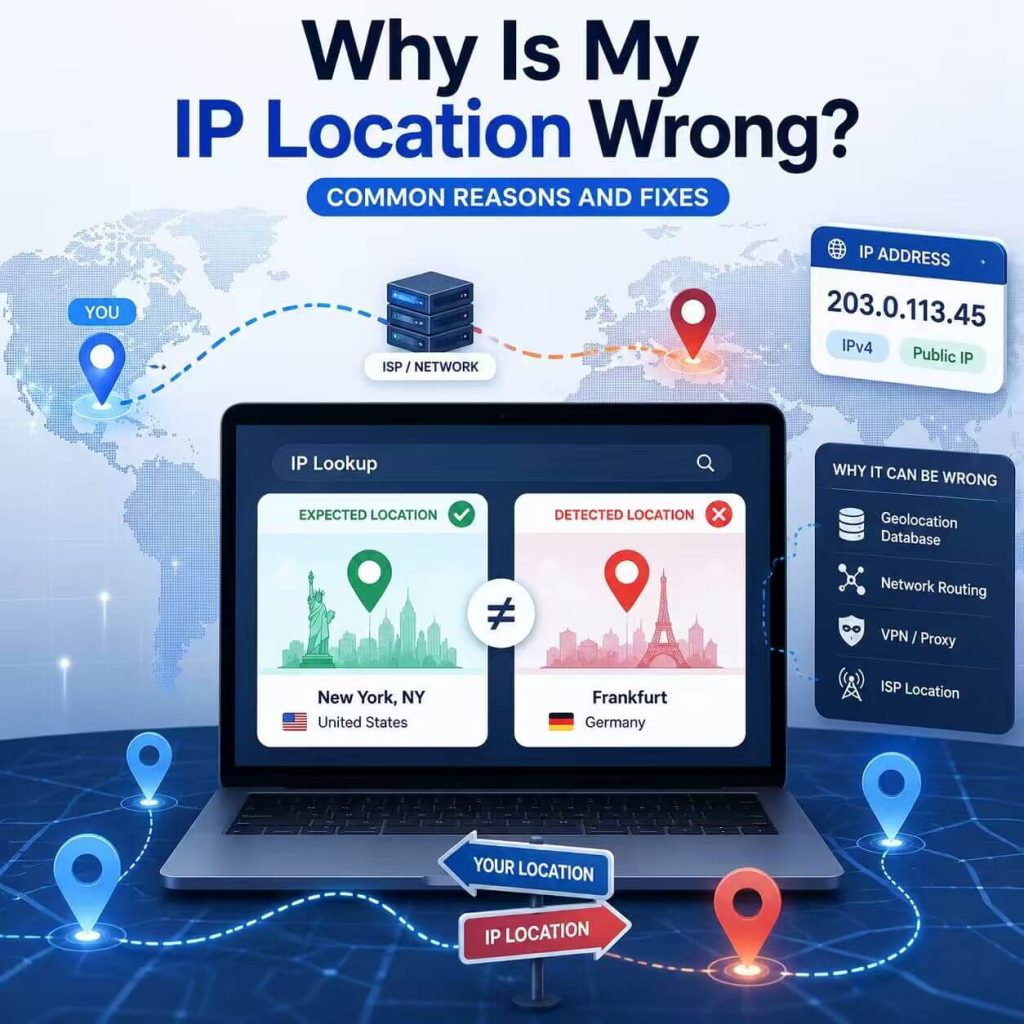
You check your IP address and expect it to show your real city, the region selected for a proxy, or at least the correct country. Instead, the lookup shows a nearby city, another state, a datacenter location, or an ISP or organization you do not recognize.
This does not automatically mean something is broken. IP geolocation estimates where an IP address is associated with based on network and database information; it does not read your live GPS position. A nearby city can therefore be normal even when the connection itself is working correctly.
The first question is not simply “Why is my IP location wrong?” but “Which part is wrong, and does it actually matter?” A nearby city in the correct country is usually a minor geolocation difference. A wrong country, unexpected ISP or ASN, or a proxy connection that does not change the visible IP deserves closer investigation.
Your IP can show the wrong location because IP geolocation uses databases and network information rather than GPS. If the country and ISP are correct but the city is nearby, you usually do not need to fix anything. Investigate further when the country is wrong, the ISP or ASN is unexpected, a proxy does not change the visible IP, or several databases consistently show an outdated location. Start by checking the same public IP across multiple tools before changing your network.
- IP geolocation estimates the location of an IP address from databases and network information; it is not a live GPS reading.
- A nearby city in the correct country is common and often does not need fixing.
- A wrong country, unexpected ISP or ASN, or unchanged proxy IP deserves more attention.
- Different IP lookup tools can show different cities for the same IP because they use different data and update schedules.
- If several databases consistently show an outdated mapping, request a correction from the relevant geolocation provider rather than repeatedly changing a working connection.
Does a Wrong IP Location Actually Need Fixing?
Not every IP location mismatch is a real problem. The useful first step is to identify which field is different: city, state or region, country, ISP, ASN, or the visible IP itself.
Those results should not be treated equally. A city-level difference is common because IP geolocation is approximate. A country mismatch matters more for regional testing. An unexpected ISP or ASN can indicate that traffic is leaving through a different network than expected. If you configured a proxy but the visible public IP never changed, the problem may be the proxy configuration rather than geolocation.
| What Looks Wrong | What It Usually Suggests | What to Do First |
|---|---|---|
| Nearby city, correct country | A normal city-level database difference or ISP routing location. | Compare two or three lookup tools. Usually no fix is needed. |
| Wrong state or region | The IP may be registered, routed, or mapped to another regional node. | Compare the country, ISP, ASN, and several geolocation databases. |
| Wrong country | The network route may not match the intended region, or the database may be outdated. | Verify the visible IP and network first, then compare geolocation sources. |
| Unexpected ISP or ASN | The public traffic may be leaving through a different network or infrastructure type. | Confirm which connection, proxy, VPN, or gateway the browser or app is actually using. |
| Proxy configured, but public IP did not change | The proxy may not be applied to the browser or application being tested. | Check the proxy configuration before diagnosing the geolocation database. |
A useful rule is to check country first, then ISP or organization, then ASN, and finally city. City is often the least important field unless your task specifically depends on city-level location.
If you are still learning what the fields in an IP lookup mean, such as IP address, country, ISP, ASN, and network type, start with the What Is My IP guide.
How IP Geolocation Determines Location from an IP Address
IP geolocation is an estimate. To geolocate an IP address, a lookup service compares the address with databases that map IP ranges to likely geographic areas. It does not read your phone GPS, your browser location permission, or your physical street address.
Those databases use signals such as ISP records, routing information, registry data, commercial data sources, user feedback, and network measurements to determine an approximate location from an IP address. That is why the country may be correct while the city is different.
ICANN defines an Internet Protocol address as a numeric value used to identify a device attached to the Internet and route packets to their destinations. That routing role is not the same thing as live physical tracking. For a formal definition, see ICANN's explanation of an Internet Protocol address.
MaxMind also explains that IP geolocation cannot guarantee 100% accuracy and that city-level accuracy varies with location, network type, and ISP practices. IP geolocation is not precise enough to identify a particular household, individual, or street address. See MaxMind's geolocation accuracy documentation for more detail.
Do not read an IP geolocation result like a precise map pin. Read it as a network estimate. A result showing a nearby city, ISP hub, carrier gateway, or datacenter can still be consistent with the same underlying IP address.
Why Different IP Geolocation Tools Show Different Locations
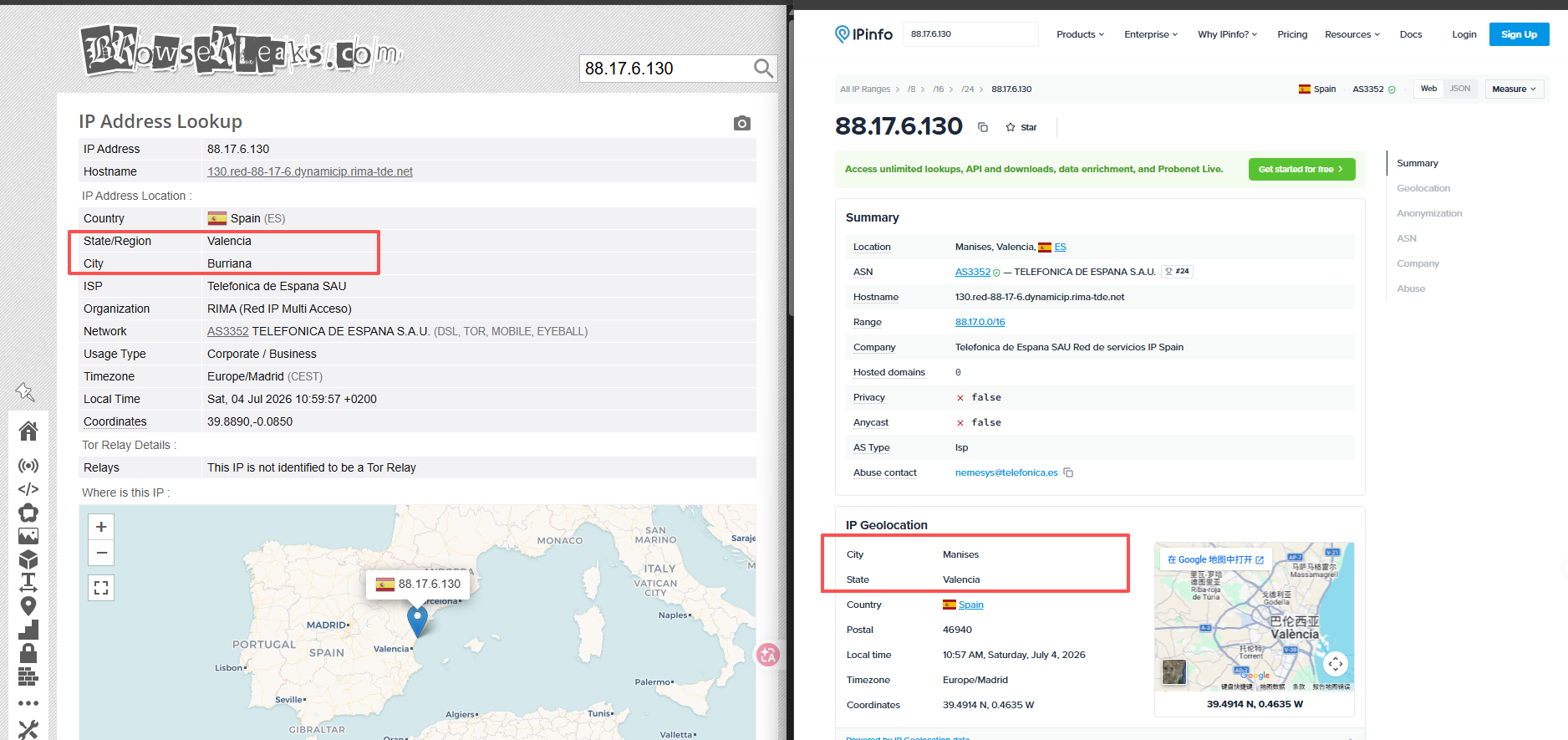
Different IP lookup tools can show different locations for the same IP because they do not all use the same geolocation database, update schedule, or network evidence.
One service may map an IP to one city while another shows a nearby city, a broader region, or only the country. The IP itself may not have changed at all; the difference can come entirely from the data provider's interpretation of the range.
| Reason | What Happens | What to Do |
|---|---|---|
| Different databases | Tool A shows one city while Tool B shows a nearby city. | Compare several tools before deciding that the location is wrong. |
| Update delays | An old location may still appear after an IP range is moved or reassigned. | Recheck later or submit a correction to the relevant database provider. |
| ISP registration data | The IP may be associated with the ISP's registered location or network hub. | Check country, ISP, and ASN rather than city alone. |
| Coarse mapping | The database knows only the broader region rather than the precise city. | Treat city-level results as approximate. |
If several tools show nearby cities in the same country and the ISP or ASN is what you expect, that is usually a normal geolocation difference. If they show different countries or an unexpected network owner, continue troubleshooting.
Common Reasons Your IP Location Looks Wrong
There is no single reason an IP location appears wrong. The cause depends on the network, the database, the type of connection, and whether a proxy, VPN, mobile carrier, enterprise gateway, or hosted environment is involved.
The IP Database Is Outdated
IP ranges can be reassigned, moved, or used in new regions. Some geolocation providers update quickly, while others may continue showing an older location for days, weeks, or longer.
If only one lookup tool shows the old location while several others agree on a newer one, the problem is more likely to be that provider's database than the IP itself.
Your ISP Uses a Registered Location
Some lookup results reflect the ISP's registration location, regional office, network hub, or routing point rather than the physical location of the customer.
A home internet user in one city may therefore see an IP mapped to a nearby metropolitan area where the ISP operates a larger network node.
Mobile Networks Route Traffic Through Gateways
Mobile carriers often send public traffic through centralized gateways or carrier network points. The public IP seen by websites can therefore appear in another city or region even though the phone itself has not moved there.
Datacenter IPs Show Infrastructure Locations
If the IP belongs to a cloud provider, hosting company, datacenter, remote desktop, CI runner, or server environment, the lookup result usually describes the infrastructure behind the connection rather than the physical location of the person using it.
A Proxy IP May Show a Nearby City
If you use a proxy, the selected country or region does not guarantee that every geolocation database will show exactly the same city. One database may identify the exit IP as City A while another maps the same address to City B nearby.
For most country-level checks, country and network type matter more than the precise city. For city-sensitive tasks, compare the endpoint across more than one lookup source before relying on it.
CGNAT or Shared ISP Gateways Can Shift the Location
Some ISPs place many customers behind shared public gateways using technologies such as carrier-grade NAT (CGNAT). The public IP seen by websites may belong to a gateway serving a wider geographic area instead of an individual neighborhood or city.
If the country and ISP are correct but the city points to a regional network hub, a shared gateway can be a reasonable explanation.
Corporate or School Networks May Use Centralized Egress
Office, university, school, and managed enterprise networks may send traffic through a centralized gateway in another city or region. The IP geolocation service then sees the network's egress point rather than the physical location of the laptop or phone.
Check the organization and ASN before assuming that the device itself is somehow in the wrong place.
The IP Was Recently Reassigned
IP addresses are not permanently tied to one exact location. Networks change, providers reallocate address ranges, and geolocation databases need time to catch up.
If the IP suddenly begins showing a strange location, compare several lookup tools and check again later before changing the connection itself.
How to Check Whether Your IP Location Is Really Wrong
Once you know the mismatch matters, verify the cause before trying to fix it. The goal is to determine whether the problem comes from the network itself or from the geolocation database describing that network.
- Confirm the visible public IP. Check the IP in the same browser, app, or device where the location problem appears.
- Compare the same IP across two or three geolocation tools. If only one tool shows the unexpected location, that database is likely the outlier.
- Check the country before the city. A nearby-city difference is usually less important than a country mismatch.
- Verify the ISP or organization and ASN. These fields help confirm which network is actually carrying the traffic.
- If a proxy or VPN is involved, confirm that the public IP changed. If it did not, troubleshoot the connection before blaming geolocation.
ARIN's Whois documentation can help identify IP number resources and network ownership, but registry information should not be treated as an exact physical location. See ARIN Whois documentation for more context.
A useful result is not that every lookup tool shows the same city. It is that you can explain whether the difference comes from the route, the network owner, or the geolocation data.
How to Fix an Incorrect IP Location
The correct fix depends on what the verification step found.
| Confirmed Cause | What to Do |
|---|---|
| The visible IP is not the one you expected | Fix the active network, VPN, or proxy configuration first. |
| Only one geolocation provider shows the wrong location | No network change is usually needed. The provider's database may simply differ. |
| Several databases show an outdated location | Submit a correction to the relevant geolocation provider. |
| The country and network are correct but the city is nearby | Usually leave it alone unless your task specifically requires city-level accuracy. |
| The ISP or ASN is not what you expected | Recheck which network path or infrastructure the browser or application is actually using. |
If the issue is an outdated database mapping, changing networks repeatedly will not correct that database. Some providers accept correction requests; for example, MaxMind provides a GeoIP data correction form.
If the country is correct and only the city differs, there may be nothing meaningful to fix. City-level IP geolocation is approximate by design.
Why Proxy IP Location May Not Match the Selected Region
A proxy IP can appear in a slightly different location because the proxy provider's routing information and the geolocation database used by the lookup tool may not describe the same IP range in exactly the same way.
If you select a country-level endpoint and a lookup tool shows a nearby city in the same country, that alone does not prove the proxy is malfunctioning. First confirm that the visible public IP changed, then check the country, ISP or organization, ASN, and a second geolocation source.
If the public IP does not change at all, investigate the proxy configuration first. The browser, application, operating system, or script you are testing may not actually be sending traffic through the configured proxy.
For permitted regional QA and location-sensitive web testing, IPWeb Dynamic Residential Proxies provide residential routes across multiple countries and regions so teams can compare visible IP location and route-specific web behavior under controlled conditions. A proxy can change the network route used for a test, but it cannot force every third-party geolocation database to report an exact city.
For city-sensitive tasks, test the endpoint before starting the workflow. For country-level tasks, a city mismatch within the intended country may be acceptable when the visible IP, country, and network type otherwise match the expected route.
When IP Location Is Not the Real Issue
Sometimes the IP lookup looks correct but a website or application still believes you are somewhere else. In that case, changing the public IP may not address the real source of the location difference.
Browser Location Can Be Different from IP Location
A website can receive location information separately from IP geolocation when you grant browser location permission. The browser or operating system may derive that location from GPS, Wi-Fi, cellular, or other device-level signals before sharing coordinates with the site.
This means an IP lookup can show one city while a browser or app receives more precise location information from the device itself. Check browser location permissions and account settings before assuming the IP database is responsible.
Other Browser and Network Signals
Other relevant signals can include DNS routing, WebRTC behavior, browser timezone, language settings, cookies, login history, or network reputation.
Start with the simplest evidence first: visible IP, country, ISP or organization, and ASN. If those are correct but the website still behaves differently than expected, then move to deeper browser or network checks.
Frequently Asked Questions
Final Thoughts
An IP address showing a different city does not automatically mean the connection is wrong. City-level geolocation is approximate, while country, ISP, ASN, and the actual visible IP usually provide stronger diagnostic clues.
If the mismatch matters for your use case, verify the network first and the database second. Fix the connection when the route is wrong; request a geolocation correction when the mapping itself is outdated.