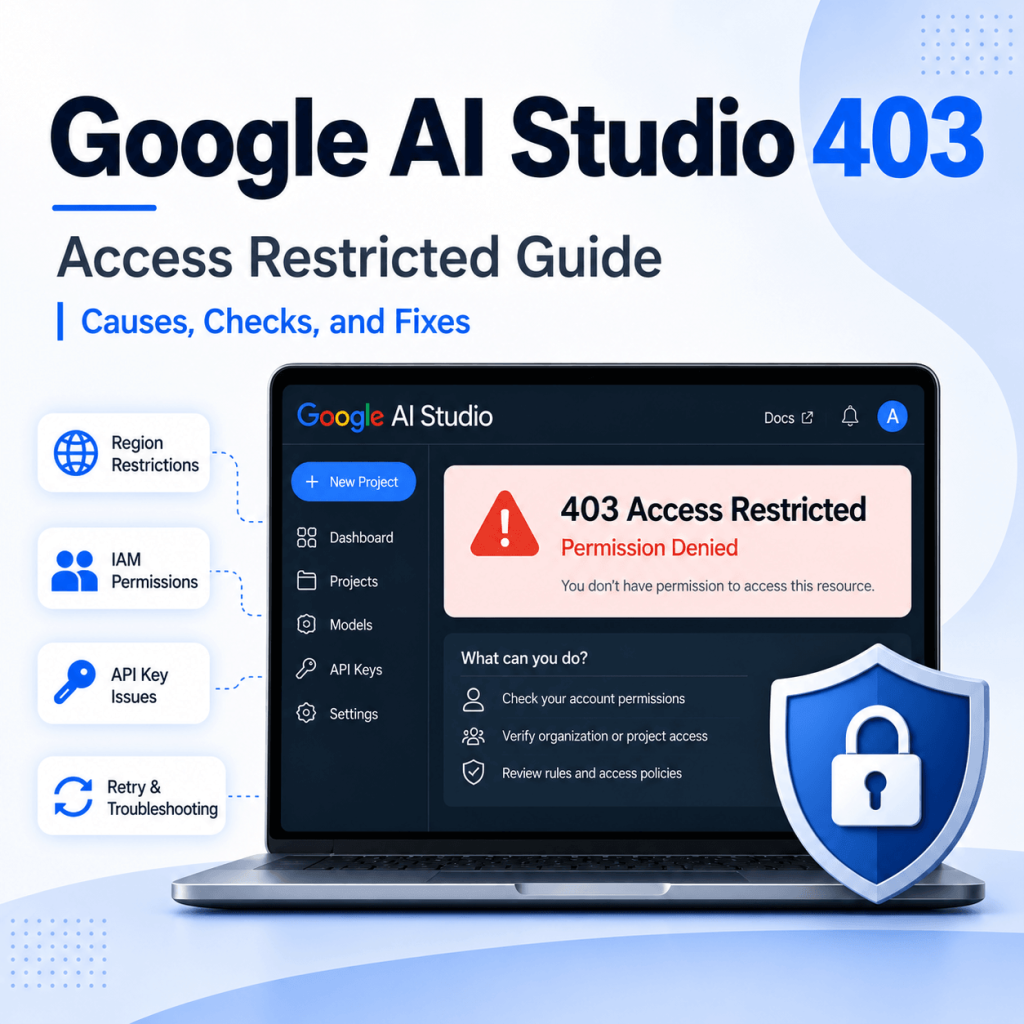
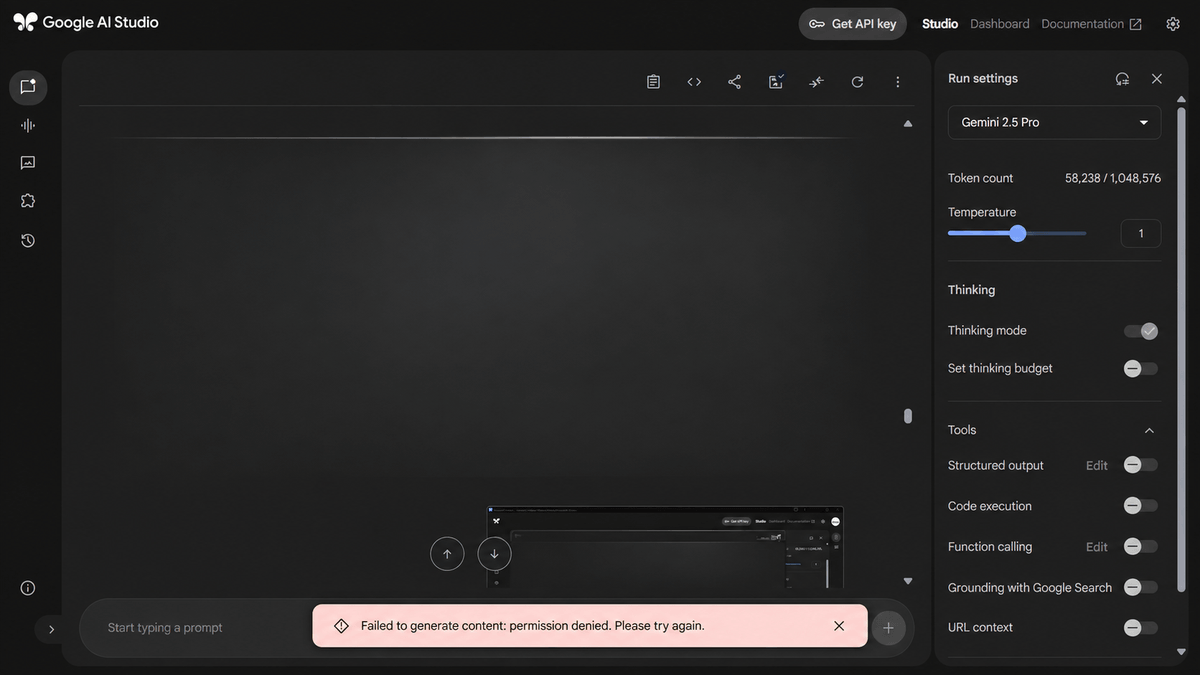
A Google AI Studio 403 Access Restricted message should be treated as an access decision before it is treated as a network problem. Google documents separate checks for AI Studio itself and for Gemini API calls, so the first step is to identify where the 403 appears: in the AI Studio browser interface or in an API response.
If Google AI Studio shows 403 Access Restricted, check Google’s current AI Studio troubleshooting guidance, supported-region rules, Terms of Service acceptance, Google Cloud IAM permissions, project status, and security or Trust & Safety checks.
If you were redirected to Google’s available-regions page, region support, the 18+ age requirement, or Google Account age verification may be the reason. A Gemini API 403 is a separate permission or configuration path and should not be retried like a 429 or 503.
Region lists, IAM permissions, API-key requirements, and error-code mappings can change as Google updates its services. Use Google’s live developer documentation as the source of truth for current requirements.
- Separate an AI Studio browser 403 from a Gemini API 403 response before troubleshooting.
- AI Studio can restrict access because of supported-region rules, Terms of Service, IAM permissions, security checks, or project Trust & Safety status.
- If AI Studio redirects to the available-regions page, also check the 18+ age requirement and Google Account age verification.
- Do not retry 400 or 403 client errors as if they were transient 429 or 503 conditions.
- For Colab, Google applies region restrictions based on the Colab instance region, not the developer’s physical location.
Separate Browser 403 From API 403
Google AI Studio browser errors and Gemini API responses can both involve a 403-class access failure, but they do not point to exactly the same checks.
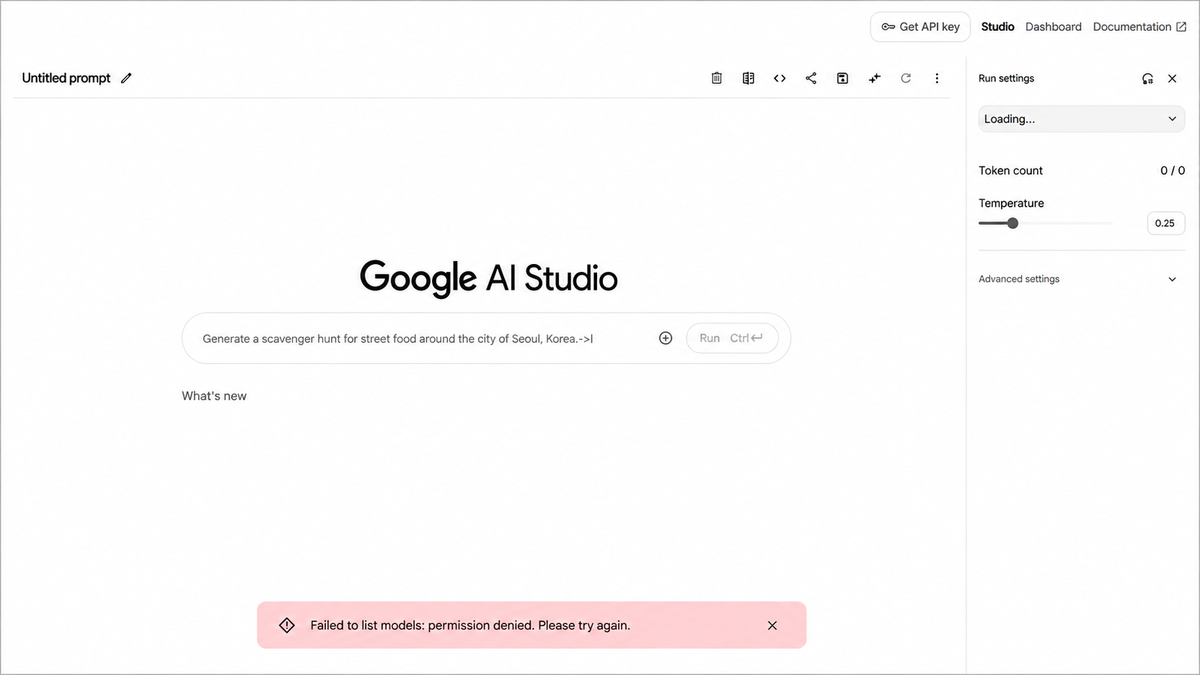
Google’s AI Studio troubleshooting page says a 403 Access Restricted message can appear when AI Studio is being used in a way that does not meet its Terms of Service. An unsupported region is one common reason. The same page also documents IAM, security, Terms of Service, supported-region, and Trust & Safety checks that can produce access restrictions or PERMISSION_DENIED.
For Gemini API calls, the raw response body matters. Google’s current Gemini API error reference maps authentication to 401 and permission_denied to 403. It maps rate_limit_exceeded and quota_exceeded to 429, while service_unavailable maps to 503.
A 403 should therefore send you toward API key permissions and project access rather than being treated as a generic billing, model, or retry problem. Google’s API-key documentation also describes leaked-key enforcement, rejected unrestricted standard keys, and blocked keys that must be replaced or secured.
| Evidence | What it means | Next action |
|---|---|---|
| 403 Access Restricted in AI Studio browser | Terms of Service, supported region, IAM, security/compliance, or project Trust & Safety can block access | Check Google’s AI Studio troubleshooting page and the project/account state |
| Redirected to the AI Studio available-regions page | Region support, 18+ age requirement, or Google Account age verification may be involved | Check the supported-region list and account age-verification status |
authentication — 401 |
API key is missing, invalid, or expired | Verify the API key before checking 403-specific permissions |
permission_denied — 403 |
API key does not have permission for the requested resource | Check API key permissions and Google Cloud project access |
rate_limit_exceeded — 429 |
Per-minute or per-second request/token limit was exceeded | Wait and retry with exponential backoff |
quota_exceeded — 429 |
Daily quota was exhausted | Wait for quota reset or request a quota increase |
service_unavailable — 503 |
Gemini API is temporarily overloaded or unavailable | Wait and retry with exponential backoff |
The key distinction is simple: 401 is authentication, 403 is permission, 429 is rate or quota pressure, and 503 is a transient service condition.
Bottom line: identify the product surface and exact error first. A browser access restriction, an available-regions redirect, and an API permission error should not be collapsed into one generic “403 fix.”
Check AI Studio Access Requirements
Start with Google’s current AI Studio troubleshooting documentation. It lists supported-region requirements, Terms of Service acceptance, automated security checks, Trust & Safety status, and Google Cloud IAM permissions as access layers that can affect AI Studio.
If AI Studio instead sends you to Google’s available-regions page, Google says the reason may be regional restriction, failure to meet the 18+ minimum age requirement, or missing age verification on the Google Account. That redirect is related to eligibility, but it should not be treated as identical to every 403 Access Restricted case.
Managed Google Cloud projects add another layer. Google documents feature-level IAM requirements for AI Studio. For example, importing or searching a project requires resourcemanager.projects.get. Creating an API key requires permissions including apikeys.keys.create and serviceusage.services.enable.
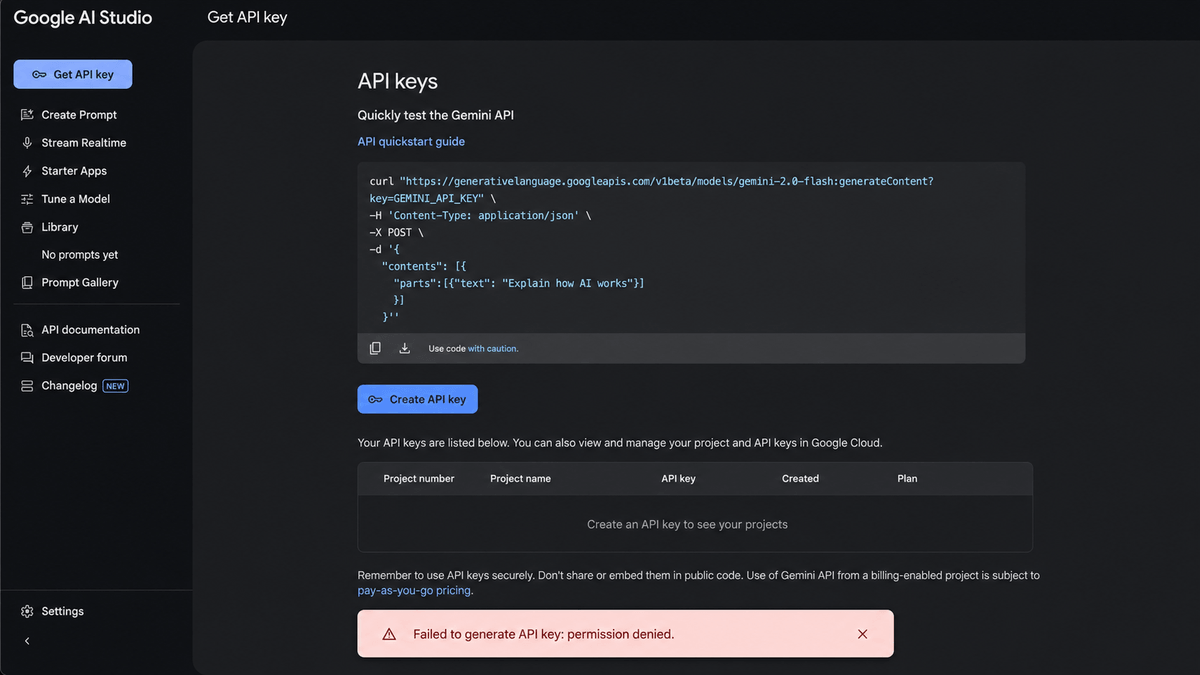
Google also lists service-account permissions for API-key creation. If the Create API key control is unavailable, compare the user’s project role with the required permissions. Do the same when one team member can perform an action and another cannot.
Do Not Retry 403 Like 503
Google’s Gemini API troubleshooting guide recommends retrying transient conditions such as 429, 408, and 5xx responses with bounded exponential backoff. The same guidance says not to retry client errors such as 400 or 403 because they indicate a request, authentication, permission, or configuration problem rather than a temporary service condition.
- Save the exact HTTP status and API error code before changing anything.
- For
permission_denied403, check key permissions and project access instead of retrying. - For
rate_limit_exceeded429, wait and retry with exponential backoff. - For
quota_exceeded429, check when quota resets or whether a quota increase is appropriate. - For
service_unavailable503, retry with bounded exponential backoff and jitter.
Check Colab Region Separately
Colab is a special case. Google states that region restrictions are applied according to the Colab instance region, not the user’s own region. That means code can behave differently in Colab even when the same account and API request work from a local laptop.
Google’s available-regions documentation gives a minimal way to inspect the Colab instance location:
!curl ipinfo.ioUse the result only as environment evidence. It tells you where the hosted runtime appears to egress; it does not change Google’s supported-region, account, IAM, or project requirements.
Where Network Evidence Fits
Network evidence belongs near the end of the workflow. If the same eligible account and project behave differently across networks, record the visible IP, country, ISP or organization, ASN, DNS behavior, browser profile, project ID, and exact error text. IPWeb’s What Is My IP? guide is a useful baseline for reading the visible IP, country, ISP, and ASN from the exact browser or environment being tested.
If a proxy is already part of an authorized test setup, first confirm that the same browser, script, or runtime is actually using that route. IPWeb’s How to Check If a Proxy Is Working guide covers that separate validation step. Treat a changed route as diagnostic evidence only; it cannot change Terms of Service, supported-region policy, age requirements, IAM permissions, Trust & Safety status, or an API key’s permissions.
Frequently Asked Questions
It means AI Studio has refused access. Google documents supported region, Terms of Service, IAM, automated security checks, and project Trust & Safety status as relevant access layers. If you were redirected to the available-regions page instead, age or account age verification may also be involved.
No. They can overlap around permissions and access policy, but the browser interface and API response provide different evidence. For an API 403, inspect the raw error body, key state, project access, authentication, and IAM permissions.
No. Google maps permission_denied to 403 and recommends checking API key permissions and project access. Retry logic belongs to transient paths such as rate_limit_exceeded 429 or service_unavailable 503, not a persistent permission failure.
Google notes that Colab region restrictions are based on the Colab instance region, which can differ from the developer’s local network. Check the hosted runtime location separately before assuming the laptop and Colab share the same region context.
Not reliably. A proxy can help compare network evidence in an authorized diagnostic test, but it cannot change Terms of Service, supported-region rules, age requirements, IAM permissions, project Trust & Safety status, blocked API keys, or other permission decisions.
Yes. Google documents leaked-key enforcement and rejection of unsafe unrestricted standard keys. A blocked or rejected key can stop otherwise valid API requests from succeeding. If a key was exposed publicly, rotate it and create a fresh, properly restricted key in Google AI Studio rather than assuming every 403 has the same cause.
Final Thoughts
A Google AI Studio 403 should be diagnosed from the access layer outward. First identify whether the error comes from the AI Studio browser interface, an available-regions redirect, or a Gemini API response. Then check Terms of Service, region, age or account verification where applicable, IAM, project status, API key state, and the exact response body.
Only move to network evidence after those checks are known. For Colab, inspect the hosted runtime region separately. For local or proxy-assisted diagnostics, keep the account, project, browser or runtime, and request conditions as stable as possible so the test shows which layer actually changes the result.
Because Google can update supported regions, IAM requirements, API-key rules, and error handling over time, verify time-sensitive details against the current Google AI for Developers documentation before acting on an older screenshot or cached error message.