
If a ChatGPT file upload failed, the cause is not always the file size. A document can be under 512 MB and still exceed the text-token limit, a spreadsheet can hit a lower practical size cap, repeated failed attempts can contribute to an upload-rate limit, and a company network can block the host used to transfer files.
The fastest diagnosis is to separate five layers: the file itself, per-file limits, rolling upload limits, storage or Project limits, and the upload network path. Start with a small known-good file, check the exact error message, confirm OpenAI service status, and only then change browser or network settings.
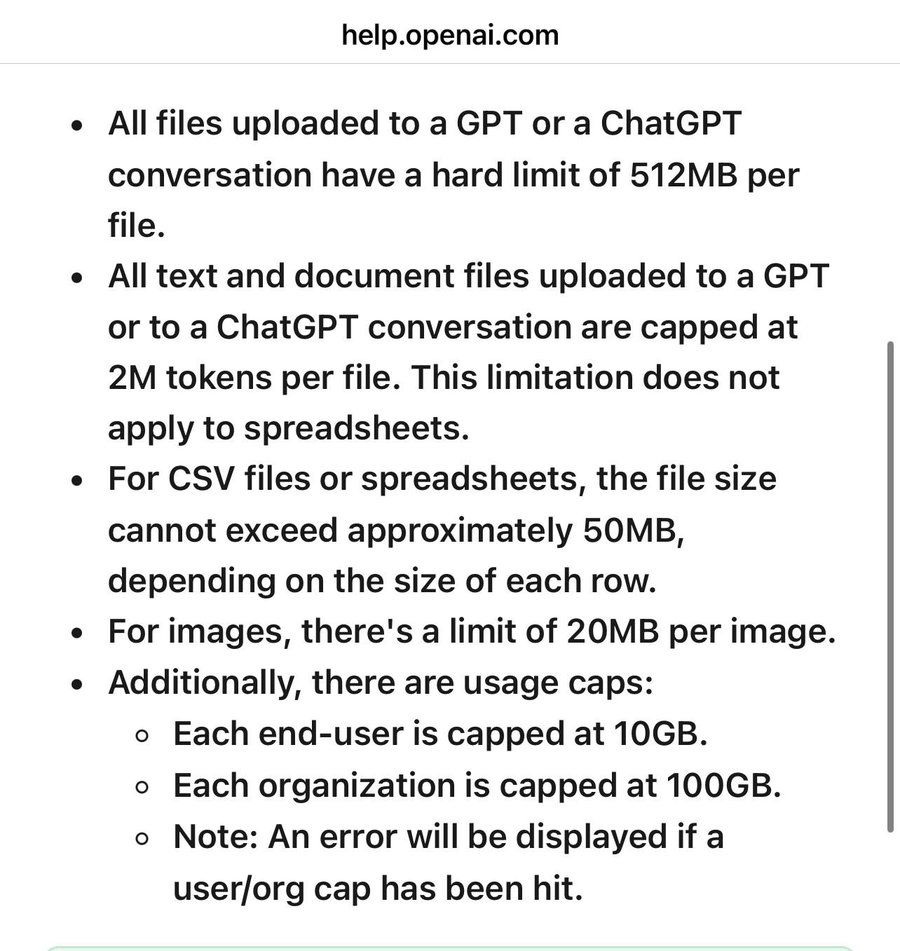
If ChatGPT will not upload a PDF, spreadsheet, image, presentation, or document, first try a small supported file in a new chat. OpenAI currently documents a 512 MB hard limit per file, a 2-million-token limit for text and document files, an approximately 50 MB limit for CSV/spreadsheet files, and a 20 MB limit per image. If the message says “upload limit reached”, check rate and storage limits rather than repeatedly retrying. If the error mentions files.oaiusercontent.com, the upload host may be blocked by a firewall, VPN, or network-security rule.
- The 512 MB maximum is not the only file-upload restriction in ChatGPT.
- Text and document files are also capped at 2 million tokens per file; spreadsheets use a separate size rule.
- “Upload limit reached” can refer to a rolling upload-rate limit or another storage/usage control, not just one large file.
- OpenAI notes that failed upload attempts can sometimes count toward the upload-rate cap.
- Library storage is separate from daily attachment/chat limits and now varies by ChatGPT plan.
- If an upload specifically fails at
files.oaiusercontent.com, investigate the network allowlist or security path instead of changing the file repeatedly.
What Does a ChatGPT File Upload Failure Mean?
A failed attachment does not identify the cause by itself. The error can happen before the file leaves the device, while ChatGPT checks the file against size or usage limits, during transfer to OpenAI’s file infrastructure, or after the upload reaches the service but cannot be processed as expected.
| Symptom | Most Likely Layer | Best First Check |
|---|---|---|
| File will not attach at all | File type, browser/app, local client | Try a small supported file in a new chat |
| File is rejected as too large | Per-file size or document token limit | Compare file size and content length with current limits |
| “Upload limit reached” | Rolling rate, storage, account, or workspace usage | Stop retrying and check the relevant usage controls |
| Upload starts but stalls or fails | Service incident or network path | OpenAI Status and another network/client |
| Error mentions files.oaiusercontent.com | Firewall, VPN, web filter, or network allowlist | Check access to *.oaiusercontent.com |
| Upload succeeds but ChatGPT cannot use the content as expected | File structure, processing, or feature limitation | Test a smaller or simpler version of the same file |
Record the exact message before changing anything. “File too large,” “upload limit reached,” and “failed upload to files.oaiusercontent.com” point to different causes and should not be treated as interchangeable errors.
Check the File Size and Type First
OpenAI’s current File Uploads FAQ supports common file extensions for text files, spreadsheets, presentations, and documents, but several different limits apply.
| File Category | Current OpenAI Limit | Important Detail |
|---|---|---|
| Any uploaded file | 512 MB hard limit per file | This is the outer file-size ceiling, not the only restriction |
| Text and document files | 2 million tokens per file | A file can be far below 512 MB and still exceed this content limit |
| CSV / spreadsheet | Approximately 50 MB | The practical limit depends on the size of each row |
| Image | 20 MB per image | Separate from the general 512 MB hard ceiling |
A useful first test is a small, ordinary file of the same general type. If a 1 MB PDF uploads while a much larger PDF fails, the problem is more likely tied to file size, document length, file structure, or processing. If even the small file fails, shift attention toward rate limits, service status, the browser/app, or the network.
A File Can Be Under 512 MB and Still Be Too Large
The 512 MB number is easy to remember, but it can be misleading for text-heavy documents. OpenAI separately caps text and document files at 2 million tokens per file. That means a large PDF, DOCX, TXT, or similar document may be rejected or unusable even when its file size is nowhere near 512 MB.
Token count is based on the amount of text content, not just the number of megabytes stored on disk. A scanned PDF with mostly images and a text-dense PDF of the same file size can therefore behave differently.
Spreadsheets are different again. OpenAI currently documents an approximately 50 MB limit for CSV and spreadsheet files, with the practical boundary depending on row size. Images have a separate 20 MB per image limit.
- Check whether it is a text/document file that may exceed the token cap.
- For CSV/XLSX, compare it with the spreadsheet-specific size limit.
- For images, check the per-image limit.
- Export a smaller section or split the content into logical files.
- Test whether a simpler version of the same file type uploads successfully.
Do not compress a file blindly if the real problem is token count or document complexity. Reducing embedded images may lower megabytes without meaningfully reducing the amount of text ChatGPT must process.
Why Does ChatGPT Say “Upload Limit Reached”?
“Upload limit reached” is not the same problem as one file being too large. OpenAI currently documents rolling upload-rate limits in addition to storage and usage controls. Users can generally upload up to 80 files every 3 hours, while Free users currently have a lower daily upload allowance; OpenAI also notes that these limits may be reduced during peak periods.
One detail matters when troubleshooting: OpenAI says failed upload attempts can sometimes count toward the upload-rate cap. Repeatedly clicking retry can therefore make the situation harder to diagnose.
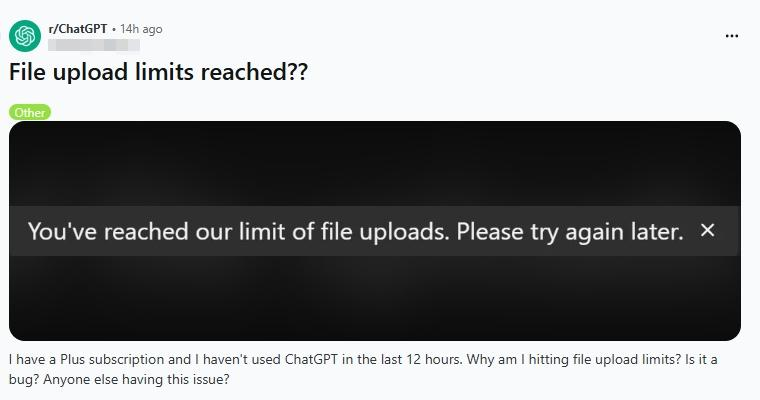
ChatGPT also does not currently show how much of the rolling upload-rate quota has already been used or how much remains. If you have recently made many upload attempts, stop retrying for a while, verify that you are in the intended account and workspace, and check for a service incident.
An upload-rate message should also remain separate from a ChatGPT request-concurrency problem. If the visible error is instead about too many concurrent requests or a 429-style request limit, use the ChatGPT concurrency and request-limit troubleshooting path rather than treating it as a file-size issue.
Check Library Storage and Project Limits
ChatGPT now exposes plan-based file storage through Library. OpenAI’s current File storage and Library documentation states that Library storage is separate from daily attachment/chat limits and currently provides:
- Free: 500 MB
- Go: 4 GB
- Plus and Business: 20 GB
- Pro: 100 GB
On the web, current Library storage usage can be checked under Settings > Storage. Files uploaded to ordinary chats and files created in ChatGPT can be saved to Library, while files uploaded in Temporary Chat are not saved there.
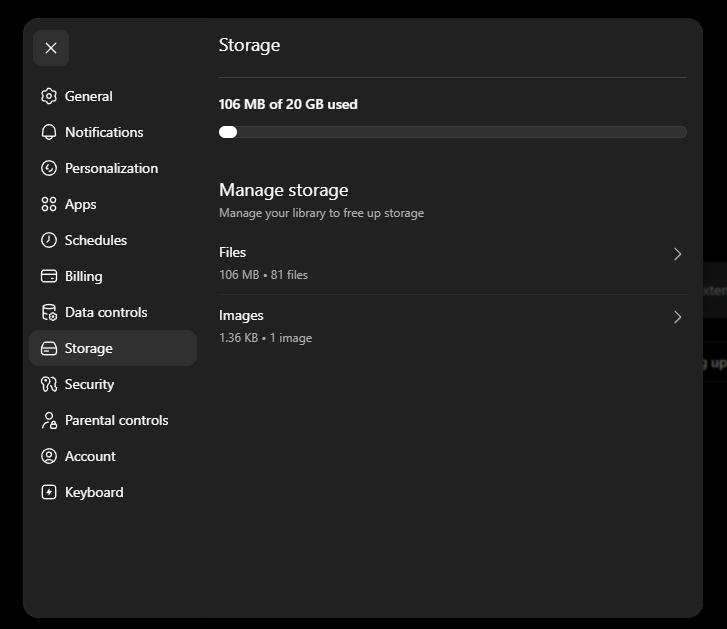
There is another reason not to reduce every “upload limit” error to one storage number: OpenAI’s File Uploads FAQ separately documents user/organization usage caps for file uploads across chats, Projects, and custom GPT knowledge. These controls are described separately from plan-based Library storage. Treat them as distinct quotas and use the exact error plus the current account/workspace UI to determine which one is actually blocking the upload.
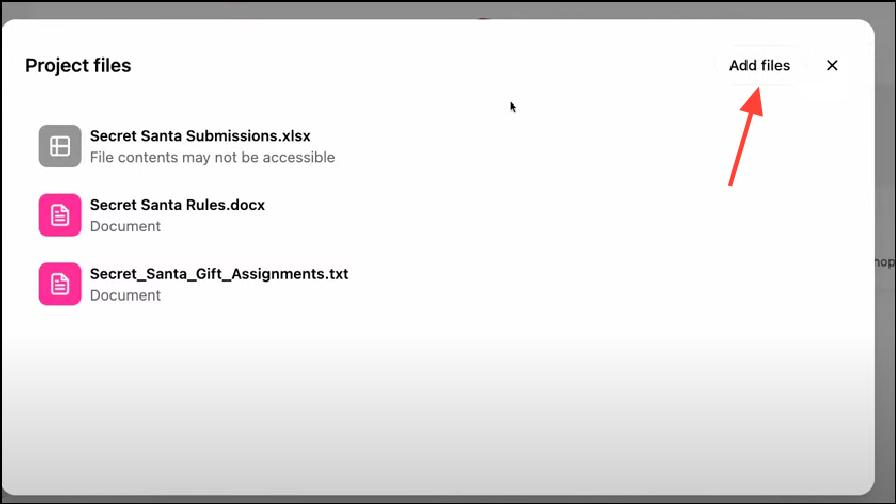
Projects also have plan-dependent file-count limits. OpenAI’s Projects documentation is the better place to verify the current count because project limits have changed over time. If a file uploads in a normal chat but not into one specific Project, check that Project’s file count before changing the file itself.
| Limit Type | What It Controls | Where to Investigate |
|---|---|---|
| Per-file size | Whether one individual file is accepted | File size and file category |
| Document token cap | How much text one document can contain | Document length/content |
| Rolling upload rate | How frequently files are uploaded over a time window | Recent successful and failed upload attempts |
| Library storage | Saved-file storage associated with the ChatGPT plan | Settings > Storage / Library |
| Project file count | How many files can be attached to one Project | Current Project and plan limits |
| User / organization file usage | Shared file-upload usage across supported surfaces | Account/workspace state and current OpenAI guidance |
Check OpenAI Status Before Retrying
File uploads can fail during a service incident even when the file and account are valid. Before deleting files, changing browsers repeatedly, or modifying network settings, check OpenAI Status.
If ChatGPT file uploads are listed as degraded or unavailable, wait for the incident to resolve and retry with the same small test file. A service-side failure can affect many users at once, and local troubleshooting will not repair it.
If status is normal and the error affects only one device or network, continue with a controlled client/network comparison.
When files.oaiusercontent.com Is Blocked
A file-specific network failure can produce a much more useful message than a generic upload error. OpenAI’s current network recommendations show an example where ChatGPT reports a failed upload to files.oaiusercontent.com and advises allowing network access to that site.
For company or school networks, OpenAI recommends checking whether *.oaiusercontent.com is blocked by the firewall, VPN, URL filter, or other network-security software. In this case, shrinking the file or repeatedly re-attaching it does not address the real cause.
Keep the scope narrow: if ordinary ChatGPT pages, streaming responses, WebSockets, or multiple unrelated ChatGPT features are also failing, move to the broader ChatGPT network error troubleshooting flow. This page only owns the network path when it specifically prevents file transfer.
Browser vs App vs Network Test
A five-minute comparison can identify whether the problem follows the file, the client, or the network.
- Choose a small supported file that is well below the documented limits.
- Try it in a new ChatGPT conversation.
- If it fails, try the same file in another browser or the current ChatGPT app.
- Keep the same device and account, but switch to another network such as a mobile hotspot.
- Compare the exact error message after each change.
If the same small file fails only in one browser, investigate that browser’s extensions, cached state, or file-picker behavior. If every browser/app fails only on one company Wi-Fi network, investigate the network. If every device and network fails at the same time, check OpenAI Status and account/workspace usage before changing the file.
If one particular document fails everywhere while other files upload normally, the document itself is the strongest lead. Split it, simplify it, or export a smaller section before troubleshooting the network.
What Not to Do
- Do not keep pressing retry after “upload limit reached.” Failed attempts can sometimes count toward the upload-rate cap.
- Do not assume 512 MB is the only limit. Text/documents, spreadsheets, and images have additional restrictions.
- Do not treat an upload-rate limit as a concurrency/429 error. They belong to different troubleshooting paths.
- Do not change account region because one attachment fails. File-upload errors do not automatically indicate a country-availability problem.
- Do not rewrite firewall or DNS settings when only one oversized document fails. Establish whether small files work first.
- Do not delete large amounts of Library content before checking which quota is actually involved. Library storage, upload rate, Project count, and user/workspace usage are separate controls.
ChatGPT File Upload Diagnostic Checklist
- Exact upload error message
- File type
- File size
- Whether it is a text-heavy document that may exceed the token cap
- Whether a small test file uploads successfully
- Whether the issue occurs in a normal chat, a Project, or a custom GPT
- Recent upload attempts, including failed attempts
- Current Library storage under Settings > Storage
- OpenAI Status result
- Browser, desktop app, or mobile app
- Whether another browser/app works
- Whether another network works
- Whether the error names files.oaiusercontent.com
- Timestamp and timezone of the failure
- Request ID, if one is shown
If the problem needs to be escalated, OpenAI recommends including the account email, screenshot, timestamp and timezone, platform/app/browser, and request ID when available. Remove or obscure confidential file content before sharing screenshots or logs.
Frequently Asked Questions
Final Thoughts
A ChatGPT file upload failure becomes much easier to solve once the limits are separated. Check the individual file first, then the document/spreadsheet/image rule, rolling upload activity, Library or workspace usage, Project limits, OpenAI Status, and finally the file-transfer network path.
The most common mistake is treating every upload error as the same problem. A file under 512 MB can still exceed another limit, failed retries can count toward a rolling cap, and an error naming files.oaiusercontent.com points toward network access rather than file size. Use the exact message and change one variable at a time.