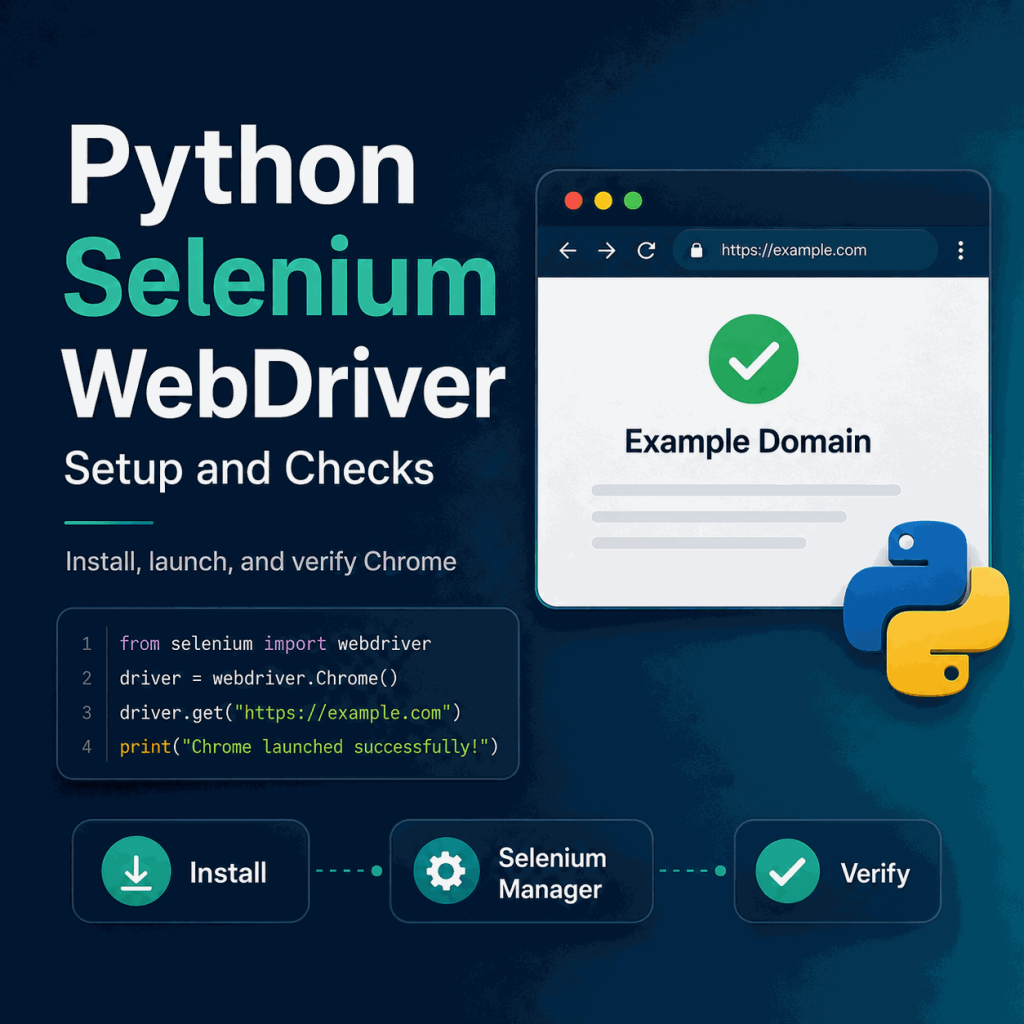
Setting up Selenium WebDriver with Python is simpler than many older tutorials suggest. Install the Selenium package, make sure a supported browser such as Chrome is available, then create a WebDriver session and verify that the browser can load and interact with a known page.
Install Selenium with python -m pip install -U selenium, then start Chrome with webdriver.Chrome(). In modern Selenium, Selenium Manager usually handles driver discovery or download automatically when you do not provide a driver yourself. After the browser opens, confirm the URL, title, and a known element, then close the session with driver.quit(). Add explicit waits only when the next element or browser state may not be ready immediately.
- Install the Python Selenium package before writing browser automation code.
- Use a virtual environment when you want an isolated project setup.
- Modern Selenium can use Selenium Manager to handle common driver setup automatically.
- Start with a small Chrome session and verify the page URL, title, or a known element.
- Always close the browser session cleanly with
driver.quit(). - Use explicit waits for dynamic page state rather than adding arbitrary fixed sleeps.
What You Need Before Starting
A basic Python Selenium WebDriver setup needs Python, the Selenium Python package, and a supported browser such as Chrome, Firefox, or Edge. A browser-specific driver is still part of the WebDriver architecture, but modern Selenium can often manage that driver for you instead of requiring a manually configured executable path.
If WebDriver itself is new to you, the WebDriver basics guide explains how the Selenium binding, browser driver, and browser work together.
- Confirm Python is installed and available from your terminal.
- Install a supported browser such as Chrome.
- Choose the Python interpreter or virtual environment your project will use.
- Make sure that environment can install packages from PyPI.
Install Selenium for Python
Selenium's official Python installation documentation supports installation with pip. For an existing project, install or upgrade Selenium in the same Python environment that will run your script.
python -m pip install -U seleniumYou can verify that the package is available to the active interpreter before moving on.
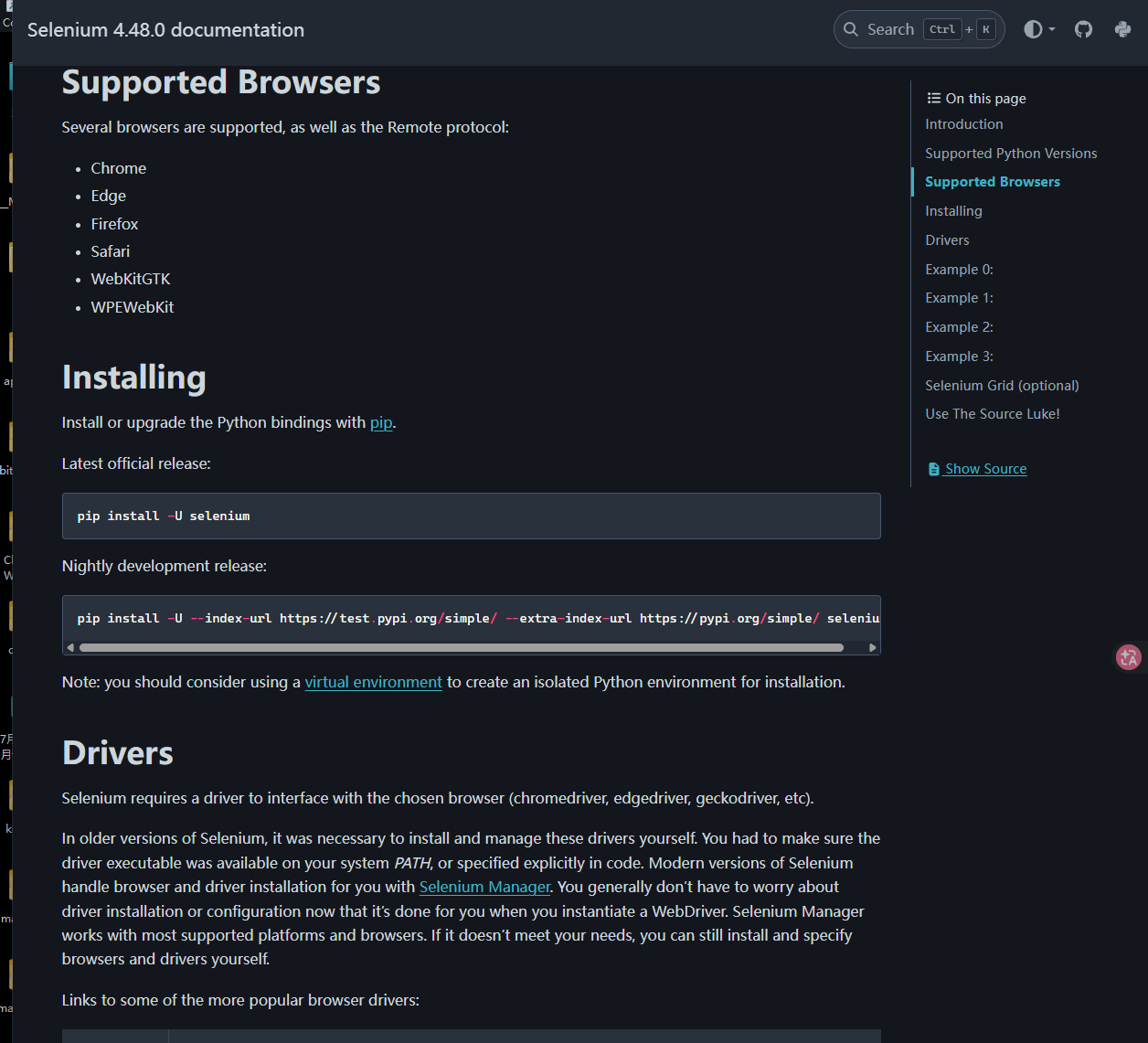
python -c "import selenium; print(selenium.__version__)"Optional: Create a Virtual Environment
A virtual environment keeps the Selenium dependency separate from other Python projects. On Windows, one common setup is:
py -m venv .venv
.venv\Scripts\activate
python -m pip install -U selenium
On macOS or Linux, the equivalent commands are:
python3 -m venv .venv
source .venv/bin/activate
python -m pip install -U selenium
Start Chrome with Selenium WebDriver
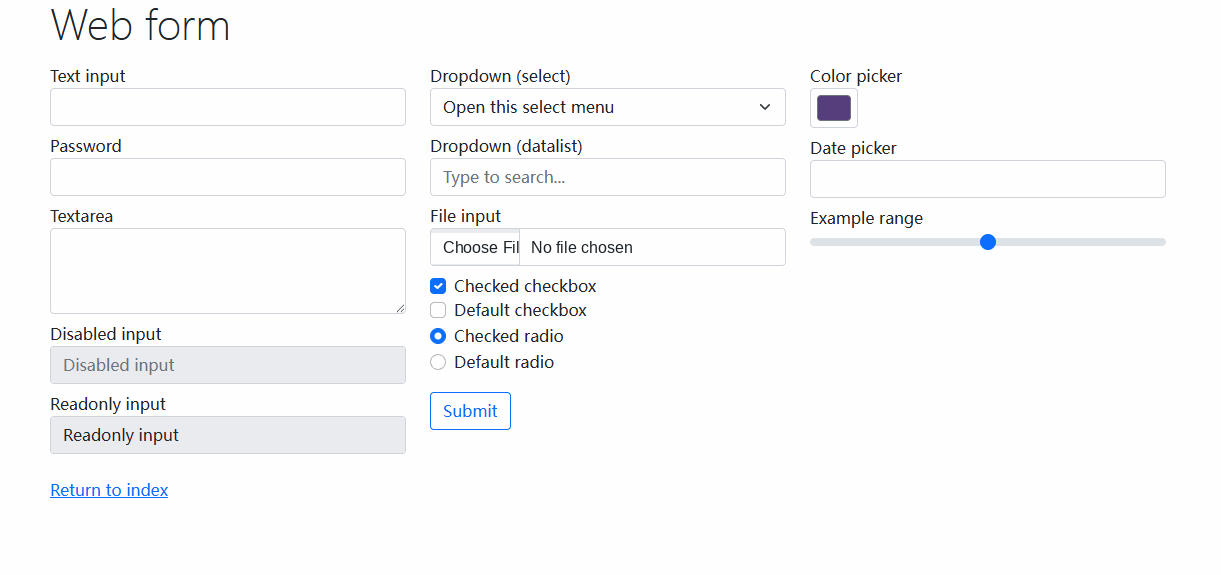
Once Selenium is installed, create a small browser session before adding any site-specific workflow. The example below opens Selenium's own web-form test page, confirms that a known input is present, types a short value, prints the page title, and then closes Chrome cleanly.
from selenium import webdriver
from selenium.webdriver.common.by import By

driver = webdriver.Chrome()

try:
    driver.get("https://www.selenium.dev/selenium/web/web-form.html")

    text_box = driver.find_element(By.NAME, "my-text")
    text_box.send_keys("Selenium")

    print("URL:", driver.current_url)
    print("Title:", driver.title)
    print("Input value:", text_box.get_attribute("value"))
finally:
    driver.quit()
If this script opens Chrome and prints the expected page information, the core Python-to-browser connection is working. That gives you a clean baseline before you add more locators, interactions, waits, or test assertions.
Basic Checks After the Browser Opens
A browser window opening does not prove the entire workflow is healthy. Confirm that Selenium reached the expected page and that the page contains the state your script needs.
| Check | Why it matters | Healthy signal |
|---|---|---|
| Browser starts | Confirms Selenium can create a WebDriver session | A controlled browser window opens without a startup exception |
| Current URL | Catches unexpected redirects or the wrong target page | driver.current_url matches the page you intended to open |
| Page title | Provides a quick document-level check | driver.title contains the expected title |
| Known element | Confirms Selenium can locate page content | A stable input, heading, or button is found |
| Clean shutdown | Prevents abandoned browser and driver processes | driver.quit() closes the complete session |
In short: first confirm that the session starts, then confirm that Selenium reached the expected page, and only then troubleshoot page-specific behavior.
ChromeDriver and Selenium Manager
Older Selenium tutorials often begin by telling you to download ChromeDriver manually, add it to PATH, or pass an executable path in code. That workflow still exists, but it is no longer the default requirement for many modern Selenium setups.
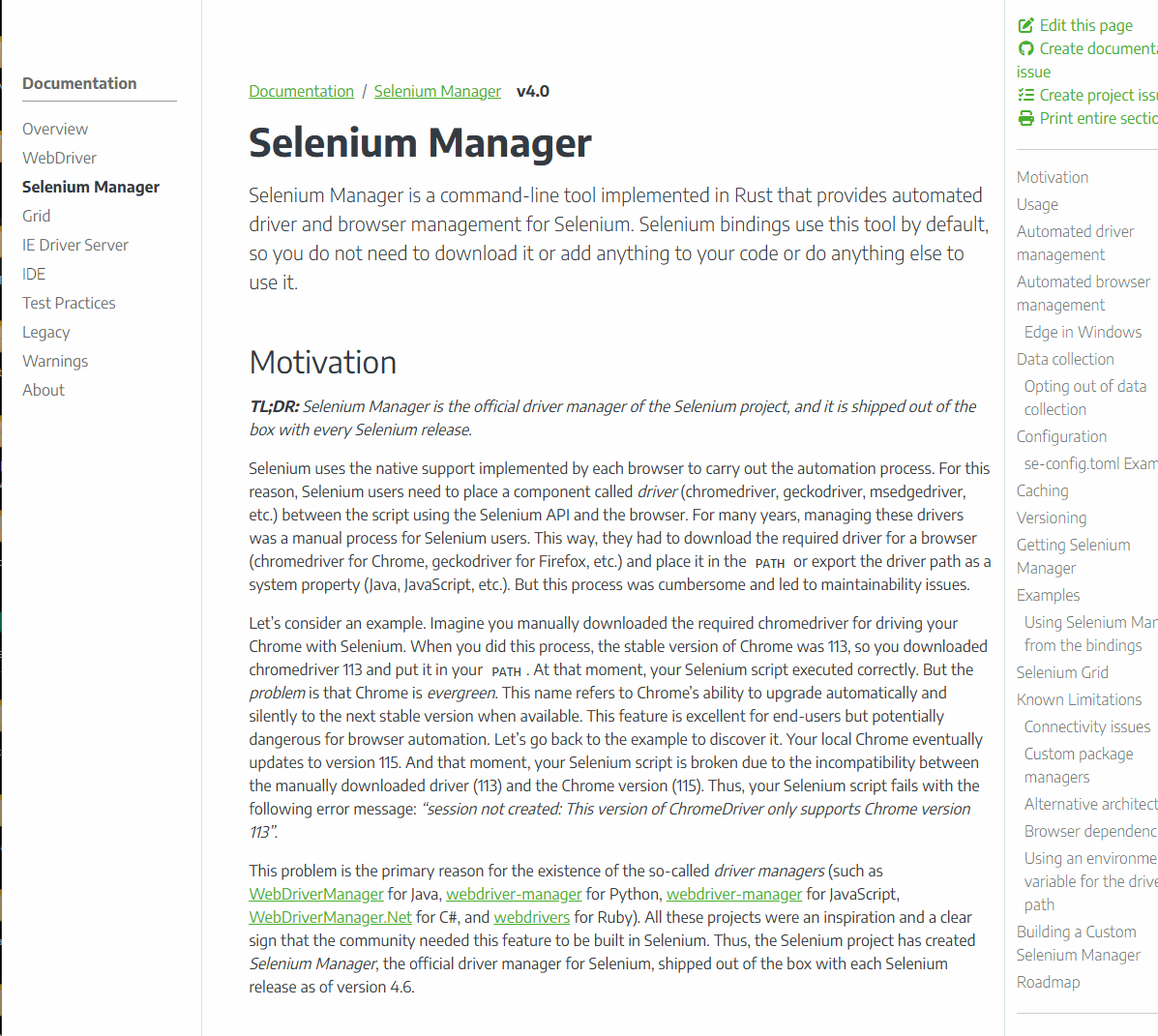
Selenium Manager has shipped with Selenium since version 4.6. When a driver such as ChromeDriver is not already supplied, Selenium bindings can invoke Selenium Manager as a fallback to discover or obtain a suitable driver automatically.
Manual driver management can still make sense in controlled CI environments, restricted networks, prebuilt containers, or systems where browser and driver versions are pinned deliberately. In those cases, document the browser version, driver source, operating-system image, and update policy so the environment can be reproduced.
Where Explicit Waits Fit
A setup script can work correctly and still fail on dynamic pages if the next element is not ready when Selenium looks for it. That is a synchronization problem rather than an installation problem.
Use an explicit wait when the next action depends on a state such as element visibility, clickability, text appearing, or another delayed browser condition. The Selenium WebDriverWait guide covers those conditions and the difference between explicit waits, implicit waits, and fixed sleeps in more detail.
A minimal explicit-wait pattern in Python looks like this:
from selenium.webdriver.common.by import By
from selenium.webdriver.support.ui import WebDriverWait
from selenium.webdriver.support import expected_conditions as EC

element = WebDriverWait(driver, 5).until(
    EC.visibility_of_element_located((By.ID, "result"))
)
The important distinction is that installation gets the browser session running, while a wait coordinates later actions with changing page state.
Common Python Selenium Setup Problems
When a first Selenium script fails, identify which layer failed before changing several things at once. Package problems, driver startup problems, locator problems, and timing problems have different fixes.
| Symptom | Likely cause | First check |
|---|---|---|
ModuleNotFoundError: selenium |
Selenium is not installed in the interpreter running the script | Check the active virtual environment and run python -m pip show selenium |
| Chrome does not start | Browser, driver, or startup configuration problem | Confirm Chrome is installed and retry the smallest webdriver.Chrome() session |
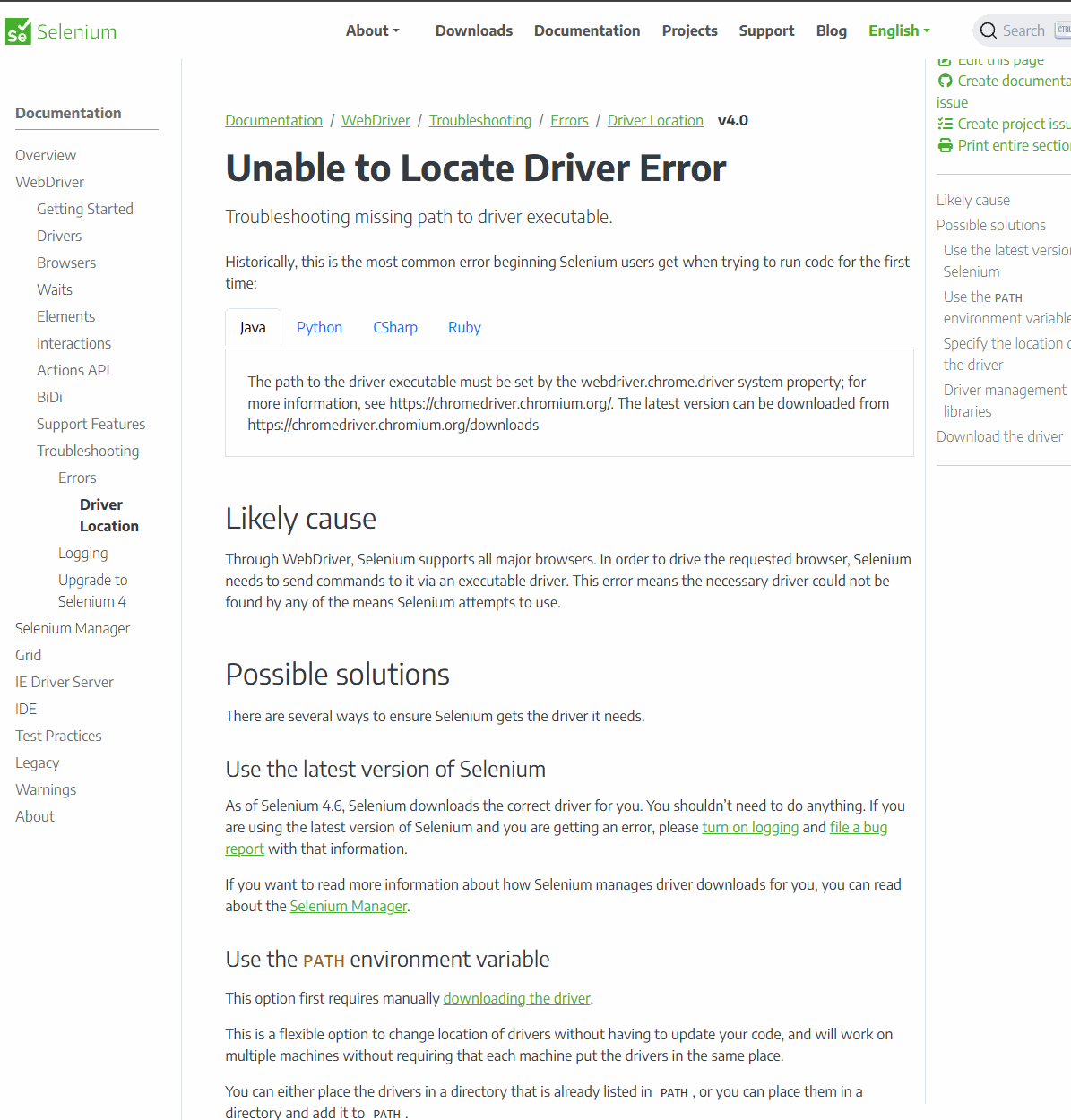
| Driver cannot be resolved | Selenium Manager cannot obtain or find the required driver in the current environment | Check network restrictions, existing driver configuration, and Selenium Manager output |
NoSuchElementException |
Wrong locator or the element is not present yet | Confirm the locator against the current page and consider whether the element is dynamic |
TimeoutException |
The expected condition never became true before the timeout | Check the locator, condition, and actual page state instead of only increasing the timeout |
In short: keep installation, browser startup, element location, and synchronization as separate troubleshooting steps. That makes the cause of a failure much easier to isolate.
Practical Setup Checklist
- Run Selenium inside the intended Python interpreter or virtual environment.
- Confirm the Selenium package imports without an error.
- Start a small
webdriver.Chrome()session before adding site-specific logic. - Verify the current URL, page title, and at least one known element.
- Let Selenium Manager handle the driver unless your environment requires explicit driver management.
- Add explicit waits only where page state is genuinely dynamic.
- Keep
driver.quit()in cleanup logic so the entire session closes reliably.
Frequently Asked Questions
python -m pip install -U selenium. Run the command in the same Python environment that will execute your Selenium script.webdriver.Firefox() or webdriver.Edge().Final Thoughts
A reliable Python Selenium setup starts with a small, testable path: install the package, start a browser session, load a known page, verify page state, and close the session cleanly. Modern Selenium usually removes the need to manage ChromeDriver manually through Selenium Manager. Once the base session works, add explicit waits and workflow-specific checks only where they are actually needed.