
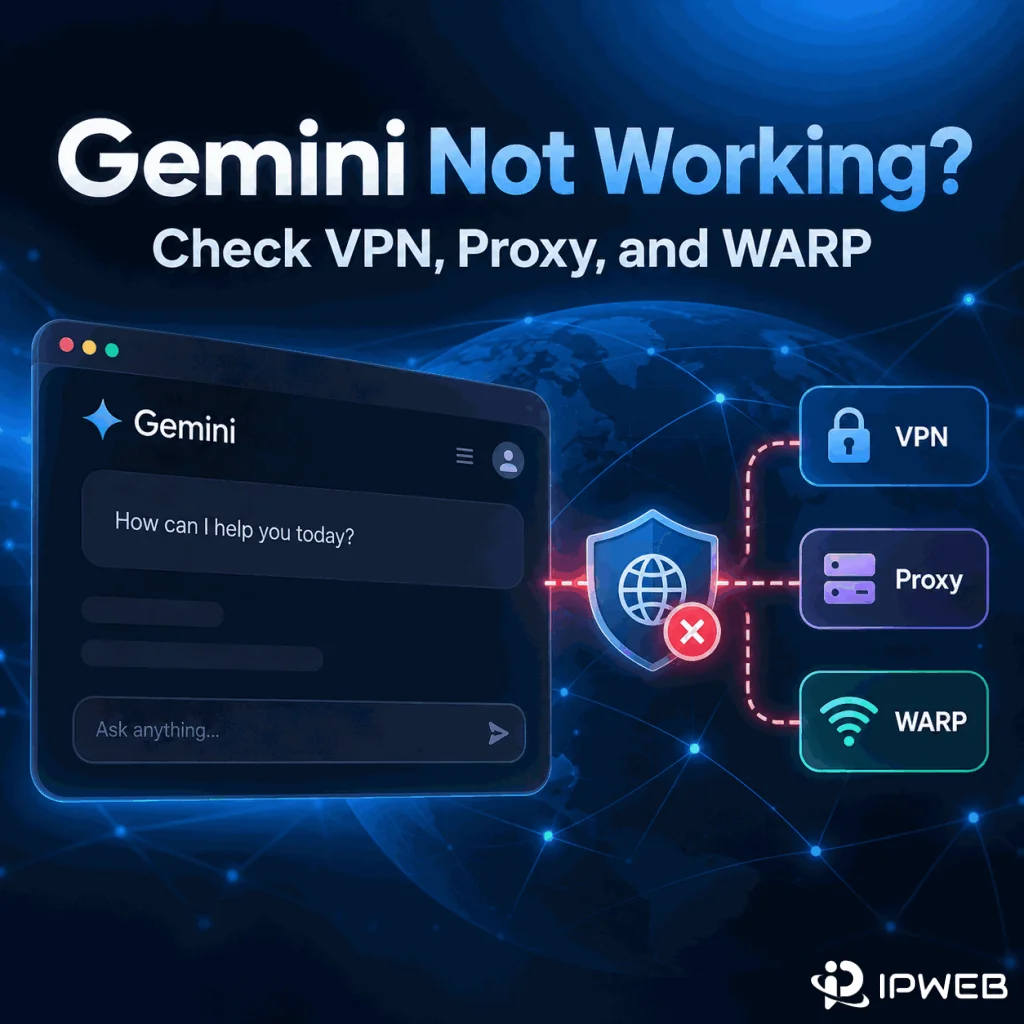
If Gemini works on your direct connection but stops working after you enable a VPN, proxy, Cloudflare WARP, or another tunnel, the route change is the most useful variable to test first. The tunnel may change the public IP address, visible country, ISP or ASN, DNS path, IPv4/IPv6 behavior, or which traffic actually leaves through the tunnel.
That does not prove that Gemini blocks VPNs or proxies as a category. A reliable diagnosis comes from comparing the direct route with the tunneled route while keeping the Google account, device, browser profile, Gemini surface, and test action unchanged.
Test Gemini once on the direct connection and once with the VPN, proxy, or WARP route enabled. Record the public IP, country, ISP or organization, ASN, IPv4/IPv6, DNS evidence, exact Gemini error, and time for both tests.
If Gemini works directly but fails only through the tunnel, inspect the tunnel's exit route, DNS handling, split-tunnel rules, and IP-version coverage. If Gemini fails on both routes, use the broader Gemini login troubleshooting workflow instead.
- A repeatable direct-versus-tunnel difference is stronger evidence than one isolated Gemini error.
- VPNs, browser proxies, proxy extensions, WARP, and router-level tunnels can affect different parts of the network path.
- A connected VPN or WARP icon does not prove that every browser request, DNS query, IPv4 flow, and IPv6 flow uses the same route.
- Exit IP, country, ISP/ASN, DNS, split tunneling, and IPv4/IPv6 should be checked together.
- A route change does not change Google's official Gemini eligibility or supported-region rules.
Prove the Tunnel Changes the Result
Start with a controlled A/B test. Keep the device, Google account, browser or app, browser profile, Gemini page, and test prompt the same. Change only the route.
- Gemini result and exact error
- Public IPv4 and IPv6, if present
- Country and region shown by the IP lookup
- ISP or organization
- ASN
- DNS resolver evidence
- Test time
- Repeat the same Gemini action
- Record the same IP, country, ISP/ASN, DNS, and IP-version fields
- Note the tunnel provider, endpoint country, and client mode if known
- Do not change the Google account, browser profile, Wi-Fi network, or prompt during the comparison
| Test result | What it suggests | Next check |
|---|---|---|
| Direct works, tunnel fails | The tunnel-specific route deserves investigation | Exit IP, ASN, country, DNS, split tunneling, IPv4/IPv6 |
| Both direct and tunnel fail | The problem is not tunnel-only | Return to general Gemini login/access troubleshooting |
| One VPN endpoint fails, another works | The route or endpoint differs | Compare the two exits rather than assuming a universal VPN rule |
| Browser works, app fails | Traffic scope or app-specific routing may differ | Check which process actually uses the tunnel |
| Displayed country changes after the tunnel is enabled | The location evidence changed with the route | Compare IP geolocation and Gemini's own location signals |
The key result is repeatability. One failed endpoint or one temporary error is not enough to conclude that Gemini rejects all VPN or proxy traffic.
Check the Exit IP, Country, ISP, and ASN
When a VPN or proxy carries the Gemini request, the visible public IP may change. The country, network organization, and ASN can change with it. Use What Is My IP? to record those fields before and after the tunnel is enabled.
Google's Gemini Apps Privacy Hub says Gemini Apps use a general area derived from sources that can include the device IP address or Home and Work addresses in the Google Account. With permission, Gemini can also process precise device location. The public IP is therefore relevant evidence, but it is not the only location signal.
If the exit route appears in an unexpected country or network, use Why Is My IP Location Wrong? to compare geolocation records and network ownership. If Gemini itself shows the wrong place, the dedicated Gemini wrong country or location guide covers general location, precise location, and browser permission separately.
Do not reduce the diagnosis to “the VPN IP is bad.” A changed result may correlate with the exit IP, ASN, country, DNS path, or another route variable. Record the evidence first, then isolate the variable.
VPN, Proxy, and WARP Are Not the Same Route
Different tools can affect different scopes of traffic. A device-wide VPN can route most device traffic. A browser proxy may affect only the browser or selected applications. A proxy extension may apply only to supported browser requests. Cloudflare WARP behavior depends on the client mode and policy.
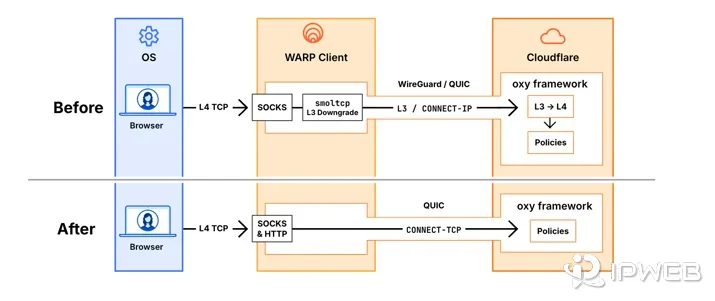
Cloudflare's current Cloudflare One Client mode documentation distinguishes Traffic and DNS, DNS only, Traffic only, Local proxy, and Posture only modes. Cloudflare's consumer WARP documentation also separates DNS-only mode from Traffic and DNS mode.
| Route type | Typical traffic scope | Public IP may change? | DNS may change? |
|---|---|---|---|
| Device VPN | Most device traffic, subject to policy | Usually | Often |
| Browser proxy | Browser or configured application traffic | For scoped traffic | Depends on browser and proxy configuration |
| Proxy extension | Usually browser traffic | For requests using the extension | Depends on implementation |
| Cloudflare WARP | Depends on client mode and policy | Can, when traffic is tunneled | Yes in DNS-enabled modes |
| Router-level VPN | Devices behind the router unless excluded | Usually | Often |
Bottom line: “VPN on” is not a complete network description. The troubleshooting result depends on what traffic is actually in scope.
Check Split Tunneling Before You Trust the VPN Icon
Split tunneling can send some traffic through a tunnel while other traffic stays on the direct connection. This can produce a confusing result where the VPN appears connected, but Gemini, DNS, or another Google request uses a different path.
Cloudflare's Split Tunnels documentation allows IP addresses and domains to be included or excluded from Cloudflare One Client routing. Cloudflare also notes an important detail: Split Tunnels controls IP traffic, while DNS requests can still be resolved by Gateway unless the DNS configuration is changed separately.
A session can therefore look like this:
Gemini web traffic  → direct route
Other browser traffic → tunnel
DNS requests → tunnel or Gateway
Or the opposite:
Gemini web traffic → tunnel
Selected domains → direct route
DNS requests → separate resolver path
Check the tunnel's include/exclude rules before treating the system tray or status-bar icon as proof of the route. If the tool supports per-app routing, check whether the browser, Gemini app, Google app, or relevant process is actually included.
Check DNS Separately From the Exit IP
The public IP and DNS resolver are related network evidence, but they are not the same thing. A tunnel can carry application traffic while DNS uses another resolver, or it can proxy DNS while some IP traffic remains outside the tunnel.
Cloudflare documents this explicitly in its client modes. Traffic and DNS mode routes device traffic and forwards DNS resolution through the Cloudflare client, while DNS-only mode forwards DNS without tunneling normal device traffic. That is why a single public-IP lookup cannot tell you the complete WARP or VPN path.
Record the DNS resolver before and after the route change. Also check browser Secure DNS, router DNS, VPN-provided DNS, and any enterprise DNS policy. IPWeb's Whoer IP Check guide can help compare visible IP, DNS, ASN, and browser/network signals in one diagnostic workflow.
If the proxy itself is the variable, use How to Check If a Proxy Is Working before drawing conclusions from Gemini. Confirm that the intended browser or application is actually using the configured route.
Check IPv4 and IPv6 Route Consistency
A tunnel may not handle IPv4 and IPv6 in exactly the same way. One address family can be tunneled while another follows a different route, depending on the client, operating system, policy, and network configuration.
Record both IPv4 and IPv6 when available. Compare the visible country, ISP or ASN, and whether either address family changes when the tunnel is enabled. Do not assume that a successful IPv4 check proves IPv6 follows the same exit.
If the main symptom is a broader difference between home Wi-Fi and mobile data rather than a VPN or proxy state, use Why Does Gemini Work on Mobile Data but Not Wi-Fi? for the full network-path comparison.
When Cloudflare WARP Changes the Result
WARP deserves a separate check because “WARP enabled” can mean different traffic behavior depending on mode and policy. Cloudflare's current WARP modes documentation says DNS-only mode routes only DNS queries through Cloudflare's resolver, while Traffic and DNS mode sends device traffic through Cloudflare's network and also handles DNS.
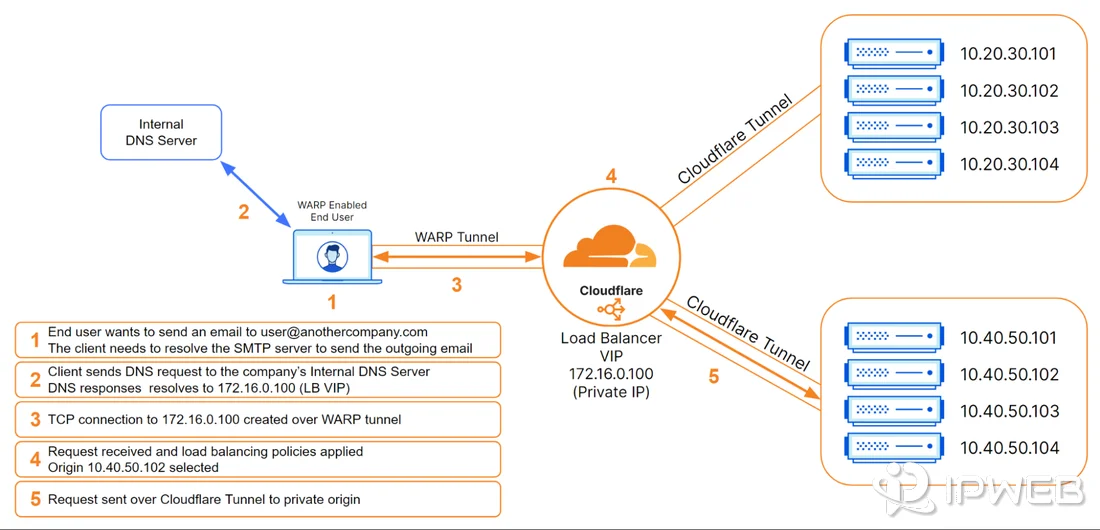
Run the comparison in a fixed order:
- Disconnect WARP and record the direct public IP, country, ISP/ASN, DNS, IPv4/IPv6, and Gemini result.
- Enable WARP without changing Wi-Fi, account, browser profile, or Gemini prompt.
- Record the same fields again.
- Check WARP client mode and any split-tunnel policy.
- If the result changes, identify which route evidence changed with it.
Do not assume that a WARP-related result is universal. One endpoint, device, policy, or network can behave differently from another. The useful conclusion is the repeatable difference in your own controlled test.
What If VPN and WARP Are Running Together?
Running a third-party VPN and WARP at the same time can create routing and DNS conflicts. Cloudflare's VPN coexistence documentation says the Cloudflare One Client and a legacy VPN can both try to control routing, DNS resolution, and firewall behavior.
Cloudflare recommends splitting responsibilities so that VPN traffic and Cloudflare traffic do not compete for the same paths. It also recommends assigning DNS resolution to one product rather than allowing both to control it.
If Gemini only fails when both tools are active, test each state separately:
Direct connection
VPN only
WARP only
VPN + WARP
Compare the four results. That is more useful than changing servers or toggling random DNS settings while both clients remain active.
Use a Controlled Route Instead of Randomly Switching Endpoints
Repeatedly changing VPN servers, proxy addresses, countries, and DNS resolvers makes diagnosis harder because several variables change at once. A useful route test should stay stable long enough for the same action to be repeated under comparable conditions.
For authorized web or app QA that needs a repeatable fixed egress, a static residential proxy can provide a consistent residential IP for controlled comparison. Use it as a testing route, not as a way to change Gemini eligibility or override Google's regional rules.
Google currently states that the Gemini web app is available in more than 230 countries and territories. The mobile app can have different availability and requirements. Always treat Google's current Gemini web app availability page as the source of truth for supported regions.
What the Result Actually Means
| Finding | More likely direction | Next troubleshooting path |
|---|---|---|
| Direct works, VPN/proxy/WARP fails | Tunnel route, exit, DNS, or split-routing issue | Stay on this workflow and compare route evidence |
| Only WARP changes the result | WARP mode, split tunnel, DNS, or Cloudflare route | Check WARP mode and policy |
| VPN + WARP fails, each alone works | Routing or DNS conflict between clients | Separate traffic and DNS responsibilities |
| Gemini displays the wrong country | Location interpretation or geolocation mismatch | Use the Gemini wrong-location guide |
| Wi-Fi fails even without any tunnel | Native Wi-Fi versus mobile-data difference | Use the Wi-Fi/mobile-data guide |
| Direct and tunnel both fail | Account, browser, eligibility, or service issue may be broader | Use the Gemini login troubleshooting guide |
| Only a hosted Gemini API runtime fails | Developer runtime or region layer | Use the Gemini API region workflow |
| Only the official mobile app fails | App/store/device layer | Use the Gemini app availability workflow |
The goal is to hand the problem to the right layer. Do not keep troubleshooting the tunnel if the same failure exists on the direct connection.
What Not to Change During Testing
A controlled test becomes unreliable when several variables change together. During one comparison, do not simultaneously:
- switch VPN servers or countries;
- change the Google account;
- clear cookies and browser storage;
- change browsers or browser profiles;
- change DNS resolvers;
- switch from Wi-Fi to mobile data;
- enable or disable WARP in addition to another VPN;
- change IPv6 or router settings.
Change one variable, repeat the same Gemini action, and record the result. This makes the comparison useful even if the final cause is outside the tunnel itself.
Frequently Asked Questions
Final Thoughts
If Gemini works directly but fails when a VPN, proxy, or WARP tunnel is enabled, treat the tunnel as a testable network variable rather than jumping to a universal blocking theory. Compare the direct and tunneled routes under the same account, device, browser profile, and Gemini action.
Start with the exit IP, country, ISP/ASN, DNS, split-tunnel rules, and IPv4/IPv6 coverage. For WARP, also verify the client mode. If another VPN is running at the same time, test each routing layer separately. Once the evidence points outside the tunnel, move to the matching Gemini login, location, Wi-Fi/mobile, app, or API troubleshooting path instead.