

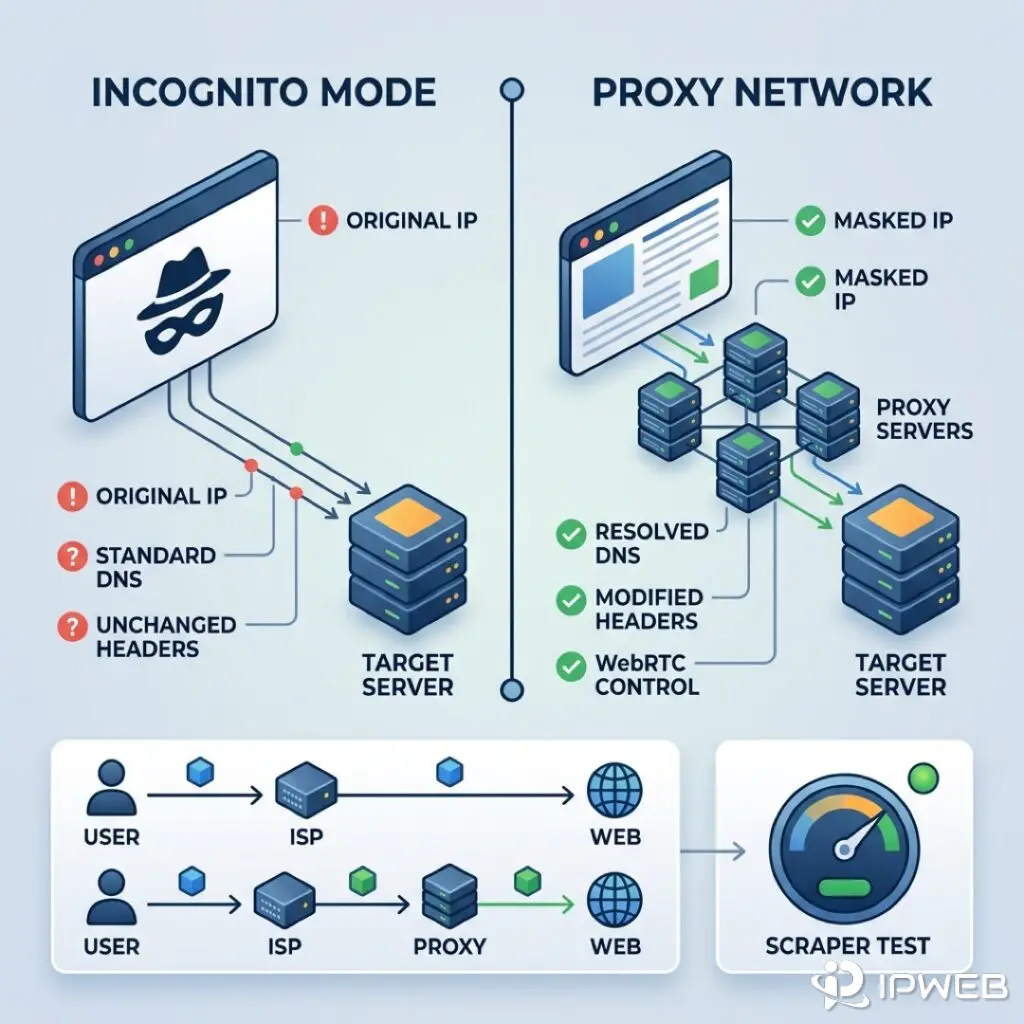
- 1. What Chrome Incognito Actually Does (and Doesn't Do)
- 2. What a Web Browser Anonymous Proxy Changes
- 3. Side-by-Side Comparison: Incognito vs. Proxy vs. Both
- 4. The WebRTC and DNS Leak Problem in Chrome
- 5. Why E-Commerce and Ad Verification Teams Need More Than Incognito
- 6. How to Test Your Chrome Anonymity (Step-by-Step)
- 7. Frequently Asked Questions (FAQ)
Many teams assume a Chrome private window lets them browse anonymously. It does not. Incognito browsing only isolates local session state — your exit IP, DNS queries, and network fingerprint stay on the wire.
Scraping, ad verification, or multi-account seller work needs more than a private tab. Route traffic through a proxy and control the HTTP headers the target sees. Otherwise, expect IP bans fast.
- Proxy Server: Routes traffic through a middleman machine. This replaces your exit IP and geolocation at the network level before the request hits the target.
- The WebRTC Threat: Standard Chrome browsers leak your real IP via WebRTC protocols — even when you run a proxy extension.
- Production Best Practice: E-commerce and ad verification workflows need more than private tabs. You must pair residential proxies with anti-detect browsers to scale up safely.
Incognito wipes local data when you close the window. It does not hide your IP from target sites, network admins, or your ISP.
1. What Chrome Incognito Actually Does (and Doesn't Do)
Separate your local machine state from what crosses the network. That sums up the entire proxy vs incognito browsing debate.
The Local State: Data Cleared After Closing
When you open a private window, Chrome spins up an isolated session sandbox. While that window stays open, websites still set cookies, register Service Workers, and write to local storage. But close that final tab, and Chrome strips out the temporary sandbox. You can verify this behavior in Google Chrome Help.
Specifically, Chrome deletes:
- Cookies and Site Data: This stops persistent tracking tokens, like JWTs or session IDs, from identifying you later.
- Cached Images and Files: This ensures no local footprint of loaded assets stays on your hard drive.
- DOM Storage: Chrome wipes
localStorageandsessionStoragewhen the session ends, following the MDN Web Storage API. It also clears IndexedDB separately.
This setup works great for local privacy. It hides your history from anyone else using the same physical computer. It also forces target sites to treat you as a new, unauthenticated visitor next time you connect. But it offers zero protection against network-level tracking.
The Network State: Why Your Exit IP Remains Exposed
Trying to browse anonymously using Incognito mixes up local cleanup with network routing. Private mode runs at the application layer. It never changes how packets actually leave your machine.
When you hit a website in Incognito:
- TCP/IP Routing: Your packets still originate from your network interface card (NIC). They carry the exact same ISP-assigned public IP address.
- Server logs: The target server still logs your real IP. Send 1,000 scrape requests in Incognito — the firewall sees a single origin and blocks you instantly.
- ISP Visibility: Your Internet Service Provider still processes the DNS lookup. They also read the plaintext SNI (Server Name Indication) during the TLS handshake, revealing exactly which domains you visit.
2. What a Web Browser Anonymous Proxy Changes
If you want to browse anonymously, you have to intercept the network path. That is exactly what proxy infrastructure does.
IP masking and traffic routing
A proxy acts as a middleman machine. Configure Chrome to use one, and your browser stops connecting straight to the destination.
Instead, a forward proxy takes over the routing:
- Chrome opens a TCP connection to the proxy server.
- The proxy spins up a separate, secondary TCP connection to the target website.
- The target site sees the request coming from the proxy's IP address. It stays completely blind to your local machine.
Route your traffic through a residential IP in London, and the target server logs a request from a standard UK broadband user. This masks your real location entirely. To see exactly how forward proxies handle IP types and headers, check out how an anonymous web proxy works.
Modifying HTTP Headers and DNS Resolution
A true web browser anonymous proxy actively manages HTTP headers and DNS resolution. This stops identity leaks before they happen.
Standard HTTP requests often carry headers that expose the middleman. Transparent or poorly configured proxies might inject an X-Forwarded-For header with your real IP. They might also drop a Via header that flags proxy usage (RFC 7230 §5.7.1), while the Forwarded header does the same under RFC 7239. Elite proxies automatically strip out these headers. The target server never knows you are routing through a proxy.
Proxies also handle remote DNS resolution. If your local machine queries your ISP for a domain's IP address, you trigger a DNS leak. Unlike basic incognito browsing, a proper proxy performs the DNS lookup on its own end. This keeps your traffic locked inside the proxy's network infrastructure.
3. Side-by-Side Comparison: Incognito vs. Proxy vs. Both
Where does incognito browsing end and proxy protection begin? This matrix breaks down exactly what happens to your data across five core network vectors.
| Feature / Vector | Chrome Incognito Only | Proxy Only (Standard Mode) | Incognito + Proxy |
|---|---|---|---|
| IP Address Visibility | Exposed (real IP) | Masked (proxy exit) | Masked (proxy exit) |
| Local Cookie Persistence | Cleared on close | Persists across sessions | Cleared on close |
| ISP Traffic Tracking | Exposed (DNS & SNI visible) | Partially masked (ISP sees proxy endpoint; plaintext SNI still reveals target host) | Partially masked (same as proxy-only; incognito does not encrypt the tunnel) |
| Target Server Geo-Location | Real physical location | Proxy server location | Proxy server location |
| Hardware Fingerprinting | Exposed (Canvas, WebGL) | Exposed (Canvas, WebGL) | Exposed |
4. The WebRTC and DNS Leak Problem in Chrome
Slapping a proxy extension on Chrome is not enough to browse anonymously. WebRTC can leak your real IP outside the HTTP tunnel — even when the proxy looks active.
WebRTC and the ICE protocol
WebRTC handles real-time voice and video inside the browser. You can read the specs in the MDN WebRTC API. To set up peer-to-peer connections, WebRTC relies on the ICE (Interactive Connectivity Establishment) framework outlined in RFC 8445.
ICE uses STUN servers to find your machine's true public and local IP addresses. This is where the leak happens. WebRTC runs over UDP. Most basic proxy extensions — like a standard SwitchyOmega setup — only route TCP/HTTP traffic. A target server just runs a simple JavaScript payload to bypass your proxy entirely. It grabs your real ISP-assigned IP and logs it.
Mitigating Leaks
To actually lock in a session and browse anonymously, you have to plug these WebRTC leaks. Developers typically handle this in three ways:
- Disabling WebRTC entirely through Chrome enterprise policies.
- Setting up advanced proxy extensions that explicitly route or block WebRTC UDP traffic.
- Spinning up anti-detect browsers that spoof WebRTC outputs to match your proxy exit IP.
5. Why E-Commerce and Ad Verification Teams Need More Than Incognito
Target platforms run strict risk-scoring algorithms. They analyze network reputation and browser fingerprints. If you rely on standard browser modes to browse anonymously for professional operations, you run into account suspensions fast.
Managing IP Reputation for Multi-Accounting
Say you manage multiple Amazon, eBay, or Shopify stealth accounts. You log into Account A, close your browser, and log into Account B from the exact same IP address. This creates a hard link. The platform's backend flags both accounts for sharing an IP. Shadowbans follow. Incognito browsing alone cannot hide this network-level footprint.
E-commerce operators rely on dedicated static residential IPs instead. They assign a highly trusted, fixed IP to each specific account. Account A always connects from a unique IP in New York. Account B connects from Chicago. This locks in a clean, sticky session for every profile.
Verifying Geo-Targeted Ad Placements
Ad verification teams must validate localized ad placements. If a campaign targets users in Berlin, your verification script needs to load the page from a Berlin IP. Standard private windows cannot change your geolocation. A residential proxy network lets programmatic scripts dynamically route traffic through city-level IPs. The ad network then serves the correct localized content based on the IP's ASN.
Combining Proxies with Anti-Detect Browsers
Websites extract data from the HTML5 Canvas API, WebGL, audio contexts, and installed fonts. They use this data to build a unique device hash. To run professional multi-account setups or advanced Puppeteer and Playwright scrapers, teams pair rotating residential proxies with anti-detect browsers. This spoofs hardware fingerprints and keeps browser profiles completely isolated.
6. How to Test Your Chrome Anonymity (Step-by-Step)
Always validate your network environment before you spin up automated scripts or access sensitive accounts.
Step 1: Check Baseline IP and Headers via 008ip.com
Use a free detection tool to verify your exit IP and spot header leaks.
- Open your standard Chrome browser without a proxy. Navigate to 008ip.com. Note your real IP address and ISP.
- Open a private window for incognito browsing and visit the site again. You will see the exact same IP address.
- Configure your proxy via an extension or OS settings. Open a new tab and land on 008ip.com. The tool should now display the proxy's IP address and geolocation.
- Check the WebRTC and Headers sections. Make sure your real IP does not leak through ICE candidates or
X-Forwarded-Forheaders.
Step 2: Inspect Network Traffic with Chrome DevTools
IP checks only go so far. Use the DevTools Network panel to confirm exactly how Chrome routes your requests.
- Open Chrome DevTools (F12 or Cmd+Option+I) and select the Network tab.
- Enable Preserve log so your connection history survives page reloads.
- Load the same test URL across normal, incognito, and proxied sessions.
- Inspect each request's remote address and timing. With a proxy active, traffic must connect through the proxy gateway — not directly to the target host.
- Check DNS behavior by opening
chrome://net-internals/#dns. Compare the lookup history. If you route through a remote-DNS proxy, local DNS queries for target hosts should drop while the proxy resolves upstream.
Note: Chrome stripped out live socket inspection from chrome://net-internals/#sockets in version 71. Use DevTools Network or chrome://net-export/ paired with the NetLog viewer for packet-level debugging.