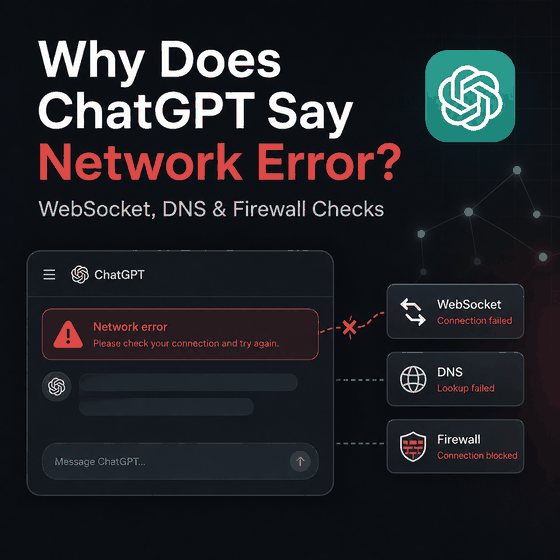
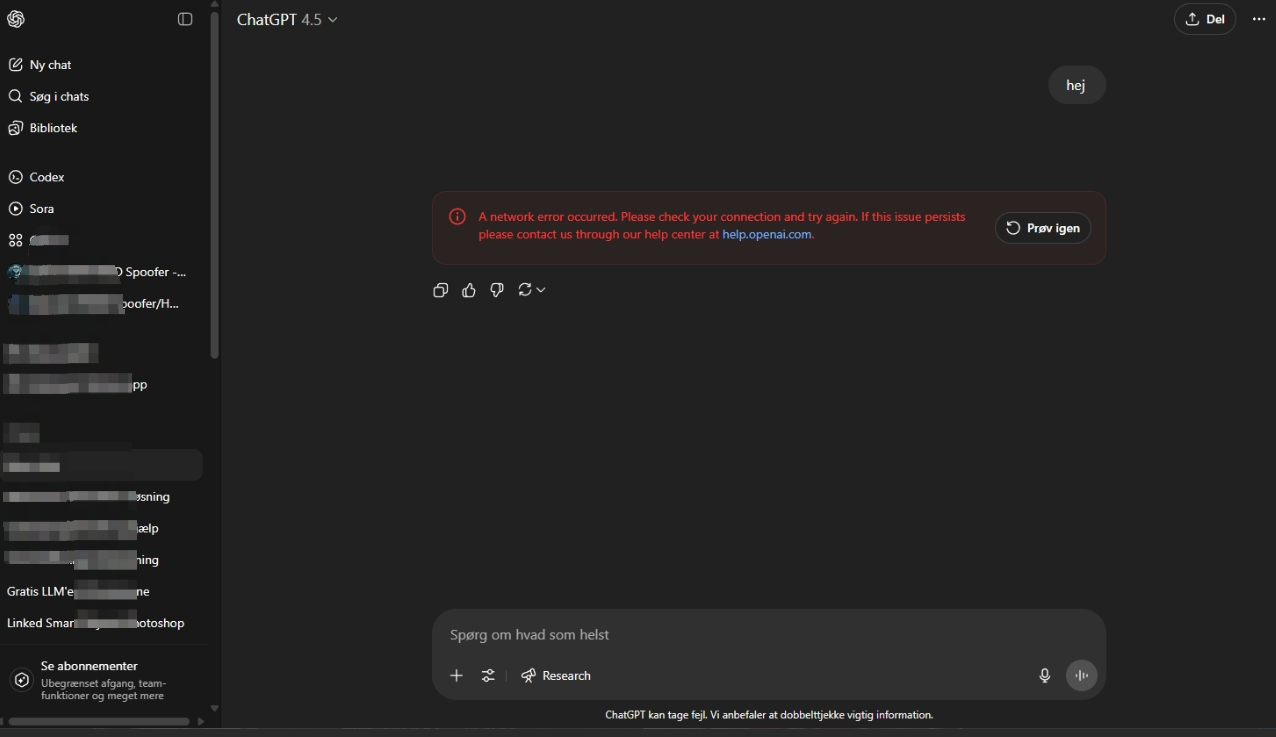
If ChatGPT says “A network error occurred” or reports an error while connecting to the WebSocket, the failure usually sits between the browser or app and ChatGPT’s servers. The cause can be a local Wi-Fi problem, VPN or proxy interference, secure DNS filtering, a corporate firewall, TLS inspection, a blocked WebSocket handshake, or a temporary OpenAI service issue.
The fastest way to isolate the cause is to keep the account and device unchanged while changing one network variable at a time. Start with OpenAI Status, then compare Wi-Fi with mobile data or another network, disable VPN or proxy connections temporarily, and check whether WebSocket traffic and required ChatGPT domains are allowed.
When ChatGPT shows a network or WebSocket error, first check OpenAI Status. If there is no known incident, temporarily disable VPN, proxy, Web Protect, or other security filtering and test again. Then switch between Wi-Fi and another network, such as a mobile hotspot. On company networks, make sure ChatGPT WebSocket traffic can use TCP port 443, the standard Upgrade: websocket handshake is allowed, and required OpenAI/ChatGPT domains are not blocked or modified by firewall, secure web gateway, DNS filtering, or TLS inspection.
- A ChatGPT network error is different from a login failure, unsupported-country warning, or concurrency/429 error.
- OpenAI recommends checking service status and temporarily disabling VPN, proxy, or security filters when diagnosing network errors.
- If ChatGPT works on mobile data but fails on Wi-Fi, the Wi-Fi network, DNS, firewall, or security gateway becomes the stronger suspect.
- Some ChatGPT features use secure WebSocket connections to
wss://ws.chatgpt.comover TCP port 443. - TLS inspection, SSL decryption, traffic filtering, gateway enforcement, idle timeouts, and message-size policies can interrupt long-lived sessions.
- Business and school networks should compare their allowlists with OpenAI’s current required-domain guidance instead of relying on an old static domain list.
What Does “A Network Error Occurred” Mean?
OpenAI’s current ChatGPT error-message guidance groups “A network error occurred” and WebSocket connection errors under problems where the device cannot maintain a reliable connection to OpenAI’s servers. That makes the network path the first place to investigate, but it does not prove that the local Wi-Fi is always responsible.
| Symptom | Likely Layer | Best First Check |
|---|---|---|
| “A network error occurred” | Client network or temporary service issue | OpenAI Status, then another network |
| WebSocket connection error | WebSocket, firewall, secure gateway, or proxy policy | TCP 443 and WebSocket upgrade handling |
| Response begins, then stalls or disconnects | Long-lived connection policy or service issue | TLS inspection, idle timeout, filtering, status |
| Works on mobile data but fails on Wi-Fi | Wi-Fi network, DNS, firewall, or security filtering | Compare the same device across both networks |
| “Something went wrong” | Generic browser, network, or temporary server issue | Status, clean browser test, another network |
A generic application message is not enough to identify the cause. Record whether the problem affects one chat or all chats, whether the page loads normally, whether streaming starts before the error appears, and whether the same account behaves differently on another network.
First Check Whether ChatGPT or Your Network Is Failing
Do not start by changing several settings at once. A controlled comparison produces much better evidence.
- Check OpenAI Status for a current ChatGPT incident.
- Keep the same device and account, but switch from Wi-Fi to another network such as mobile data or a hotspot.
- Temporarily disable VPN, proxy, Web Protect, secure DNS filtering, or similar traffic-interception tools.
- Retry ChatGPT in the same browser or app.
- If the failure remains, compare another browser or the native app without changing the network.
This sequence tells you whether the failure follows the service, the network, or the client. If multiple people on the same company Wi-Fi fail at the same time while mobile data works, the shared network becomes much more likely than an individual account problem.
If only one browser fails while the native app works on the same network, focus on browser extensions, secure DNS, cached network state, or browser-specific security controls rather than rebuilding the router configuration.
Check ChatGPT WebSocket Connections
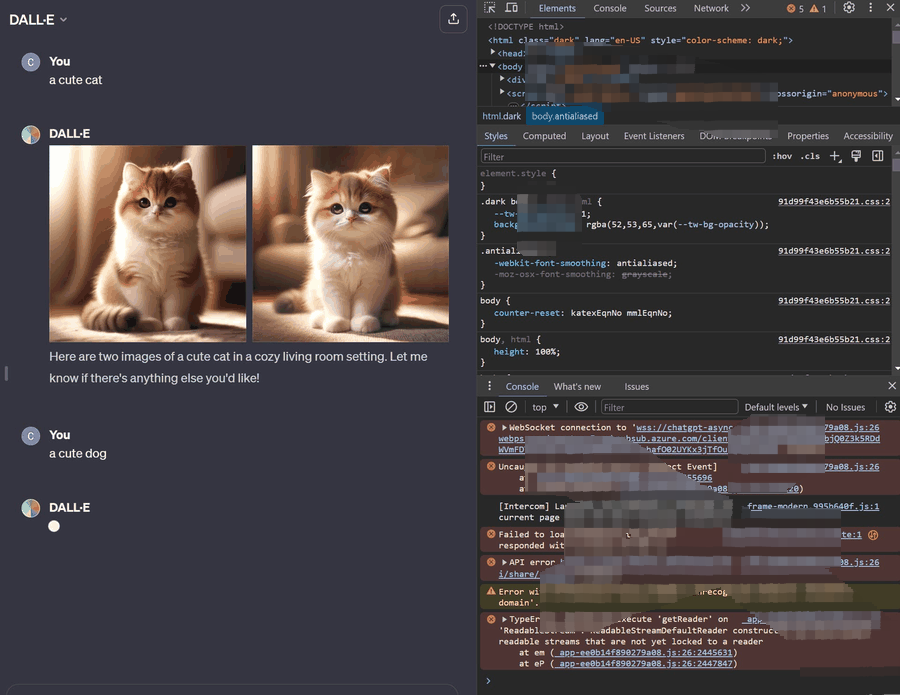
Some ChatGPT features use secure WebSocket connections in addition to normal HTTPS. OpenAI’s current network recommendations identify wss://ws.chatgpt.com as a ChatGPT WebSocket destination used for conversation updates and notifications.
The network must allow WebSocket traffic over TCP port 443, and a firewall, proxy, or secure web gateway must permit the standard Upgrade: websocket handshake. A network can allow ordinary HTTPS pages while still blocking or modifying WebSocket traffic, which explains why ChatGPT may load but then fail to stream, update, or maintain the session correctly.
For managed networks that decrypt, filter, or relay HTTPS traffic, check whether those controls:
- block the WebSocket handshake;
- rewrite headers required for the upgrade;
- terminate long-lived connections too early;
- apply an idle timeout that closes inactive WebSocket sessions;
- enforce frame or message-size limits that interrupt larger responses.
If the connection succeeds initially but later stalls, the handshake itself may be fine. In that case, idle-timeout and long-lived-session policies deserve more attention than DNS.
Why ChatGPT Works on Mobile Data but Not Wi-Fi
This is one of the strongest practical tests for a network-specific problem. If ChatGPT fails on Wi-Fi but works immediately on mobile data using the same device and account, the account is unlikely to be the cause. The stronger suspects are the Wi-Fi path and the security or routing services attached to it.
Common causes include:
- company or school firewall rules;
- DNS filtering or a secure DNS product;
- router-level content filtering;
- secure web gateways that inspect or proxy HTTPS traffic;
- TLS inspection that changes the certificate path;
- WebSocket blocking;
- network-wide VPN or proxy enforcement;
- ISP or local routing problems.
The reverse is also useful evidence. If both Wi-Fi and mobile data fail in the same way, a device-specific browser/app problem or an OpenAI service incident becomes more plausible.
Check DNS and Security Filtering
DNS decides how the device resolves ChatGPT and related OpenAI hosts. A resolver that blocks, rewrites, or filters required domains can create a failure that looks like a general connection problem.
OpenAI’s current troubleshooting guidance specifically recommends disabling Web Protect or other security-filtering tools when network errors occur. Secure DNS products, family filters, corporate resolvers, endpoint-security products, and browser-level DNS-over-HTTPS settings can all change how the request reaches ChatGPT.
Useful tests include:
- compare the same device on a different network;
- temporarily disable secure DNS or Web Protect when policy allows;
- confirm that required ChatGPT/OpenAI hostnames resolve normally;
- check whether the DNS response changes between company Wi-Fi and a mobile hotspot;
- ask IT whether a DNS security product is categorizing or blocking ChatGPT-related domains.
A DNS change should be treated as a diagnostic comparison, not a permanent fix until the blocked or modified hostname is identified.
Check Firewall, TLS Inspection, and Required Domains
OpenAI maintains a current network allowlist for ChatGPT web and apps. Instead of copying a long domain list into a firewall permanently, administrators should compare their policy with OpenAI’s current documentation because the list can change.
Important domain families currently include:
*.chatgpt.com;*.openai.com;*.oaistatic.com;*.oaiusercontent.com.
Those examples do not replace the official full list. They are useful checkpoints when a security gateway is blocking core ChatGPT pages, static assets, or uploaded content.
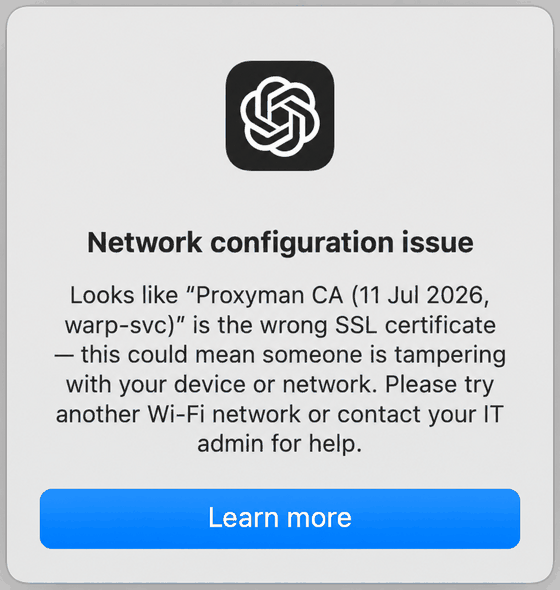
TLS inspection deserves separate attention. A corporate gateway may decrypt HTTPS traffic, inspect it, and then create a new certificate chain for the client. If that process interferes with ChatGPT traffic, the browser or native app may show certificate, connection, WebSocket, or network-configuration failures.
OpenAI specifically notes that SSL inspection or decryption can disrupt the macOS desktop app. Where organizational policy permits, IT teams should exclude required OpenAI domains from inspection or follow OpenAI Support guidance rather than repeatedly reinstalling the app.
Browser vs Desktop App vs Mobile App
The client that fails provides another diagnostic clue.
| Pattern | More Likely Area | Next Test |
|---|---|---|
| Only one browser fails | Browser extension, secure DNS, cache, browser network setting | Private window or another browser |
| Browser and desktop app fail on one Wi-Fi | Shared network, firewall, DNS, TLS inspection | Switch to mobile hotspot |
| Only native app fails | App version, OS certificate/network setting, device security control | Update app and compare web on same device/network |
| All devices fail on the same network | Network-wide policy or service incident | OpenAI Status and another network |
Do not turn this into an authentication test. If ChatGPT reaches the login page but the account cannot complete sign-in, that is a different troubleshooting path.
When It Is Not a Network Error
Several ChatGPT failures can look similar at first but have different owners:
- If ChatGPT loads but authentication fails, loops, or shows an account-state message, use the ChatGPT login troubleshooting guide.
- If the exact message says “OpenAI services are not available in your country”, use the OpenAI country error guide.
- If the message says “Too many concurrent requests” or the failure is a 429-style rate/quota problem, use the ChatGPT concurrency and 429 guide.
Keeping these error families separate prevents network troubleshooting from turning into unnecessary account, billing, or rate-limit changes.
ChatGPT Network Error Diagnostic Checklist
- Exact ChatGPT error message
- Date and approximate time
- OpenAI Status result
- Browser, desktop app, or mobile app
- Wi-Fi, Ethernet, or mobile data
- Whether another network works
- Whether VPN or proxy is active
- Whether secure DNS or Web Protect is active
- Whether WebSocket traffic over TCP 443 is permitted
- Whether TLS inspection or SSL decryption is enabled
- Whether required ChatGPT/OpenAI domains are allowlisted
- Whether other users on the same network see the same problem
For managed company networks, screenshots and a browser HAR capture can help the IT team or OpenAI Support identify blocked requests, failed WebSocket upgrades, unexpected redirects, or network-specific filtering. Do not include passwords, session cookies, API keys, or other secrets when sharing diagnostic material.
Frequently Asked Questions
Final Thoughts
A ChatGPT network error is most useful when treated as a connection problem first. Check service status, compare Wi-Fi with another network, remove VPN or proxy variables temporarily, and then inspect WebSocket, DNS, firewall, TLS inspection, and required-domain policies.
The strongest diagnosis comes from controlled comparisons. If the same device works on mobile data but not company Wi-Fi, investigate the shared network. If only one browser fails, investigate that client. If the visible message belongs to login, country availability, or concurrency instead, move to that dedicated troubleshooting path rather than mixing separate failure types.