
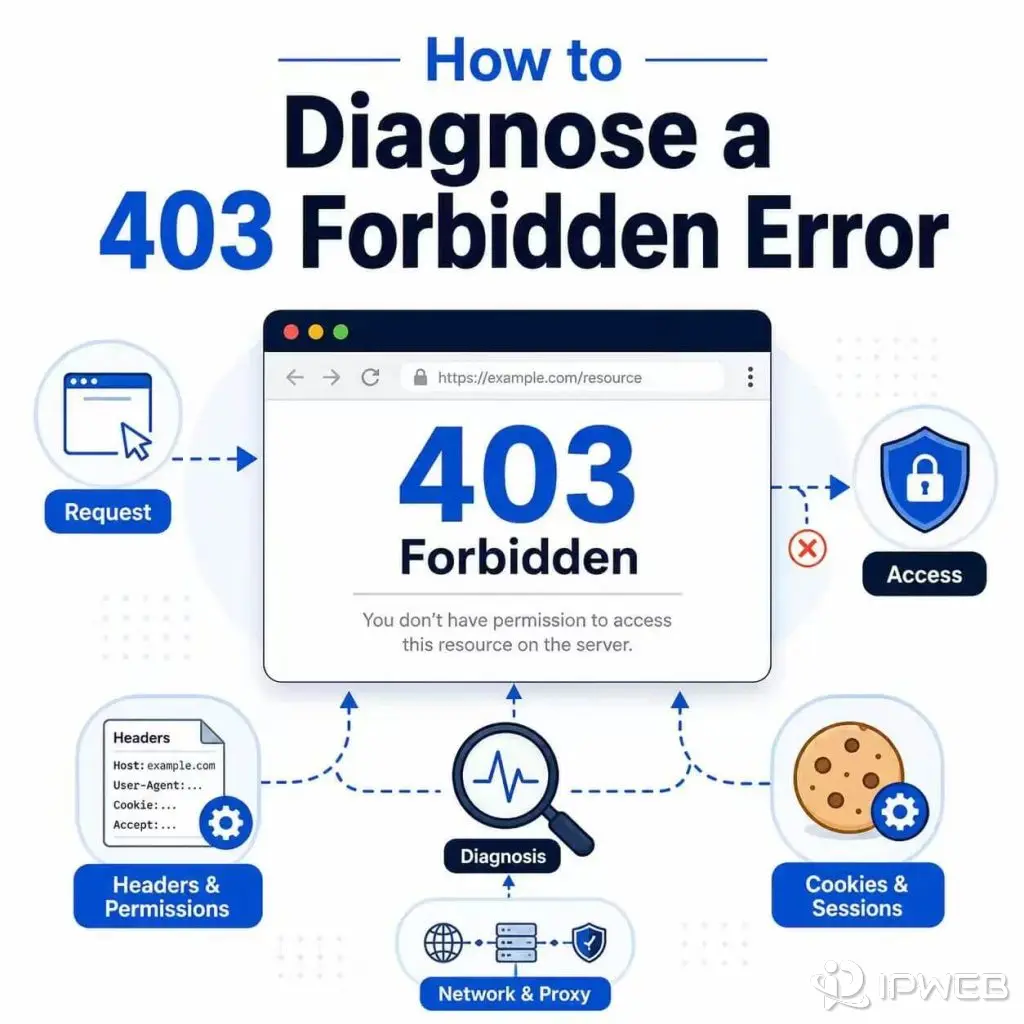
A 403 Forbidden error means the server received and understood the request but decided not to complete it. The page, API endpoint, file, or action may exist, but the current account, request, or network context is not allowed to access it.
This does not automatically mean the website is broken. It also does not prove that the IP address is the problem. A 403 can come from account permissions, application rules, server configuration, CDN or firewall policies, request headers, session state, network restrictions, or website access policies.
The correct fix depends on which system returned the refusal. Refreshing the page, switching proxies, or repeating the same request will usually make no difference until the underlying cause changes.
HTTP 403 Forbidden means the server understood the request but refuses to fulfill it. Start by checking the response body, final URL, account permission, request method, headers, cookies, and the system that generated the response. Only investigate the proxy or visible IP after confirming that the refusal changes with the network route.
- A 403 response is a refusal, not a complete diagnosis.
- The cause may be an account role, resource permission, server rule, CDN policy, request context, or network restriction.
- A proxy may be relevant when the result changes by IP, country, ASN, route, or session consistency.
- Incorrect proxy credentials normally point to 407, not a target-server 403.
- A proxy cannot grant access to a private resource or change account permissions.
- The response body and logs are usually more useful than the status code alone.
- What Does 403 Forbidden Mean?
- Is 403 Forbidden the Same as 401 Unauthorized?
- Where Should You Start?
- Common Causes of 403 Forbidden
- How to Diagnose a 403 Error
- When Is a Proxy Related to a 403?
- Identify Who Returned the 403
- Inspect a 403 Response
- 403 Forbidden vs CORS Errors
- 403 Errors in Web Data Workflows
- What Not to Do
- Frequently Asked Questions
- Final Thoughts
What Does 403 Forbidden Mean?
The official HTTP specification defines 403 Forbidden as a response in which the server understood the request but refuses to fulfill it. The server may explain the reason in the response content, although many websites show only a short or generic error message.
You can review the formal definition in the HTTP 403 specification or the more accessible MDN 403 Forbidden reference.
A 403 differs from a DNS error, timeout, or connection failure. In those cases, the request may never receive an intentional HTTP response. With a 403, a website, API, CDN, firewall, gateway, or proxy-related service actively returned a refusal.
You may see a 403 in:
- A normal web browser.
- An API client.
- A command-line request.
- A Python script.
- A crawler or data workflow.
- Browser automation such as Playwright or Puppeteer.
The error page may look different on every website. Do not rely on the number alone. Read the response body and determine which layer returned it.
Is 403 Forbidden the Same as 401 Unauthorized?
No. A 401 Unauthorized response normally means the request does not contain valid authentication credentials. A 403 Forbidden response means the server understood the request but still refuses to complete it.
Signing in again or refreshing a token may resolve a 401. It will not normally resolve a genuine 403 caused by insufficient permission, an account rule, or a server policy.
For authentication headers, expired tokens, account scopes, and proxy authentication differences, read the complete 401 vs 403 comparison.
Some applications use status codes inconsistently. Always inspect the response body and application documentation before deciding that the number perfectly describes the cause.
Where Should You Start?
The first checks depend on whether you are visiting the website, sending requests through code, or managing the website itself.
| Who Is Troubleshooting? | First Checks | Useful Evidence |
|---|---|---|
| Website visitor | Confirm the URL, login state, account role, browser session, and whether the resource is available to the account. | Error message, affected page, account role, and whether the problem occurs in a clean browser session. |
| API or automation developer | Inspect the response body, request method, headers, cookies, redirects, frequency, and final URL. | Status code, response headers, timestamp, request ID, limited response sample, and application logs. |
| Website owner or administrator | Review application authorization, file permissions, CDN rules, firewall policies, WAF events, and deployment changes. | Origin logs, CDN logs, rule matches, account IDs, permission settings, and recent configuration changes. |
Common Causes of 403 Forbidden
A 403 response can come from several layers. The code confirms that something refused the request, but it does not identify which component made the decision.
| Cause | What It May Look Like | What to Check |
|---|---|---|
| Insufficient account permission | You can sign in but cannot open a page, workspace, file, or action. | User role, workspace membership, subscription level, ownership, and resource permissions. |
| Missing request context | The URL works in one session but fails in another. | Cookies, authorization headers, CSRF tokens, referrer, method, and final URL. |
| Application authorization rule | The account is valid, but the requested operation is not permitted. | Role-based access controls, token scope, resource ownership, and application logs. |
| Server file or directory rule | A specific path or folder consistently returns 403. | File permissions, directory rules, access-control files, web server configuration, and deployment settings. |
| CDN, firewall, or WAF policy | The request is refused before reaching the application or origin server. | Response headers, security rule IDs, country settings, ASN rules, firewall events, and CDN logs. |
| Location or network restriction | The resource works from one approved route but not another. | Visible IP, country, ASN, DNS behavior, network type, and documented regional requirements. |
| Proxy route or account restriction | The error appears only after the proxy is enabled, or the proxy service returns its own refusal page. | Endpoint permissions, account limits, allowlisting, protocol, visible route, and provider error message. |
| Request frequency or behavior | Requests begin failing after a traffic spike, repeated actions, or a concurrency change. | Frequency, concurrency, repeated URLs, retry behavior, session use, and server-side limits. |
| Website policy | The website intentionally refuses a certain resource, account, interface, or workflow. | Terms, API documentation, account permissions, supported interfaces, and approved access methods. |
How to Diagnose a 403 Error
Do not begin by assuming the IP is blocked or the account is restricted. Work from the simplest request details toward the network and infrastructure layers.
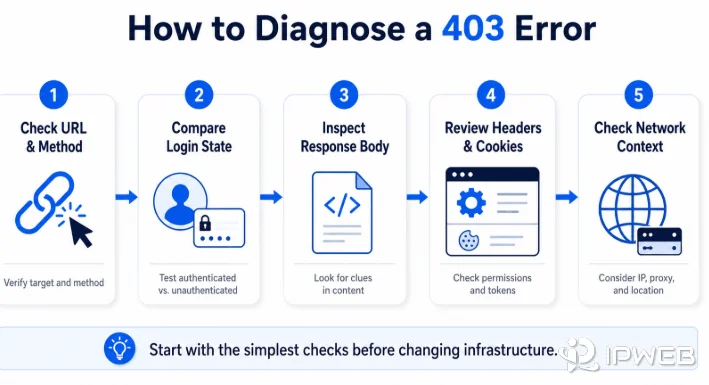
Confirm the URL and Request Method
Check for an incorrect path, outdated endpoint, missing path segment, or unsupported HTTP method. A resource may allow GET while refusing POST, PUT, or DELETE.
Also inspect the final URL after redirects. A request may begin on a public page and end on a restricted login, admin, consent, or regional page.
Compare Logged-In and Logged-Out States
Open the resource in a clean browser session. Then test it again after signing in.
If it works only while signed in, the resource requires authentication. If it still fails after a successful login, check the account role, workspace membership, subscription plan, resource ownership, and account status.
Inspect the Response Body
The response body may give a clearer explanation than the status code. It may mention a missing permission, disabled account, security rule, unavailable region, invalid request context, or required header.
Do not expose passwords, tokens, session cookies, proxy credentials, or personal information when saving or sharing the response.
Compare Headers, Cookies, and Session State
If a browser request works but a script fails, compare the two requests. Do not copy every browser header without understanding it.
Review:
- The
Authorizationheader. - Session cookies.
- The HTTP method.
- The
Content-Type. - Required API-version headers.
- CSRF tokens where applicable.
- The
OriginandRefererheaders where required. - The final URL after redirects.
Check Location and Network Context
If the result changes across approved network routes, confirm the visible IP, country, ASN, network type, and DNS behavior from the same browser, app, or script that receives the 403.
Before deciding that the IP is responsible, verify that the intended route is actually active using the guide on how to check whether a proxy is working.
Reduce Frequency and Concurrency
If the refusal appeared after a burst of requests, pause the workflow and reduce frequency and concurrency. Record whether the failure is tied to one URL, one account, one session, or the overall request pattern.
Do not respond to repeated 403 errors by immediately increasing retries or switching routes continuously. That removes useful diagnostic evidence.
Read Server, CDN, and Application Logs
If you control the website, logs are usually the strongest source of evidence. Check whether the refusal came from:
- The origin server.
- The application authorization layer.
- A CDN rule.
- A firewall or WAF.
- A reverse proxy.
- A storage permission.
- An account or workspace policy.
When Is a Proxy Related to a 403?
A proxy may be related when the refusal changes with the visible IP, country, ASN, network type, route, frequency, or session consistency. This does not mean every proxy-related failure is caused by poor IP quality.
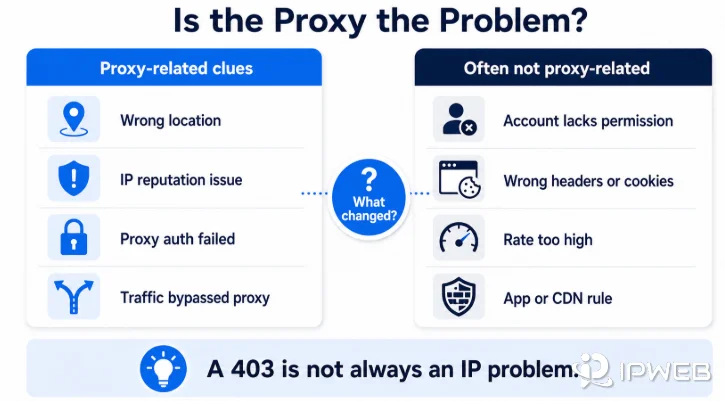
The proxy or network route may be relevant when:
- The target website applies a rule based on the visible country, ASN, or network classification.
- The endpoint does not support the selected location or network.
- The account requires an IP allowlist.
- The application uses an unsupported proxy protocol.
- A rotating route interrupts a multi-step session.
- The proxy provider refuses the endpoint because of account limits or endpoint permissions.
- The expected proxy was not applied and the application used the original route.
Incorrect proxy credentials normally produce 407 Proxy Authentication Required. A provider gateway may still show a custom 403 page for endpoint restrictions, allowlisting rules, account limits, or unsupported configurations. Check the response headers and provider message before deciding which layer failed.
Changing the proxy will not fix a 403 caused by account permission, application authorization, private-resource access, file permissions, or website policy.
When repeated tests need the same approved network route, a static residential proxy can keep the visible IP consistent while you compare account state, headers, cookies, and server responses. The stable route supports testing; it does not create permission.
Identify Who Returned the 403
A 403 returned by the target website, a CDN or WAF, and a proxy-related gateway represent different problems. Check the response body, server header, request ID, final URL, and available logs before changing the setup.
| Response Source | Possible Causes | What to Check |
|---|---|---|
| Target website or application | Account permission, application authorization, private resource, invalid request context, or website policy. | Response body, account role, request method, cookies, authorization, resource ownership, and application documentation. |
| CDN, firewall, or WAF | Country rule, ASN rule, firewall match, request pattern, rate control, or security policy. | Response headers, security rule IDs, CDN or WAF logs, visible IP, and request frequency. |
| Proxy-related service | Endpoint restriction, allowlist setting, account limit, unsupported protocol, or provider policy. | Provider error page, endpoint, protocol, account dashboard, allowlist, and service documentation. |
Inspect a 403 Response
Inspect the Full Response with curl
The following command displays response headers and follows redirects. Replace the example URL with a resource you are authorized to test.
curl -i -L "https://example.com/protected-page"Review:
- The final status code.
- The redirect chain.
- The final URL.
- The
Serverand content-type headers. - CDN or security-related headers.
- The response body.
To include connection details, use verbose mode:
curl -v -L "https://example.com/protected-page"Verbose output can include sensitive information. Remove authorization headers, cookies, account IDs, and proxy credentials before sharing the log.
Check the Response in Python
This example records the main details required for an initial diagnosis:
import requests

response = requests.get(
    "https://example.com/",
    timeout=15,
)

print("Status:", response.status_code)
print("Final URL:", response.url)
print("Server:", response.headers.get("server"))
print("Content-Type:", response.headers.get("content-type"))
print("Body sample:", response.text[:500])
The response sample may show whether the request reached the expected resource, a login page, a CDN or firewall page, a consent screen, or an application-generated error.
403 Diagnostic Checklist
- Did the request reach the expected final URL?
- Was the correct HTTP method used?
- Is the login session or API authentication valid?
- Does the account have permission for this resource?
- Does the response body identify a refusal reason?
- Was the 403 returned by the application, CDN, WAF, or another gateway?
- Does the issue occur in a clean browser session?
- Does the same request fail through every approved network route?
- Did the problem begin after a rate, concurrency, account, or configuration change?
403 Forbidden vs CORS Errors
A browser CORS error is not automatically the same as an HTTP 403 response.
CORS controls whether browser-based JavaScript can read a response from another origin. The server may return a normal response, but the browser can prevent JavaScript from accessing it when the required CORS headers are missing.
Open the browser’s Network panel and inspect the actual request:
- If the server returned 403, diagnose the refusal.
- If the server returned another status but the console reports a CORS error, review the CORS configuration.
- If an
OPTIONSpreflight request returned 403, check whether the server allows the requested origin, method, and headers.
For more background, see MDN’s guide to Cross-Origin Resource Sharing.
403 Errors in Web Data Workflows
In an API client, crawler, public-data workflow, or browser automation task, treat 403 as a diagnostic signal rather than something to retry blindly.
Use this sequence:
- Record the URL, method, timestamp, status code, and final URL.
- Save a limited sample of the response body and relevant response headers.
- Determine whether the refusal came from the target application, a security layer, or another gateway.
- Confirm whether the resource works through the website’s normal approved access method.
- Compare account state, cookies, required headers, request method, and session behavior.
- Check whether the failure followed a change in frequency, concurrency, account state, or network route.
- Review the website’s documentation, terms, and supported interfaces before changing the workflow.
Pause and classify the refusal before increasing requests. The useful question is not “Which IP should I try next?” It is “Which system returned the 403, and what evidence explains the decision?”
What Not to Do
Do Not Assume Every 403 Is an IP Problem
The visible IP is only one part of the request context. The refusal may involve the account, cookies, headers, method, resource permission, application logic, CDN rules, or website policy.
Do Not Repeat the Same Request Aggressively
If the server intentionally refuses the request, repeating it without changing the cause will probably return the same result. It also makes the request pattern harder to diagnose.
Do Not Change Several Variables at Once
Changing the proxy, browser profile, account, headers, and request rate together makes it impossible to identify the real cause. Keep the request consistent and change one variable at a time.
Do Not Copy an Entire Browser Request Blindly
Browser requests may contain temporary tokens, personal cookies, tracking values, and unrelated headers. Identify which fields are required rather than copying everything into a script.
Do Not Expose Credentials in Logs
Remove passwords, API keys, authorization headers, session cookies, proxy credentials, and personal data before sharing code or logs.
Do Not Treat a Proxy as Permission
A different network route does not grant access to a private, restricted, or disallowed resource. Use approved access methods and follow the website’s documentation and applicable requirements.
Frequently Asked Questions
Final Thoughts
A 403 Forbidden response tells you that a request was understood and refused. It does not tell you which layer made the decision.
Start with the URL, method, login state, account permission, response body, headers, cookies, and final URL. Then determine whether the refusal came from the application, origin server, CDN, WAF, or another gateway.
Investigate the proxy only when the evidence shows that the result changes with the route, visible IP, location, network classification, or session consistency. Change one variable at a time and keep a record of every test.