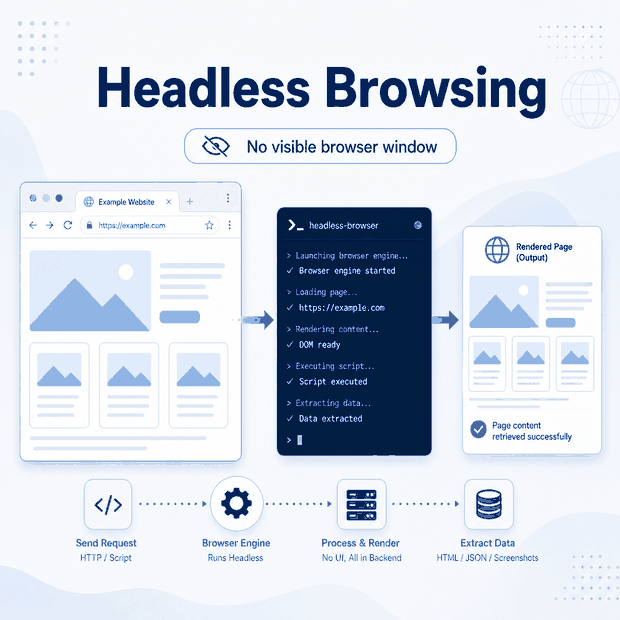
Headless browsing means running a real browser engine without opening a visible browser window. The browser can still load pages, execute JavaScript, store cookies, click elements, wait for network responses, and render the DOM. The difference is that the browser is controlled through code and runs in the background.
For web scraping, testing, scheduled page checks, and browser automation, headless browsing is useful when a simple HTTP request cannot access the same page state that appears after browser rendering or interaction.
It is not always the best choice. If the required data is already available in raw HTML or a stable JSON response, a lighter request-based workflow is usually faster, cheaper, and easier to maintain.
Headless browsing is browser automation without a visible graphical interface. It is useful when a page needs JavaScript rendering, interaction, cookies, storage, or browser state before the required content appears. It is usually unnecessary when the same data is already available through raw HTML or a clean, permitted API response.
- A headless browser uses a browser rendering engine but runs without a visible window.
- Use headless browsing when JavaScript, clicks, scrolling, forms, or session state are required.
- Do not use a headless browser only because a website looks modern; inspect the HTML and network responses first.
- Reliable workflows wait for specific selectors, responses, URL changes, or record-count changes.
- A short delay can be used as a polling interval, but it should not be treated as proof that loading has finished.
- Headless browsing does not override website rules, account controls, or compliance requirements.
What Headless Browsing Means
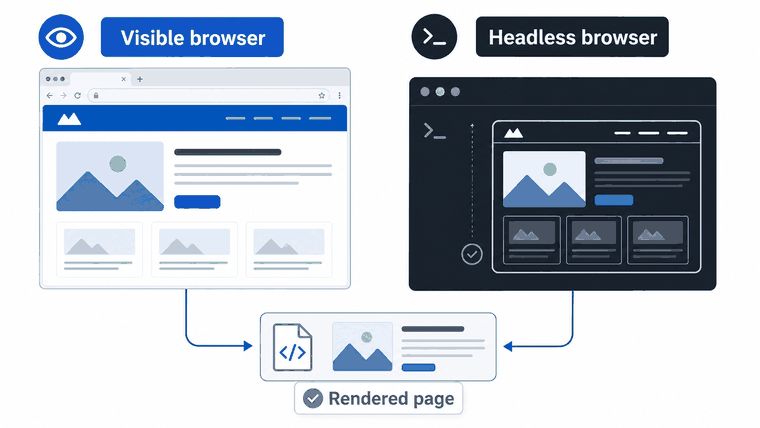
Headless browsing uses a browser engine such as Chromium without displaying the normal browser interface on screen. The page still runs inside a browser context, so JavaScript, DOM updates, cookies, storage, navigation, and browser APIs can operate without a visible window.
The word “headless” simply means that the graphical interface is not shown. It does not mean the browser is fake, invisible to every website, or automatically better for collecting data.
It is a method for automating browser-dependent tasks when page rendering or interaction genuinely matters.
How Headless Browsing Works
A headless browser creates a browser process, opens a page, loads resources, runs JavaScript, and makes the rendered result available to automation code.
Tools such as Playwright, Puppeteer, and Chrome’s documented headless mode are commonly used for this type of workflow.
The important difference is page state. A standard HTTP request reads the server response directly. A headless browser can continue running after the initial response, allowing JavaScript to update the page, network requests to finish, and user-triggered states to appear.
This is useful when product cards, search results, tables, prices, filter states, or additional records are inserted after the first HTML response.
| Method | What It Reads | Best For | Main Limitation |
|---|---|---|---|
| Simple HTTP request | The raw response returned by the server. | Static HTML, stable JSON endpoints, and fast repeatable checks. | It cannot execute client-side JavaScript by itself. |
| Headless browser | The page after browser loading, scripting, and interaction. | JavaScript-rendered pages, clicks, forms, scroll loading, and session state. | It is heavier, slower, and more complex to operate at scale. |
| Visible browser automation | The same browser state with a visible window. | Debugging, screenshots, manual inspection, and workflow development. | It is less convenient for background jobs and server environments. |
When Should You Use Headless Browsing?
Use headless browsing when browser behavior is required before the target content exists. This usually means the page depends on JavaScript rendering, interaction, cookies, client-side routing, or scroll-triggered loading.
Before choosing a headless browser, inspect the page:
- Check whether the required data already appears in the raw HTML.
- Open the browser Network panel and reload the page.
- Compare the requests triggered by clicking, filtering, paging, or scrolling.
- Check whether a permitted JSON response already contains the required records.
- Use a browser only when rendering or interaction is necessary.
If the useful data is available through a stable structured response, a direct request may be easier to validate. If the data only appears after the page state changes inside a browser, headless browsing becomes more practical.
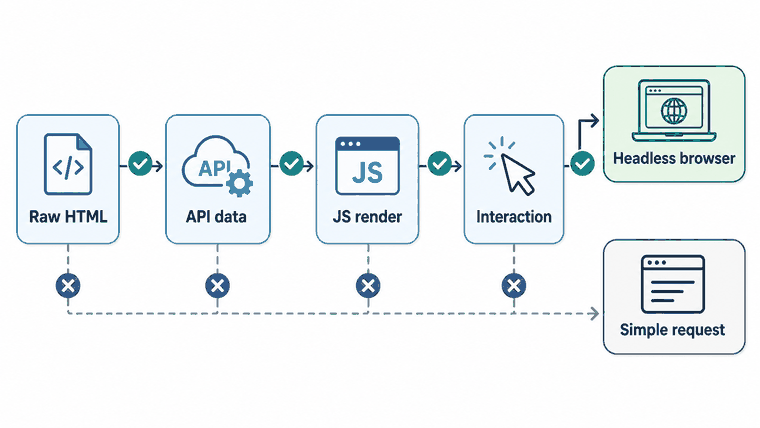
- JavaScript rendering before records appear.
- Clicks, tabs, filters, forms, or dropdowns to reveal content.
- Scroll events or viewport triggers to load additional records.
- Session cookies or browser storage that affect page state.
- Client-side navigation that changes content without a full reload.
- Screenshots, PDF capture, visual regression checks, or rendered-layout validation.
If the main issue is JavaScript-rendered content, pagination, or infinite scroll, the related IPWeb guide to web scraping dynamic content explains request comparison, cursors, virtual lists, and stop conditions in more detail.
When a Headless Browser Is the Wrong Tool
A headless browser is the wrong default when it adds complexity without exposing any additional data.
If the target records are already present in server-rendered HTML, a standard request and parser are usually faster. If the page calls a stable public JSON endpoint that you are permitted to use, reading the structured response may be cleaner than extracting text from rendered cards.
Headless browsing also does not solve every access problem. It cannot make unauthorized data permitted, override account rules, or remove the need to follow website terms and applicable data-handling laws.
For broader data-collection context, start with IPWeb’s guide to what web scraping is, then review the legal and ethical considerations in Is Web Scraping Legal?
| Situation | Better Starting Point | Why |
|---|---|---|
| Data is visible in raw HTML. | Simple request | No browser rendering is required. |
| Data appears in a readable JSON response. | Direct network request | Structured data is usually easier to validate than rendered text. |
| Data appears only after JavaScript updates the page. | Headless browser | The workflow must wait for a rendered page state. |
| Records load after scroll or click events. | Headless browser or permitted captured request | The better method depends on whether the underlying request can be reproduced reliably. |
| You need screenshots or layout checks. | Headless browser | A rendered browser context is required. |
| You only need response status or page HTML. | Simple request | Starting a complete browser would add unnecessary cost. |
A Practical Headless Browser Example
A reliable headless workflow waits for something specific: a response, selector, URL change, or record-count change. Avoid using fixed delays as the primary loading strategy. A timer that works on one machine may fail on a slower network, another region, or a busier website.
The following Playwright example registers the response listener before navigation. This prevents the script from missing a fast API response that may finish while the page is loading.
Replace the URL, selectors, and response pattern with values from a website you are authorized to test.
import { chromium } from "playwright";

const browser = await chromium.launch({ headless: true });
const page = await browser.newPage();

try {
  const productsResponse = page.waitForResponse(
    response =>
      response.url().includes("/api/products") &&
      response.status() === 200
  );

  await page.goto("https://example.com/products", {
    waitUntil: "domcontentloaded"
  });

  await productsResponse;
  await page.locator("[data-product-id]").first().waitFor();

  const items = await page
    .locator("[data-product-id]")
    .evaluateAll(nodes =>
      nodes.map(node => ({
        id: node.getAttribute("data-product-id"),
        title:
          node.querySelector(".title")?.textContent?.trim() ?? null,
        price:
          node.querySelector(".price")?.textContent?.trim() ?? null
      }))
    );

  console.log(items);
} finally {
  await browser.close();
}
Registering the response wait before page.goto() matters because the API request may start and finish during navigation. Waiting for it only after the page loads can miss the response and cause an unnecessary timeout.
Infinite Scroll with a Stop Condition
Infinite-scroll workflows need a clear stopping rule. Do not scroll forever or assume that reaching the bottom once means every record has loaded.
The example below tracks unique record IDs, stops after three rounds with no new records, and applies a maximum of 20 scroll attempts.
const itemSelector = "[data-product-id]";
const seenIds = new Set();

let stableRounds = 0;
let previousSize = 0;

const maxScrolls = 20;
const maxStableRounds = 3;

for (
  let scrollRound = 0;
  scrollRound < maxScrolls && stableRounds < maxStableRounds;
  scrollRound += 1
) {
  await page.mouse.wheel(0, 2500);

  // Polling interval only—not proof that loading has finished.
  await page.waitForTimeout(800);

  const ids = await page.locator(itemSelector).evaluateAll(nodes =>
    nodes
      .map(node => node.getAttribute("data-product-id"))
      .filter(Boolean)
  );

  ids.forEach(id => seenIds.add(id));

  if (seenIds.size === previousSize) {
    stableRounds += 1;
  } else {
    stableRounds = 0;
    previousSize = seenIds.size;
  }
}

console.log(`Collected ${seenIds.size} unique records`);
The short delay in this example is only a polling interval. It is not proof that new content has finished loading. When possible, wait for a relevant network response, cursor change, loading indicator, or increase in unique record count.
If the page uses a virtualized list, the DOM may only retain visible rows. In that case, collect records as they appear or capture the underlying network responses instead of assuming that every loaded item remains in the DOM.
Common Failure Points
Most headless browsing failures come from incorrect assumptions about timing, browser state, deployment dependencies, or where the target data actually appears.
The browser may be working correctly while the script reads the wrong moment, selector, page context, or network response.
| Problem | Likely Cause | What to Check | Better Fix |
|---|---|---|---|
| Empty results | The script reads before the required content renders. | Check whether the selector exists after the relevant request or page update. | Wait for a specific selector, response, URL state, or record-count change. |
| Works locally but fails on a server | Missing browser binaries, operating-system libraries, fonts, permissions, memory, or environment settings. | Compare local and server browser-launch logs and run a minimal page-load test. | Install the required browser dependencies and verify the deployment environment before changing extraction logic. |
| Response wait times out | The listener was registered after the request completed, or the response pattern is incorrect. | Log request URLs and register the response listener before the triggering action. | Create the wait promise before navigation, clicking, filtering, or scrolling. |
| Repeated records | Infinite scroll loads overlapping pages or repeats the final response. | Track unique IDs across scroll rounds or pagination requests. | Deduplicate records and stop when no new IDs appear. |
| Wrong content after filters | The script reads before the filter request or DOM update finishes. | Compare request payloads, response data, and selected filter state. | Wait for the specific filtered response or a confirmed page-state change. |
| Login state disappears | Cookies, storage, or session data are not preserved. | Inspect cookies, local storage, authentication state, and session expiration. | Use an appropriate browser context and persistent state only when permitted. |
| Only visible rows are captured | The page uses a virtualized list that removes older rows from the DOM. | Check whether rows disappear while scrolling. | Collect rows incrementally or capture the underlying structured responses. |
| The job never stops | The workflow has no maximum page, click, scroll, or retry limit. | Log each loop round, record count, cursor, and stop reason. | Add hard limits and stop after repeated rounds with no new records. |
How to Keep the Workflow Reliable
Reliable headless browsing begins with a small, repeatable test. Load one URL, wait for one known signal, extract a small set of fields, and confirm the result before adding more complexity.
Once the basic workflow is stable, add pagination, scrolling, retries, persistence, and logging one layer at a time.
- Confirm that the content is not already available through simpler raw HTML or a permitted JSON response.
- Use visible browser mode while debugging, then switch to headless mode after the workflow is stable.
- Register response waits before the action that triggers the request.
- Wait for named selectors, URL changes, network responses, or record-count changes instead of relying on fixed sleeps.
- Log request URLs, status codes, browser errors, record counts, cursors, and stop reasons.
- Track unique record IDs to identify repeats, overlapping pages, and partial results.
- Set maximum page, click, scroll, retry, and runtime limits.
- Run a minimal browser-launch test in the real server or container environment.
- Check legal, access, robots, and privacy requirements before collecting data.
A headless browser can make browser-dependent pages easier to inspect, but it also increases memory use, processing cost, deployment requirements, and maintenance work.
Treat it as a tool for workflows that genuinely require browser rendering—not as a universal replacement for direct requests.
Frequently Asked Questions
Final Thoughts
Headless browsing is useful when the required page state does not exist until a browser renders the page or performs an interaction.
The practical rule is to inspect first. Check the raw HTML, network responses, rendered DOM, and interaction-triggered changes before deciding which method to use.
When a direct request can provide the required data, keep the workflow simple. When JavaScript rendering or browser interaction is unavoidable, use a headless browser with specific waits, clear stop conditions, deployment checks, logs, and compliance controls.