If Google Search Console reports “Blocked due to access forbidden (403)”, Google tried to fetch the URL but received an HTTP 403 response. For a public page that you want indexed, that means Google could not access the content and the page cannot be indexed until the access problem is fixed.
The useful question is not simply “how do I remove a 403?” First decide whether the URL should be public at all. A 403 on an admin page, private dashboard, staging URL, or account-only resource may be correct. A 403 on a public article, product page, category page, or other indexable URL is usually a crawl-access problem that needs investigation.
Search Console’s “Blocked due to access forbidden (403)” status means Google could not fetch the URL because the site returned HTTP 403. If the page is meant to be public and indexed, check the live URL, CDN/WAF rules, server or security-plugin rules, authentication requirements, geo or IP restrictions, and logs for the failed request.
Do not allow a request merely because its User-Agent claims to be Googlebot. Verify that the request really comes from Google, and distinguish normal Googlebot crawling from user-triggered inspection traffic before creating an exception.
- A public page that returns 403 to Google cannot be indexed while that access denial remains.
- A 403 is not the same as a robots.txt block or a
noindexdirective. - A page can work in your normal browser while a CDN, WAF, firewall, security plugin, or origin rule denies a Google crawler or inspection request.
- Google-origin requests should be verified with Google’s documented hostname or IP methods, not by User-Agent alone.
- After the fix, use Search Console’s live URL test before requesting indexing.
What “Blocked Due to Access Forbidden (403)” Means
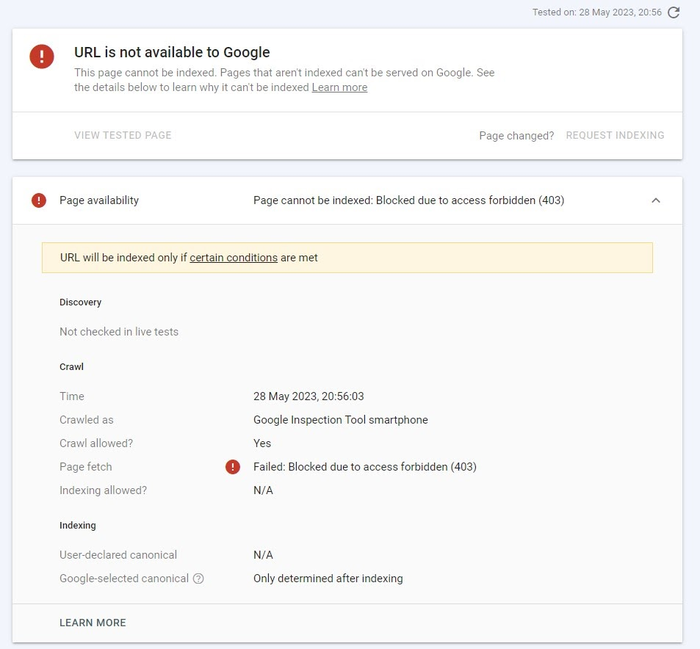
Google Search Console lists Blocked due to access forbidden (403) as a page-indexing problem when Google receives HTTP 403 while trying to fetch a URL. Google’s Page indexing report documentation states that the page will not be indexed while Googlebot is denied access.
The HTTP status still has its normal meaning: the server or an intermediary understood the request but refused it. If you need the broader status-code explanation, see IPWeb’s 403 Forbidden guide. The Search Console case is narrower because the main question is whether Google should be able to crawl the URL for indexing.
When a 403 Is Expected
Not every Search Console 403 needs to be “fixed.” First classify the URL by its intended access model.
| URL Type | Should Google Index It? | Is 403 Potentially Correct? | Recommended Action |
|---|---|---|---|
| Public article or landing page | Usually yes | No, if indexing is intended | Find the rule returning 403 and restore public crawl access |
| Public product or category page | Usually yes | No, if the page belongs in search | Check CDN/WAF, origin, and authentication rules |
| Admin or account dashboard | No | Yes | Keep access control; do not make it public for indexing |
| Staging or internal environment | Usually no | Yes | Keep it protected and remove accidental discovery paths where appropriate |
| Paid or login-only content | Depends on implementation | Often yes for the protected resource | Use the intended public preview or supported indexing model instead of weakening access control |
If the URL is private by design, a 403 can be the correct security outcome even if Search Console reports it. The error becomes an SEO problem when a page that should be publicly crawlable is denied.
Why Google Can Get 403 While Your Browser Works
A successful browser visit does not prove that Google receives the same response. A scheduled Googlebot crawl and a user-triggered Search Console inspection can reach your site from Google infrastructure, while your browser uses a different IP, cookies, session state, and challenge history. Those differences can cause a CDN, WAF, firewall, or application rule to return a different status.
Common causes include:
- CDN or WAF rules that challenge or block automated traffic;
- firewall rules that deny specific IP ranges, ASNs, countries, or data-center networks;
- security plugins that classify crawler requests as suspicious;
- rate limiting that affects repeated crawler requests;
- authentication, cookie, or session requirements accidentally applied to a public URL;
- origin ACLs, server configuration, or application middleware returning 403;
- a CDN edge rule returning 403 before the request reaches the origin.
If Cloudflare, CloudFront, or another CDN appears to own the response, use the layer-by-layer checks in IPWeb’s CDN 403 Errors guide. The goal is to identify which layer refused Google’s request instead of disabling security controls blindly.
Check the URL in Search Console First
Use Google’s URL Inspection tool before changing server configuration. The indexed result tells you what Google saw during its previous crawl, while Test live URL checks the current version.
The live test is useful evidence, but it is not identical to every scheduled Googlebot crawl. In server or WAF logs, a user-triggered inspection can appear as Google Inspection Tool, so use the exact request type, timestamp, and source evidence when matching Search Console results to logs.
Check these fields:
- Page fetch: whether Google successfully fetched the page;
- Crawl allowed?: whether robots.txt permits crawling;
- Indexing allowed?: whether a
noindexdirective prevents indexing; - Crawled as: which Google crawler performed the fetch;
- Last crawl: when Google last attempted to retrieve the page.
If the live test still receives 403, requesting indexing is premature. Fix access first, then test again.
robots.txt, noindex, and 403 Are Different
These three controls solve different problems and should not be treated as interchangeable.
| Control | What It Does | Can Google Fetch the Page? | Typical Search Console Signal |
|---|---|---|---|
robots.txt |
Controls crawler access to paths | No, when disallowed | Blocked by robots.txt |
noindex |
Tells Google not to index a fetched page | Yes, Google generally needs to fetch it to see the directive | Excluded by noindex or related indexing status |
| HTTP 403 | Denies access to the requested resource | No successful page fetch | Blocked due to access forbidden (403) |
Changing robots.txt will not fix a WAF-generated 403. Removing noindex will not help if Google cannot fetch the page. Diagnose the control that is actually producing the failure.
Verify That the Request Really Comes From Google
Do not trust a request only because its User-Agent says Googlebot or identifies another Google tool. Google’s request-verification documentation distinguishes common crawlers such as Googlebot from special-case crawlers and user-triggered fetchers. Google documents reverse-DNS checks and published IP ranges for verifying these requests.
This distinction matters in Search Console troubleshooting. A normal indexing crawl may come from Googlebot, while a live inspection request can appear in logs as Google Inspection Tool. They are both Google-origin requests, but they are not the same request type, so avoid treating every Google request as Googlebot.
Use the request timestamp to locate the source IP in your CDN/WAF or server logs. Verify the hostname or IP against Google’s documented method for the relevant crawler or fetcher before changing an allow or challenge rule.
Check CDN, WAF, and Server Logs
Logs are usually more useful than guessing from the browser. Match the Search Console or live-test time window with available request records and look for the exact host and path.
Record:
- timestamp;
- source IP and, where available, ASN;
- host and requested path;
- HTTP method;
- response status;
- the CDN/WAF action or matched rule;
- whether the request reached the origin;
- rate-limit, bot, geo, or security classification;
- origin response status when available.
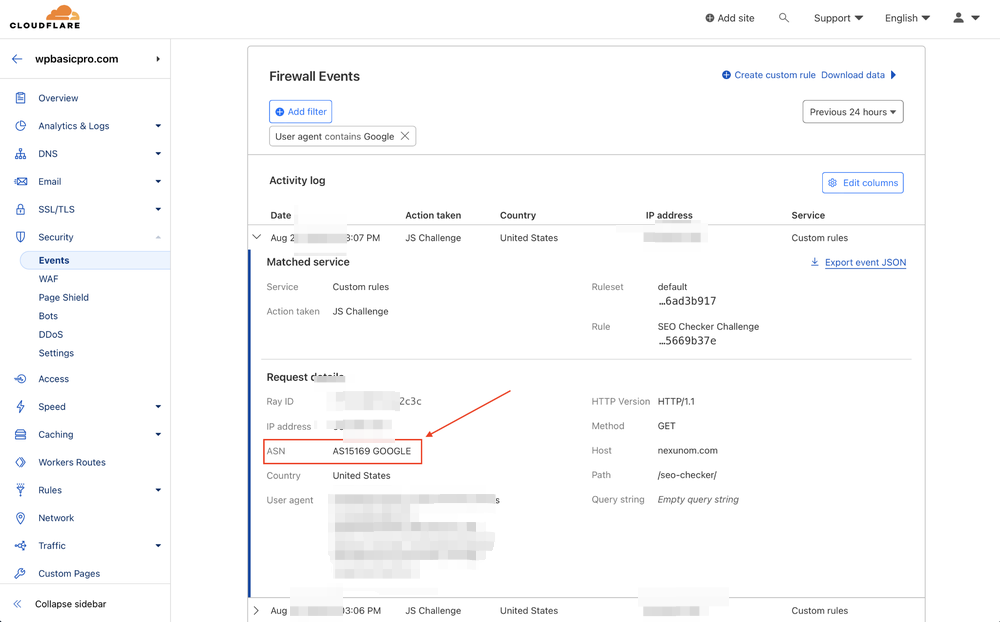
Cloudflare documents custom-rule patterns that challenge matching traffic while excluding known search-engine bots such as Googlebot. Its bot fields can help distinguish verified search crawlers from unverified automated traffic. For a Search Console live test, however, first identify whether the logged request is Google Inspection Tool or a normal crawler before applying a bot-specific exception.
Run a Minimal Anonymous HTTP Check
A quick command-line request can confirm whether the page is publicly reachable without cookies or login state:
curl -sS -D - -o /dev/null https://example.com/pageLook for the HTTP status and relevant CDN or server headers. A normal 200 response from your own network does not prove that Google’s crawler or inspection fetch can access the URL, but a 403 here confirms that anonymous access is already failing before Google-specific diagnosis begins.
Do not change the User-Agent to Googlebot and treat the result as verification. That only changes a header; it does not reproduce Google’s source network or prove how your security stack classifies a real Google request.
If the same 403 appears in a Python HTTP client rather than Search Console, use IPWeb’s Python 403 Forbidden guide to inspect the response, headers, session state, and client-side request differences.
Fix Common Causes
The correct fix depends on the layer generating the 403.
Public page accidentally requires authentication
Remove the unintended login, token, cookie, or access-control requirement from the public URL. If the real issue is confusion between missing authentication and refused authorization, IPWeb’s 401 vs 403 guide explains the distinction.
CDN or WAF blocks verified search crawlers
Review the matched security rule instead of disabling the WAF globally. For Cloudflare, its verified search bot rule guidance shows how rules can distinguish recognized bots when geography or other security conditions would otherwise trigger a mitigation action.
Firewall or server ACL blocks Google crawler networks
Check whether an IP-range, ASN, country, or hosting-provider rule includes legitimate Google crawler traffic. Verify the request identity before changing the rule, then narrow the exception to the actual requirement instead of opening broad access.
Rate limiting blocks crawl requests
Inspect whether the 403 coincides with a rate-limit rule. A public page can remain crawlable without removing rate protection entirely; the correct change is usually to refine the affected rule or verified-crawler treatment.
The origin returns 403
If the request reaches the origin, inspect application logs, web-server ACLs, security modules, WordPress security plugins, and path-specific permissions. A CDN cannot fix an origin rule that intentionally returns 403.
Validate the Fix and Request Indexing
After changing the responsible rule, return to URL Inspection and run Test live URL. Google’s documentation recommends testing the live page after a fix so you can confirm that the current version is fetchable.
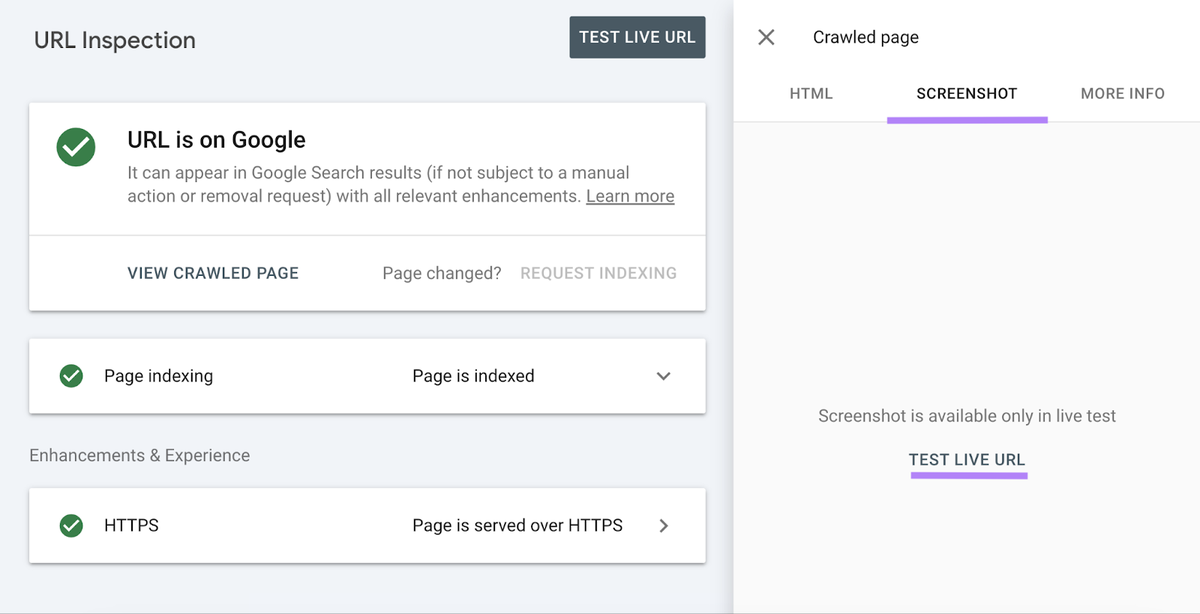
When the live test shows that the URL is available to Google:
- confirm that page fetch is successful;
- confirm that crawling is allowed;
- check that no unintended
noindexdirective remains; - request indexing for the URL if you want Google to recrawl it sooner;
- for many affected URLs, update the sitemap and allow Google to recrawl the site normally.
A successful live test does not guarantee ranking or immediate indexing. It only confirms that the access problem no longer prevents Google from fetching the current page.
What Not to Do
- Do not disable your entire WAF or firewall just to make one URL crawlable.
- Do not allow requests solely because the User-Agent contains
Googlebot. - Do not make private or account-only content public just to clear a Search Console warning.
- Do not treat a robots.txt change as a fix for a real HTTP 403.
- Do not repeatedly request indexing while the live test still cannot fetch the page.
The safest fix is a narrow change to the rule that is incorrectly denying a page that should already be public.
Frequently Asked Questions
Final Thoughts
“Blocked due to access forbidden (403)” is an access problem before it is an indexing problem. Decide whether the URL should be public, identify the layer returning 403, verify the relevant Google crawler or fetcher before creating exceptions, and confirm the fix with URL Inspection.
If the page is meant to stay private, keep the access control. If it is meant to rank in Google, the goal is not to weaken security broadly; it is to make the intended public page consistently fetchable by legitimate Google crawling and inspection requests.