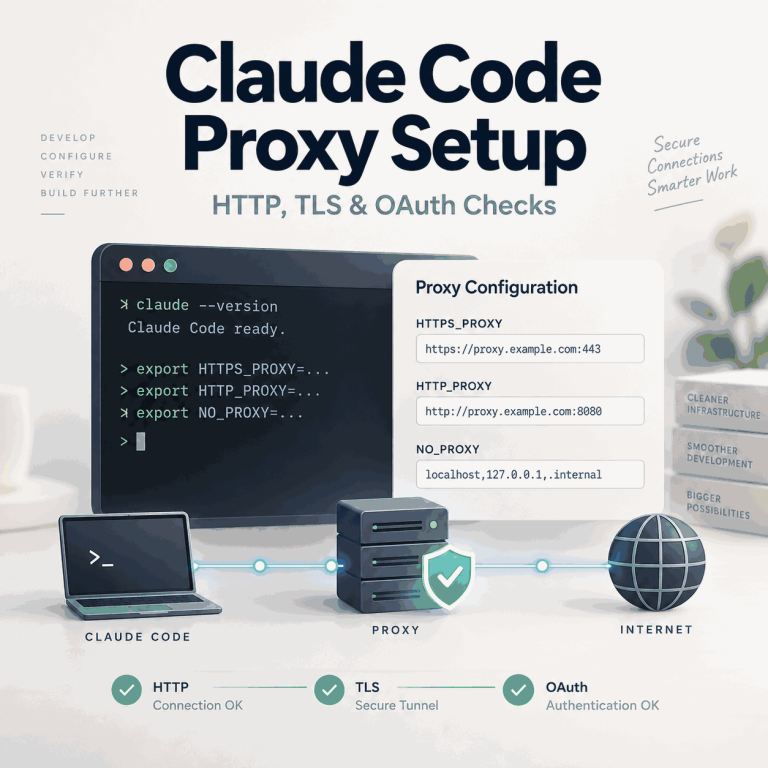
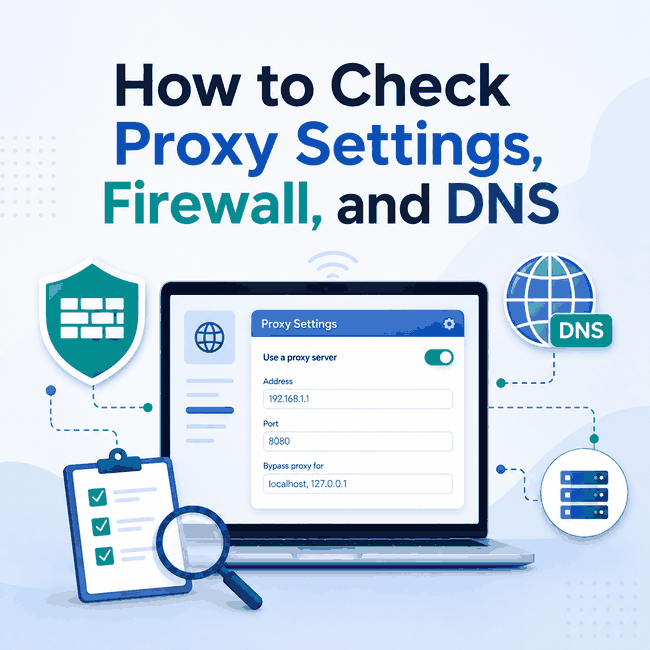
Proxy settings tell an application where and how to connect to a proxy. When a permitted web-data or QA workflow fails, the proxy is only one possible cause. The failure may come from a wrong host or port, an authentication mismatch, a firewall rule, DNS resolution, TLS negotiation, or the destination's response policy.
Check in this order: proxy settings, configuration scope, endpoint connection, firewall access, DNS behavior, TLS, then the visible IP and HTTP response. Verify the protocol, host, port, and credentials in the same browser, application, or command that will run the workflow. A changed visible IP proves that the tested route changed; it does not prove that every application, DNS lookup, IPv6 request, or destination uses the same path.
- Test from the same browser, application, or command that will run the workflow.
- Check protocol, host, port, credentials, and scope before changing the proxy provider.
- A firewall can block the proxy endpoint even when the settings are syntactically correct.
- DNS and TLS results can fail independently from the TCP connection to the proxy.
- Use the visible IP and response status as evidence, not as a guarantee of access or anonymity.
How to Check Proxy Settings on Windows, macOS, and Linux
Start by finding the proxy configuration used by the device or application that is failing. Do not change several layers at once. Record the current values first so you can compare the result after one controlled change.
| Platform | Where to check | What to record |
|---|---|---|
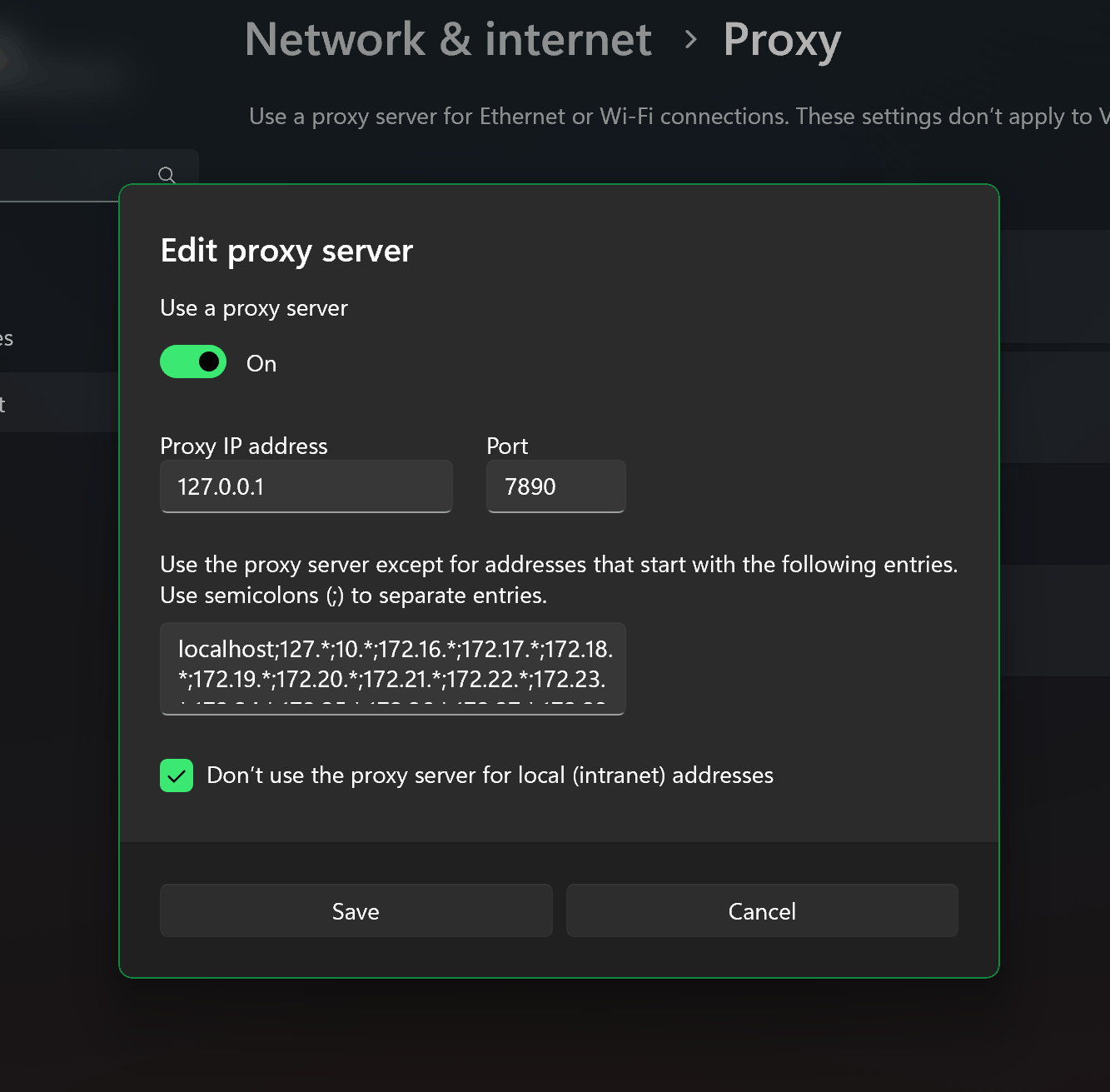
| Windows 11 | Settings → Network & internet → Proxy. Microsoft documents automatic detection, setup scripts, and manual proxy configuration in its Windows proxy settings guide. | Automatic detection, setup-script URL, proxy IP address, port, and bypass list |
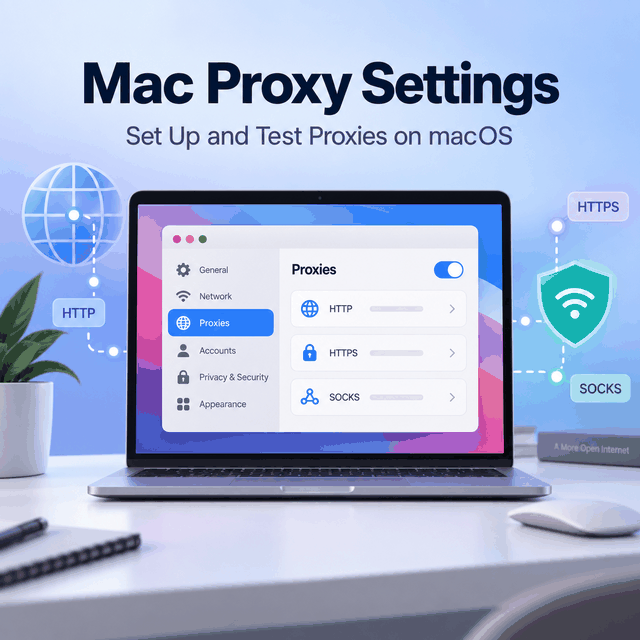
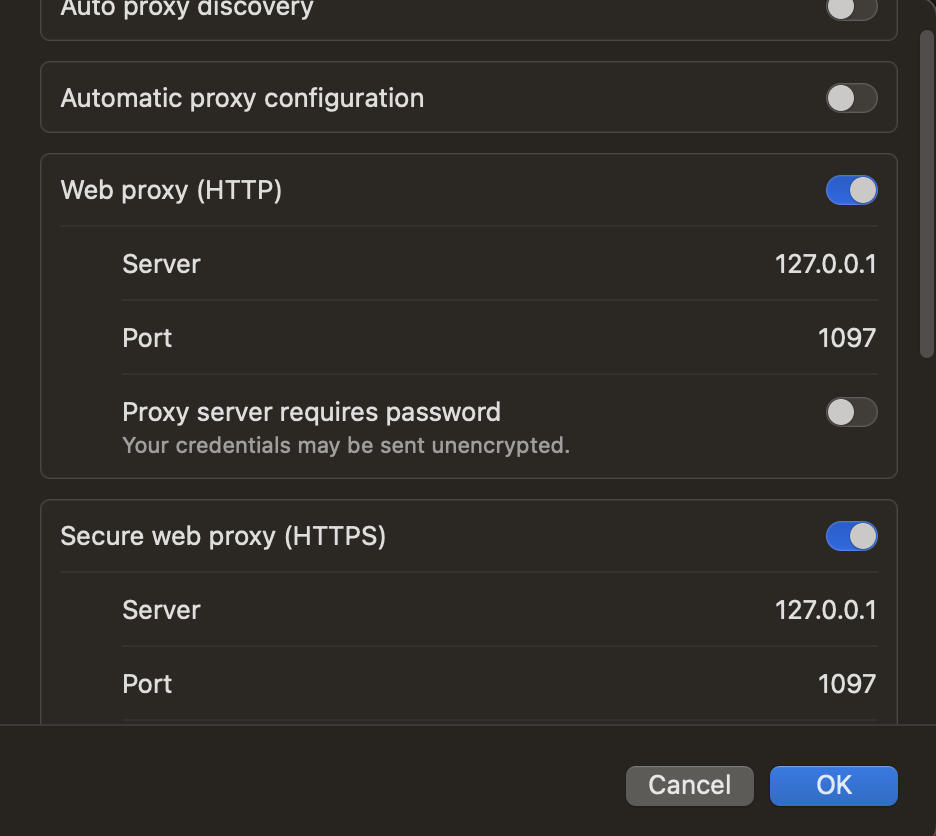
| macOS | System Settings → Network → active network service → Details → Proxies. Apple documents HTTP, HTTPS, SOCKS, PAC, and bypass options in Change proxy settings on Mac. | Enabled proxy type, server, port, authentication, PAC URL, and bypass hosts |
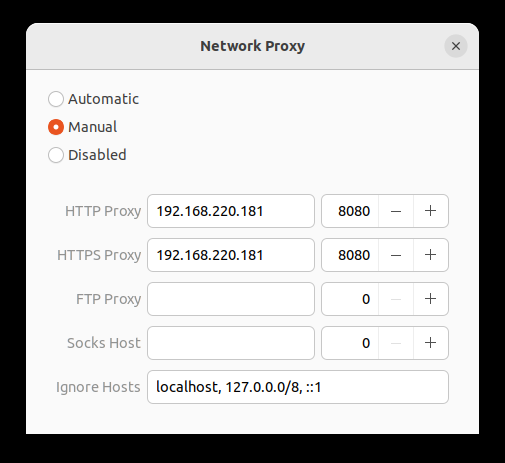
| Linux | There is no single universal settings path across distributions and desktop environments. GNOME provides a Network Proxy panel, while shell-based workflows may also use proxy environment variables. | http_proxy, https_proxy, ALL_PROXY, NO_PROXY, plus desktop or app-level settings |
Windows 11
In Windows 11, open Settings → Network & internet → Proxy. Under Manual proxy setup, check whether the proxy is enabled and confirm the IP address, port, and local-address exceptions. If a setup script is used instead, record the script URL before changing the manual fields.
macOS
On macOS, open System Settings → Network, select the active network service, choose Details, and open Proxies. HTTP, HTTPS, SOCKS, automatic discovery, and automatic proxy configuration can be controlled separately, so record which options are enabled.
Linux
Linux proxy settings depend on the desktop environment and the application. In GNOME, open the Network Proxy panel and check whether the mode is Automatic, Manual, or Disabled. Shell-based tools may also read proxy environment variables, so a desktop setting does not automatically prove that every command-line process uses the same route.
Browsers and applications may not all follow the same system setting. Extensions, enterprise policies, command-line flags, environment variables, containers, and application-specific settings can override or bypass the operating-system configuration. That is why the next step is to check both the proxy fields and the scope where they apply.
Check the Proxy Fields First
Most proxy settings screens contain the same basic fields. A small mismatch can look like a general internet failure, so record the exact values before changing anything.
| Field | What to verify | Typical failure |
|---|---|---|
| Protocol | HTTP, HTTPS, or SOCKS5 support in the application | The application does not support the selected protocol |
| Host | The exact hostname or IP of the endpoint | A copied hostname contains a space or an unsupported scheme |
| Port | The port assigned to the endpoint | The port belongs to another protocol or route |
| Username | The expected account, zone, or session value | Credentials are valid for a different endpoint or zone |
| Password | The current password or token | The token expired, was rotated, or contains an unescaped character |
Do not assume that a complete proxy URL belongs in every field. Some tools accept http://user:pass@host:port; others require the protocol, host, port, username, and password separately. Follow the application format and keep real credentials out of screenshots and shared logs.
Confirm Where the Setting Applies
Proxy configuration can exist at several layers. A browser profile may affect only that profile, an application setting may affect one scraper or SDK, an operating-system setting may affect applications that honor system configuration, and a command-line flag or environment variable may affect only one process.
This is why testing from another browser can produce the wrong conclusion. If the original IP appears in Chrome, the issue may be that Chrome is not using the setting, not that the endpoint is dead. Test the same profile and application that will perform the real request.
Why Two Applications Can Show Different Routes
There is no single proxy configuration path that every application must inherit. Microsoft notes that some Windows applications use system proxy configuration while others require their own settings, and Microsoft Edge can also apply manual proxy rules and bypass rules. Command-line clients such as curl can use an explicit --proxy option instead of the desktop setting. As a result, two requests from the same computer can legitimately expose different public IP addresses without proving that the proxy endpoint itself is faulty.
- Run the test from the exact browser profile, application, container, or command that is failing.
- Check extensions, launch flags, environment variables, PAC files, and bypass lists that may override the operating-system setting.
- Compare one direct request and one explicitly proxied request from the same client before drawing conclusions from a second application.
Check the Firewall Path
When the proxy host cannot be reached, inspect the path in layers. A local firewall, endpoint-security rule, corporate egress policy, router rule, or provider-side allowlist can prevent the connection before the request reaches the destination.
- If DNS cannot resolve the proxy hostname, check the resolver and hostname before checking an HTTP response.
- If the hostname resolves but the TCP connection is refused or times out, check the port, local firewall, egress policy, and endpoint status.
- If the client receives an HTTP 407 response from the proxy, it has reached a proxy endpoint that is requesting authentication. Check the username, password, zone, token, or session format next. A 407 does not prove that the destination behind the proxy is reachable.
- If the proxy route is established but the destination returns 403, 429, or 503, separate the proxy connection from the destination's policy, rate limit, or health response.
If a browser suggests checking the proxy and the firewall, treat it as a diagnostic sequence, not a reason to disable security controls. Keep the minimum required outbound rule and test with an authorized endpoint and destination. If the problem involves source-IP authorization, a 407 response, or uncertainty about credentials versus an allowlist, IPWeb's guide to IP allowlisting and proxy authentication separates those access checks from the firewall transport path.
Check DNS and TLS Separately
DNS behavior is not the same as proxy connectivity. An application can connect to a proxy while resolving names locally, using a secure-DNS feature, or applying its own resolver policy. Browser and application behavior can therefore differ even when the host and port are identical.
- Identify which component resolves the destination hostname.
- Check whether the browser or application enables secure DNS.
- Compare the resolver used by a browser, application, and command-line client.
- Check whether the observed DNS region is consistent with the route being tested.
- Test whether IPv4 and IPv6 follow different paths.
For a browser-side snapshot of the visible IP, DNS, WebRTC, ISP, and location signals, see How to Read a Whoer IP Check for Proxy Testing. Use those signals as diagnostic evidence rather than treating one checker result as a complete verdict.
TLS failures need a separate check. A valid proxy connection does not guarantee that the next TLS handshake will succeed. Review the destination hostname used for SNI, the client certificate store, the system clock, and whether the proxy protocol is being interpreted correctly. Do not disable certificate verification as a routine fix.
Confirm the Configured Route From the Same App
After the fields and network path look correct, make a direct request and an explicitly proxied request from the same client. Comparing the two results removes one major source of ambiguity: whether the application actually applied the proxy setting.
curl https://httpbin.org/ip
curl --proxy http://proxy.example.com:8080 https://httpbin.org/ip
If the second request returns a different public IP, that specific curl request used a different exit route. It does not prove that the browser, DNS resolver, IPv6 traffic, WebRTC, background services, or another application use the same path. If both requests return the same IP, check whether the proxy argument is valid for the endpoint, whether a bypass rule applies, and whether the request actually reached the proxy.
For a full liveness and route-validation workflow covering visible IP, country, ISP or ASN, protocol, repeatability, and the actual target page, use IPWeb's How to Check If a Proxy Is Working guide. Keeping that broader validation on the dedicated page prevents a configuration problem from being confused with proxy quality, geolocation, or destination behavior.
Add authentication only in a protected local environment, and avoid placing passwords in shell history or CI logs. The exact curl option and supported proxy protocol should match the endpoint and the client version. The official curl proxy documentation covers HTTP and SOCKS proxy options, authentication, and proxy-related environment variables.
How to Interpret Proxy Test Results
A useful proxy test should answer one narrow question at a time. The table below separates what an observation confirms from what it cannot establish on its own.
| Observed result | What it confirms | What it does not confirm | Best next step |
|---|---|---|---|
| Direct and proxied curl requests show different public IPs | The explicitly proxied curl request used a different visible exit route | That every browser, DNS lookup, IPv6 flow, or background process uses that route | Repeat the check from the actual application that needs the proxy |
| HTTP 407 from the proxy | The client reached a proxy that requires authentication | That the credentials are correct or that the destination is reachable | Check the authentication method, username, password, token, zone, or session format |
| TCP connection times out | A usable TCP connection to the tested host and port was not completed | That the password is wrong or that the destination blocked the request | Check the port, firewall, egress policy, routing, and endpoint status |
| Proxy route works but the destination returns 403 or 429 | The request reached a point where an HTTP response was returned | That changing the proxy port or disabling a firewall will solve the destination policy | Inspect response headers, request context, rate limits, and the destination's access policy |
| TLS certificate validation fails | The client could not validate the TLS session as configured | That certificate verification should be disabled | Check SNI, hostname, certificate store, system clock, and protocol handling |
| Browser and curl show different public IPs | The two clients are not following the same effective network configuration | That either result alone is incorrect | Compare system settings, app-specific settings, extensions, environment variables, and bypass rules |
The key diagnostic rule is to avoid treating one successful or failed request as proof about the entire device. Record the client, proxy protocol, endpoint, time, visible IP, status code, and the first failing layer so the result can be reproduced.
Classify the Failure Before Fixing It
Use the first failed layer to choose the next check. A DNS failure should not be treated like an authentication error, and a destination-side 403 should not be treated like a TCP timeout.
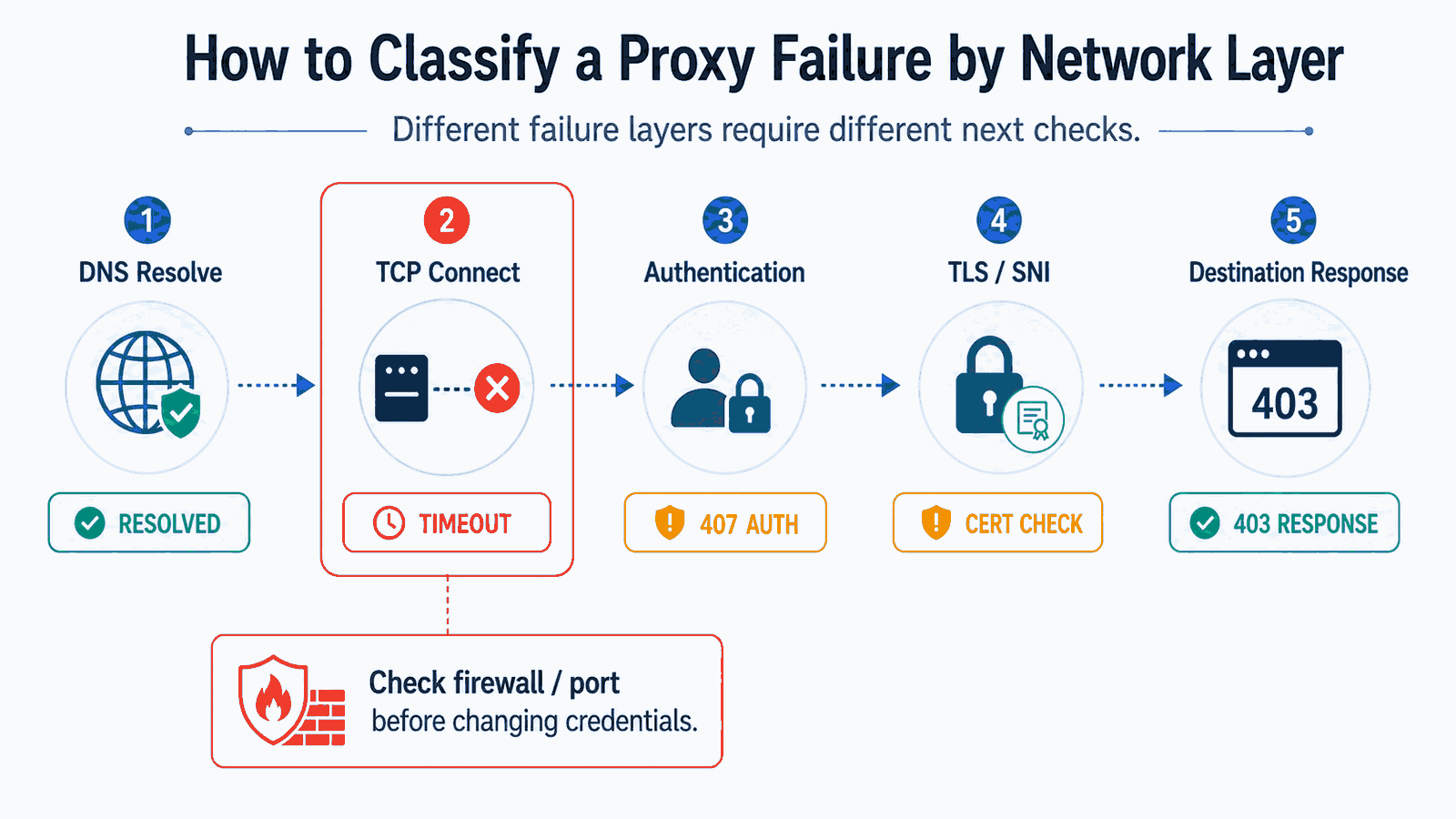
| Observation | Most useful next check | What it does not prove |
|---|---|---|
| Proxy hostname does not resolve | DNS, hostname, and resolver configuration | That the destination is unavailable |
| Connection times out | Port, firewall, egress rule, and endpoint status | That the credentials are wrong |
| Authentication is rejected | Username, password, zone, or session format | That the network path is blocked |
| Original IP remains visible | Application scope, profile, extension, or bypass rule | That the proxy endpoint is invalid |
| Proxy IP appears but destination returns 403 | Destination policy, request context, and response headers | That changing ports will solve the policy |
| TLS verification fails | Certificate store, clock, SNI, and protocol interpretation | That certificate checks should be disabled |
| Only IPv6 differs | IPv4/IPv6 route and application support | That the IPv4 proxy test covers IPv6 |
This classification keeps a proxy configuration problem separate from a destination-side response. It also prevents repeatedly changing endpoints when the actual issue is an application scope or firewall rule.
Technical References
Use these primary and first-party references to verify operating-system menu paths, client proxy behavior, and HTTP proxy-authentication semantics when an interface or client version changes.
- Microsoft Support: Use a proxy server in Windows — Windows automatic, script-based, and manual proxy settings.
- Microsoft Learn: Microsoft Edge proxy support — manual proxy rules, bypass behavior, and browser proxy configuration.
- Apple Support: Change proxy settings on Mac — HTTP, HTTPS, SOCKS, PAC, authentication, and bypass options.
- GNOME Help: Define proxy settings — None, Manual, and Automatic network proxy modes.
- curl Tutorial: Proxy — HTTP and SOCKS proxy usage, authentication, and bypass options.
- RFC 9110: 407 Proxy Authentication Required — the HTTP semantics of a proxy authentication challenge.
Product-specific credentials, endpoint availability, destination policies, firewall rules, and application overrides depend on the environment where the failure occurs. Verify those values locally instead of assuming that a platform-level setting applies to every application.
Frequently Asked Questions
About the Author
Marcus is a Proxy Network Analyst at IPWeb. His coverage focuses on proxy configuration, IP routing, browser connectivity, authentication, DNS behavior, and practical network troubleshooting across desktop, browser, and command-line environments.
Final Thoughts
Proxy troubleshooting becomes faster when each observation is tied to a layer. Check the settings, scope, firewall path, DNS behavior, TLS negotiation, visible IP, and destination response in that order. The result should tell you which layer needs attention, not merely whether one test page loaded.
If the configuration is correct and an authorized workflow specifically needs the same exit IP for repeated QA or an IP allowlist, IPWeb Static Residential Proxies provide fixed ISP-registered IPs during the active subscription. A fixed endpoint is a routing choice, not a substitute for fixing DNS, TLS, firewall, authentication, or application-scope problems.