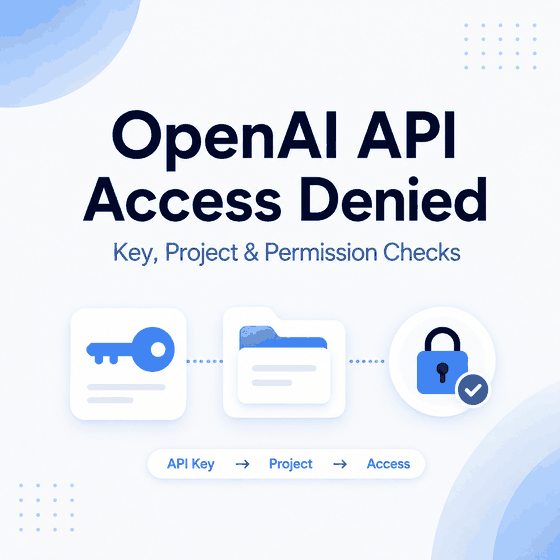
OpenAI API access denied errors usually point to a specific access layer: an invalid or stale API key, the wrong project or organization context, missing project or model permissions, an endpoint mismatch, an unsupported region, IP allowlisting, or a server-side network problem. The fastest way to diagnose the failure is to capture the exact HTTP status and error body before changing credentials or application settings.
Do not treat every 401 or 403 as the same problem. A browser message may come from your own frontend or backend, while a server-side OpenAI API response can contain a specific error type, code, and request ID that identifies the failing layer.
If OpenAI API access is denied, first inspect the raw server-side response. Verify the API key, Bearer authorization header, project and organization context, project membership, model access, and endpoint. If those checks pass, review OpenAI Status, organization IP allowlisting, DNS, TLS, firewall rules, and outbound server networking. Keep unsupported-country errors and 429 rate or quota errors in their dedicated troubleshooting workflows.
- Capture the raw HTTP status and error body before replacing keys or changing infrastructure.
- Separate browser/frontend errors from the server-side OpenAI API response.
- 401-style failures usually start with API key, Authorization header, organization, or IP-allowlisting checks.
- A valid key can still fail when the project, permissions, model access, or endpoint is wrong.
- Unsupported-country messages belong to the country-availability workflow; 429 belongs to rate, quota, credit, or spend-limit troubleshooting.
- OpenAI API keys should stay on the server rather than being exposed in browser or mobile client code.
Capture the Exact Error First
A status code is only the first clue. Save the response body before changing anything, because the error type, error code, message, and request context can separate authentication from project permissions, model access, country availability, IP allowlisting, rate limits, or a service/network problem.
| Signal | Primary Layer to Check | Useful Evidence |
|---|---|---|
| 401-style authentication failure | API key, authorization, organization, or IP allowlisting | error type/code, key source, Bearer header, organization settings |
| 403-style access denied | project, role, resource, model, or policy | project membership, key permissions, model/resource access, exact error body |
| Unsupported country or region | official availability policy | supported-country guidance and account context |
| 429 | rate, quota, usage, credit, or spend limits | exact 429 code, Limits page, project and organization usage |
| 5xx, timeout, DNS, or TLS failure | service health or server network | OpenAI Status, request ID, client timeout, DNS/TLS/firewall path |
For reproducible troubleshooting, record the endpoint, HTTP method, model, project, timestamp, SDK version, and request ID when one is returned. Keep secrets out of logs: preserve only the masked key fragment or non-secret identifiers needed to identify the request context.
Browser Frontend vs Server-Side API Errors
A browser error is not automatically an OpenAI API error. A web application may display a generic message after its own backend fails, or the browser console may show a fetch, CORS, timeout, or application-routing error that never exposes the original OpenAI response.
| Where You See the Error | What It May Represent | What to Inspect Next |
|---|---|---|
| Browser page or UI alert | Your application's summarized error | Server logs and the backend response from OpenAI |
| Browser developer console | Frontend request, CORS, fetch, session, or network failure | Whether the browser called your backend or OpenAI directly |
| Server log, SDK exception, or curl response | Direct OpenAI API response | HTTP status, error type/code, request ID, project, and endpoint |
OpenAI's API key safety guidance says secret API keys should not be deployed in browser or mobile client environments. If frontend code calls OpenAI directly with a secret key, move the OpenAI request to a trusted server-side component and keep the key in an environment variable or secret-management system.
Real OpenAI API Error JSON
OpenAI's official IP allowlisting documentation shows a specific 401 response when an organization has IP allowlisting enabled and a request originates from an IP that is not permitted:
{
  "error": {
    "message": "Your IP is not authorized to access this organization.",
    "type": "ip_not_authorized"
  }
}
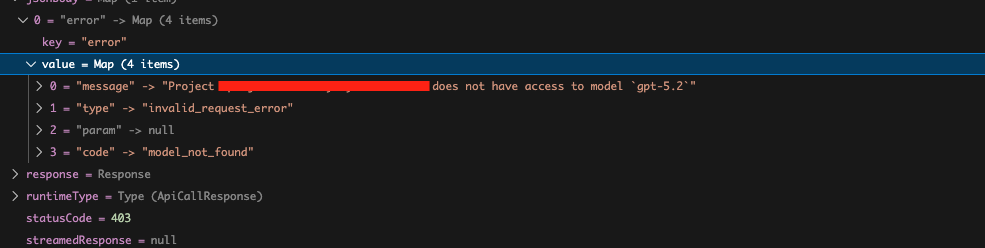
A different access-denied case can have a different error code. For example, a real OpenAI Developer Community report shows a project/model permission failure using model_not_found with a message that the project does not have access to the requested model. The important point is to diagnose the error fields instead of treating every 401 or 403 as a generic network block.
Check the API Key and Authorization Header
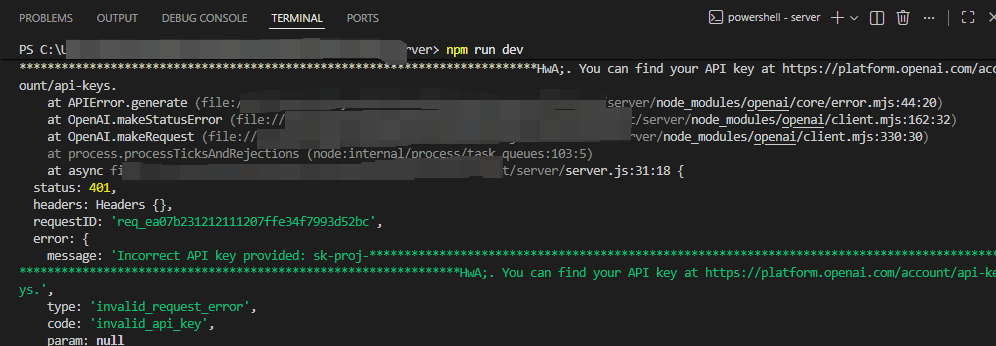
OpenAI API requests use API keys for authentication. The key should be loaded securely on the server and sent with HTTP Bearer authentication. OpenAI's API authentication documentation recommends keeping keys out of browser or client-side code and loading them from an environment variable or key-management system.
Check the simple failure points first:
- the environment variable contains the current key rather than an older revoked value;
- the key was copied without extra whitespace or missing characters;
- the request sends
Authorization: Bearer OPENAI_API_KEY; - the application is not reading credentials from a different shell, container, deployment secret, or CI environment;
- the key belongs to the project you intended to use.
A minimal request to the Models endpoint is useful as a baseline because it tests whether the client can authenticate and reach the API without depending on a larger generation payload.
curl -i https://api.openai.com/v1/models \
  -H "Authorization: Bearer $OPENAI_API_KEY"
A successful Models request does not prove that every model or endpoint is available to the project. It only gives you a cleaner baseline for authentication and connectivity.
Check Project and Organization Access
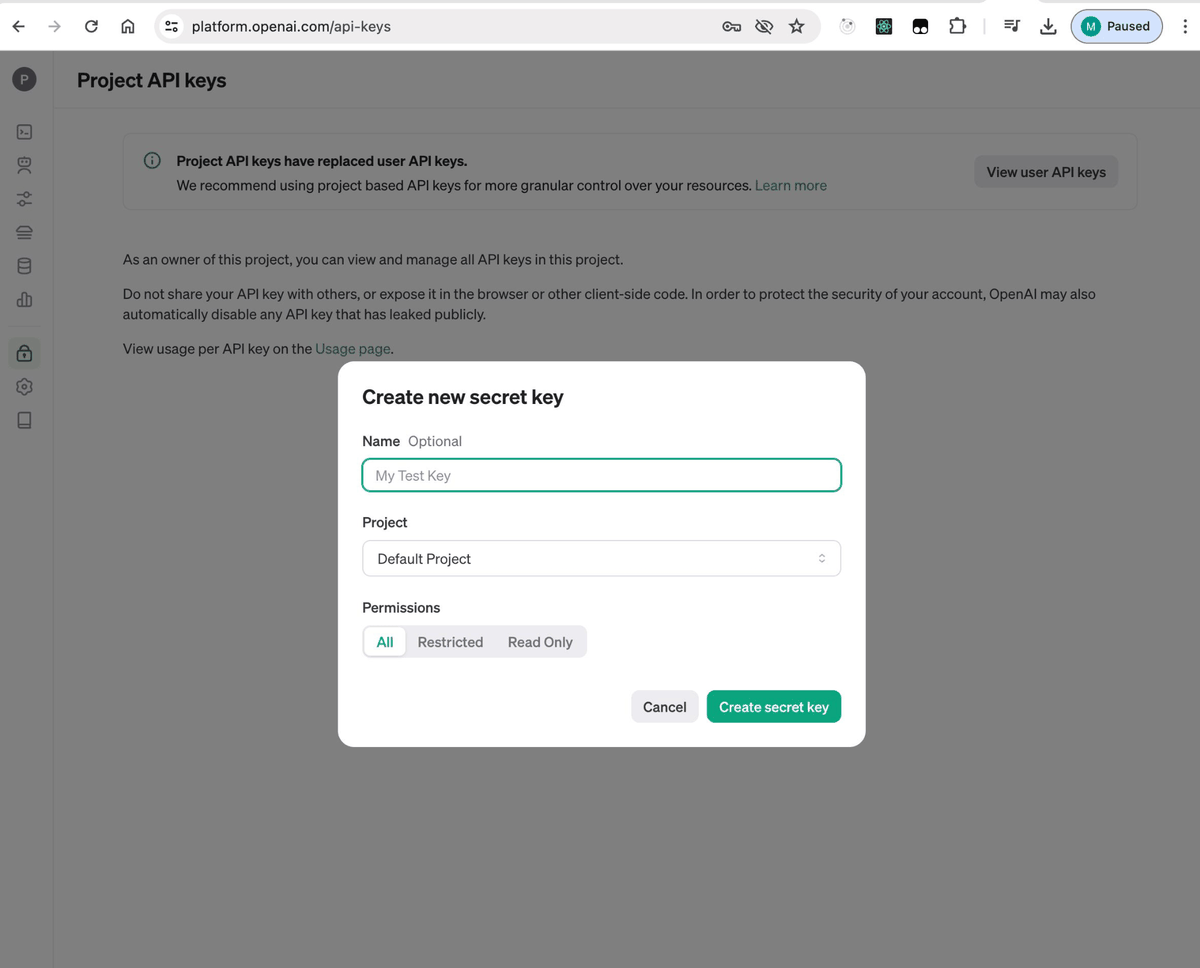
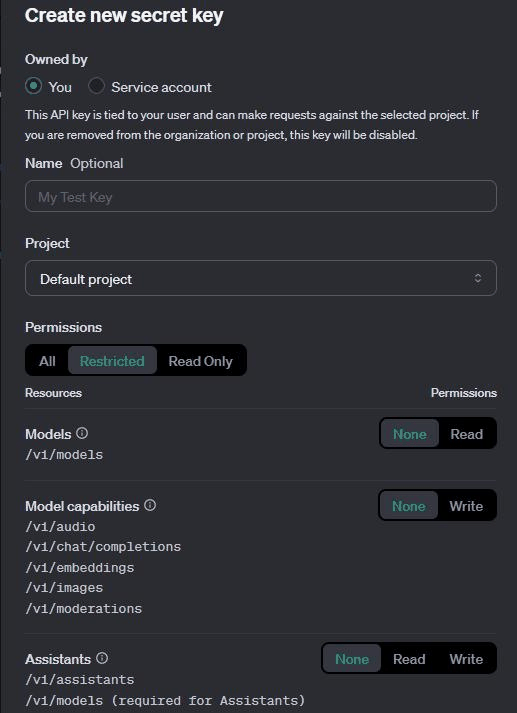
Project scope matters. OpenAI's current project-management guidance states that personal API keys are scoped to the project in which they are created. Projects can also have their own members, roles, model usage settings, and limits.
This means a key can be valid but still be wrong for the workload. Confirm:
- which project created the key;
- whether the user or service account still belongs to that project;
- whether the application is sending requests under the intended organization and project context;
- whether a deployment secret still points to a key from an archived or different project;
- whether project-level role or resource permissions changed.
If the same code works with one project key but fails with another, compare project membership, model usage settings, and resource scope before assuming the network route is responsible.
Check Model and Endpoint Access
Model access is separate from basic authentication. OpenAI's Models API lists models available to the current API context, and project settings can control model usage. If one model fails while another request succeeds, inspect the requested model, endpoint, and project configuration rather than treating the problem as a general API outage.
Verify the exact model identifier and endpoint used by the current SDK or REST call. A wrong endpoint, unsupported request shape, renamed deployment setting, or model that is not available to the project can produce an access-looking failure even though the API key itself is valid.
Also compare the failing call with the smallest possible working request. Remove optional tools, file references, structured-output settings, or other features until the failure can be reproduced with a minimal payload. Then add features back one at a time.
When Region Is the Real Problem
Region belongs in this workflow only when the response explicitly points to country or regional availability. OpenAI maintains a current list of countries and territories supported for API access and warns that access from outside supported locations may lead to account restrictions.
If the exact problem is an unsupported-country message rather than a project or authentication failure, move to IPWeb's OpenAI country error guide. Do not duplicate the full country-diagnosis workflow here.
Keep 429 and Billing Errors Separate
A 429 response is not a generic access-denied problem. OpenAI currently distinguishes temporary rate-limit errors from quota, credit, organization-usage, organization-spend, and project-spend errors. The exact 429 code determines whether waiting and pacing can help or whether the reported balance or limit must be fixed first.
If the failure is primarily concurrency, request rate, token rate, quota, credit, or spend limits, use the dedicated ChatGPT and OpenAI 429 troubleshooting guide. This page should only confirm that 429 belongs elsewhere, not repeat backoff or concurrency instructions.
Check Service Health, IP Allowlisting, and Server Network
Once the key, project, model, and endpoint checks are clean, check OpenAI Status. A platform incident can make a correct integration fail without any local configuration change.
If service status is normal, check whether the organization uses OpenAI API IP allowlisting. OpenAI documents that a request from an IP outside the configured allowlist fails with HTTP 401 and the error type ip_not_authorized. In that case, verify the server's actual egress IP and the organization's configured IP ranges rather than changing API keys.
For other network-layer failures, inspect:
- DNS resolution for the OpenAI API host;
- TLS negotiation and certificate inspection;
- corporate firewall or outbound allowlist rules;
- HTTP proxy environment variables inherited by the SDK or runtime;
- cloud egress, NAT, or server IP changes;
- client timeout and connection-pool settings.
A timeout, TLS failure, connection reset, DNS error, or ip_not_authorized response gives you a much stronger network clue than a generic application message such as "access denied." Keep this layer focused on the server that actually sends the OpenAI API request.
Frequently Asked Questions
Final Thoughts
OpenAI API access denied errors become easier to diagnose when frontend symptoms, authentication, project scope, model access, availability policy, IP allowlisting, rate limits, and server networking are kept separate. Start with the raw API response, prove which key and project the runtime is using, then isolate permissions, model access, and endpoint behavior.
When the evidence points to a different owner, stop expanding the diagnosis on this page: use the dedicated country-error workflow for unsupported-region messages and the dedicated 429 workflow for rate, quota, credit, or spend-limit errors.