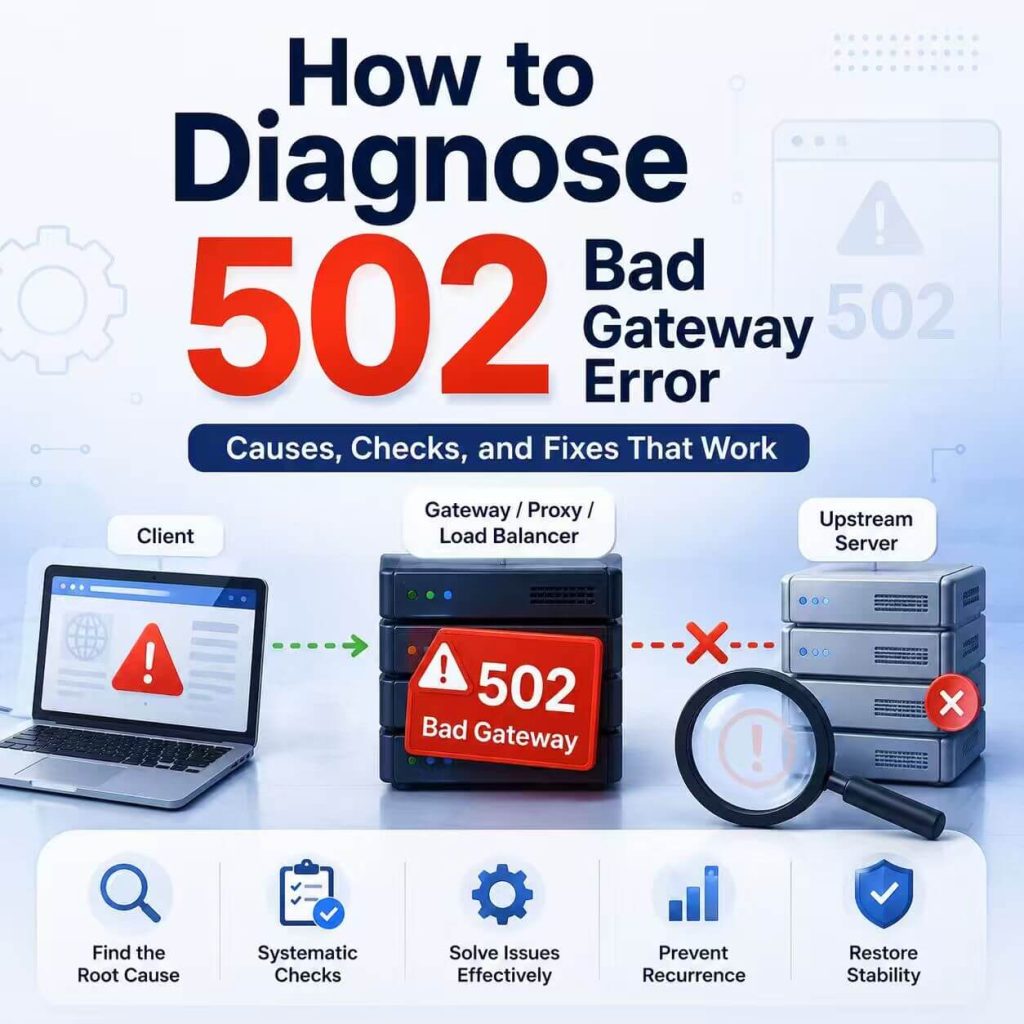
A 502 Bad Gateway error means that one server in the request path could not get a valid response from another server upstream.
Your browser, API client, or application may have successfully reached a CDN, load balancer, reverse proxy, or gateway. However, that intermediary could not complete the next part of the connection.
This is normally a server-side or gateway-side problem. If the error appears only in one browser, network, proxy route, or application, the client’s network configuration may still be relevant—but it should not be the first assumption.
HTTP 502 Bad Gateway means a server acting as a gateway or proxy received an invalid response from an upstream server. Start by identifying which intermediary returned the error. Then check the upstream service, connection, protocol, DNS resolution, firewall rules, and recent deployment changes.
- 502 is a server error in the gateway-to-upstream connection.
- The word “proxy” often refers to a CDN, load balancer, or reverse proxy—not necessarily a user-configured proxy IP.
- Common causes include an unavailable backend, refused connection, invalid upstream response, TLS mismatch, DNS failure, or incorrect gateway configuration.
- A 502 differs from a 504: a 502 involves an invalid or failed upstream response, while a 504 involves an upstream timeout.
- If the error occurs only through one proxy route, test that route separately before blaming the target website.
- Automated workflows should use limited retries and preserve diagnostic evidence.
- What Does 502 Bad Gateway Mean?
- Where Can a 502 Occur?
- Common Causes of 502 Bad Gateway
- What Website Visitors Can Check
- How Developers and Website Owners Should Diagnose 502
- How Proxy Settings Relate to 502
- How to Inspect a 502 Response with curl
- 502 Errors in API and Web Data Workflows
- Common Troubleshooting Mistakes
- Frequently Asked Questions
- Final Thoughts
What Does 502 Bad Gateway Mean?
The HTTP specification defines 502 Bad Gateway as a response sent when a server acting as a gateway or proxy receives an invalid response from an upstream server.
You can review the formal definition in the HTTP 502 specification or the more accessible MDN 502 Bad Gateway reference.
The browser usually cannot see the exact upstream failure. It only receives the 502 response generated by the intermediary.
For example, the browser may reach a CDN successfully. The CDN then attempts to connect to the website’s origin server. If the origin sends an unusable response, closes the connection unexpectedly, or cannot be reached correctly, the CDN may return 502 to the browser.
A 502 specifically points to a failed or invalid response between a gateway and an upstream server. This differs from a 504, where the upstream response did not arrive within the required time.
The response may be generated by a CDN, reverse proxy, load balancer, API gateway, corporate gateway, or user-configured forward proxy. The first diagnostic task is identifying which intermediary produced it.
Where Can a 502 Occur?
A modern request may pass through several systems before it reaches the application that generates the content.
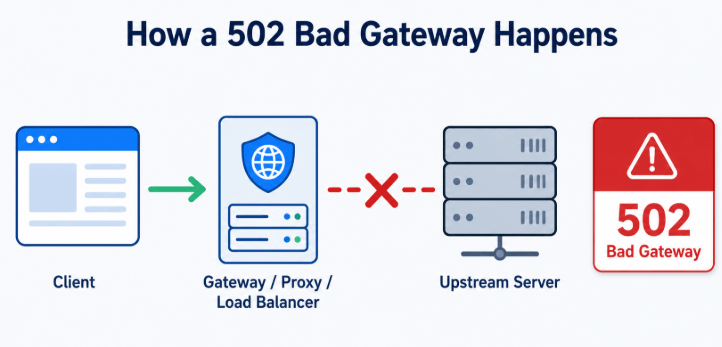
Optional → CDN or Load Balancer → Reverse Proxy or Gateway → Upstream Application
A 502 may be generated whenever one intermediary receives an invalid response from the next system in the chain.
This distinction matters because the word “proxy” has two common meanings:
- Forward proxy: configured by the user or application to send outbound traffic.
- Reverse proxy: operated in front of a website or application to receive incoming traffic and pass it to backend servers.
Most public 502 pages are generated by server-side infrastructure such as a CDN, reverse proxy, or load balancer. A user-configured forward proxy can also generate 502, but that is a different failure layer.
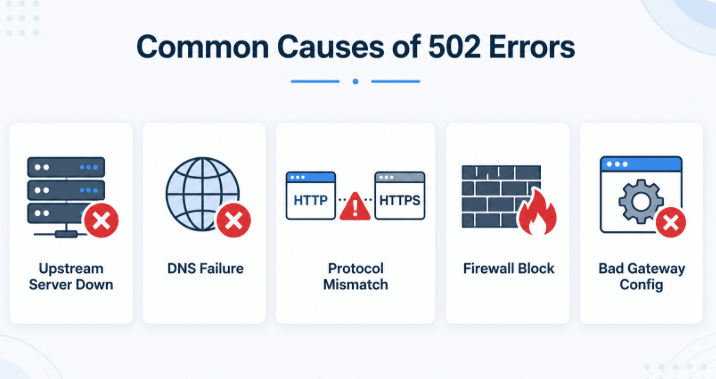
Common Causes of 502 Bad Gateway
The status code identifies the failing relationship between a gateway and an upstream service. It does not identify the exact configuration, server, or connection that failed.
| Cause | What May Be Happening | What to Check |
|---|---|---|
| Upstream application is unavailable | The gateway is running, but the backend process is stopped, unhealthy, or restarting. | Application health, process status, container status, deployment logs, and health checks. |
| Connection refused or reset | The gateway reaches the backend address, but the connection is rejected or closed unexpectedly. | Backend listening port, process logs, firewall rules, connection resets, and network policy. |
| Incorrect upstream host or port | The gateway is configured to contact the wrong service, address, container, or port. | Reverse-proxy configuration, service discovery, container mapping, and load-balancer targets. |
| Invalid upstream response | The backend returns malformed headers, incomplete data, or closes the connection before completing the response. | Gateway error logs, application output, response size, header format, and backend exceptions. |
| TLS or protocol mismatch | The gateway expects HTTPS while the backend serves HTTP, or certificate and SNI settings do not match. | HTTP or HTTPS scheme, certificate validity, SNI, supported TLS versions, and upstream protocol. |
| Gateway-to-upstream DNS failure | The gateway cannot resolve the backend hostname or resolves it to an outdated address. | DNS resolution from the gateway environment, service records, resolver cache, and recent DNS changes. |
| Firewall or allowlist rule | The origin rejects or drops connections from the CDN, load balancer, or gateway. | Security groups, firewall logs, origin allowlists, provider IP ranges, and blocked ports. |
| Overloaded or unstable backend | The application crashes, rejects connections, or returns incomplete responses during traffic spikes. | CPU, memory, worker count, queue depth, connection limits, and restart events. |
| User-configured proxy route failure | A forward proxy cannot connect to the destination or returns its own gateway error. | Proxy endpoint, authentication, protocol, DNS behavior, route health, and provider response body. |
What Website Visitors Can Check
A normal website visitor usually cannot repair the origin server, reverse proxy, or load balancer. The goal is to determine whether the issue is temporary or limited to one environment.
- Refresh the page once. A temporary backend restart or gateway problem may already have cleared.
- Open another page on the same site. This helps determine whether one endpoint or the entire service is affected.
- Check the service’s status page. Look for a reported outage or maintenance event.
- Try another browser or private window. This can rule out an unusual extension, cached error page, or browser-specific configuration.
- Test another network. If the service works elsewhere, inspect the original network, DNS, VPN, firewall, or proxy configuration.
- Disable a custom proxy or VPN temporarily for diagnosis. Do this only to compare the request path.
If the same site returns 502 across several devices and networks, the issue is probably controlled by the website, hosting provider, CDN, or upstream service.
How Developers and Website Owners Should Diagnose 502
Website owners have access to stronger evidence than visitors. Start by identifying the system that generated the response, then trace the next upstream connection.
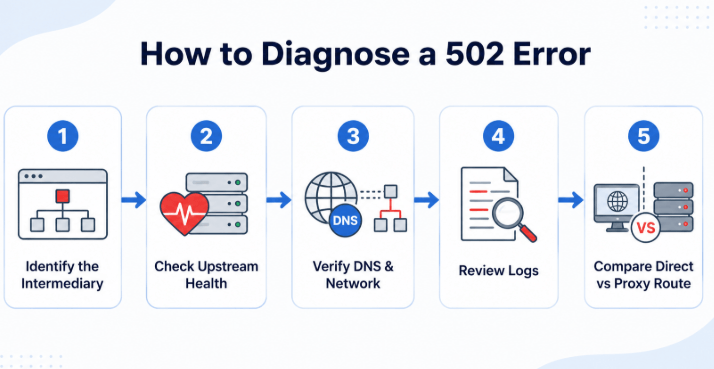
- Inspect the error-page branding.
- Check the
ServerandViaheaders. - Look for CDN, gateway, or request-ID headers.
- Check
Proxy-Statuswhen it is present.
- Confirm that the backend process is running.
- Verify the host, port, protocol, and health check.
- Test DNS resolution from the gateway.
- Review connection and application logs.
Identify Which Layer Returned the Error
Inspect the response headers and body. A branded CDN page suggests that the CDN generated the response. An NGINX page may come from the origin’s reverse proxy, a hosting layer, or another intermediary.
If the response contains a Proxy-Status header, it may provide additional information about how an intermediary handled the request. The header is defined in RFC 9209, but it is not included by every service.
Check Upstream Health
Confirm that the backend process is running and accepting connections on the expected address and port. Check service discovery, container health, load-balancer targets, and recent restarts.
Review Gateway and Application Logs Together
Match the request timestamp and request ID across the gateway and upstream application logs.
Look for messages such as:
- Connection refused.
- No healthy upstream available.
- Connection reset by peer.
- Upstream closed the connection prematurely.
- Invalid response header.
- TLS handshake failure.
- Name resolution failure.
Verify the Upstream Protocol
Check whether the gateway is connecting to the backend over the correct HTTP or HTTPS scheme. Also verify the hostname, SNI setting, certificate trust, port, and supported protocol version.
Check Recent Changes
Review deployments, reverse-proxy edits, DNS updates, certificate renewals, firewall changes, scaling events, container updates, and backend restarts that occurred shortly before the error began.
Compare Edge and Origin Results
When your CDN or hosting platform exposes separate edge and origin status information, compare them. This can show whether the origin returned an error or the edge generated the 502 while trying to contact it.
Cloudflare’s official 502 and 504 troubleshooting documentation is one example of provider-specific guidance for separating edge and origin failures.
How Proxy Settings Relate to 502
The word “proxy” in the 502 definition does not automatically refer to the proxy IP configured in your browser, crawler, or automation tool.
There are two separate situations.
| Proxy Type | Role | How It May Produce 502 | What to Check |
|---|---|---|---|
| Reverse proxy, CDN, or load balancer | Sits in front of the website or API. | Cannot get a valid response from the origin or backend service. | Origin health, upstream logs, gateway settings, TLS, DNS, firewall, and backend response. |
| Forward proxy configured by the user | Sends outbound traffic for a browser, script, or application. | Cannot connect to the target, cannot complete the tunnel, or generates its own gateway error. | Proxy endpoint, port, protocol, authentication, route health, DNS, and provider response. |
If a request works directly but returns 502 through a proxy, test the proxy independently. Confirm that the proxy is active, supports the target protocol, and can reach a simple public URL.
The guide on how to check whether a proxy is working explains how to verify the visible IP and confirm that traffic is using the intended route.
Incorrect proxy credentials normally produce 407 Proxy Authentication Required. A 502 more often means that a gateway or proxy could not complete its upstream connection or received an unusable response.
Changing the proxy cannot repair a failed origin deployment, broken reverse-proxy configuration, invalid backend response, or unavailable upstream server.
If repeated API or public web data tests require a stable, approved network route, a static residential proxy can keep the visible IP and connection path consistent while you compare responses across sessions. This can improve test consistency, but it cannot fix an unavailable upstream server or broken gateway configuration.
How to Inspect a 502 Response with curl
Use curl to inspect the status code, response headers, body, redirects, and connection details.
Inspect the Response Headers and Body
curl -i -L \
  "https://example.com/"
Review:
- The final status code.
- The final URL after redirects.
- The
Server,Via, andProxy-Statusheaders when present. - CDN or gateway request IDs.
- The error-page content.
Inspect Connection Details
curl -v -L \
  --connect-timeout 10 \
  --max-time 30 \
  "https://example.com/"
Verbose mode can show DNS resolution, the destination address, TLS negotiation, proxy tunneling, redirects, and response headers.
Compare the Request Through a Proxy
curl -i \
  --proxy "http://proxy.example.com:8000" \
  --proxy-user "PROXY_USER:PROXY_PASSWORD" \
  "https://example.com/"
If the direct request succeeds and the proxied request returns 502, inspect the proxy route, protocol, endpoint, and provider response. Keep the target URL, headers, and request method unchanged during the comparison.
Command output can contain IP addresses, cookies, authorization headers, proxy passwords, and request IDs. Remove sensitive information before sharing logs.
502 Errors in API and Web Data Workflows
Automated workflows should classify 502 responses instead of retrying them indefinitely.
Store the following information:
- Request URL and method.
- Timestamp and retry number.
- Status code and a limited response sample.
- Relevant response headers and request ID.
- Proxy endpoint or route identifier when used.
- Final URL and redirect chain.
- Connection and timeout details.
Use Limited Retries
An occasional 502 may be temporary, especially during a backend restart or short infrastructure failure. A retry can be reasonable, but it should be limited.
Use exponential backoff with jitter rather than immediate repeated requests. Retry safe and idempotent operations such as GET and HEAD first. Be careful when retrying requests that create, charge, submit, or modify data unless the API supports an idempotency mechanism.
Retry a small number of times with increasing delays. If the same route continues returning 502, pause the workflow and preserve the response evidence. Repeatedly switching IPs or sending requests faster can hide the original failure.
Compare Routes Without Changing Other Variables
If the error appears only through one proxy endpoint, region, or environment, keep the URL, method, headers, account, and request body unchanged while switching only the route.
If all routes return the same 502 response, the target-side gateway or upstream service is more likely responsible.
Common Troubleshooting Mistakes
| Mistake | Why It Causes Problems | Better Approach |
|---|---|---|
| Assuming every 502 is caused by the user’s proxy IP | The error may come from the website’s CDN, load balancer, reverse proxy, or origin. | Identify which intermediary generated the response first. |
| Refreshing or retrying without limits | A persistent upstream failure will continue returning the same result. | Use limited retries and preserve logs. |
| Changing the proxy, headers, account, and URL together | The test cannot show which variable affected the result. | Change one variable at a time. |
| Checking only the browser error page | The page may hide the source and detailed failure reason. | Inspect headers, request IDs, gateway logs, and upstream logs. |
| Treating 502 and 504 as the same error | They point to different gateway-to-upstream failures. | Check whether the response was invalid or did not arrive in time. |
| Clearing browser data before checking service health | A genuine server-side 502 will not be fixed by deleting cookies. | Check whether the error affects other users and networks first. |
Frequently Asked Questions
Final Thoughts
A 502 Bad Gateway error tells you that an intermediary could not obtain a valid response from the next upstream system. It does not identify the exact server or configuration that failed.
Website visitors should first determine whether the issue affects other networks and users. Developers and administrators should identify the gateway, inspect response headers, check upstream health, and compare gateway and application logs.
If the error appears only through a proxy, test that route separately while keeping the target URL, method, and request headers consistent. A different IP cannot repair a broken origin server or reverse-proxy configuration.