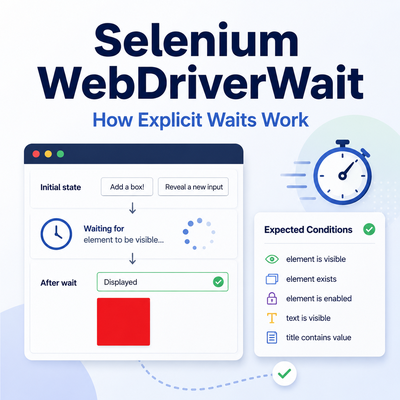
Dynamic pages can change after the initial load. A Selenium command may therefore run before the element or browser state it needs is ready. WebDriverWait solves this by waiting for a specific condition instead of pausing for an arbitrary number of seconds.
Selenium WebDriverWait is an explicit wait utility that repeatedly checks a browser condition until that condition becomes true or a timeout is reached. It is useful for JavaScript-rendered elements, delayed visibility, clickability, text changes, alerts, and other dynamic states. Unlike a fixed sleep, it can continue as soon as the required state is ready.
- WebDriverWait waits for a condition, not simply for time to pass.
- Explicit waits are useful when JavaScript or interaction changes the page after the initial load.
- Selenium recommends not mixing implicit and explicit waits because combined timeout behavior can become unpredictable.
- If the condition never becomes true within the timeout, Selenium raises a
TimeoutException. - The best expected condition is the one that matches the next action your script needs to perform.
What WebDriverWait Does
Selenium's official waiting-strategies documentation describes synchronization as one of the most common browser-automation challenges. A page can reach its normal load state before the target element is ready. JavaScript may still be adding, revealing, replacing, or enabling that element.
WebDriverWait builds on Selenium's WebDriver browser-control model by polling a condition repeatedly. If the condition succeeds, execution continues immediately. If it never succeeds before the configured timeout, the wait fails with a TimeoutException.

The important idea is not “wait longer.” It is “wait for the exact state required by the next action.” A script that needs to type into an input may need visibility. A script that needs to press a button may need clickability. A script that needs a status message may need specific text.
Explicit Waits vs Implicit Waits vs Sleep
Selenium supports several timing patterns, but they solve different problems. A fixed sleep pauses the script for a set duration, whether the page is ready or not. An implicit wait changes how long element-location calls search before failing. An explicit wait checks a specific condition and stops as soon as that condition becomes true.
| Timing method | What it waits for | Best fit | Main risk |
|---|---|---|---|
| Explicit wait | A named browser condition | Dynamic elements and state changes | The wrong condition can still produce a timeout |
| Implicit wait | Element lookup | A global element-search timeout | It applies broadly and can make timing harder to reason about |
sleep |
A fixed amount of time | Short debugging pauses or truly fixed external delays | It wastes time on fast runs and can still be too short on slow runs |
Do not mix implicit and explicit waits. Selenium explicitly warns that combining them can create unpredictable total wait times. If explicit waits are your main synchronization strategy, keep the implicit wait at its default of zero. Change that design only when you have a deliberate reason to do so.
Common Expected Conditions
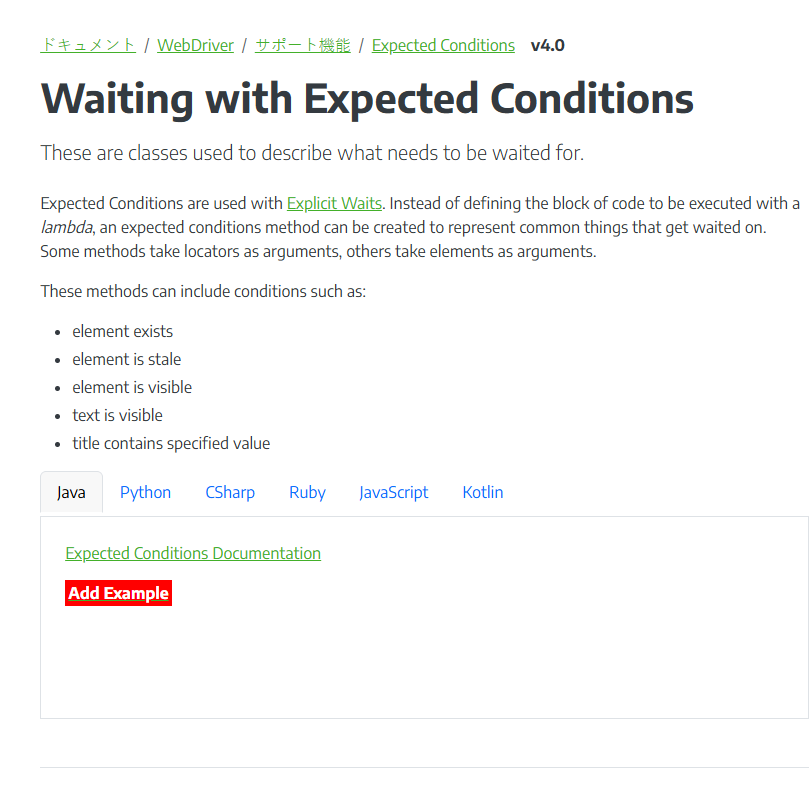
Python Selenium provides reusable Expected Conditions for common browser states. Choosing the condition that matches the next action makes a wait easier to understand and troubleshoot.
| Expected Condition | Use it when |
|---|---|
presence_of_element_located |
The element only needs to exist in the DOM; it may still be hidden. |
visibility_of_element_located |
The element must exist and be visible before the next step. |
element_to_be_clickable |
The next action needs an element that is visible and ready for a click. |
text_to_be_present_in_element |
A dynamic message or status must contain expected text. |
alert_is_present |
The workflow must wait for a browser alert before interacting with it. |
In short: presence answers “is it in the DOM?”, visibility answers “can it be seen?”, and clickability answers “is it ready for the click I want to perform?”
Python Example: A Complete WebDriverWait Flow
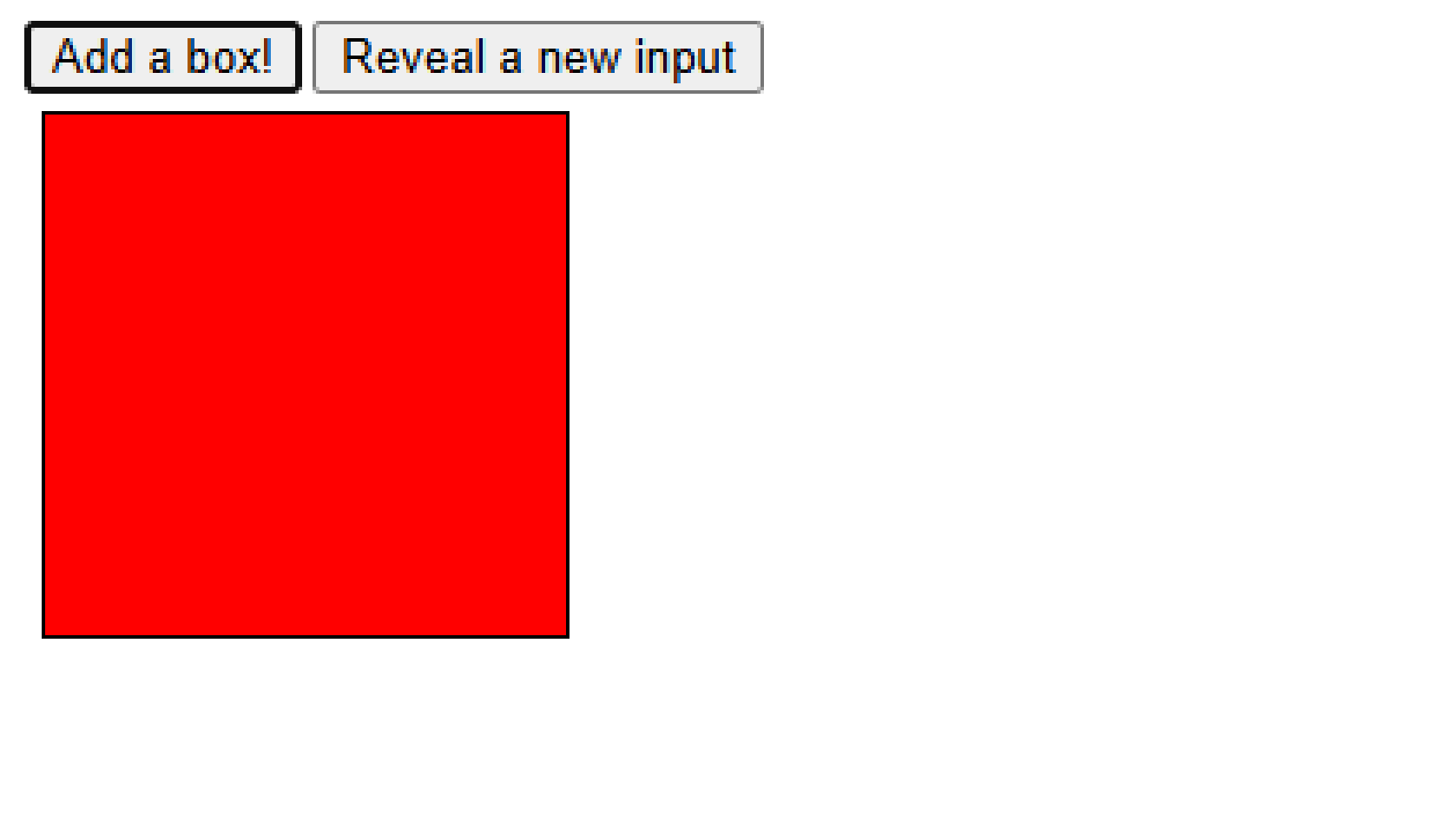
The example below uses Selenium's own dynamic test page. Clicking Reveal a new input starts a short delay before a hidden input becomes visible. That makes the page a useful demonstration of explicit waiting.
from selenium import webdriver
from selenium.webdriver.common.by import By
from selenium.webdriver.support.ui import WebDriverWait
from selenium.webdriver.support import expected_conditions as EC

driver = webdriver.Chrome()

try:
    driver.get("https://www.selenium.dev/selenium/web/dynamic.html")
    driver.find_element(By.ID, "reveal").click()

    field = WebDriverWait(driver, 5).until(
        EC.visibility_of_element_located((By.ID, "revealed"))
    )

    field.send_keys("Displayed")
    print(field.get_attribute("value"))
finally:
    driver.quit()
The wait does not pause for the full five seconds when the input becomes visible sooner. It keeps checking the visibility condition and continues as soon as the condition succeeds. If the input never becomes visible within the timeout, until() raises TimeoutException.

Common WebDriverWait Failures
A timeout does not automatically mean the page is “too slow.” The locator may be wrong, or the chosen condition may not describe the state you need. The page may also have re-rendered the element, or the browser may be in a different state than the script expected.
| Symptom | Likely cause | What to check |
|---|---|---|
TimeoutException |
The condition never became true | Confirm the locator, condition, page state, and normal loading time. |
| Element exists but action still fails | Presence was checked when visibility or clickability was needed | Match the Expected Condition to the next browser action. |
| Old element reference stops working | The page replaced the element during a re-render | Locate the current element again or wait for the new state. |
| Timeout only occurs on some runs | Race condition, animation, network variability, or unstable page state | Capture screenshots, exceptions, and the browser state at failure time. |
Before increasing the timeout, record what the browser actually showed when the failure occurred. A screenshot and the current URL are often more useful than adding another ten seconds.
When a Timeout Is Not a Timing Problem
A wait can time out because the expected element never appears at all. For example, the browser may have reached a login page, a 403 response, a verification screen, or another state that does not contain the target element.
If the page shows an access refusal, treat it as an access problem rather than a synchronization problem. IPWeb's Python 403 Forbidden guide explains how to separate a valid request from a server or edge-layer refusal.
If the browser is repeatedly showing verification instead of the expected page, see why reCAPTCHA keeps appearing for browser-state, timing, and route checks.
WebDriverWait can help detect the page state that appeared, but increasing the timeout will not turn an access decision into the expected element.
A Practical Wait Checklist
Before changing a timeout, confirm that the wait is aimed at the right browser state.
- Confirm the browser is on the expected URL and page state.
- Use a stable locator instead of a fragile generated class when possible.
- Choose presence, visibility, clickability, text, or another condition based on the next action.
- Do not mix implicit and explicit waits.
- Capture the exception, current URL, and a screenshot when a wait times out.
- Increase the timeout only when evidence shows the correct condition simply needs more time.
Frequently Asked Questions
sleep always pauses for a fixed amount of time.until() never becomes true within the configured timeout, Selenium raises TimeoutException.Final Thoughts
WebDriverWait is most useful when it expresses the exact browser state a Selenium script needs next. Replace blind delays with specific conditions, keep implicit and explicit waits separate, and treat TimeoutException as evidence to inspect the locator, condition, and actual page state before simply extending the timeout.