
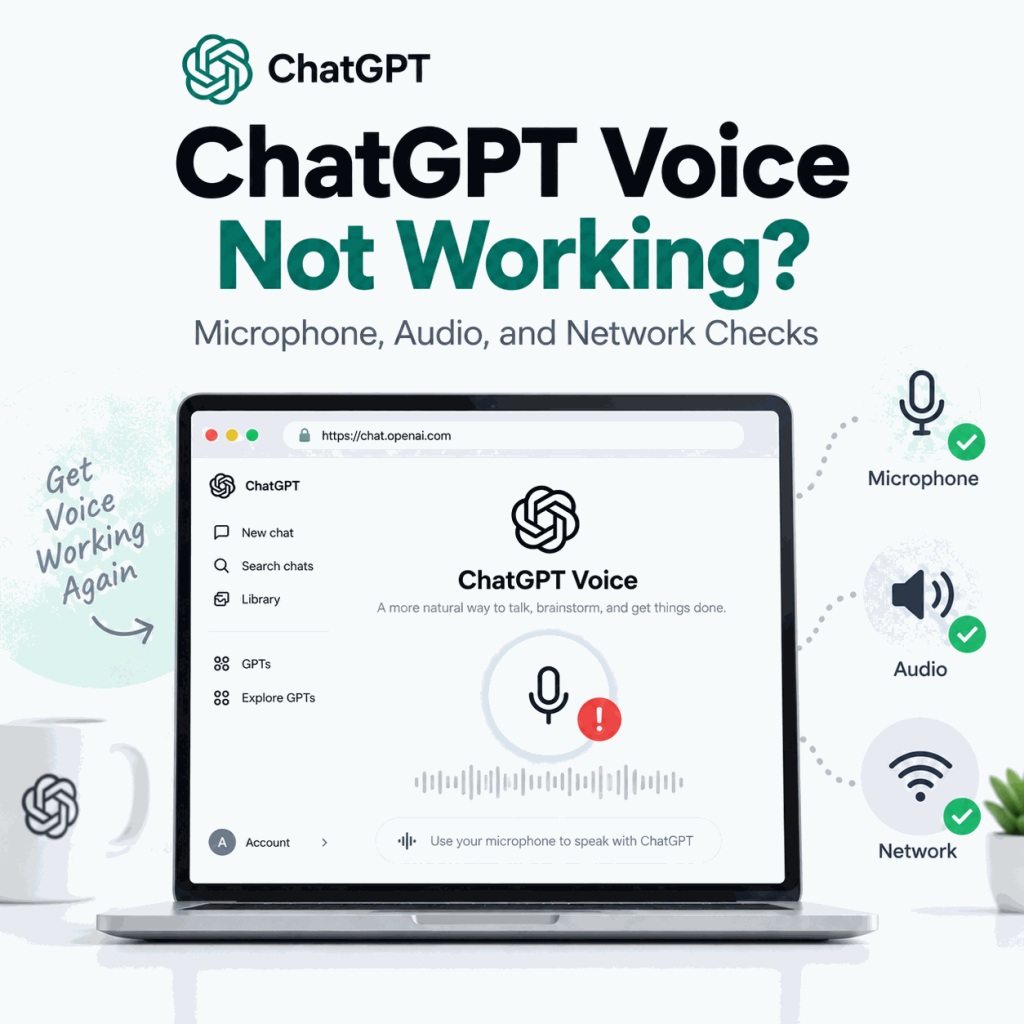
If ChatGPT Voice opens but cannot hear you, produces no usable audio, keeps interrupting, or stops during a conversation, first identify whether the failure belongs to microphone access, audio output, the Voice session itself, or the real-time network path.
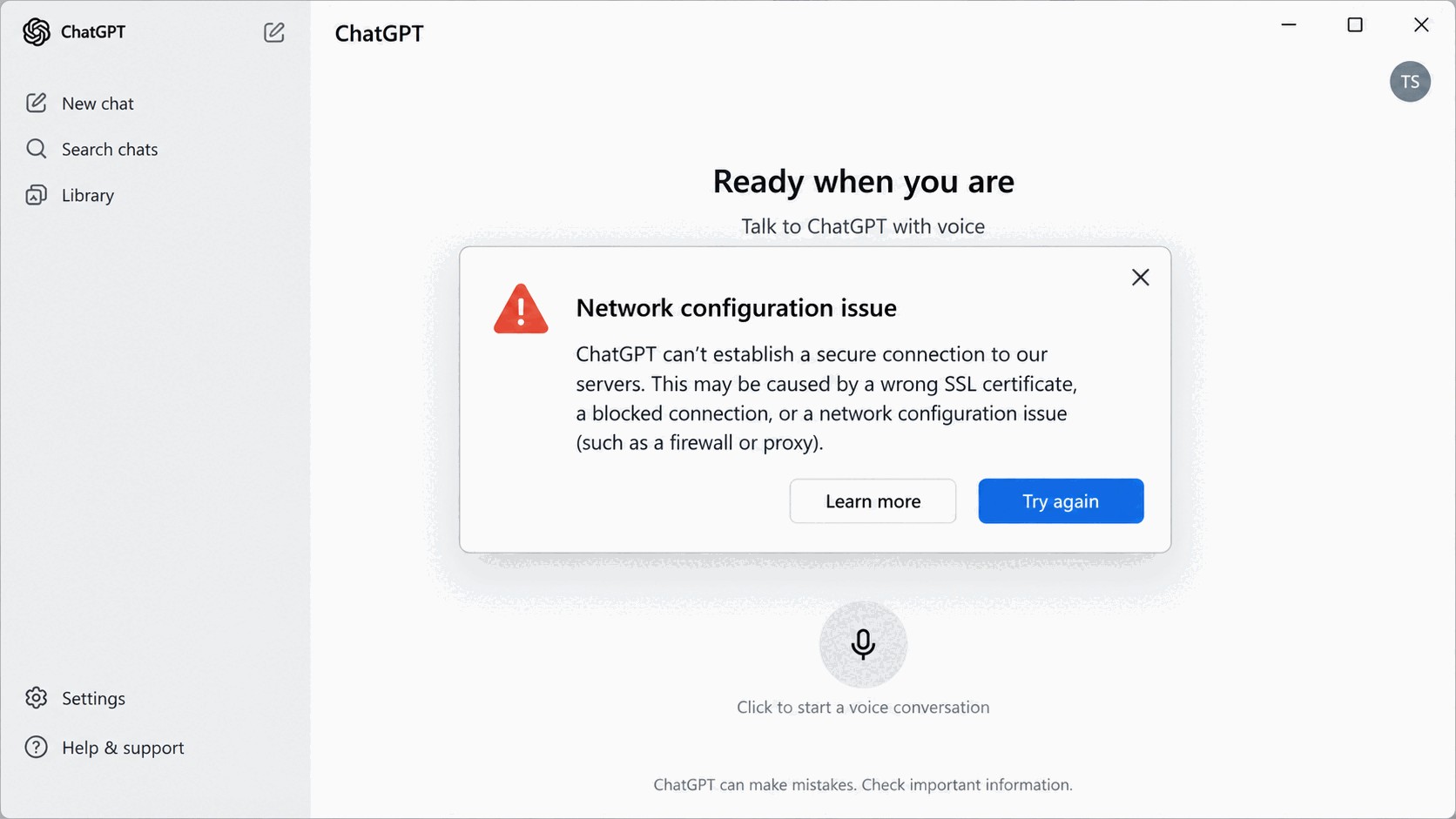
Start with the microphone permission and mute state, confirm the correct input and output devices, test with headphones in a quieter environment, and then compare another network if Voice still cuts out. If text ChatGPT works normally but Voice fails only on a managed Wi-Fi network, the Voice-specific firewall path becomes a stronger suspect.
ChatGPT Voice usually stops working because the app or browser cannot access the microphone, the wrong input or output device is active, the microphone is muted, background noise is disrupting turn-taking, or the real-time Voice connection is unstable. OpenAI currently requires microphone access on both the ChatGPT mobile apps and the web version. On managed networks, ChatGPT Voice prefers UDP port 3478; if UDP is unavailable, TCP port 443 can be used instead. Check OpenAI Status before changing several device or network settings at once.
- If ChatGPT cannot hear you, check microphone permission, mute state, and the selected input device first.
- If you cannot hear ChatGPT, troubleshoot the speaker, headphones, Bluetooth connection, and output device separately.
- Background noise, long pauses, overlapping speech, and audio from another speaker can make Voice interrupt or stop unexpectedly.
- A quiet-room test with headphones helps separate speech-detection problems from account or network problems.
- ChatGPT Voice currently prefers UDP port 3478 on managed networks; TCP port 443 is the documented fallback.
- If ordinary ChatGPT features also fail, move to the broader network or login troubleshooting path instead of treating every symptom as a Voice-only problem.
What Does “ChatGPT Voice Not Working” Mean?
“Voice not working” can describe several different failures. The most useful first step is to identify whether ChatGPT is failing to hear you, you are failing to hear ChatGPT, the Voice session is ending unexpectedly, or the feature works on one network but not another.
| Symptom | Likely Layer | Best First Check |
|---|---|---|
| ChatGPT cannot hear you | Microphone/input | Permission, mute state, selected microphone |
| You cannot hear ChatGPT | Speaker/output | Volume, Bluetooth, selected output |
| Voice starts, then stops or cuts out | Session, environment, or network | Quiet-room test, headphones, another network |
| ChatGPT keeps interrupting you | Turn-taking / speech detection | Background noise, overlapping speech, long pauses |
| Voice works on mobile data but not office Wi-Fi | Managed network / firewall | Voice-specific UDP/TCP policy |
| Voice fails together with normal ChatGPT pages or streaming | Broader ChatGPT connection | OpenAI Status and general network troubleshooting |
Do not change several settings at once. A controlled comparison—same account, same device, one changed variable—makes it much easier to see whether the problem follows the microphone, the output device, the client, or the network.
Check Microphone Permission First
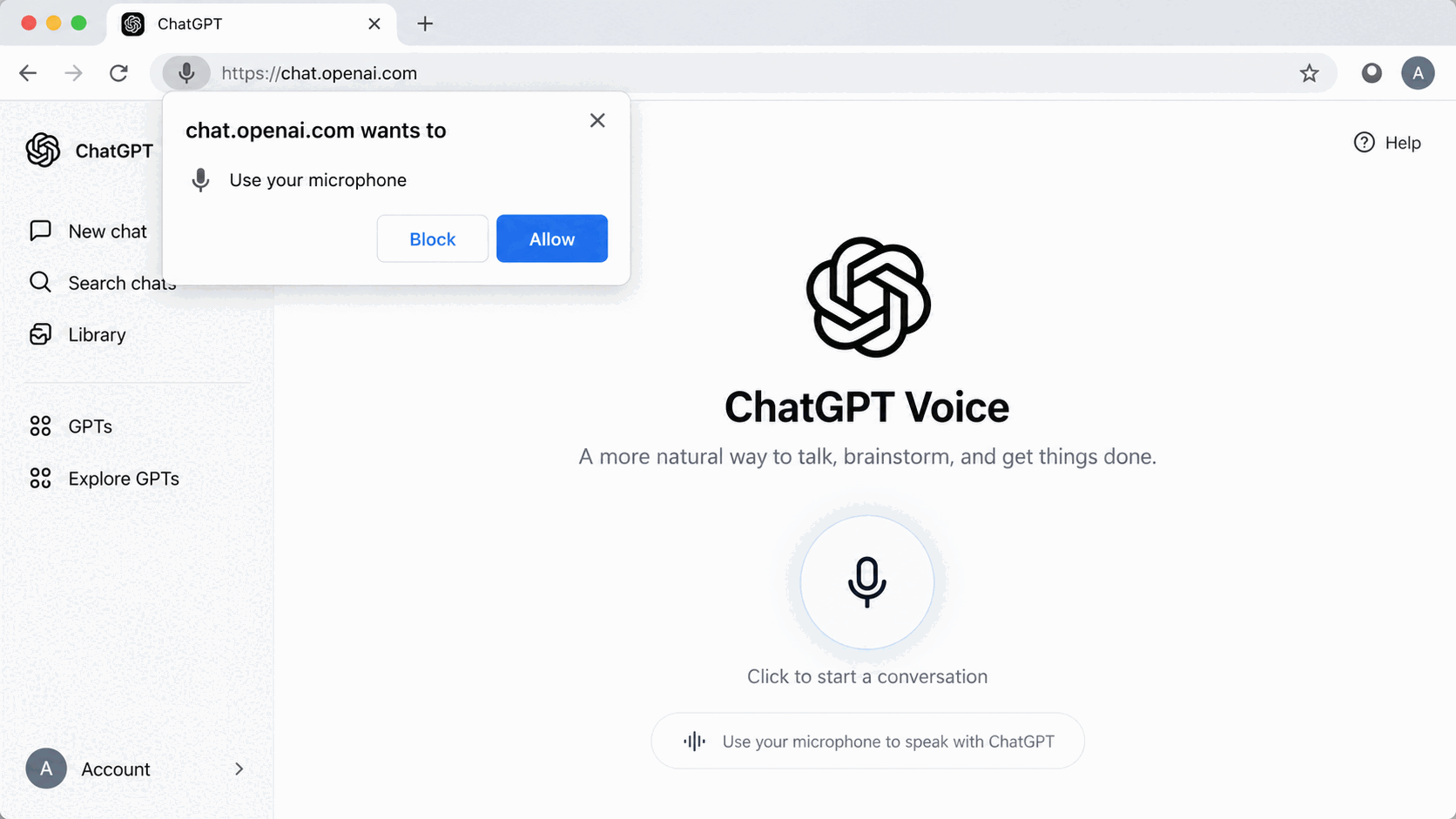
OpenAI’s current ChatGPT Voice documentation says that the ChatGPT app on iOS and Android needs microphone access when prompted. The web version also requires the browser to be allowed to use the microphone.
If Voice opens but does not react when you speak, check these items before reinstalling the app or changing the network:
- ChatGPT has microphone permission in the operating-system privacy settings.
- The browser site permission is not set to Block.
- The microphone control inside the Voice conversation is not muted.
- The intended microphone is selected when more than one input device is connected.
- A Bluetooth headset is not silently becoming the active microphone when you expected the device microphone.
If microphone access was previously denied, simply reopening Voice may not display the original permission prompt again. Re-enable the permission in the device or browser settings, then return to ChatGPT and start a new Voice test.
Check the Microphone and Audio Output Separately
A microphone problem and a speaker problem can produce the same conclusion—“Voice is broken”—even though they require different fixes.
| What Happens | Input or Output? | What to Check |
|---|---|---|
| ChatGPT does not react when you speak | Input | Microphone permission, mute, selected mic |
| Your words are transcribed incorrectly | Input / environment | Mic quality, distance, noise, overlapping speech |
| ChatGPT responds in text but you hear nothing | Output | System volume, speaker, Bluetooth, selected output |
| Audio plays through the wrong device | Output | Bluetooth route and operating-system output device |
For an input test, disconnect unnecessary headsets and speak directly into one known microphone. For an output test, play another audio source on the same device. If music or a system sound is also inaudible, the problem is probably not specific to ChatGPT.
Bluetooth is a common source of confusion because a headset can become both the input and output device automatically. If Voice becomes unreliable immediately after connecting earbuds or a headset, test once with Bluetooth turned off and the built-in microphone and speaker active.
Why Does ChatGPT Voice Interrupt or Stop Speaking?
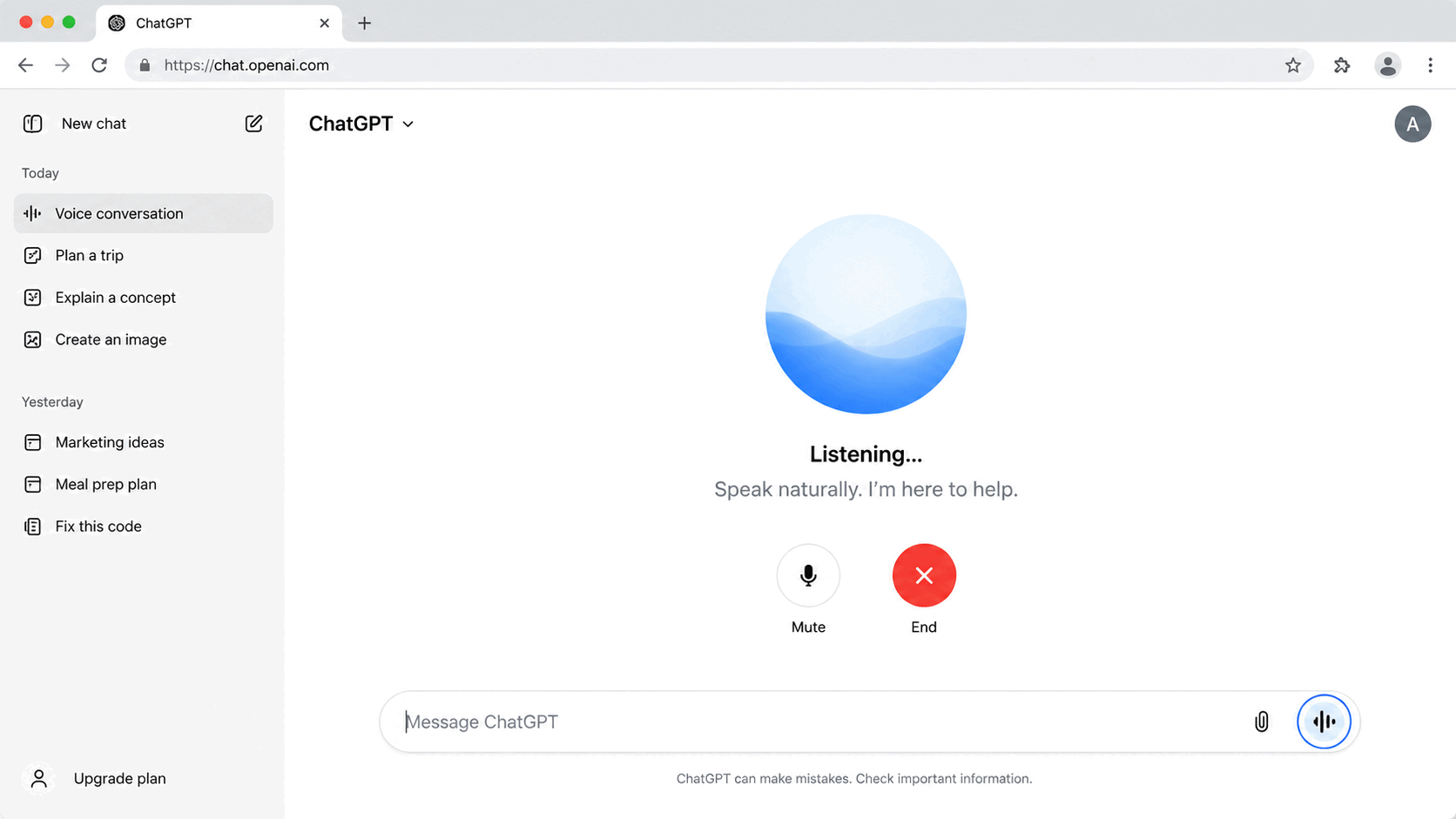
OpenAI says interruptions can still happen, especially with background noise, long pauses, or audio from another speaker. Live can listen and speak at the same time, so overlapping speech and environmental sound can affect what it interprets as the latest turn in the conversation.
If ChatGPT Voice keeps interrupting you, use a short controlled test:
- Move to a quieter room.
- Use headphones so ChatGPT’s own audio is less likely to feed back into the microphone.
- Keep the microphone close enough for clear speech.
- Avoid television, speakerphone audio, or another person talking nearby.
- Speak continuously for a short sentence instead of leaving a long pause in the middle.
If the problem disappears under those conditions, the account and basic Voice connection are probably working. The stronger suspect is speech detection or the local audio environment.
If you need time to think during Live, OpenAI currently suggests telling Voice at the start of the conversation to wait until you explicitly ask for a response. Long pauses or other sounds can still cause Voice to respond, but this can reduce accidental turn-taking.
Test Background Noise and Voice Isolation
Background noise is not limited to obvious loud sounds. Echo from a speaker, another person speaking across the room, television audio, a conference room microphone, or an aggressive automatic-gain setting can all change what Voice hears.
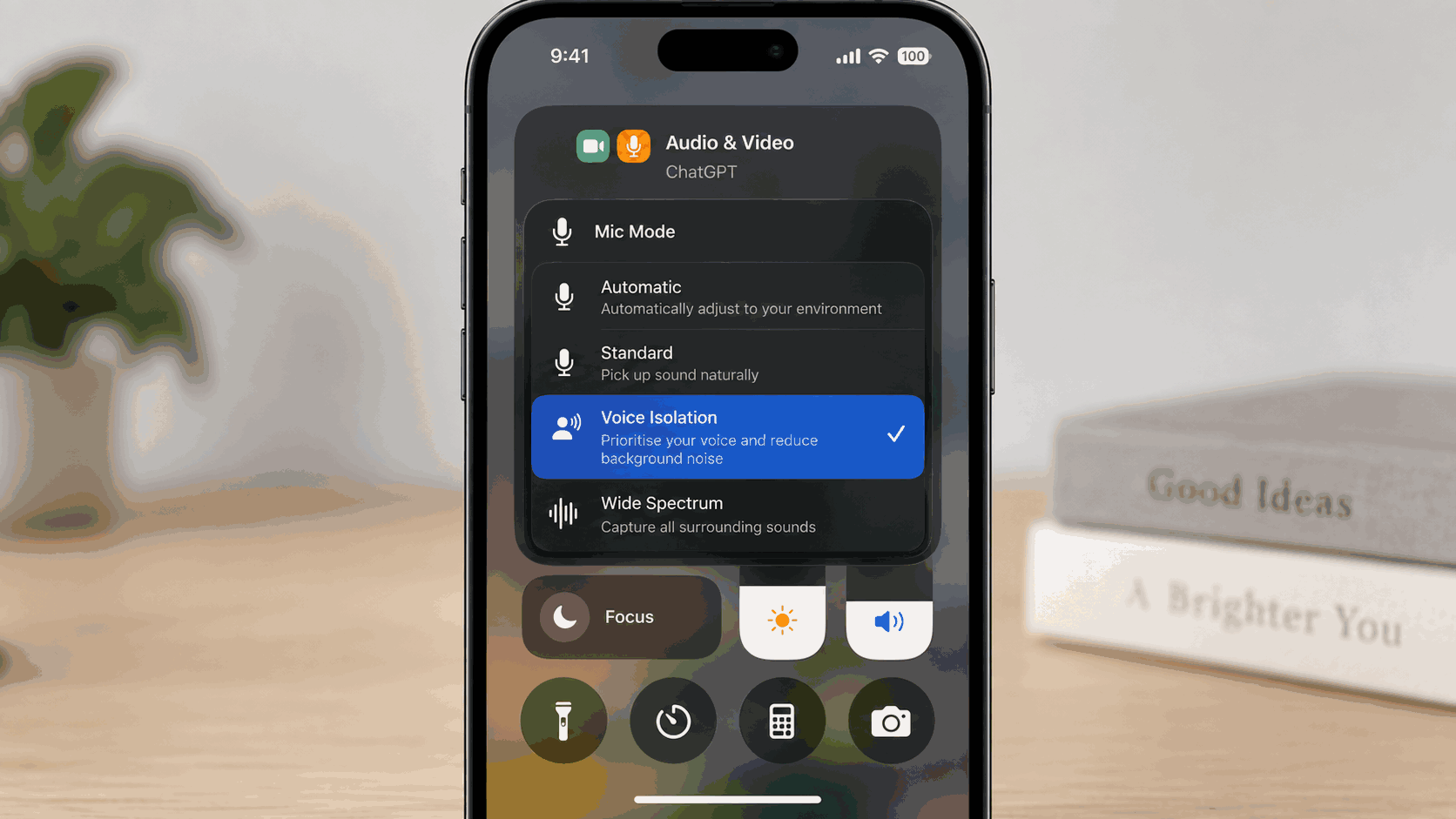
OpenAI currently recommends trying headphones, moving to a quieter environment, or increasing device volume when Voice interrupts or stops. On iPhone, it also recommends opening Control Center during a Voice conversation, selecting Mic Mode, and turning on Voice Isolation.
Use Voice Isolation as a diagnostic comparison rather than assuming it fixes every microphone problem. If Voice suddenly behaves normally when environmental sound is reduced, the network is less likely to be the primary cause.
Live is designed primarily for one-on-one conversation. It can handle background noise, but OpenAI says it is not yet optimized for several people speaking at once. In a group setting, it may respond to speech that was not directed at ChatGPT.
Why Voice Works on Mobile Data but Not Wi-Fi
If text ChatGPT works on both networks but Voice works on mobile data and repeatedly cuts out on office or school Wi-Fi, the difference points toward the real-time Voice network path rather than the microphone.
This pattern is especially useful on managed networks because ordinary HTTPS pages can work while a firewall or security policy interferes with real-time media traffic. Keep the same device, ChatGPT account, and headset, then compare only the network.
- Test Voice on the current Wi-Fi network.
- Keep the same device and switch to mobile data or a hotspot.
- Use the same microphone and headphones.
- Repeat the same short Voice conversation.
- If only the managed Wi-Fi fails, check the Voice-specific firewall rules.
If ordinary ChatGPT pages, streaming replies, or other features also fail on that Wi-Fi network, the problem is broader than Voice alone. In that case, use the general network troubleshooting path instead of changing Voice-specific settings repeatedly.
Check ChatGPT Voice Firewall Settings
OpenAI’s current network recommendations provide specific firewall guidance for ChatGPT Voice. Voice connects to OpenAI servers over UDP port 3478, and the current server IP address ranges are published in chatgpt-voice.json.
OpenAI recommends allowlisting those current IP ranges for UDP traffic on port 3478 when a firewall is causing quality problems, stream interruptions, or related Voice failures. If UDP access is not allowed, TCP port 443 can be used instead, although UDP is preferred.
| Voice Network Requirement | Current OpenAI Guidance |
|---|---|
| Preferred transport | UDP |
| Preferred port | 3478 |
| Fallback | TCP 443 |
| Server IP ranges | Use the current chatgpt-voice.json |
| Typical firewall symptoms | Quality issues, stream interruptions, or other Voice connection problems |
Do not copy a static list of Voice server IPs into permanent documentation and assume it will remain correct. OpenAI says chatgpt-voice.json is updated as IP addresses change, so administrators should use the current file when maintaining an allowlist.
Browser vs iPhone vs Android vs Desktop
The client that fails provides another useful clue.
| Pattern | More Likely Area | Next Test |
|---|---|---|
| Only the browser fails | Browser microphone permission or selected input | Check site permission and another browser |
| Only the mobile app fails | OS microphone permission, app state, Bluetooth route | Check privacy permission and test without Bluetooth |
| Only a supported desktop Voice experience fails | Desktop microphone permission, app state, device routing | Allow microphone access when prompted and compare web Voice on the same computer |
| One headset fails everywhere | Headset microphone/output path | Use built-in mic and speaker |
| All devices fail on one managed Wi-Fi | Voice-specific network/firewall policy | Compare mobile data and firewall settings |
| All clients fail at the same time | Service incident or shared network | OpenAI Status and another network |
If the Voice icon or a particular Voice option is unavailable rather than malfunctioning, confirm that the current app version, account, and workspace support that option. OpenAI notes that available Voice options can vary by plan, workspace settings, region, app version, and parental controls.
On supported desktop Voice experiences, microphone access must also be allowed when prompted. Desktop permissions can differ from browser permissions on the same computer, so a Voice session may work on chatgpt.com while the desktop app still needs its own microphone approval. For Work or Codex Voice on macOS or Windows, OpenAI also documents additional desktop permissions when computer context is used.
When It Is Not a Voice Problem
Voice troubleshooting should stop when the failure clearly belongs to a broader layer:
- If ChatGPT pages, streaming responses, WebSockets, or multiple unrelated features also fail, use the ChatGPT network error troubleshooting guide.
- If ChatGPT reaches the account flow but sign-in fails, loops, or shows an authentication problem, use the ChatGPT login troubleshooting guide.
Keeping these paths separate prevents a microphone or Voice-session problem from turning into unnecessary account, DNS, or browser changes.
ChatGPT Voice Diagnostic Checklist
- Does the Voice interface open?
- Is microphone permission allowed?
- Is the microphone muted inside Voice?
- Which input device is selected?
- Which output device is selected?
- Is Bluetooth connected?
- Can another app record from the same microphone?
- Can the device play other audio normally?
- Does Voice work with headphones?
- Does Voice work in a quiet room?
- Does the problem involve interruptions or total silence?
- Does another browser/app behave differently?
- Does mobile data work when Wi-Fi fails?
- On managed networks, is UDP 3478 allowed?
- Is TCP 443 available as the fallback path?
- Are the current Voice server IP ranges being used?
- Does OpenAI Status show an active incident?
If the problem needs escalation, record the device, operating system, ChatGPT app/browser version, approximate time and timezone, network type, and whether the same account works on another device or network. Avoid sharing passwords, session cookies, or other account secrets in screenshots or logs.
Frequently Asked Questions
Final Thoughts
ChatGPT Voice problems are easier to isolate when microphone input, audio output, speech detection, and the network are tested separately. Start with permissions and mute state, then verify one known input/output path, reduce environmental noise, and compare another client or network.
If ordinary ChatGPT works but Voice alone fails on a managed Wi-Fi network, check the Voice-specific firewall path—currently UDP 3478 with TCP 443 as a fallback—using OpenAI’s latest published server ranges. If multiple ChatGPT features fail together, move to the broader network or login troubleshooting path instead of repeatedly changing Voice settings.