
A Mac can have several network services: Wi-Fi, Ethernet, USB adapters, VPN interfaces, and other profiles. Proxy settings apply to the selected service, so changing the wrong service can leave your browser or app unchanged.
In macOS, open network settings, select the active service, then find the proxy options. Older guides may say Mac OS X, but the practical idea is the same: choose the active network connection before entering proxy details.
Mac proxy settings let macOS send supported network traffic through a configured proxy server for a selected network service. The setup is only half the job: after saving HTTP, HTTPS, or SOCKS settings, verify the public IP, browser route, DNS behavior, and the exact app you plan to use. Some tools honor system settings; others need their own proxy configuration.
- Configure the proxy on the active Wi-Fi or Ethernet service, not on an unused network profile.
- HTTP, HTTPS, and SOCKS proxy settings are separate choices; use the protocol your proxy actually supports.
- After setup, confirm the visible IP and region from the same browser or app that will use the proxy.
- System proxy settings may not control every terminal, Python, automation, or browser-profile workflow.
- A proxy changes request routing, not cookies, account state, browser profile data, or app-specific settings.
How to Set Up Proxy Settings on macOS
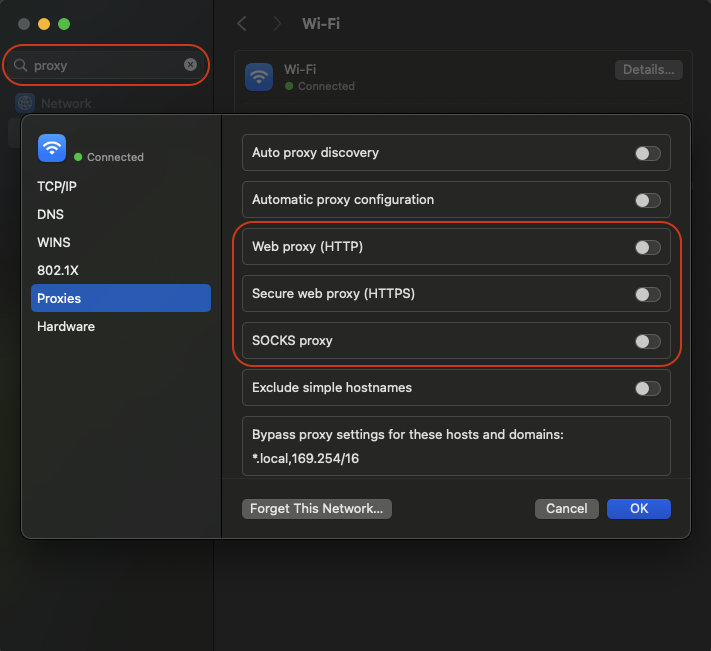
Apple's current macOS documentation places proxy controls under System Settings > Network > the active network service > Details > Proxies. The exact labels can vary slightly by macOS version, but the important point is to configure the Wi-Fi or Ethernet service you are actually using. See Apple's proxy settings guide for the current interface.
- Open the Apple menu, choose System Settings, then select Network.
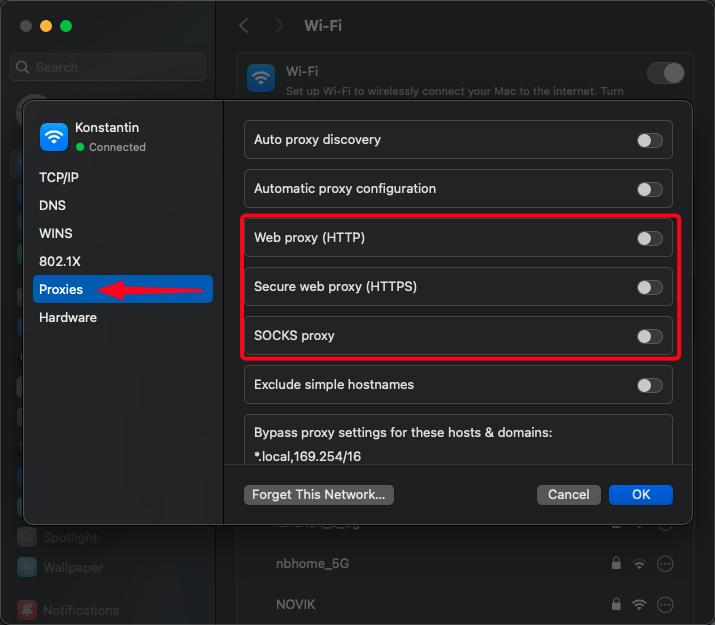
- Select the active Wi-Fi or Ethernet service, click Details, then open Proxies.
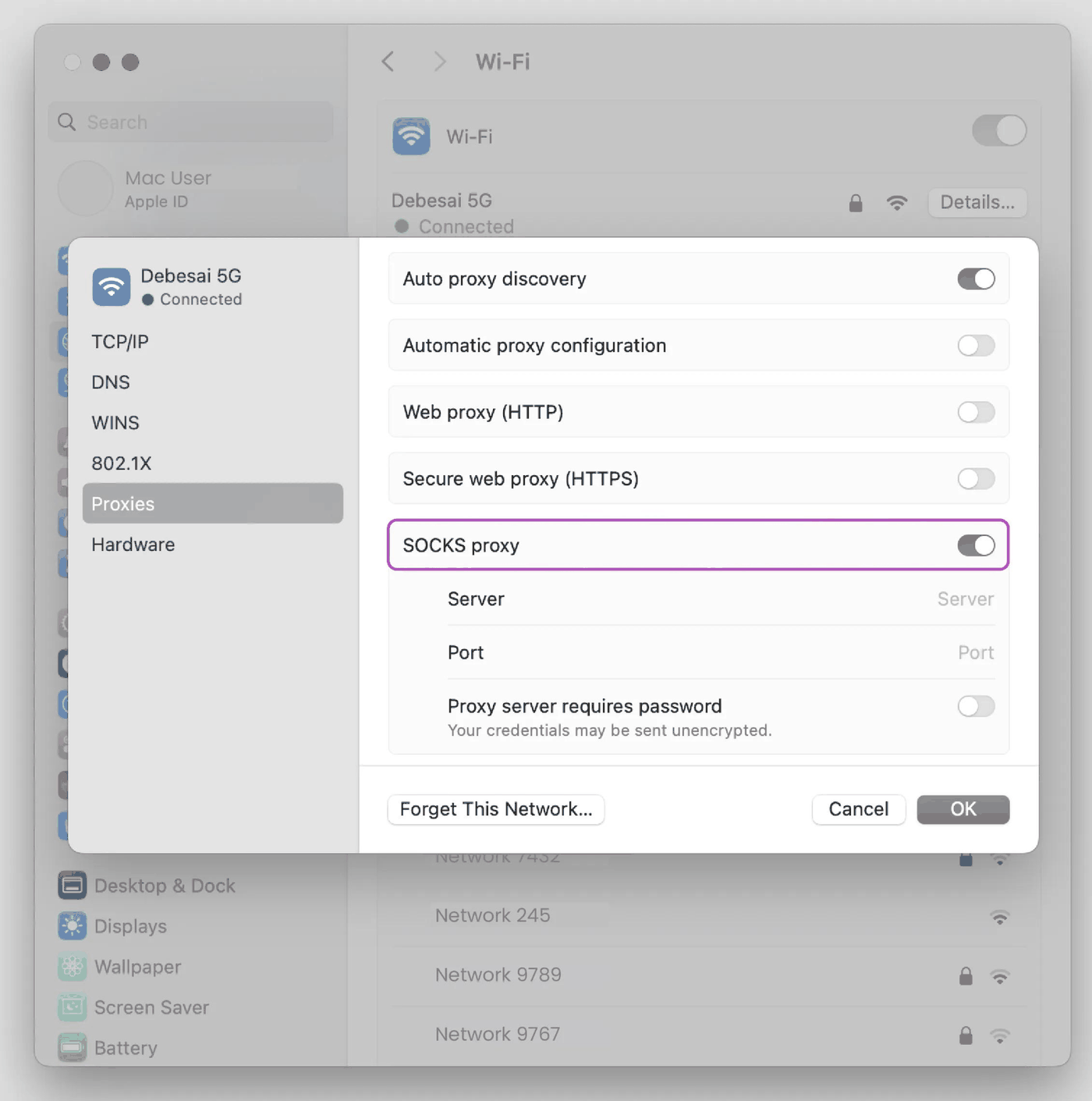
- Turn on the proxy type you need: Web Proxy (HTTP), Secure Web Proxy (HTTPS), or SOCKS Proxy.
- Enter the proxy server address and port. If authentication is required, enable the password option and enter the username and password supplied by your proxy provider.
- If specific hosts or domains should connect directly, add them to the bypass list instead of sending them through the proxy. Common examples include
*.localand127.0.0.1, but only bypass destinations you intentionally want to reach directly. - Click OK, then test the route from the same browser or app that will use the proxy.
A proxy provider typically supplies a host, port, protocol, and, when required, login credentials. IPWeb Dynamic Residential Proxies support HTTP, HTTPS, and SOCKS5 endpoints, so the endpoint details should be entered under the matching macOS proxy type.
Choose HTTP, HTTPS, or SOCKS Correctly
HTTP proxy settings apply to plain HTTP requests. HTTPS proxy settings are used for HTTPS traffic when the application honors the system configuration. SOCKS can carry different traffic types but must be supported by the proxy and the app.
Do not assume one checkbox covers every workflow. A browser, a command-line tool, a desktop app, and an automation framework can each handle proxy settings differently.
Match the macOS proxy type to the endpoint your provider actually supports. Enabling a different protocol only because the option is available can produce connection failures that look like a proxy or website problem.
| Setting | Use when | Check after saving |
|---|---|---|
| HTTP proxy | The app sends HTTP requests through a proxy | Open an HTTP test page or use the app's own request path |
| HTTPS proxy | The app should route HTTPS traffic through the proxy | Confirm the visible public IP in the same browser or app |
| SOCKS proxy | The proxy and app both support SOCKS routing | Check whether DNS is handled locally or through the app/proxy path |
| Bypass list | Hosts such as *.local or 127.0.0.1 should connect directly | Confirm only the intended local or internal hosts bypass the proxy |
In short, the correct macOS setting is the one that matches both the proxy endpoint and the application that will use it.
Save Settings, Then Test From the Same App
After saving Mac proxy settings, do not test from a different environment and assume the target app is fixed. Test from the same browser profile, terminal command, desktop app, or automation tool that will use the proxy.
Start with an IP lookup page and confirm the visible public IP, country or region, and ASN if that matters for your workflow. Then load the target public page and check whether the response changed. For a repeatable validation sequence, use the check if a proxy is working guide.
If the browser shows the expected IP but a Python script does not, the script may be ignoring system proxy settings. That is a configuration boundary, not proof that the proxy itself failed.
Quick Terminal Check with cURL
For a quick terminal check, you can read the Web Proxy values configured for the Wi-Fi network service and pass them explicitly to cURL. If your active service has a different name, replace Wi-Fi with that service name.
PROXY_HOST=$(networksetup -getwebproxy "Wi-Fi" | awk '/Server:/ {print $2}')
PROXY_PORT=$(networksetup -getwebproxy "Wi-Fi" | awk '/Port:/ {print $2}')
curl --proxy "http://${PROXY_HOST}:${PROXY_PORT}" https://api.ipify.org
For tools that read proxy environment variables, a one-command test can set HTTPS_PROXY only for that request:
HTTPS_PROXY="http://HOST:PORT" curl https://api.ipify.orgCompare the returned public IP with a direct request from the same Mac. If authentication is required, use the credential method supported by your proxy provider rather than assuming the system keychain or browser login will apply to cURL.
When Mac Proxy Settings Do Not Apply
Some tools use their own proxy fields. Browser automation libraries may accept proxy parameters directly. Terminal commands may read environment variables such as HTTP_PROXY, HTTPS_PROXY, and NO_PROXY. Browser extensions can override the system route for one profile.
That is why a proxy test should include the actual application. If only one app fails, inspect that app's proxy handling before changing the system setting again.
If the proxy works in one app but fails in another, compare that app's own proxy settings and environment variables before changing the macOS system route again. For broad connection failures, use the proxy error guide.
Safe Troubleshooting Checklist
Use a short checklist before blaming the website: verify host, port, protocol, credentials, active network service, public IP, DNS behavior, and target-app routing.
A proxy can help with network-layer route testing, but it cannot fix every access, account, compliance, or platform policy issue. It also does not reset cookies, browser profile data, or account/session state.
If a site still behaves differently after the route is correct, compare browser headers, cookies, session state, and other visible signals rather than repeatedly editing the proxy host.
Frequently Asked Questions
Final Thoughts
Mac proxy settings are useful only when the right service, protocol, and application path are configured together. Treat setup and validation as one workflow: save the route, test the visible IP, test the target app, and then inspect browser or app-level signals if the result still looks wrong.