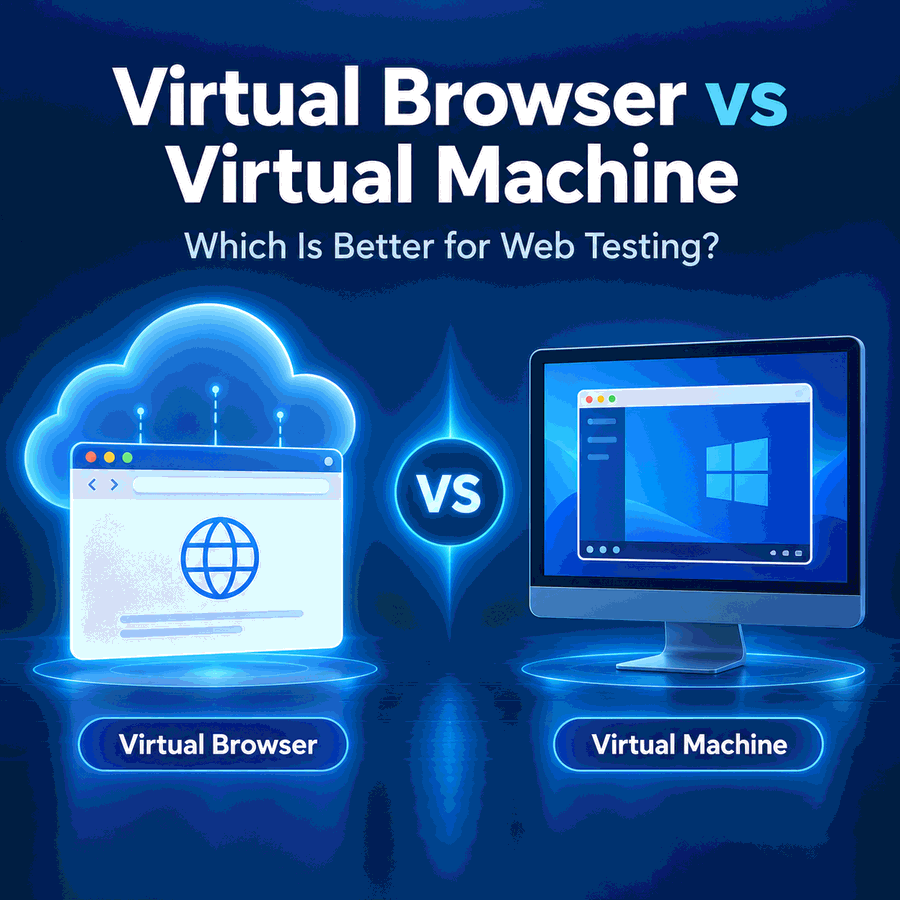
A browser-specific bug can disappear when the browser version, operating system, or network path changes. That makes the test environment part of the evidence. A virtual browser can give you fast access to another browser or browser-and-OS combination, while a virtual machine gives you control over an entire guest operating system.
The terms overlap, but they are not interchangeable. In web testing, virtual browser is best treated as an access model: you receive a browser session that runs in a provider-managed or isolated environment. The underlying session may run on a VM, container, real machine, or device depending on the platform. A virtual machine, by contrast, is a complete virtual computer with its own guest OS, storage, networking, and installed software.
Choose a virtual browser when you mainly need fast access to different browser versions or browser-and-OS combinations for compatibility checks, visual QA, or short test sessions. Choose a virtual machine when you need deeper control over the operating system, certificates, files, DNS, system proxy settings, installed tools, or interactions between the browser and other local processes. Neither option automatically reproduces a real device or changes the public IP location; browser environment and network route should be verified separately.
- A virtual browser gives you a browser session; a VM gives you a complete guest operating system.
- The term virtual browser is not one fixed architecture. Different testing platforms may run sessions on VMs, real machines, containers, or device clouds.
- Virtual browsers are usually faster to launch and easier to maintain for cross-browser QA.
- Virtual machines are heavier, but they give you more control over OS-level settings and supporting software.
- Headless describes whether a browser shows a UI; virtual describes where or how the browser environment is provisioned.
- A different browser environment does not by itself guarantee a different public IP, ASN, country, DNS path, or regional result.
What Is a Virtual Browser?
In web testing, a virtual browser is a browser session delivered from an environment other than the browser installed directly on your everyday desktop. You may open that session through a web interface, remote testing dashboard, API, or automation platform and select a browser, version, operating system, viewport, or device profile.
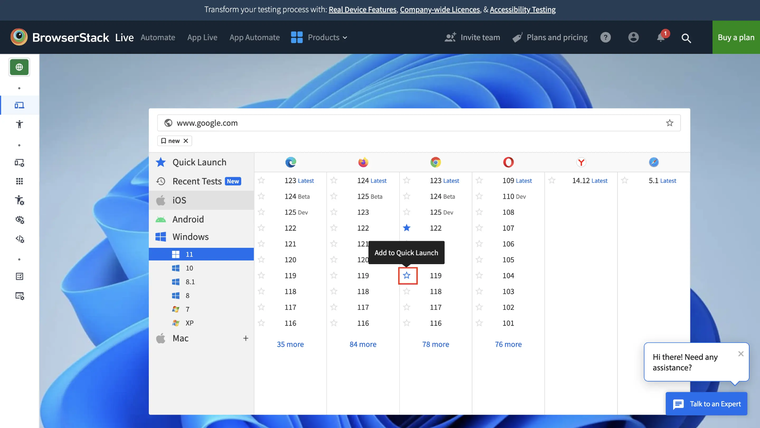
The implementation is not universal. BrowserStack's virtual browser testing page, for example, describes remote browser testing without requiring the user to maintain VMs and says its service can provide browsers on real machines. Other platforms may run browser sessions inside virtual machines. The important distinction for the tester is the interface you control: usually the browser session rather than the complete underlying host.
That makes virtual browsers useful when the question is narrow: Does the page render correctly in Safari? Does a form fail only in one Firefox version? Does the same CSS layout break in Edge? Can the test be reproduced on a different browser-and-OS combination without building a local lab first?
| Virtual browser characteristic | What it means for testing |
|---|---|
| Remote or isolated session | The browser runs outside the tester's normal local browser profile. |
| Browser/version selection | Useful for compatibility checks across Chrome, Firefox, Safari, Edge, or older versions when the platform supports them. |
| Provider-managed infrastructure | The user normally does not patch, boot, or maintain the underlying machine for each short test. |
| Limited OS control | System files, services, certificates, drivers, and network configuration may be restricted or platform-specific. |
| Fast session provisioning | Good for reproducing browser-specific defects without maintaining many local environments. |
In short, a virtual browser is a convenient way to obtain a test browser. It should not be assumed to expose a full virtual computer unless the platform explicitly provides that level of control.
What Is a Virtual Machine for Browser Testing?
A virtual machine is a complete software-defined computer. Oracle VirtualBox documentation describes a VM as the environment in which a guest operating system runs, with configurable resources such as memory, CPUs, storage, and virtual hardware.
For browser testing, that means you can install the guest OS, install or pin browser versions, add development tools, import certificates, edit system files, configure networking, and keep snapshots of known test states. The VM can also run other applications beside the browser, which matters when the defect depends on a local service, desktop application, certificate store, system proxy, or OS-specific dependency.
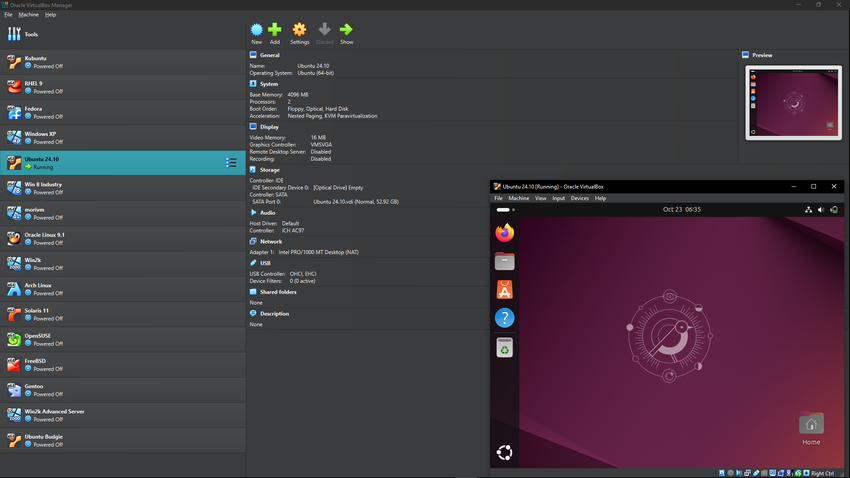
The tradeoff is operational weight. A VM consumes storage and memory, takes time to boot and update, and creates another environment that someone must patch, reproduce, and document. A small team can quickly end up maintaining many Windows, Linux, and browser-version combinations if every compatibility case becomes its own VM.
Virtual Browser vs Virtual Machine: Key Differences
| Factor | Virtual Browser | Virtual Machine |
|---|---|---|
| Primary boundary | Browser session or managed test environment | Complete guest operating system |
| Setup time | Usually seconds or minutes | Usually longer because the OS and tools must be provisioned |
| Maintenance | Mostly provider-managed | User or team manages images, updates, browsers, and tools |
| OS-level control | Limited or platform-dependent | High |
| Browser versions | Often selected from a supported catalog | You install and maintain the versions you need |
| Certificates and system files | May be restricted | Usually configurable |
| Local applications | Usually unavailable unless the service exposes them | Can run alongside the browser |
| Cross-browser QA | Strong fit | Possible, but more work to maintain |
| Deep environment debugging | Limited by service controls | Strong fit |
| Network route | Provider-specific; must be verified | Configurable, but still must be verified |
| Real-device fidelity | Depends on whether the service uses VMs, real machines, or devices | Does not reproduce physical-device hardware by itself |
The practical rule is simple: use the lightest environment that lets you reproduce the state that matters. If the problem lives entirely inside the browser, a managed browser session is usually easier. If the problem depends on the operating system or other local software, a VM gives you the additional control.
When a Virtual Browser Is the Better Choice
A virtual browser is usually the better starting point when you need to compare browser behavior rather than rebuild a complete computer. Typical cases include cross-browser rendering, form behavior, JavaScript compatibility, visual regression, responsive layout checks, and fast reproduction of a browser-specific defect.
- Compare the same page across Chrome, Firefox, Safari, and Edge.
- Reproduce a bug that appears only in a specific browser version.
- Check layout, font, CSS, viewport, and responsive behavior.
- Run short manual QA sessions without maintaining a large local VM library.
- Capture browser-specific screenshots or verify a fix before release.
- Use a cloud testing platform in CI when the required browser matrix is larger than the local build environment.
This approach also matches the testing model described in MDN's web-testing curriculum, which treats physical devices, virtual machines, automation tools, and cloud-based cross-browser services as different parts of a testing toolkit rather than one interchangeable environment.
When a Virtual Machine Is the Better Choice
Use a VM when the test depends on more than the browser itself. A full guest OS is useful when you need to reproduce system-level state or keep a controlled environment that can be reset to a known snapshot.
- Install a specific OS build and browser combination that must remain pinned.
- Modify system proxy, DNS, hosts-file, firewall, or certificate settings.
- Test a browser extension that depends on native software or OS integration.
- Run a local API, desktop client, test server, or helper process beside the browser.
- Reproduce a corporate environment with specific certificate authorities, policies, or software dependencies.
- Create a reusable snapshot for a difficult bug so the entire environment can be restored later.
A VM is not automatically more accurate. It simply exposes more of the environment. If the real issue depends on physical hardware, mobile sensors, GPU behavior, touch input, battery state, or an actual mobile browser stack, a real device may still be the better test target.
Virtual Browser vs Headless Browser
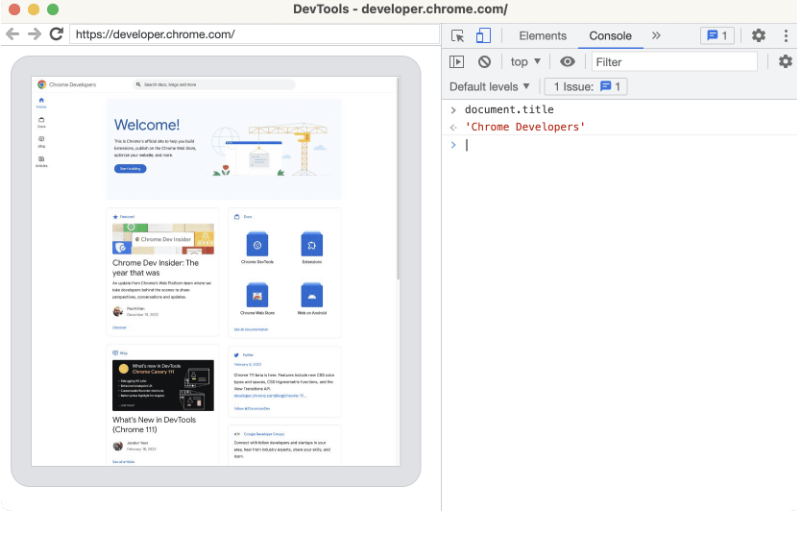
Virtual and headless describe different things. Virtual describes the environment in which the browser session is provided. Headless describes whether the browser displays its normal graphical window.
A browser can therefore be both virtual and headless. For example, a cloud test worker can start headless Chromium inside a VM. A remote browser can also be virtual but visible, giving a tester a streamed browser window for manual interaction.
| Term | Main question it answers | Example |
|---|---|---|
| Virtual browser | Where or how is the browser environment provisioned? | A remote Safari session opened from a cloud testing dashboard |
| Headless browser | Does the browser show a visible UI? | Chromium controlled by automation without an open browser window |
| Virtual + headless | Can both conditions apply at once? | Headless Chromium running on a cloud VM or CI worker |
If the difference between visible and background browser execution is the issue, the IPWeb guide to headless browsing covers rendering, interaction, and when a browser is heavier than a direct HTTP request.
Virtual Browser vs Browser Isolation
Browser isolation is another nearby concept, but its primary goal is security rather than QA. In remote browser isolation, active web content executes away from the user's endpoint. Cloudflare's Browser Isolation documentation, for example, describes active webpage content executing in a remote isolated browser so that the endpoint does not execute that untrusted code locally.
A testing platform may also isolate browser sessions, so the technologies can overlap. The difference is the reason for using them:
- Virtual browser testing: reproduce browser and OS combinations, inspect behavior, and validate compatibility.
- Remote browser isolation: separate web execution from the endpoint to reduce security risk and enforce policy.
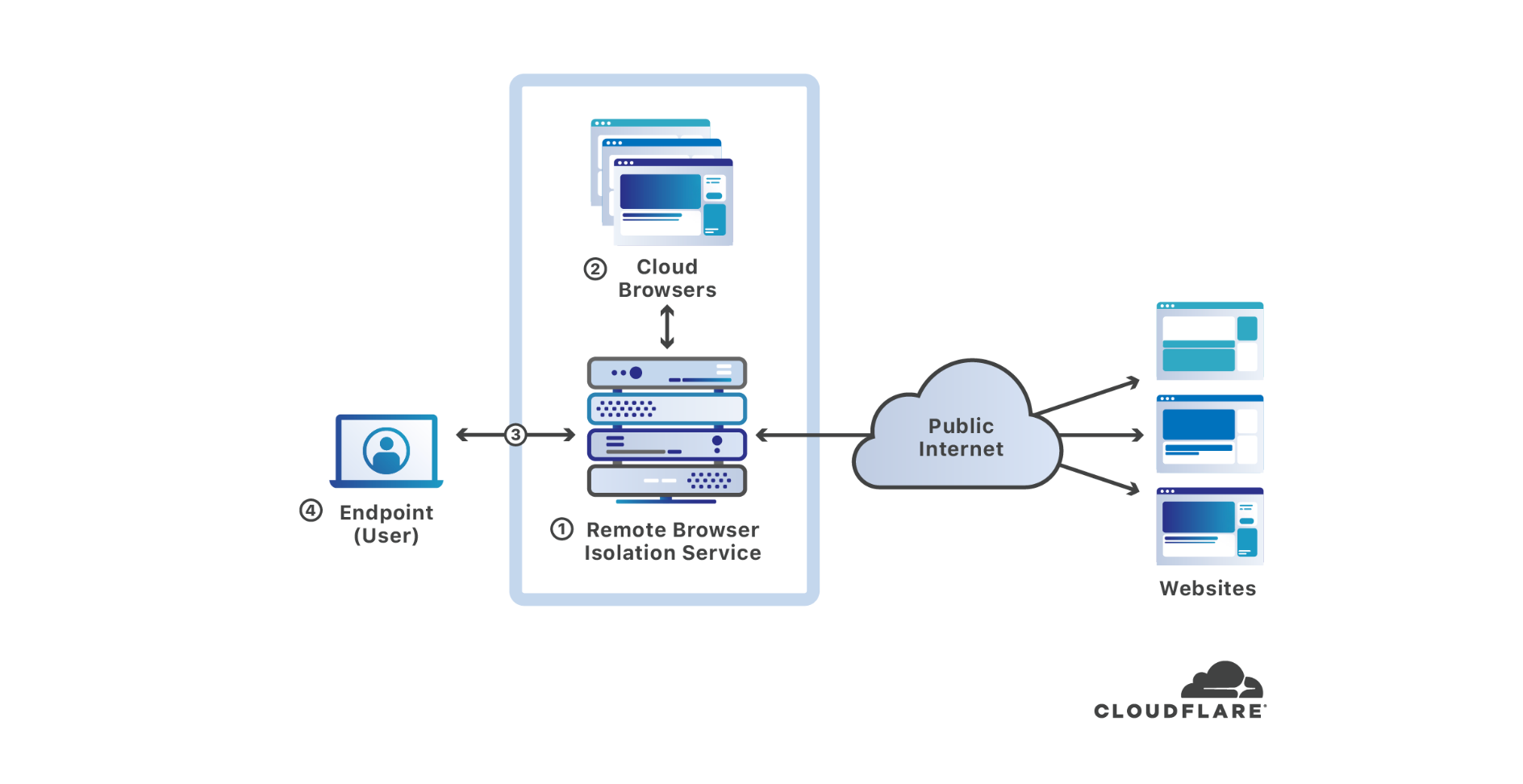
Do not assume a security-focused isolated browser exposes the same debugging, automation, file, or network controls as a QA platform. The product boundary matters more than the label.
Does a Virtual Browser Change Your IP or Location?
Not necessarily. Browser environment and network route are separate layers. A remote browser may use the provider's default network, a datacenter egress IP, a selectable region, a real-device network, or a custom proxy if the platform supports one. A locally managed VM may simply use the same public internet connection as the host through NAT.
That distinction matters for regional web testing. A browser labeled “Windows 11 + Chrome” tells you about the browser and OS environment; it does not prove which country, ISP, ASN, DNS resolver, or public IP the destination website sees.
- Check the public IP from inside the same browser session that will load the target site.
- Record the country or region, ASN, and network provider if those signals matter to the test.
- Keep browser locale, language, timezone, cookies, and account state separate from IP-location evidence.
- Re-run the IP check after changing a test region or network route.
- Do not assume a successful browser launch means the intended route is active.
For automated regional QA, IPWeb's Playwright proxy setup guide shows how the browser environment, locale, timezone, and proxy route can be configured and verified as separate settings. The proxy is a network layer; it does not replace the browser or VM layer.
How to Choose the Right Testing Environment
| Testing need | Best starting point | Why |
|---|---|---|
| Check one page in several desktop browsers | Virtual browser / cloud browser testing | Fast access to multiple browser combinations without maintaining each environment |
| Reproduce an OS-level certificate or networking issue | Virtual machine | Requires control beyond the browser |
| Run repeatable automated browser actions | Selenium, Playwright, or another browser automation framework | Automation controls the browser workflow regardless of whether the worker is local, virtual, or cloud-hosted |
| Run browser automation without a visible window | Headless browser | Headless is an execution mode rather than an environment type |
| Validate touch, sensors, mobile hardware, or real device behavior | Real device | VMs and virtual browsers may not reproduce the relevant hardware behavior |
| Check country-specific public content | Browser environment plus verified regional network route | Browser/OS and network location are separate variables |
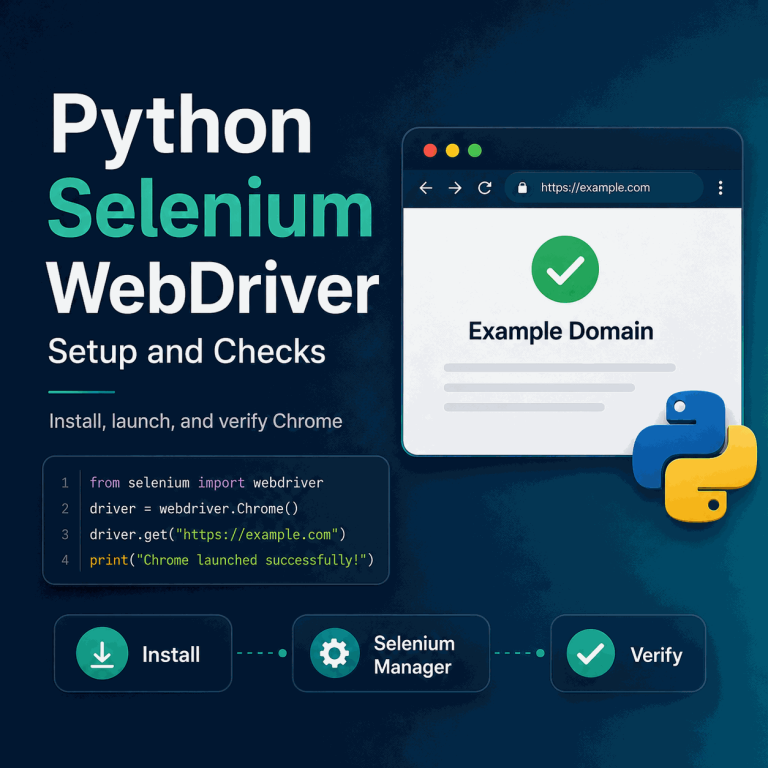
When automation is the next step, Python Selenium WebDriver setup provides a clean baseline for starting and validating a browser session before adding site-specific logic.
A Practical Web Testing Stack
Reliable web testing is easier when the environment is split into layers. Changing one layer at a time makes a mismatch easier to diagnose and makes the final result easier to reproduce.
| Layer | Examples | What to record |
|---|---|---|
| Browser and OS | Chrome on Windows, Safari on macOS, Firefox on Linux | Browser version, OS version, viewport, visible/headless mode |
| Environment delivery | Local browser, virtual browser service, VM, real device | Provider or VM image, session type, reset/snapshot state |
| Automation | Selenium, Playwright, WebDriver | Framework version, test steps, waits, browser launch options |
| Network route | Local egress, cloud egress, selected regional route | Public IP, ASN, country/region, proxy or gateway settings if used |
| Page result | DOM, screenshot, response status, redirect, rendered content | Timestamp, expected result, observed result, supporting evidence |
This structure prevents a common testing mistake: changing browser, OS, cookies, locale, and network at the same time, then being unable to tell which change caused the result. Keep the variables separate, reproduce the failure, and only then broaden the test matrix.
Frequently Asked Questions
No. A virtual machine is a complete virtual computer with a guest operating system. A virtual browser usually gives you access to a browser session while the platform manages most of the underlying environment. Some virtual browser services run browsers inside VMs, but the user does not necessarily control the full VM.
No. The term is used broadly by testing vendors. A browser session may run on a VM, container, real machine, or real device depending on the service. Check the provider's architecture and test target instead of assuming the implementation from the label.
No. Virtual describes the provisioned browser environment, while headless describes whether the browser shows a graphical window. A virtual browser can be visible or headless, and a headless browser can run locally or inside a VM or cloud worker.
It may, but that is provider-specific. A remote session can use a different network route from your local device, while a local VM may share the host's public connection. Verify the public IP inside the exact browser session instead of assuming it changed.
Only when you need the additional OS control. For browser compatibility and quick browser-version checks, a managed virtual browser is usually simpler. For system certificates, network configuration, local software, or reproducible OS snapshots, a VM is usually more appropriate.
Sometimes. If the behavior depends on physical hardware, native mobile browser behavior, touch input, sensors, GPU characteristics, battery state, or device-specific networking, a real device can provide evidence that a VM or managed browser session cannot reproduce fully.
Final Thoughts
A virtual browser is the efficient choice when the test is mainly about browser compatibility. A virtual machine is the stronger choice when the test depends on the operating system and supporting software. Headless mode, automation, browser isolation, and network routing are separate layers that can be combined with either environment.
Start from the failure you need to reproduce, choose the smallest environment that exposes that failure, and record browser, OS, automation, network route, and page result separately. That produces cleaner evidence and avoids maintaining a full VM when a short browser session would have been enough.