
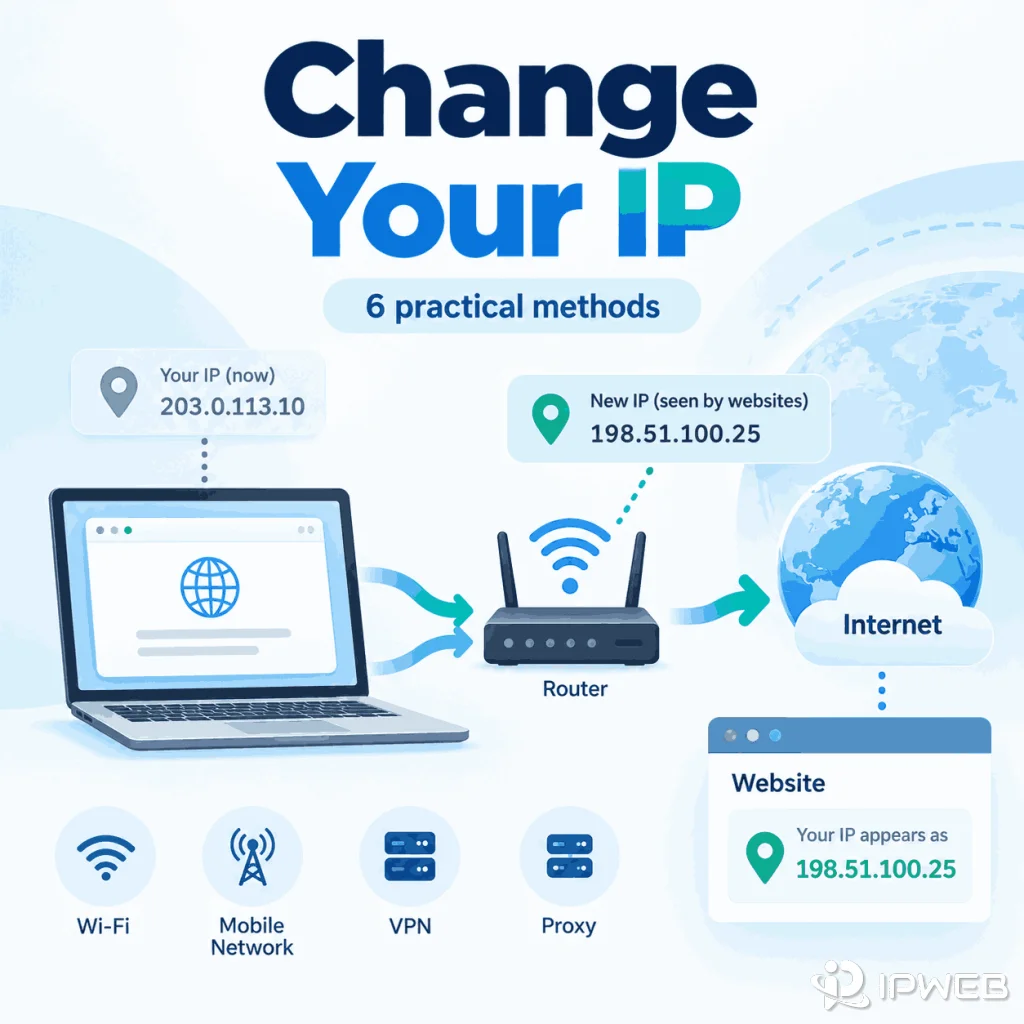
You may want a different IP when troubleshooting a connection, switching networks, testing how a website responds from another network, or making one browser, app, or script use a different IP than the rest of your device.
Before choosing a method, identify which address you need to change: the public IP associated with your internet connection, the private IP assigned inside your local network, or simply the IP that a website sees. Different methods affect different addresses.
You can make websites see a different IP by using a different internet connection, reconnecting mobile data, using a VPN, or routing a specific browser, app, or script through a proxy. Restarting a router may also result in a different ISP-assigned public IP when the service uses dynamic addressing, but it is not guaranteed. Manually changing a device’s local network settings usually changes only its private IP.
- “Changing your IP” may mean changing an ISP-assigned public IP, a private local IP, or only the source IP a website sees.
- Restarting a router can result in a new dynamic public IP, but the ISP may assign the same address again.
- Connecting through a Wi-Fi or mobile network that uses a different internet connection normally changes the public IP visible to websites.
- A VPN or proxy can change the source IP a website sees for traffic routed through it; it does not replace the IP assigned to the original internet connection.
- Verify the result in the same browser, app, or script you plan to use, and check IPv4 and IPv6 separately when needed.
First, Decide Which IP Address You Want to Change
Before changing any network setting, separate three different addresses: the public IP associated with the internet connection, the private IP used inside the local network, and the source IP a website sees when traffic goes through a VPN or proxy.
ICANN defines an Internet Protocol address as a numeric value used to identify a device attached to the Internet. In everyday home and office networks, however, the address shown by a website is often associated with the network’s public-facing connection rather than the private address assigned to one laptop or phone.
Public IP address
A public IP is the internet-facing address associated with a connection or with the provider infrastructure carrying that connection. On a typical home connection, the ISP controls this address. It may be dynamic or static, and users behind carrier-grade NAT may share a public IPv4 address with other customers.
If your goal is to see what public IP your current browser is showing, start by checking your current public IP. Record it before making any network change so you have a reliable before-and-after comparison.
Private IP address
A private IP is used inside a local network. Common IPv4 private-use ranges include 10.0.0.0/8, 172.16.0.0/12, and 192.168.0.0/16. IANA documents these private-use ranges and notes that they are reserved for private networks rather than the public Internet.
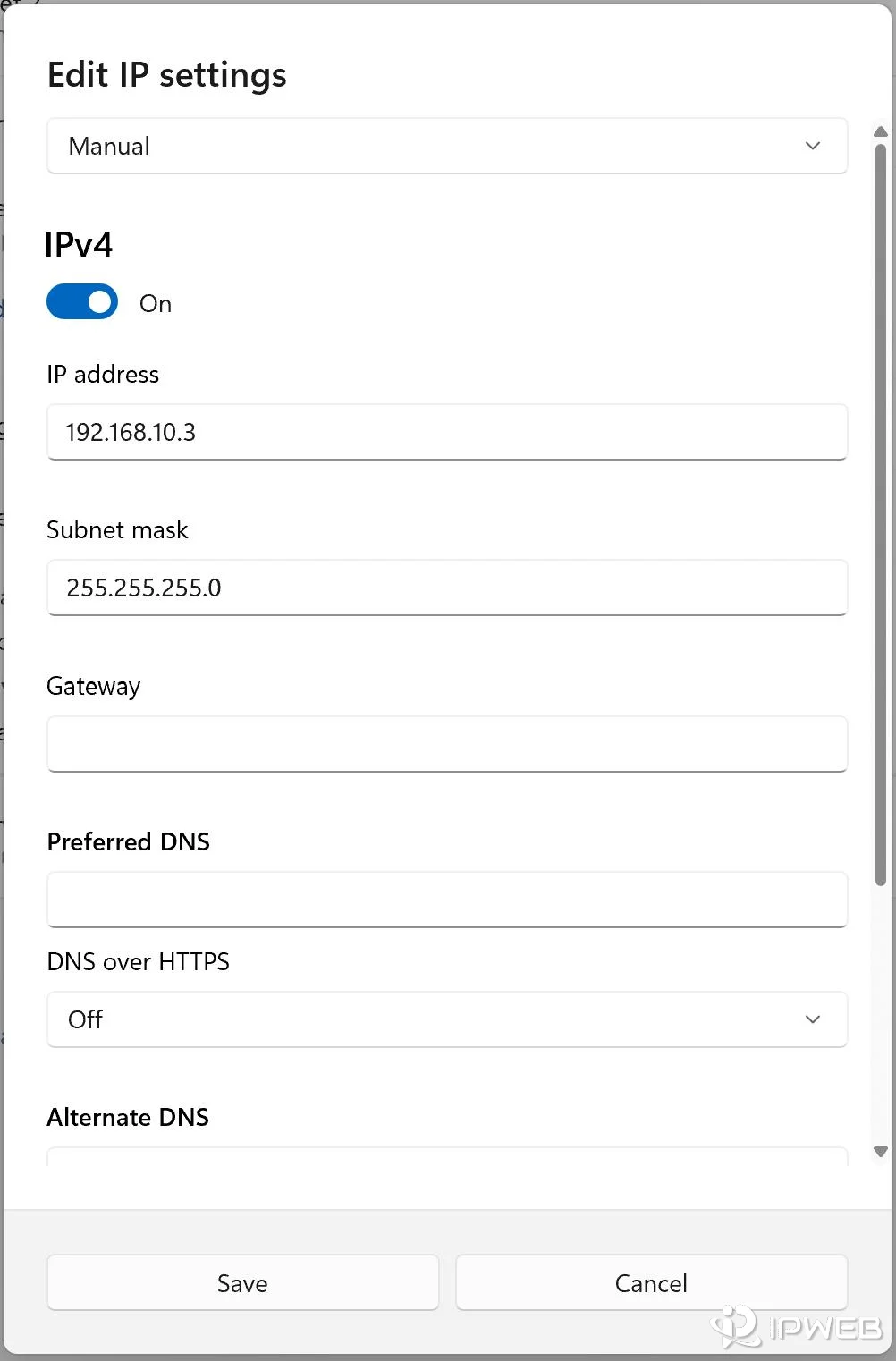
Changing a laptop from 192.168.1.20 to 192.168.1.50 may solve a local addressing problem, but it normally does not change the public address seen by a website.
IP a website sees
When traffic goes through a remote proxy or VPN, a website normally sees the public-facing IP of that intermediary rather than the public IP of the original connection. This is why a proxy or VPN can change the IP visible to a website without changing the address controlled by your ISP.
| Your Goal | What Needs to Change | Typical Starting Point |
|---|---|---|
| Get a different address from your home ISP | ISP-assigned public IP | Router reconnect or ISP request |
| Make a website see a different network address | Source IP visible to the website | Different network, VPN, or proxy |
| Fix a local network address conflict | Private IP | DHCP renewal or manual LAN configuration |
Six Ways to Change Your IP Address
The methods below do not all change the same address. Some can affect the public IP associated with the original connection, while others only change the source IP seen by websites.
Restart or reconnect your router
Restarting a home router or modem can lead to a different public IP when the ISP uses dynamic addressing and assigns a new address as the connection is re-established. It can also reconnect with exactly the same public IP.
The result depends on the ISP’s address-allocation policy, the existing lease or session, and whether the service uses a static address. A connection behind carrier-grade NAT may also share public address space controlled upstream by the provider, so the customer router does not directly control the public IP seen on the internet.
Treat a router restart as a possibility, not a guarantee. Check the visible public IP before and after the reconnect instead of assuming the number changed.

Switch to a different network
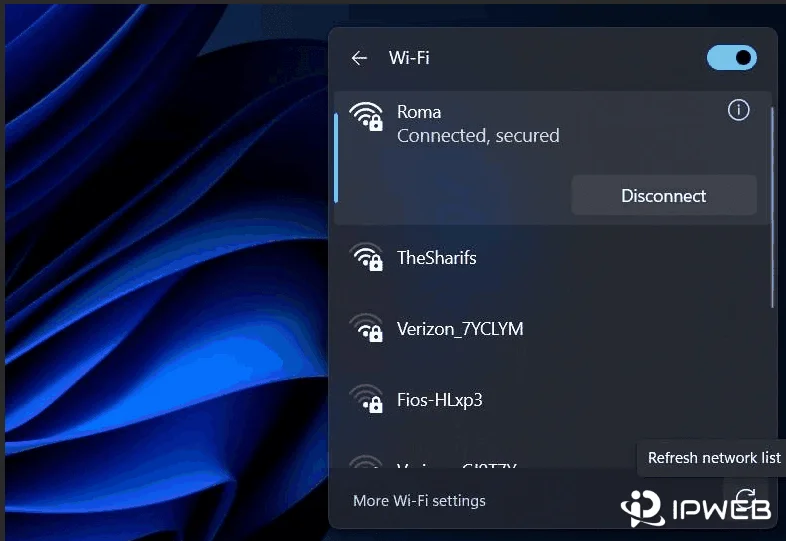
Moving to a network that uses a different internet connection is one of the clearest ways to change the public IP visible to websites. For example, switching from home Wi-Fi to mobile data usually sends traffic through a different provider path. Moving between two Wi-Fi names that share the same router or upstream connection may still show the same public IP.
This does not modify the public IP assigned to the original network. You are simply using a different network with its own internet-facing route.
Reconnect your mobile connection
Disconnecting and reconnecting mobile data may result in a different public IP or a different shared carrier public IP. Mobile networks often use large address pools and carrier-grade NAT, so the carrier—not the phone—controls which public address a website sees.
Do not assume that every airplane-mode toggle or mobile reconnect will produce a new public IPv4 address. Record the original IP and verify the new result after the connection returns.
Ask your ISP for a different public IP
If you specifically need the ISP-assigned public IP to change, the provider is the authoritative place to ask. An ISP may be able to renew a dynamic assignment, explain how long an address remains associated with a connection, or change a static assignment when the service allows it.
Policies vary by provider and plan. A customer-side setting cannot force an ISP to issue a different public address when the provider keeps the same assignment.
Use a VPN
A VPN routes traffic through a VPN server, so destinations reached through the tunnel normally see the VPN server’s public-facing IP rather than the public IP of the original connection. This changes the source IP visible to those destinations, not the address controlled by the original ISP connection.
The exact scope depends on the VPN configuration. A full-device VPN may route most device traffic through the tunnel, while split tunneling or app-specific settings can leave some traffic on the original route.
Use a proxy
A remote proxy can give selected traffic a different source IP as seen by websites. The scope depends on where the proxy is configured: a browser, application, profile, script, operating-system setting, or another network-aware tool.
A browser-level proxy, for example, does not automatically change the route used by every application on the same computer. If you are deciding between device-wide tunneling and application-specific routing, the proxy vs VPN comparison explains that scope difference in more detail.
Which Methods Change the IP Websites See?
People often use “change my public IP” to mean one of two things: getting a different internet-facing address from the ISP, or making a website see a different source IP. A VPN or remote proxy usually accomplishes the second without changing the address associated with the original ISP connection.
| Method | Original ISP Connection | Source IP a Website Sees | Scope |
|---|---|---|---|
| Router reconnect | May change on dynamic service | Changes only if the ISP-facing address changes | Home or office connection |
| Different network | Original connection stays the same | Changes to the new network’s public-facing IP | Traffic using the new network |
| Mobile reconnect | Carrier-controlled | May change | Mobile connection |
| ISP request | Can change if the ISP permits it | Changes with the ISP assignment | ISP connection |
| VPN | Unchanged | Changes for tunneled traffic | Depends on VPN routing |
| Proxy | Unchanged | Changes for proxied traffic | Configured browser, app, script, or route |
If traffic leaves through a different network or remote intermediary, the destination can see a different source IP even though the original ISP connection has not changed.
What About Changing a Private IP Address?
Changing a private IP is a local-network task. It is useful for fixing address conflicts, reorganizing a LAN, testing device-to-device connectivity, or moving a device to another local address. It normally has no effect on the public IP seen by websites.
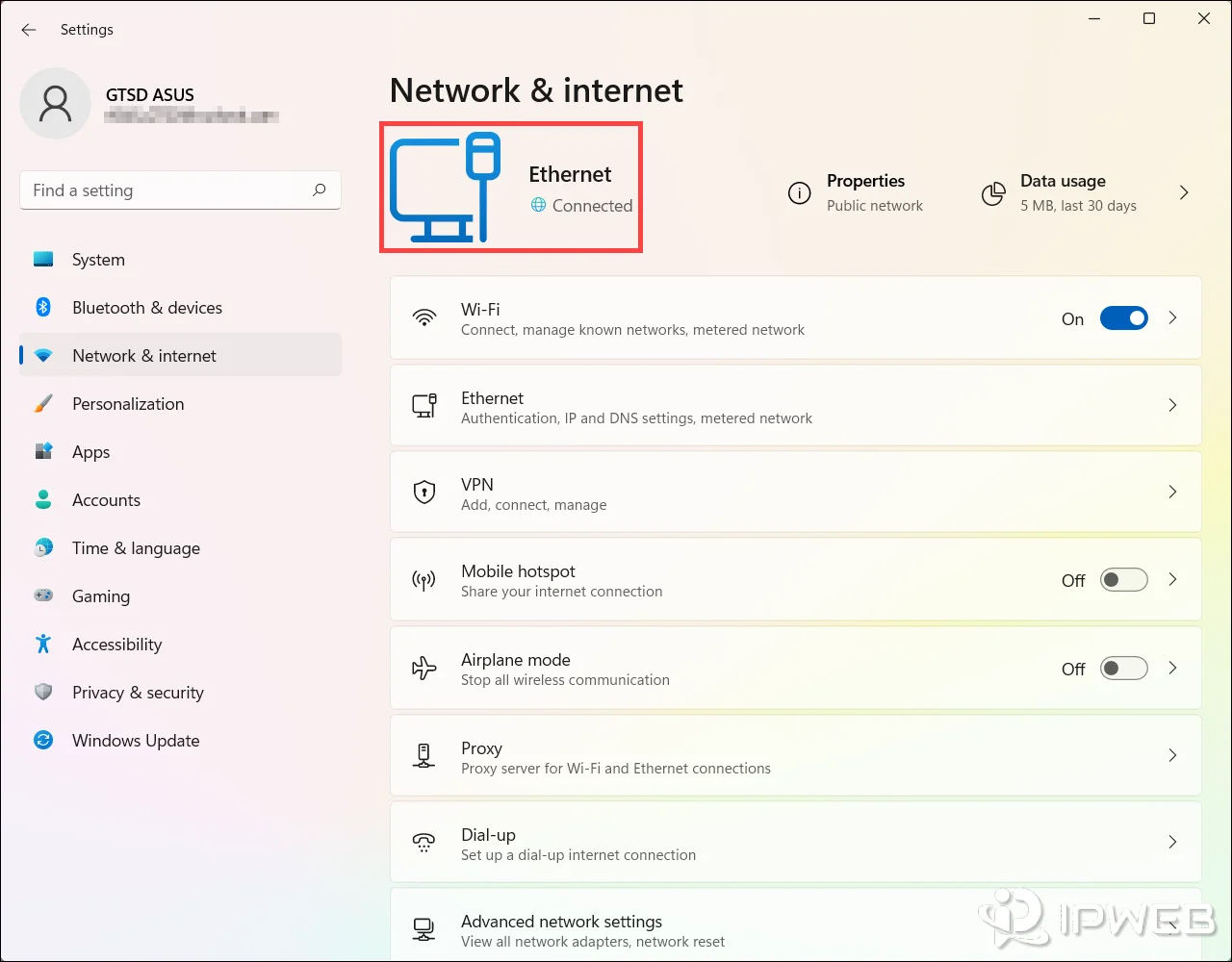
On Windows, ipconfig /renew asks DHCP to renew the IP configuration for adapters that are set to obtain an address automatically. Microsoft documents ipconfig /renew as a DHCP configuration renewal command. It does not instruct your ISP to replace the public IP assigned to your internet connection.
A DHCP renewal can return the same private address. If you need a specific local address, use a DHCP reservation or a correctly configured static address. An incorrect subnet, gateway, or DNS configuration can break local or internet connectivity.
How to Check Whether Your IP Actually Changed
Verification is more reliable than assuming a method worked. Check the address in the same environment that will use the connection.
From a command line, a quick way to see the public IP used by an HTTP request is:
curl https://api.ipify.orgThe command returns the public IP seen by ipify. Run it before and after a network change to compare the result.
Windows note: Current Windows 10 and Windows 11 systems include curl.exe, so WSL or Git Bash is not normally required. In PowerShell, use curl.exe explicitly if curl is mapped to another command or behaves differently in your environment. On older Windows systems without curl, Git Bash, WSL, or a separate curl installation can be used instead.
- Record the current public IP before changing anything.
- Apply one network change at a time.
- Open the same browser, app, or script and check the visible IP again.
- Compare the actual IP address first. Treat location, ISP, and ASN as secondary diagnostic fields.
- If the connection supports both IPv4 and IPv6, check whether each protocol is following the expected route.
Check IPv4 and IPv6 separately
On a dual-stack connection, IPv4 and IPv6 can follow different routes. A VPN, proxy, or network rule may change the IPv4 path while IPv6 still uses the original connection. If you check only IPv4, you can miss that difference and assume all traffic is using the new route.
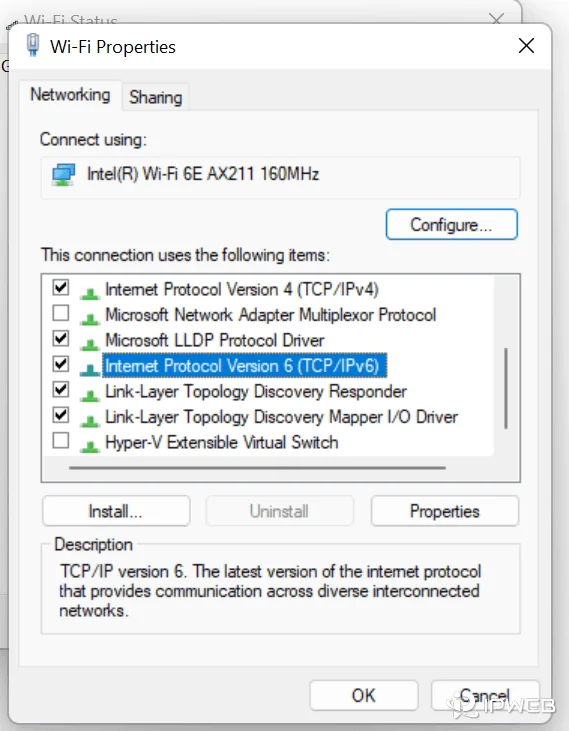
For a command-line check, you can request each protocol explicitly:
curl -4 https://api.ipify.org
curl -6 https://api64.ipify.org
On Windows PowerShell, the equivalent explicit commands are curl.exe -4 https://api.ipify.org and curl.exe -6 https://api64.ipify.org.
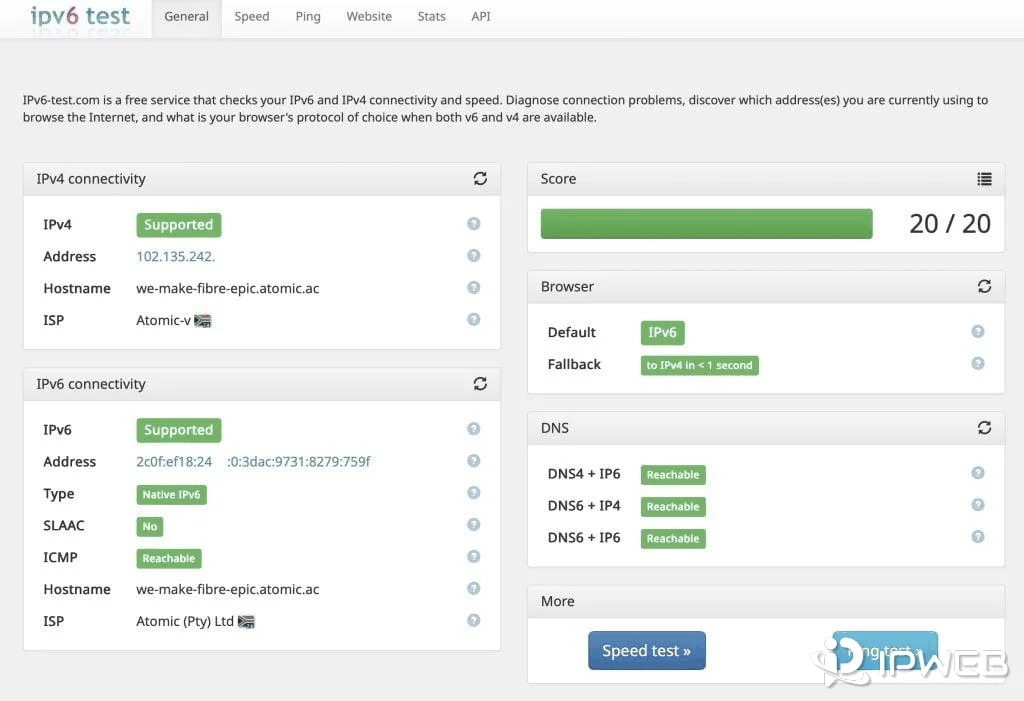
If the IPv4 result changes but the IPv6 result still belongs to the original connection, review the VPN, proxy, or operating-system routing settings before treating the IP change as complete. A network that does not have working IPv6 may simply make the second command fail, which is different from an IPv6 routing mismatch.
When you are testing a proxy, the before-and-after IP check should be performed in the same browser or application where the proxy is configured. If the original IP is still visible, use the more detailed steps for checking whether a proxy is working.
Why Your IP Address Might Not Change
An unchanged IP does not automatically mean that the device or network is broken. The most likely cause depends on which method you used and which address you expected to change.
| What You See | Likely Explanation | What to Check Next |
|---|---|---|
| Router restarted but the public IP is identical | The ISP reassigned the same dynamic address, uses a static assignment, or controls the public route upstream | Confirm the service type or ask the ISP |
| Mobile data reconnected but the IP is unchanged | The carrier reused the same public or shared public address | Verify again later or compare another network |
| VPN connected but the old IP still appears | The tested traffic may not be using the VPN tunnel | Check split-tunnel and app routing settings |
| Proxy configured but the original IP remains visible | The proxy may be configured in a different application or the route may be incomplete | Test inside the configured app and verify proxy settings |
| The IP changed but the displayed city looks the same or wrong | IP geolocation is database-based and may not reflect the exact connection location | Compare the IP itself before judging the location result |
| IPv4 changed but another test still looks inconsistent | IPv4 and IPv6 may be taking different routes | Check both protocol families in the same environment |
If the number changed but the location shown by an IP lookup still seems incorrect, the problem is no longer the IP-change method itself. See why an IP location can look wrong for the geolocation side of the issue.
Which Method Should You Use?
Choose the method by the address you need to change, not by which option sounds most powerful.
| Goal | Better Starting Point | Main Limitation |
|---|---|---|
| Get a different home ISP public IP | Reconnect the router, then ask the ISP if needed | A dynamic address may be reassigned unchanged |
| Temporarily use another network’s public IP | Use a different Wi-Fi or mobile connection | The original network remains unchanged |
| Use a different source IP for most routed device traffic | VPN | Scope depends on tunnel and split-routing configuration |
| Use a different source IP for a particular browser, app, or script | Proxy | Only configured traffic uses the proxy route |
| Change only a local network address | DHCP renewal or manual LAN configuration | Does not normally change the public IP websites see |
Changing the IP a website sees does not change browser cookies, login sessions, device settings, or other application-level data. Treat it as a network-routing change, not as a replacement for browser or account configuration.
Frequently Asked Questions
Final Thoughts
Start by identifying which address you need to change. A router reconnect or ISP action may affect the public IP associated with the original connection; a different network gives your traffic a different internet-facing route; and a VPN or remote proxy can change the source IP seen by destinations for traffic that uses it. A private LAN address is a separate setting.
After making a change, verify the visible IP in the same browser, app, or script that will use the connection. If the number changes but the displayed location does not, troubleshoot IP geolocation separately rather than repeatedly changing network settings.