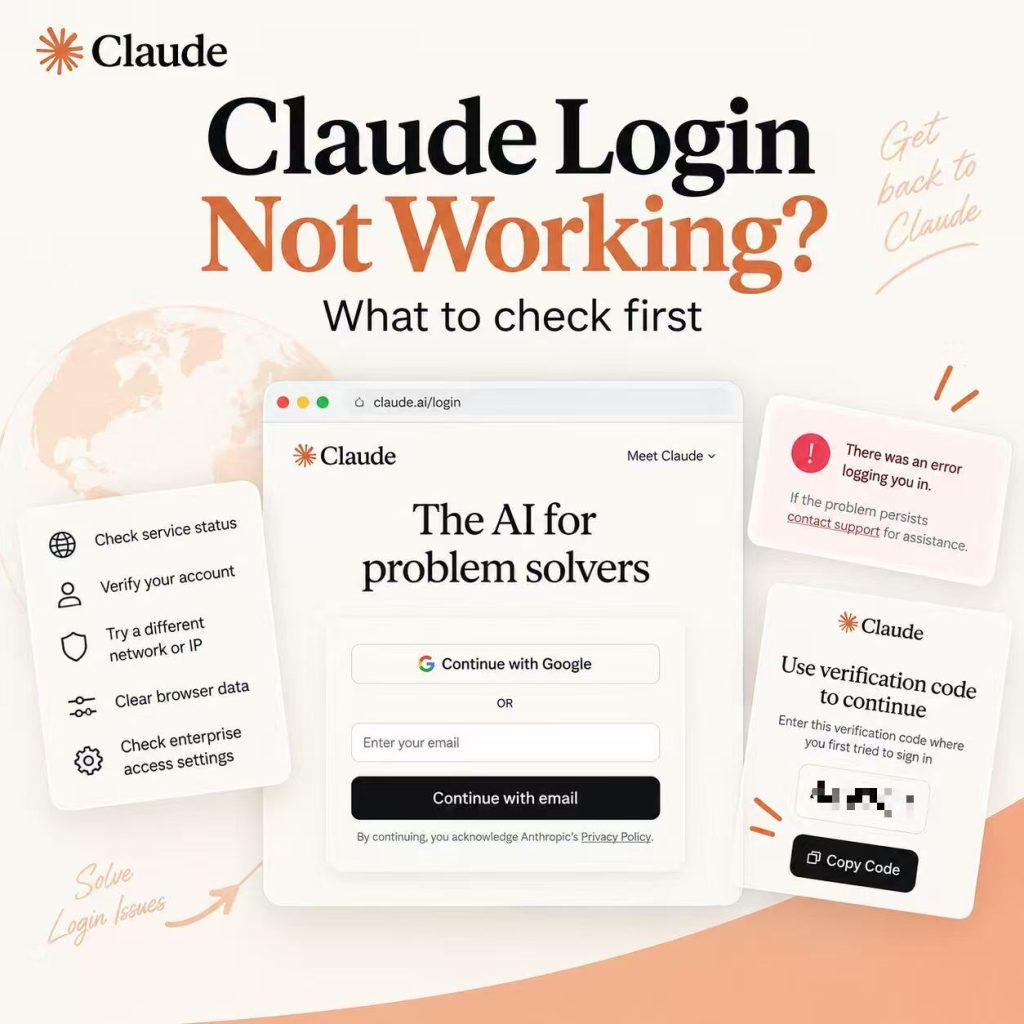
A Claude sign-in failure can happen at several different points. The login email may never arrive, a verification code may be required because the link was opened on another device, Google sign-in may select the wrong account, or the browser may return to the login page after authentication. A country-availability message is a separate problem and should not be diagnosed as an ordinary login loop.
Start by recording the last successful step and the exact error text. Keep credentials and authentication links private: a useful troubleshooting record includes the symptom, browser, device, and time, not a password, cookie, magic link, verification code, or API key.
If Claude login is not working, first confirm that you are using the email identity tied to the intended Claude account. Then check whether the failure involves Google sign-in, an emailed login link, a cross-device verification code, browser state, or a Claude service incident. For a generic “There was an error logging you in” message, Anthropic recommends testing without a VPN, disabling browser extensions, and clearing cache and cookies before changing networks.
- Claude supports both Google sign-in and emailed login links; the important account identifier is the intended email identity.
- If an emailed login link is opened on another device, Claude can generate a verification code that must be entered on the original device.
- A missing login email should be checked in spam, quarantine, and mail-security settings before repeated login attempts.
- For generic login errors, test without a VPN, disable extensions, clear cache and cookies, and check Claude Status.
- A country-availability message is not the same as a browser login loop.
- Use a second network only after the account and browser tests are controlled.
Identify Where the Sign-In Flow Stops
Describe the last successful step before changing anything. Claude may fail before an identity is selected, after Google authentication, after an emailed login link is opened, during a cross-device verification step, or only after the browser returns to Claude. Those stopping points do not have the same owner.
If the screen explicitly says Claude is unavailable in a country or region, stop treating the problem as a normal login failure. Check Anthropic's current availability guidance instead of repeatedly retrying credentials or clearing browser data.
| Observed point | First controlled check | Avoid assuming |
|---|---|---|
| Redirect returns to sign-in | Clean browser profile with one intended account | The account password is necessarily wrong |
| Login email never arrives | Spam, quarantine, and @mail.anthropic.com delivery | The Claude account does not exist |
| Login link opened on another device | Enter the generated verification code on the original device | The link itself is invalid |
| Google sign-in selects the wrong identity | Sign out of unrelated Google accounts and choose the intended email | Browser cache is the only cause |
| Generic login error appears | No-VPN baseline, extensions off, cache/cookies cleared | The country policy changed |
| Page times out | Claude Status, then one normal network | The account is suspended |
Verify the Account and Login Method
Claude currently offers two normal login paths: Continue with Google and Continue with email. Anthropic's official Claude login guide explains both methods. The useful check is whether you are using the email identity associated with the Claude account you intend to access, not whether you always use exactly the same button.
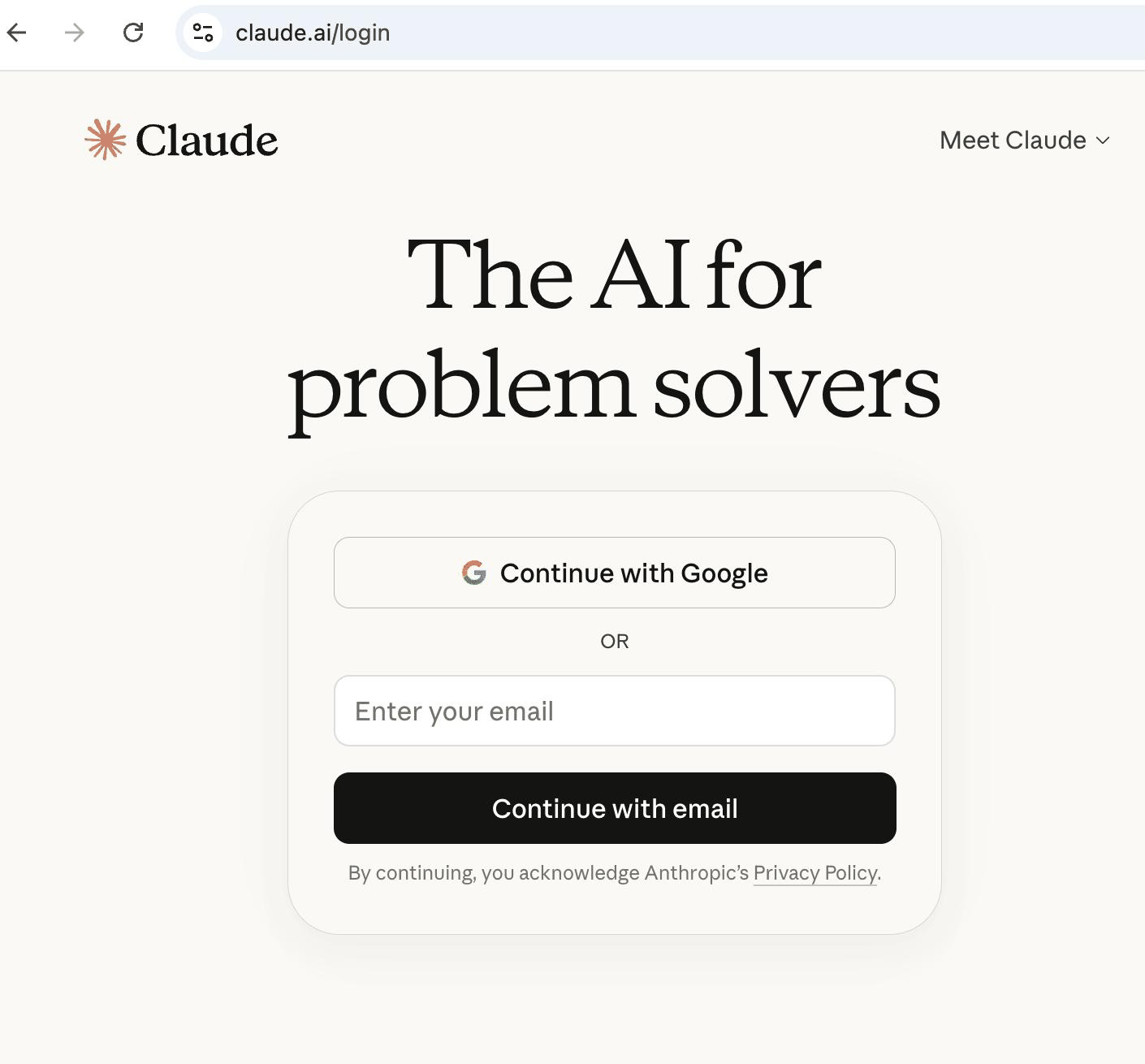
If Google sign-in is failing, confirm that the intended Google account is selected. Anthropic also documents that a user who previously authenticated with Google can revoke that Google connection and use emailed login links instead. Claude does not currently use a separate dedicated account password for ordinary Claude login.
Note: A Chrome Incognito window starts a separate browsing session and does not automatically reuse the Google sign-in state from your normal browser window. However, all Incognito windows that remain open belong to the same Incognito session. If you already signed into the wrong Google account in one Incognito window, close all Incognito windows before starting a fresh test with only the intended account.
If the same email is associated with both an individual account and a Team or Enterprise account, verify which account is active after login. An organization-managed account may also have access controls that are separate from browser troubleshooting.
Fix Login Email and Verification Code Problems
When you choose Continue with email, Claude sends a secure login link. If you open that link on the same device that requested it, Claude should redirect that device into the account. If you open the link on another device, Claude can generate a verification code instead; enter that code on the original device where you requested the login email.
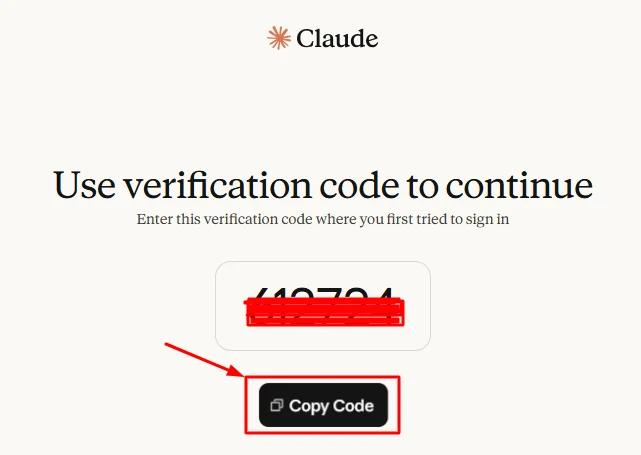
If the email never arrives, Anthropic recommends checking spam and junk folders, mail-server quarantine, and whether @mail.anthropic.com is allowed. Business, government, and education email users may need their IT team to review mail-security controls. Avoid requesting many new links before checking delivery because that makes it harder to tell which message is current.
| Email or verification symptom | What to check | Next action |
|---|---|---|
| No login email | Spam, junk, quarantine, allowlist | Retry after mail delivery is confirmed |
| Link opened on same device | Whether Claude redirects back into the account | Record the exact error if redirect fails |
| Link opened on another device | Verification code shown after opening the link | Enter the code on the original device |
| Work or school email is filtered | Organization mail-security policy | Ask IT to allow Anthropic login mail |
Run a Clean Browser Test
For a generic login error such as “There was an error logging you in,” follow Anthropic's current Claude error troubleshooting guidance: disconnect any VPN for the baseline test, disable active browser extensions, and clear the browser cache and cookies. Then retry with the intended account.
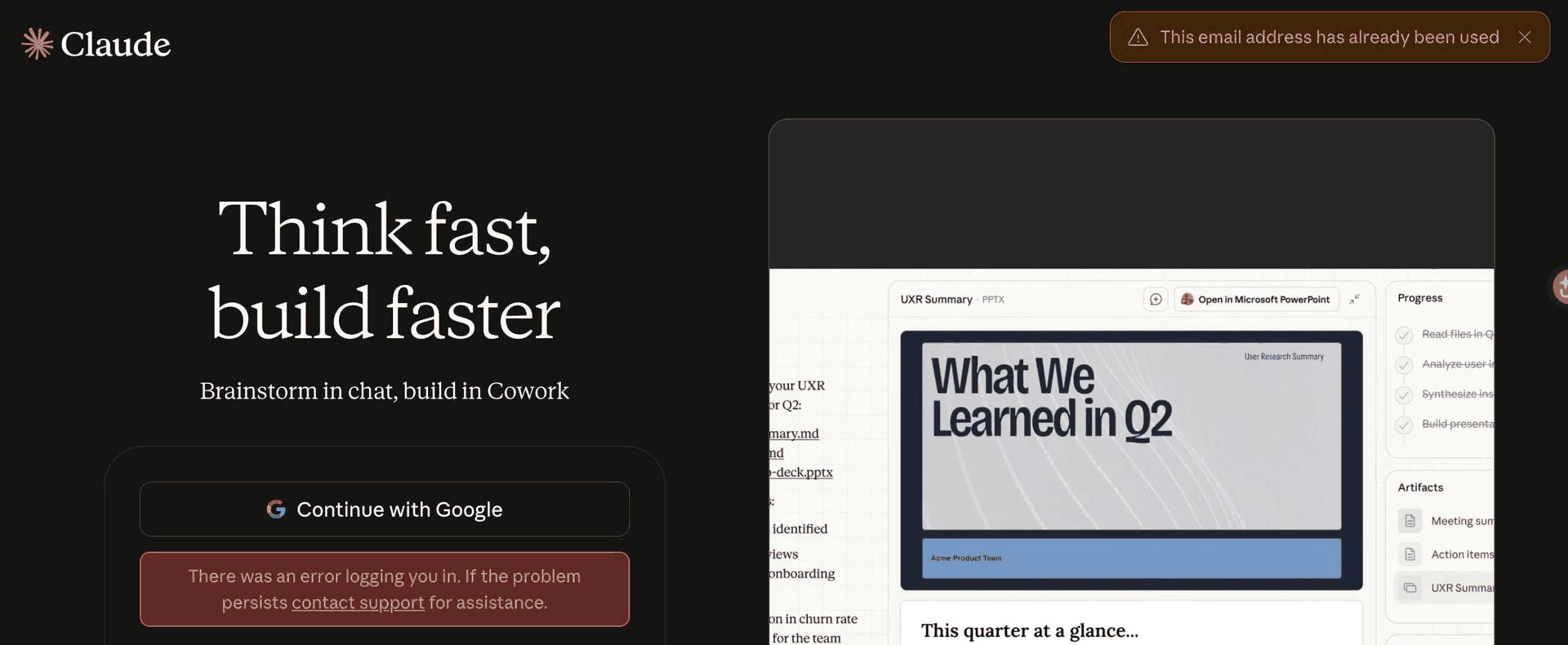
A clean profile or private session is useful because it removes stale site data, extension interference, and account-selector noise without forcing you to reset every device. If Claude works in the clean profile, return to the normal profile and restore extensions or privacy controls one at a time. If the exact same error persists in both environments, stop blaming cache and move to service-state or account checks.
Check Service State Before Network Changes
Before switching networks, check Claude Status. A service incident can affect claude.ai or authentication without being caused by your browser or account. Record the time and the status result so a later retry can be compared with the same incident window.
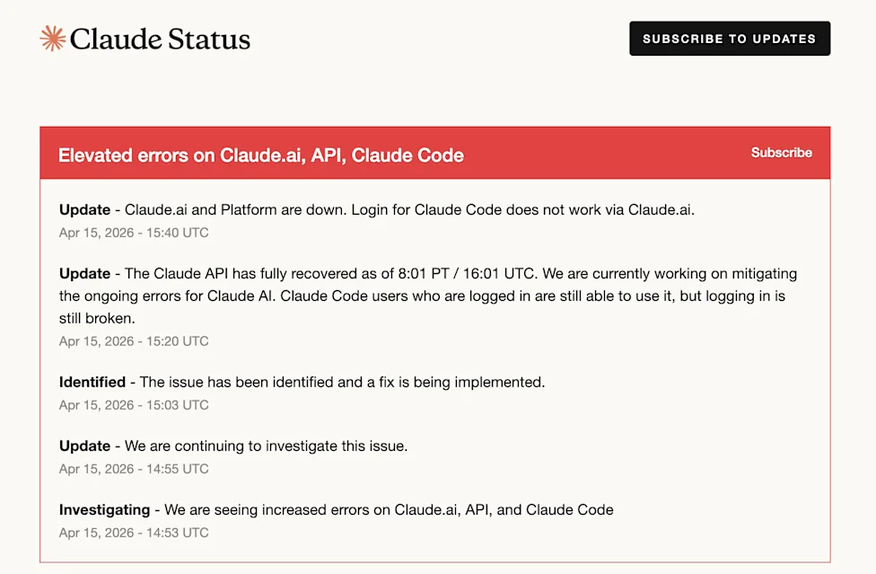
If Claude Status is normal and the account/browser tests are controlled, compare one second normal network while keeping the account, browser profile, and device unchanged. Note whether DNS resolves, TLS completes, and whether the exact error changes. If the visible country, ISP, or ASN looks unexpected, IPWeb's IP location troubleshooting guide explains why geolocation databases, carrier routing, and shared gateways can disagree.
If a proxy is already part of an approved test environment, verify that Claude's browser is actually using that route before interpreting the result. IPWeb's proxy validation guide shows how to check the visible IP, country, ISP, ASN, and test environment in the same browser or application. Do not add or rotate proxy routes as a general login fix.
Escalate With Reproducible Evidence
If the same error survives the correct email identity, login-link checks, a clean browser test, and normal service status, build a concise support record. Include the sign-in method, product surface, exact message, timestamp with time zone, browser and operating-system version, clean-profile result, and high-level network type. Redact credentials and authentication links.
Anthropic's support guidance explains how eligible users can reach Claude support. Do not send a password, session cookie, magic login link, verification code, or API key in a support request.
Frequently Asked Questions
A redirect loop can involve browser session state, stale cookies, extensions, or account-selection noise. Test the intended account in a clean profile before resetting credentials or changing several network settings.
Check spam and junk folders, mail-server quarantine, and whether emails from @mail.anthropic.com are allowed. Business, government, and education email users may need their IT team to review mail-security settings.
Claude can generate a verification code when the emailed login link is opened on a different device. Enter that code on the original device where you requested the login email.
Yes. Anthropic documents both Google and emailed login links. It also explains how a previously connected Google account can be unlinked if you want to use emailed login links instead. Make sure you are using the email identity tied to the intended Claude account.
Anthropic's current troubleshooting steps are to test without a VPN, disable browser extensions, clear cache and cookies, and then check Claude Status if the error remains.
Do not treat one as a general fix. Anthropic specifically recommends testing generic login errors without a VPN. A route comparison may later show whether connectivity differs, but it cannot repair account identity, email delivery, browser session state, organization controls, or a Claude service incident.
No. Claude Code has a separate terminal and OAuth flow. Keep CLI version, callback details, and terminal authentication evidence in a Claude Code-specific troubleshooting path instead of mixing them into the claude.ai browser-login workflow.
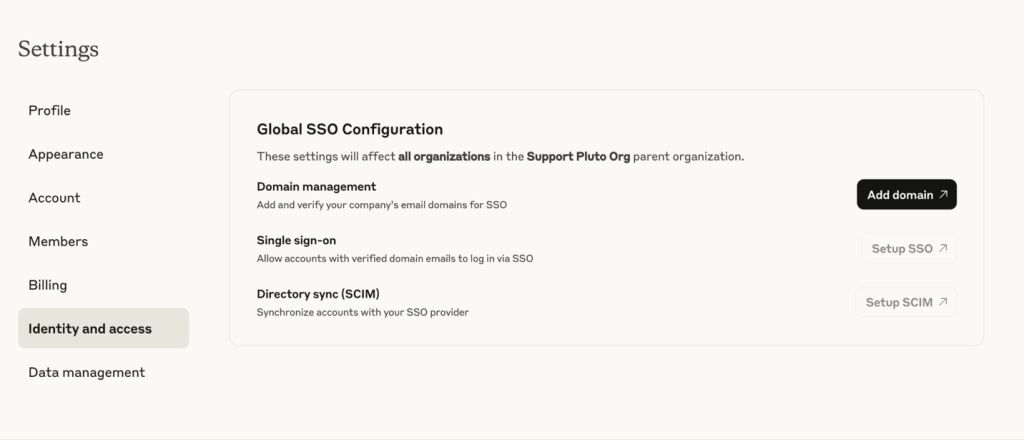
Organization-managed Claude accounts can have administrator-controlled identity and access settings. Team and Enterprise organizations can use single sign-on (SSO), while Enterprise organizations can also use controls such as IP allowlisting and network-level tenant restrictions. If normal browser and account checks do not explain the failure, contact your organization administrator to verify that your identity, organization membership, SSO configuration, and approved network are allowed.
Final Thoughts
Claude login troubleshooting is faster when the stopping point determines the next test. Confirm the intended email identity, separate Google sign-in from emailed login links, handle cross-device verification correctly, then remove browser-state problems before changing the network.
If the same error remains after a clean browser test and Claude Status is normal, compare one second network without changing the account or browser at the same time. If the screen is actually a country-availability message, leave the login workflow and diagnose regional availability separately instead of repeating sign-in attempts.