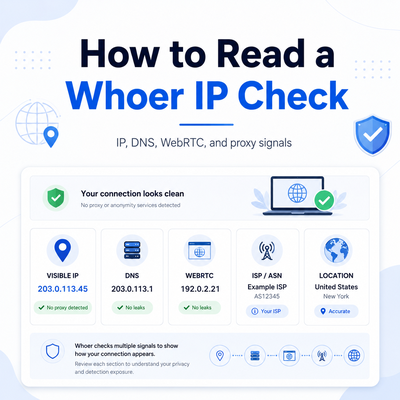
A Whoer IP check shows more than the public IP address visible from your current browser or connection. Depending on the test, it can also surface DNS behavior, WebRTC exposure, ISP or ASN data, browser signals, location estimates, and proxy-related warnings.
Read those signals together rather than treating any single result as a complete privacy guarantee. Whoer is a third-party service, and IPWeb is not affiliated with it. Its results are best used as diagnostic clues for proxy testing, browser QA, and network troubleshooting.
A Whoer IP check is a third-party IP and privacy diagnostic that shows the visible IP address and may also report DNS, WebRTC, ISP, location, browser, and proxy/anonymity signals. Use it to confirm what a website can see from the current browser or app, then compare the result with your expected proxy route. A clean result is useful, but it does not prove that every website, account system, or risk engine will treat the session the same way.
- A Whoer IP check can show the visible IP address plus additional network and browser signals from the current connection.
- The visible IP is only the first signal. DNS, WebRTC, ASN, headers, browser settings, and location consistency matter too.
- A mismatch does not always mean the proxy is broken; it may point to DNS behavior, browser leakage, geolocation database disagreement, or testing in the wrong app.
- A Whoer web proxy and a configured proxy server are different tools, so confirm which type of routing you are actually testing.
- IP-checker outputs are for diagnostics only. Do not use them for account evasion or circumvention of platform rules.
What a Whoer IP Check Is
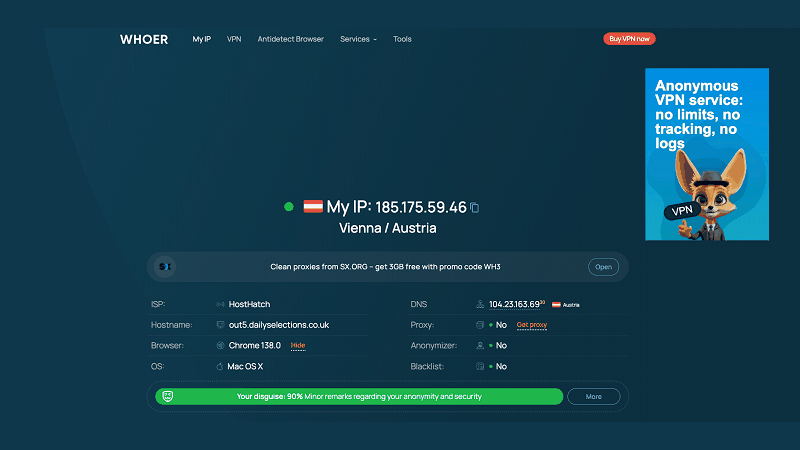
A Whoer IP check is a browser-based network diagnostic that shows the public network information visible from the current connection. The visible IP is the starting point, but the result may also include location, ISP or ASN, DNS, WebRTC, browser details, and proxy or anonymity indicators.
A basic IP lookup is enough when you only need to know which public IP address websites can see. A Whoer-style check is more useful when you also need to interpret DNS, WebRTC, ISP, location, and proxy-related signals from the same browser environment.
For a plain visible-IP check, use IPWeb's What Is My IP? page. If you need to confirm whether a browser, script, or app is actually using the expected route, follow the proxy tester guide.
What a Whoer-Style IP Check Shows
A Whoer-style IP check usually combines network identity and browser-environment signals. The exact interface may change, but the common diagnostic categories are stable: visible IP, location estimate, ISP or ASN, DNS behavior, WebRTC exposure, browser settings, and proxy or anonymity status.
The official Whoer site is available at Whoer.net. Its diagnostics can help you compare the visible IP address with DNS, WebRTC, network ownership, and other browser or connection signals before you start troubleshooting.
| Field | What It Tells You | Why It Matters |
|---|---|---|
| Visible IP | The public IP address seen by the checker. | Confirms whether the browser or app exits through the expected route. |
| ISP / ASN | The network owner and routing organization associated with the IP. | Helps distinguish residential, ISP-style, datacenter, or unexpected original-network routing. |
| Location | Country, region, or city estimate for the IP. | Useful for regional QA, but city-level data can be wrong or inconsistent. |
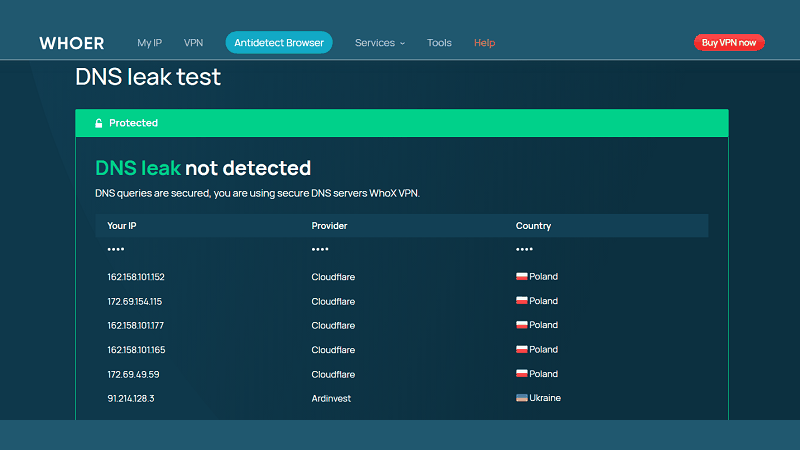
| DNS | The resolver path used for domain lookups. | A DNS mismatch can reveal that name resolution is not following the same route as the web request. |
| WebRTC | Browser real-time communication signals. | WebRTC can expose network information in browser-based workflows. |
| Proxy / anonymity label | A tool's classification of proxy-like behavior. | Helpful as a warning, but not a complete verdict about safety or compliance. |
How to Read the Main Result Fields
Start with the visible IP address. If it still shows your original network, the proxy may not be applied to the browser, profile, script, or app you are actually testing. Do not fix DNS or WebRTC before confirming that the basic route changed.
Next, compare ISP and ASN. If you expected a residential or ISP-style route but the checker shows a cloud hosting network, the endpoint may not match the proxy type you intended. If the ASN points back to your office or home ISP, the tested application may be skipping the proxy.
Then review location. IP location is database-driven, not GPS. Two lookup tools can disagree because their data sources and update schedules differ. If the country is correct but the city is off, read IPWeb's guide to why IP location can be wrong before assuming the proxy failed.
DNS and WebRTC require more care. DNS may follow the operating system, browser secure-DNS setting, proxy client, or application resolver.
WebRTC matters mainly when a real browser is part of the workflow. MDN's WebRTC API reference is a useful background source for understanding why browser communication features can expose additional network signals.
How to Diagnose Mismatched Results
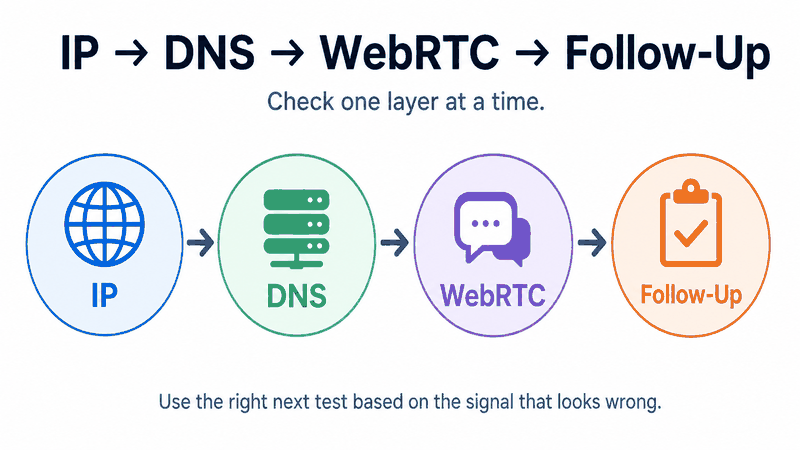
The practical rule is simple: change one layer at a time. If you switch proxy endpoint, browser profile, DNS setting, and app configuration all at once, you may get a cleaner result without knowing which problem you actually fixed.
| Symptom | Likely Layer | First Check | Next Step |
|---|---|---|---|
| Original IP still appears | Proxy configuration | Test from the exact browser, profile, script, or app that uses the proxy. | Recheck host, port, credentials, protocol, and app-level proxy scope. |
| IP changed but DNS looks local | DNS behavior | Run DNS and IP checks from the same environment. | Review browser secure DNS, OS resolver, proxy client, or app resolver settings. |
| WebRTC exposes unexpected information | Browser behavior | Test in the same browser profile used for the workflow. | Review browser WebRTC settings and whether the workflow needs real-time communication features. |
| Location is wrong but ASN is expected | IP geolocation data | Compare more than one lookup tool. | Treat city-level results as approximate unless the workflow truly requires city precision. |
| Proxy/anonymity warning appears | Classification / reputation | Compare IP, ASN, headers, DNS, and browser signals. | Use the proxy anonymity checker workflow before changing providers. |
For server-side requests, also inspect proxy-related headers. The standardized Forwarded header and common X-Forwarded-For header can carry intermediary routing information when infrastructure sets them.
Whoer Proxy vs Web Proxy
A Whoer IP check and a web proxy solve different problems. The IP check reports what the current browser or connection exposes.
A web proxy routes browser traffic through a remote gateway. Seeing a proxy-related label in an IP check does not mean the checker itself is routing your traffic.
A web proxy is not the same as a full application-level proxy setup. A web proxy usually routes web browsing through a remote page or gateway, while a configured proxy server can be applied to a browser, operating system, script, or application depending on the setup.
If you want to understand how Whoer's browser-based proxy works, how its traffic scope differs from a configured proxy server, and what to check after connecting, see IPWeb's Whoer Web Proxy guide.
A VPN APK is also separate from an IP diagnostic. Installing another app is not a reliable first step when you are trying to explain an unexpected IP, DNS, or WebRTC result. Test the current browser or app route first, and avoid downloading APK files from untrusted sources.
When to Use Another IPWeb Check
Use the right follow-up check based on the problem you see. A Whoer-style result is a useful snapshot, but it should not become the only diagnostic source.
| Need | Better Follow-Up | Why |
|---|---|---|
| Confirm current visible IP only | What Is My IP? | A focused IP lookup is enough when you only need the public IP and network fields. |
| Test whether the proxy route works | Proxy tester guide | Proxy testing checks whether the exact app or browser is using the proxy route. |
| Review DNS, WebRTC, headers, and anonymity | Proxy anonymity checker | A multi-signal check is better when a site may classify the session as proxy-like. |
| Explain a wrong city or region result | Why IP location can be wrong | IP geolocation disagreement is often a database issue, not a proxy failure. |
Keep the limitation clear: a proxy can help with some network-layer problems, but it cannot fix every access, account, compliance, or platform policy issue. A good IP check helps you understand the route; it does not guarantee an outcome on every website.
Frequently Asked Questions
Whoer IP usually refers to checking your visible IP address and privacy-related network signals on Whoer.net or a similar Whoer-branded IP checker. The result may include IP address, location, ISP or ASN, DNS, WebRTC, browser, and proxy/anonymity indicators.Final Thoughts
A Whoer IP check is most useful when you treat it as a diagnostic dashboard, not as a pass-or-fail certificate. Read the visible IP first, then compare ISP, ASN, location, DNS, WebRTC, headers, and proxy labels against the route you expected.
If one signal does not match, follow the mismatch instead of guessing. Use a basic IP lookup for visible-IP checks, a proxy tester for route validation, and a proxy anonymity checker when DNS, WebRTC, headers, or classification signals matter.
For repeatable browser or regional QA where the exit IP should remain consistent between checks, Static Residential Proxies can make it easier to compare DNS, location, ASN, and browser results without changing the IP between tests.