People often ask about MAC addresses after a website shows the wrong location, detects automation, or ties activity to a device. The useful starting point is to separate local network identity from internet-visible request signals.
When a remote website behaves differently, the MAC address is usually not the first signal to inspect. Start with the public IP, proxy route, DNS behavior, browser profile, cookies, headers, and account/session state.
A MAC address is a hardware or software-assigned identifier used on a local network link. A normal public website does not receive your raw MAC address across the internet. It usually sees your public IP address, request headers, cookies, browser behavior, and sometimes IP-related browser signals. A proxy can change the public IP path, but it does not make a website see or replace your local MAC address.
- MAC addresses are local-network identifiers, while public websites usually work with IP and browser-layer signals.
- Routers, switches, enterprise Wi-Fi, and local device settings may see MAC addresses; ordinary remote websites generally do not.
- A proxy changes request routing and the public IP seen by a site, not the device MAC address.
- Changing or generating a MAC address is usually irrelevant when troubleshooting what a public website can see.
- When diagnosing identity or tracking risk, separate MAC address, IP address, user agent, cookies, WebRTC, and account/session context.
Why MAC Address Questions Matter for Proxy Users
That boundary matters because changing the wrong signal wastes time. A proxy can help test public IP routing and location behavior, but it cannot erase every browser, account, or local-device signal.
What a MAC Address Is
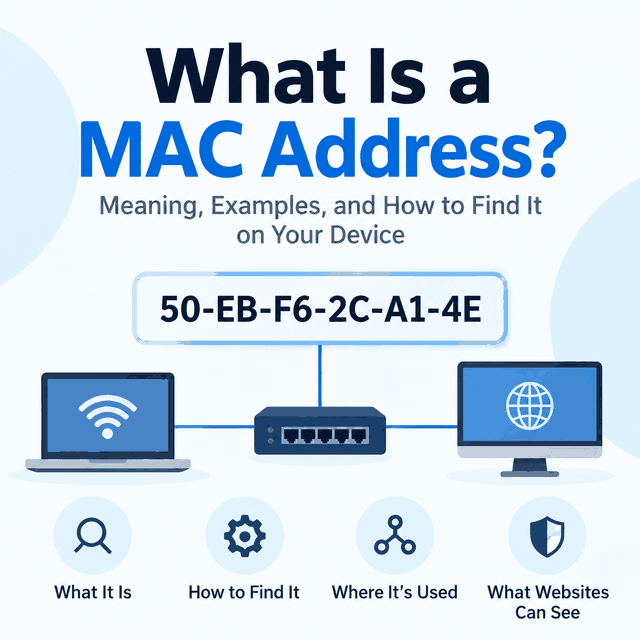
MAC stands for Media Access Control. A MAC address identifies a network interface on a local link, such as Wi-Fi or Ethernet. It is commonly shown as six pairs of hexadecimal characters, for example 02:1A:2B:3C:4D:5E.
The address is used for local delivery on the same network segment. A switch can learn which MAC address is reachable through which port. A router or Wi-Fi access point can see device MAC addresses on its local side.
Modern systems may use private or randomized Wi-Fi MAC addresses for some networks. That behavior helps reduce passive tracking across Wi-Fi networks, but it does not change how public websites see your HTTP request.
| Signal | Where it usually appears | What it tells a remote website |
|---|---|---|
| MAC address | Local network, router, switch, device settings | Usually nothing directly across the public internet |
| Public IP address | Remote website, IP lookup, server logs | Network route, ISP/ASN, approximate geolocation |
| User agent and headers | Remote website and application logs | Browser/app and request context |
| Cookies and session state | Remote website for that browser/profile | Returning session or account context |
What Websites Can and Cannot See
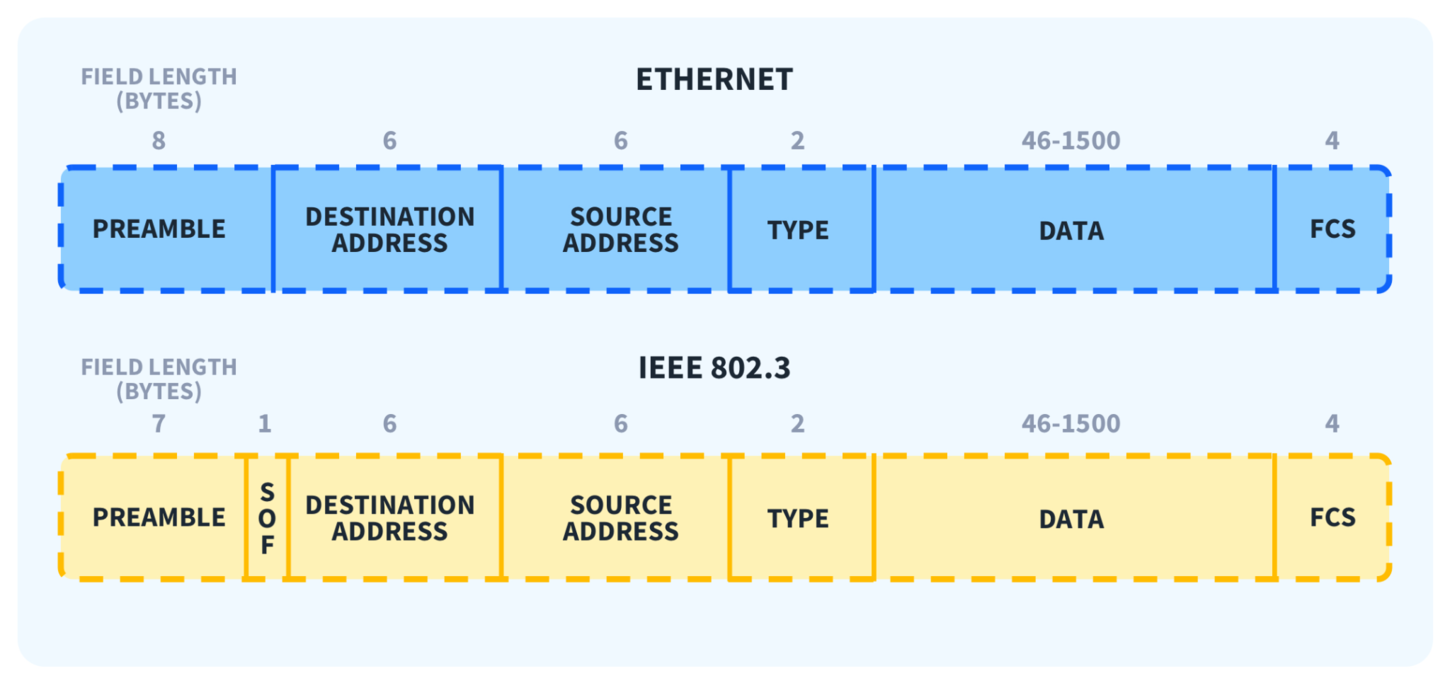
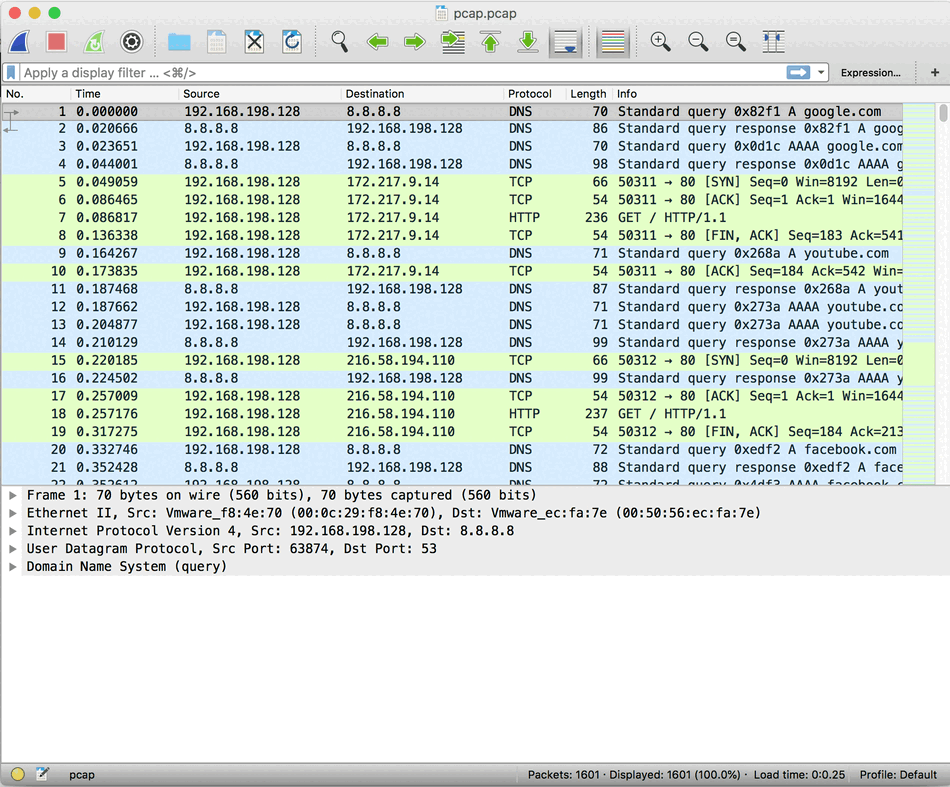
A website normally receives the network connection that reaches its server, not the raw local-link frame from your device. By the time traffic crosses routers on the public internet, the original local MAC address is not part of the HTTP request. RFC 9797 describes this routing boundary: link-layer MAC addresses are generally not visible to observers once traffic has crossed a router.
A site can still recognize patterns using other signals. It may compare public IP, ASN, location, TLS and HTTP behavior, cookies, login state, browser storage, user agent, screen properties, WebRTC behavior, and interaction patterns.
That is why a MAC address answer should not become an anonymity promise. If a website flags a session, the cause is usually somewhere in the remote-visible signal set, not because the site read a home Wi-Fi adapter address.
Where MAC Addresses Are Visible
MAC addresses are visible to devices that participate in the local network path. Your router can see the MAC address of the device connected to Wi-Fi or Ethernet. Managed corporate networks may record it for inventory, access control, or troubleshooting.
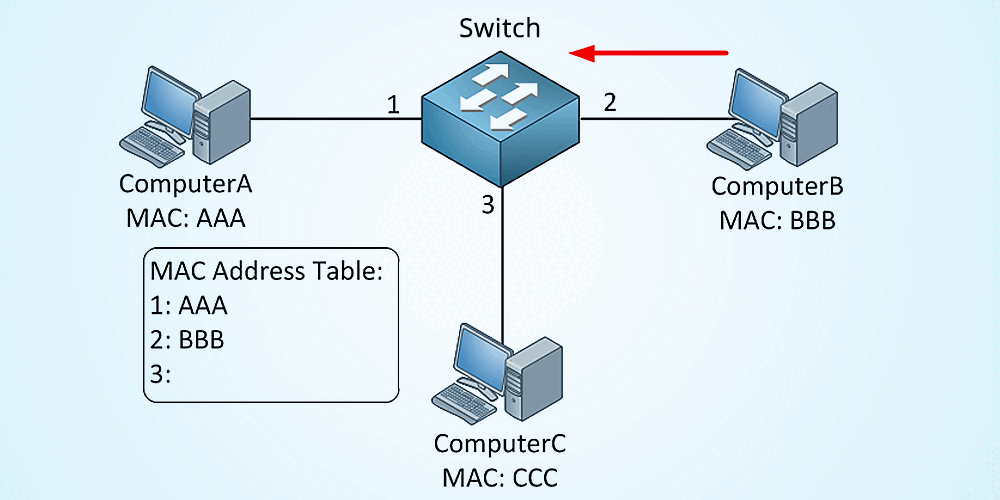
On Windows, command-line tools can show local adapter information. On macOS, network settings and terminal tools can do the same. Those are local administration checks; they do not prove that a public website can see the same value.
How to Find Your MAC Address in Windows Command Prompt
Open Command Prompt and run getmac for a compact list of network adapters and their physical addresses. For more adapter details, run ipconfig /all and look for the Physical Address field. These commands check the MAC addresses configured on your own Windows device; they do not show what a remote website can see. Microsoft documents getmac as the command for returning MAC addresses for network cards.
getmac
ipconfig /all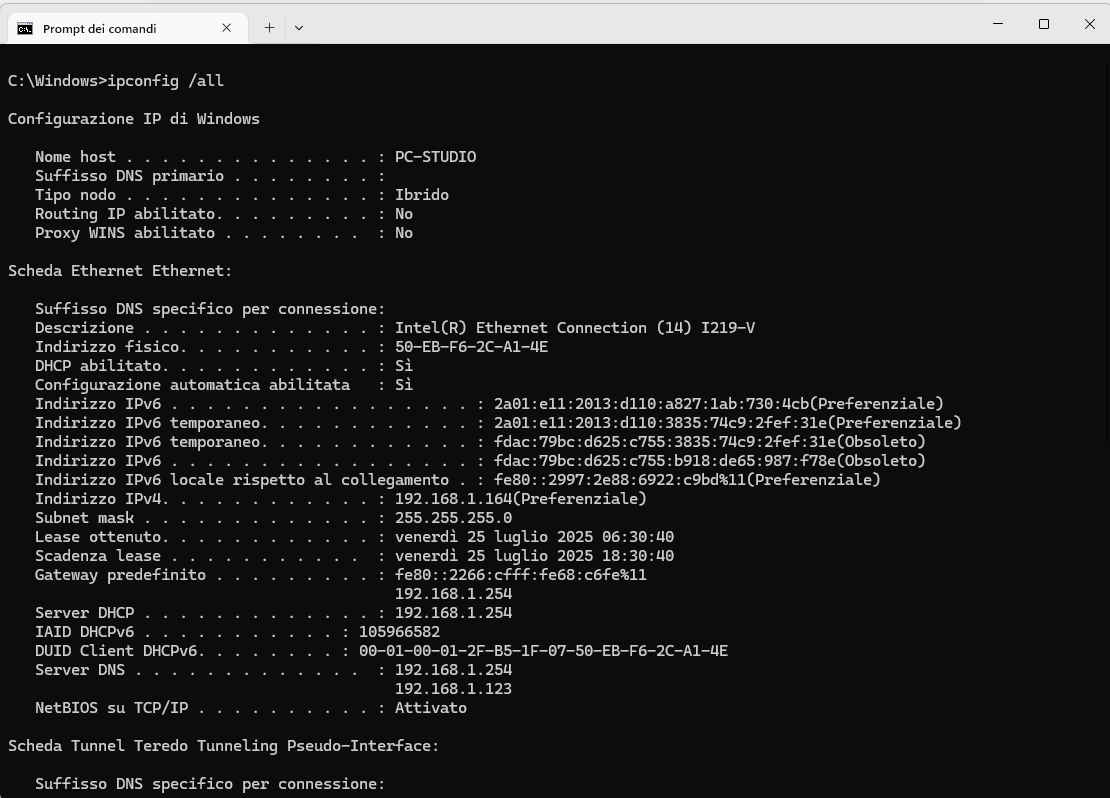
ipconfig /all.How to Check a MAC Address on macOS or Linux
On macOS or Linux, terminal commands can also display local network-interface details. Run ifconfig on macOS or ip link on Linux, then look for the hardware address associated with the active interface. As with the Windows commands above, these values describe your local device interfaces and are not automatically exposed to a public website.
# macOS
ifconfig

# Linux
ip link
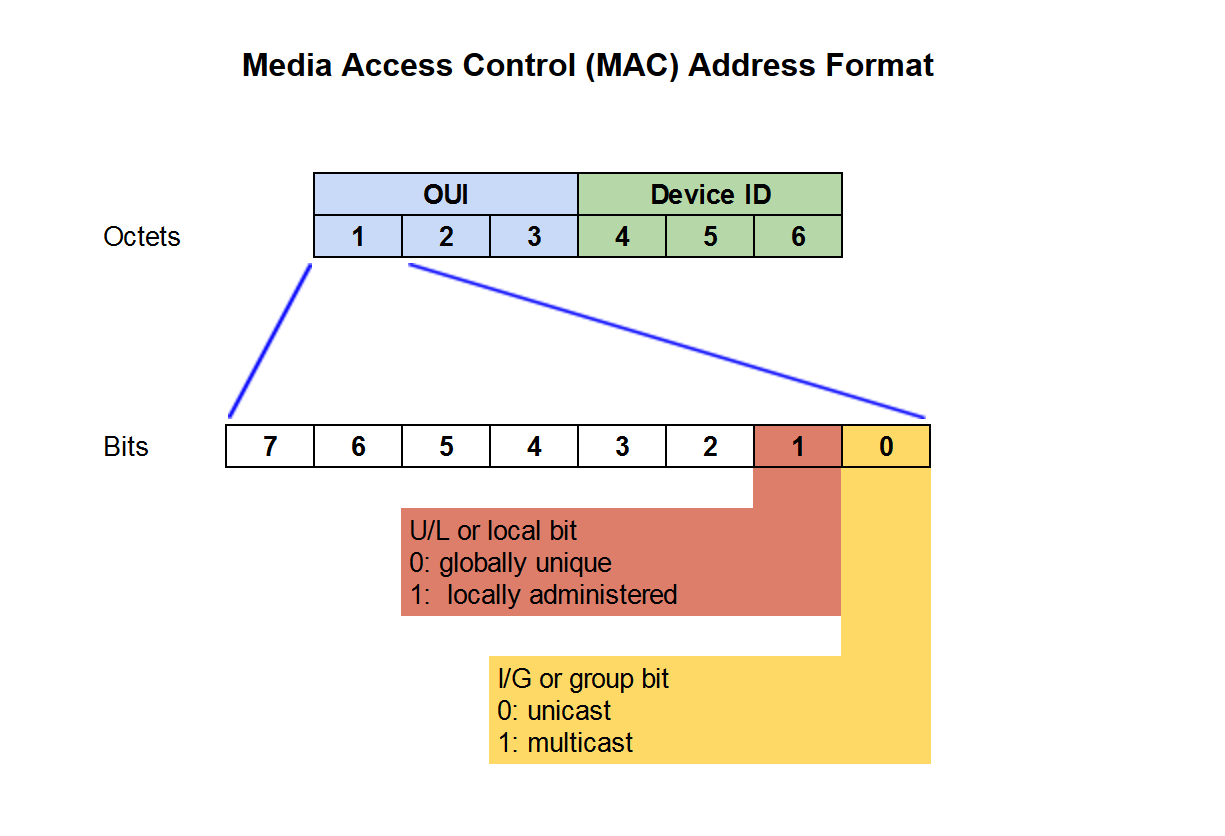
Sample MAC addresses can also appear in documentation. The first octet contains bits that indicate whether the address is unicast or multicast and whether it is universally or locally administered.
What Proxies Change and What They Do Not
A proxy changes the network route that a remote site sees. In many proxy workflows, the visible public IP, ASN, and approximate region can change. That is useful for route testing, localization QA, and public web data workflows.
A proxy does not replace your device MAC address on your local Wi-Fi network. It also does not automatically change cookies, browser fingerprints, DNS behavior, WebRTC behavior, login state, or platform trust decisions.
For a proxy troubleshooting flow, verify the visible IP first, then compare browser-level signals. Use What Is My IP for broad IP checks, User-Agent vs Proxy for browser header boundaries, and Can Websites Detect Proxies for proxy-risk signals.
How to Check the Right Signal
Use the MAC address only when you are diagnosing a local network issue: router access lists, Wi-Fi association, switch tables, device inventory, or local adapter configuration.
Use an IP lookup when the question is what a remote website sees as your public network route. Use browser DevTools or test pages when the question is headers, cookies, WebRTC behavior, or app-level proxy use.
Do not treat MAC spoofing or generator tools as a fix for public web identity. A more useful troubleshooting workflow is signal classification: local MAC, public IP, browser profile, and account/session context are different layers.
Frequently Asked Questions
Final Thoughts
A MAC address is useful for local network troubleshooting, but it is usually the wrong signal to chase when a public website behaves differently. Start with the public IP route, then inspect browser and session signals before drawing conclusions about identity or tracking.