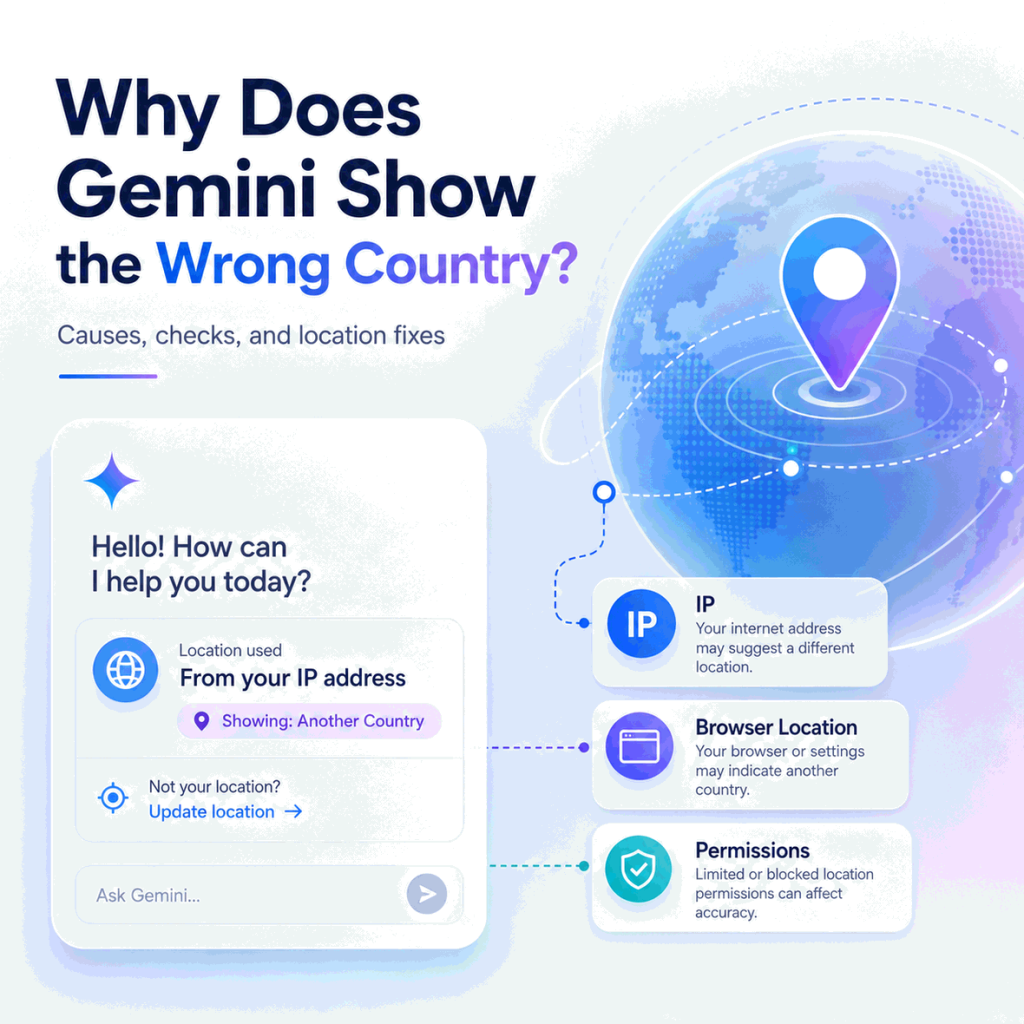
Gemini can appear to use the wrong country or location even when your physical location has not changed. The reason is that “location” is not one single signal. Gemini Apps can use a general location, and with permission they can also use a device’s precise location. Separately, an IP lookup may show a network country or city that comes from IP-geolocation data rather than GPS.
The first step is to identify what looks wrong: Gemini’s location shown in the web app, local answers inside Gemini, the country attached to the network route, an app-store availability result, or a country/region access message. Those cases belong to different troubleshooting paths.
If Gemini shows the wrong country or location, first check the location Gemini itself is using. Google says Gemini Apps may use your general location or, if you allow it, your device’s precise location. On the Gemini web app, you can inspect the location indicator and use Update location to allow precise location access.
Then compare that with the public IP country and network information visible from the same browser or device. A wrong-looking IP location can come from IP-geolocation databases, ISP or mobile-carrier routing, corporate gateways, VPN or proxy routes, or recently reassigned IP ranges. App-store country, account eligibility, and developer-product region rules are separate layers and should not be treated as the same “location” setting.
Gemini web-app UI and location-permission controls can change over time, so use Google’s live Gemini help documentation for the latest interface and permission guidance.
- Gemini location is not controlled by one universal “Google Account region” setting.
- Gemini Apps can use general location and, with permission, precise device location.
- An IP lookup shows network-based geolocation, not GPS or the exact location Gemini is using.
- Google Play or Apple Account country belongs to mobile-app availability, not ordinary Gemini web location.
- Gemini login failures, AI Studio 403 errors, and Gemini API runtime-region issues should be diagnosed on their own pages.
Decide What Location Is Wrong
“Gemini shows the wrong country” can describe several different problems. A local recommendation may use the wrong city. The web app may show a location you do not expect. An IP lookup may place the current connection in another region. The Gemini mobile app may be missing from an app store. Or a Google AI developer product may return a region-related access result.
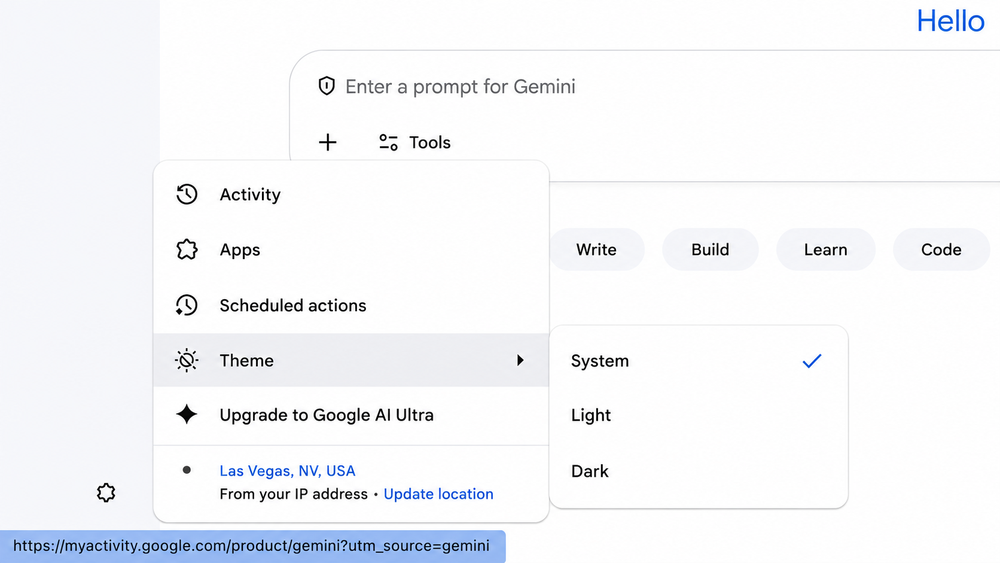
| What looks wrong | Primary layer to check | Do not confuse it with |
|---|---|---|
| Gemini shows the wrong city or nearby area | Gemini general or precise location | IP geolocation alone |
| IP lookup shows the wrong country or city | Network route and IP-geolocation data | Device GPS or Gemini precise location |
| Gemini app is missing from the store | Mobile availability, store country, device, and account | Gemini web location |
| Gemini sign-in fails | Account, availability, browser session, service, or route | A simple location mismatch |
| AI Studio or Gemini API fails by region | Developer-product availability and runtime/access checks | Consumer Gemini app location |
Bottom line: name the exact surface and the exact location signal before changing settings. That keeps a network-geolocation issue from being mistaken for an account, store, or product-availability problem.
Check the Location Gemini Is Using
Google’s Gemini Apps help documentation says Gemini Apps may use your general location to provide more relevant responses. If you allow location access, Gemini can also use the device’s precise location.
On the Gemini web app, open the menu and go to Settings & help. Google shows a location indicator at the bottom of the menu. A blue dot indicates that the web app has access to and is using precise location; a gray dot indicates that precise location is not being used. You can select Update location to allow the web app to use the device’s precise location.
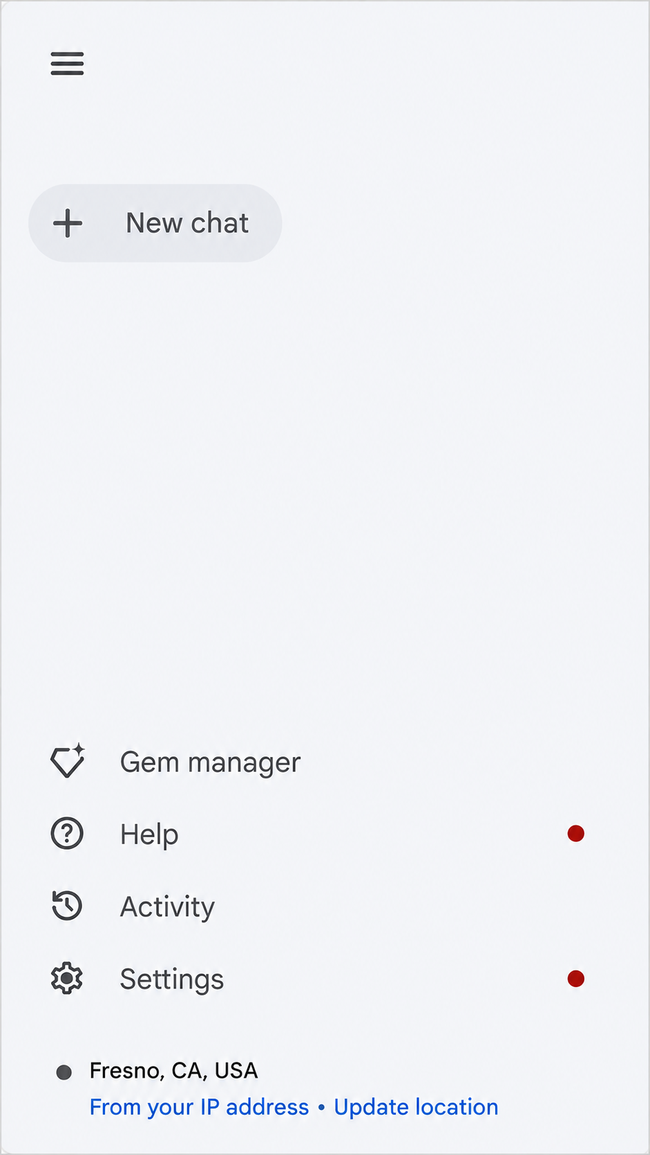
- Open the exact Gemini web session where the location looks wrong.
- Open Menu → Settings & help.
- Check the location shown at the bottom of the menu.
- Check whether the location indicator is blue or gray.
- If appropriate, use Update location and allow precise location access.
- Retest the same location-dependent prompt before changing the account or network.
Note: Gemini’s Update location control still depends on the browser or site-level geolocation permission. If precise location does not work, check the location permission for gemini.google.com in the browser. A site that is blocked from using location cannot bypass that browser permission from inside the Gemini interface.
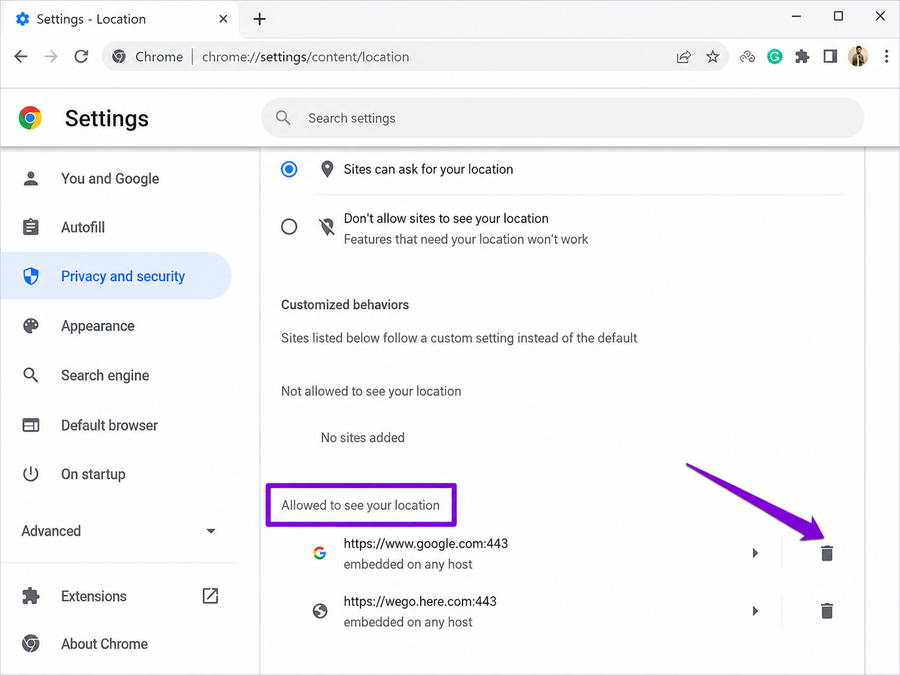
If the result changes after precise location is enabled, the original problem was not necessarily an IP-country error. Gemini may simply have been working from a broader general-location estimate.
Compare Network Location Separately
Next, record the public network information visible from the same browser, device, or app. IP geolocation is database-driven rather than GPS-driven, so the city or region shown by an IP lookup can differ from the physical location or the device’s precise location.
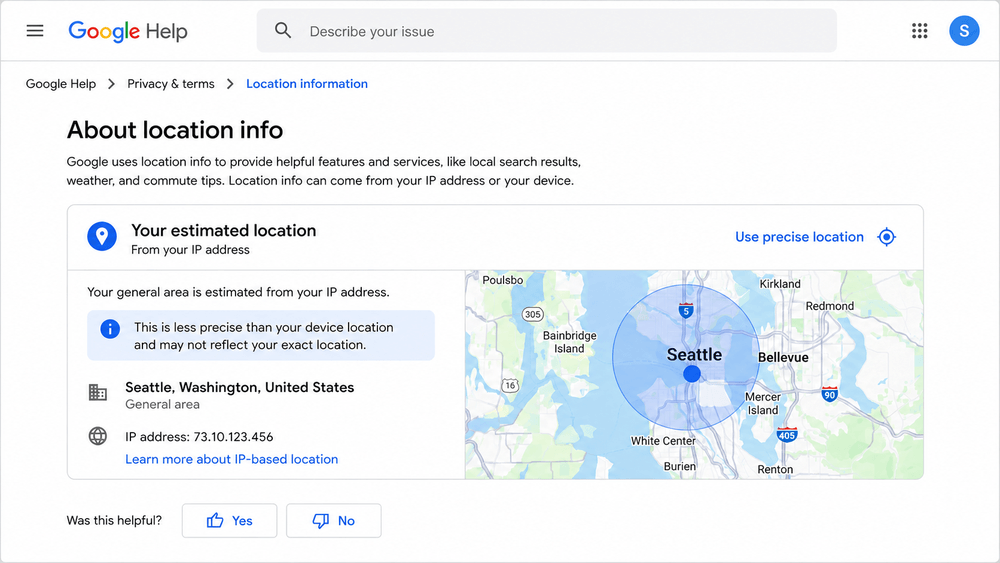
Start with IPWeb’s What Is My IP? guide to record the visible IP, country, ISP or organization, and ASN. If the country or city looks unexpected, Why Is My IP Location Wrong? explains common causes such as database differences, ISP routing, shared gateways, mobile networks, reassigned IP ranges, and proxy-location mismatches.
Do not treat a city mismatch as proof that Gemini is using the wrong country. Country-level and network-owner evidence is generally more useful for route diagnosis than a single city label. Also keep device location and network location separate: a browser can have precise location permission while its public IP is mapped to a different nearby city.
Do Not Confuse Location With App-Store Country
Google Play country and Apple Account country or region are separate from the location shown by the Gemini web app. They can affect whether the Gemini mobile app appears in the store even when Gemini works normally in a browser.
If the problem is specifically that the official Gemini mobile app is missing or unavailable, use the dedicated Gemini app availability guide. That page owns Google Play country, Apple Account region, device requirements, account eligibility, and mobile rollout checks rather than repeating them here.
Choose the Right Gemini Troubleshooting Path
Location is only one part of the broader Gemini access stack. Use the page that matches the surface that is actually failing.
| Problem | Use this guide | Why |
|---|---|---|
| Gemini sign-in loop, account failure, browser error, or service issue | Why Is Gemini Login Not Working? | Owns consumer Gemini login, account, browser, service-status, and route diagnosis |
| Gemini mobile app missing or unavailable | Why Is the Gemini App Not Available in My Country? | Owns mobile availability, store country, device, and account checks |
| Google AI Studio shows 403 Access Restricted or permission denied | Google AI Studio 403 Access Restricted | Owns AI Studio 403, permission, IAM, project, and API-key diagnosis |
| Gemini API availability depends on Colab, cloud VM, CI, or server location | Gemini API Available Regions | Owns runtime-region and developer API availability checks |
This separation matters because a working Gemini web location does not prove that the mobile app is available, an eligible consumer account does not prove that AI Studio permissions are correct, and a developer’s physical location does not prove that a remote API runtime is in the same region.
What Changing the Network Can and Cannot Tell You
A controlled network comparison can answer one narrow question: does the visible network location or route change the result while the account, browser, device, and test prompt stay the same? This can be useful when the IP country, ISP, ASN, or route is clearly inconsistent.
It cannot prove that a network route is the only location signal Gemini uses. It also cannot change device precise-location permission, Google Play country, Apple Account region, Google account eligibility, Workspace policy, or official availability rules.
If a VPN or proxy is already part of an authorized diagnostic setup, verify the visible route in the exact browser or app being tested before interpreting the Gemini result. Do not keep switching several variables at once; otherwise a different result will not identify which layer changed.
Frequently Asked Questions
First identify which location is wrong. Gemini may be using a general location or, with permission, a precise device location, while an IP lookup may show a separate network-based country or city. App-store country and official product availability are different layers again.
Google says Gemini Apps use general location and can use the device’s precise location with permission. An IP address can provide network-location context, but an IP lookup should not be treated as the same thing as Gemini’s precise device location.
Open Gemini, open the menu, go to Settings & help, and check the location section at the bottom. Google provides an Update location option that can allow the web app to use the device’s precise location.
Check the browser or site-level location permission for gemini.google.com. If location access is blocked there, Gemini’s in-app Update location control cannot override the browser permission. Allow location for the site, then retry the same Gemini session.
IP geolocation is an estimate based on network databases and routing information, not GPS. ISP routing, mobile gateways, corporate networks, reassigned IP ranges, and differences between geolocation providers can all produce a different city or region.
No. Google Play country is a store/account setting that can affect mobile-app availability. The Gemini web app’s location and the device’s location permissions are separate.
Not reliably. Changing the route changes network-visible IP information, but it does not automatically change precise device location, app-store country, account eligibility, or official Gemini availability. Use a route change only as controlled diagnostic evidence.
Location is only one layer. Login can still fail because of account eligibility, age requirements, Workspace policy, browser-session state, service status, or another access condition. Use the dedicated Gemini login troubleshooting guide for that path.
Final Thoughts
When Gemini shows the wrong country or location, avoid collapsing every signal into a single “account region” problem. Check the location Gemini is actually using, compare device and network location separately, and keep store country and developer-product region rules in their own troubleshooting paths.
The most useful evidence is collected from one controlled session: the location shown by Gemini, precise-location permission, visible IP country, ISP or ASN, device, browser profile, and exact symptom. Once you know which layer disagrees, the correct next step becomes much clearer.