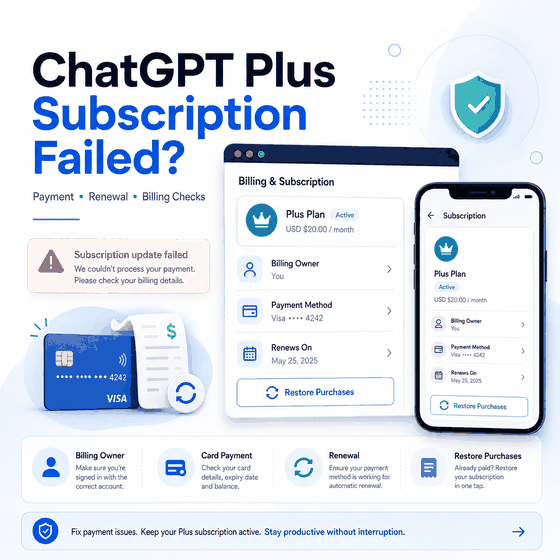
A failed ChatGPT Plus subscription does not always mean the card itself is the problem. The first step is to identify where the subscription is managed: chatgpt.com, Apple App Store, or Google Play. Those purchase paths have different billing owners, account settings, and recovery steps.
For web checkout, the failure may involve card details, billing address, bank restrictions, 3D Secure or Strong Customer Authentication, supported-country rules, browser state, or a renewal issue. For iOS and Android purchases, Apple or Google manages the subscription rather than ChatGPT web billing.
If your ChatGPT Plus subscription fails, first confirm where you originally subscribed. For a chatgpt.com purchase, verify the card number, expiration date, CVC, billing address, available funds, country or region, and any 3D Secure or SCA prompt. Then clear browser cache and cookies, check OpenAI Status, and contact the bank if the payment is still declined. If you subscribed through iOS or Android, manage the subscription through Apple App Store or Google Play instead of trying to fix it from ChatGPT web billing.
- ChatGPT web, Apple App Store, and Google Play subscriptions have different billing owners.
- OpenAI's multi-currency billing guidance applies to subscriptions purchased on chatgpt.com, not mobile app-store purchases.
- Card declines can involve card details, billing address, funds, bank restrictions, 3D Secure/SCA, or unsupported country/card-issuer region.
- A failed renewal is not the same as a failed first-time subscription; check the original billing owner and current payment method.
- Changing IP addresses or using a proxy does not fix payment eligibility, card verification, bank declines, or app-store ownership.
- If the problem is really a country-availability or login error, move to the matching troubleshooting workflow instead of continuing payment retries.
Start With the Billing Owner
The billing owner determines where you should troubleshoot, cancel, update payment details, or check subscription status. OpenAI's current guidance separates subscriptions purchased on chatgpt.com from subscriptions purchased through Apple App Store or Google Play.
| Purchase Path | Billing Owner | Best First Check |
|---|---|---|
| chatgpt.com | ChatGPT web billing | Card, billing address, country, currency, bank verification |
| ChatGPT on iOS | Apple App Store | Apple account, subscription status, App Store payment method |
| ChatGPT on Android | Google Play | Google account, Play subscription status, payment method |
| Renewal after an earlier successful purchase | The original purchase platform | Current card/payment method, bank decline, region, browser or store status |
If you do not remember where the subscription was purchased, check the receipt and the subscription settings on each platform. OpenAI also warns that starting a new subscription on another platform before canceling the old one can create duplicate active subscriptions and duplicate charges.
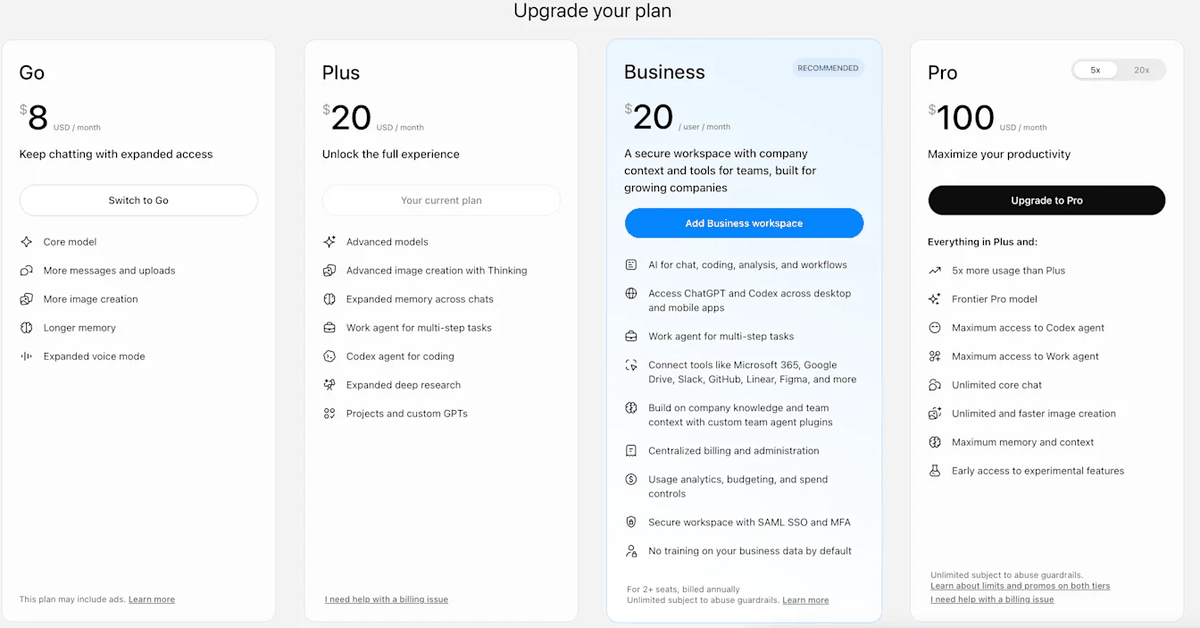
Web vs iOS vs Android Billing
OpenAI's multi-currency billing guidance applies to subscriptions purchased from chatgpt.com. If you subscribe through the ChatGPT app on iOS or Android, Apple or Google manages the subscription and the charge appears in the local currency used by that store.
This distinction matters when a payment succeeds on one platform but the plan does not appear where you expect it. A subscription purchased through Apple or Google should be checked under the same store account used for the purchase. A web subscription should be checked from ChatGPT billing settings on the ChatGPT account that made the purchase.
Do not create another subscription on a different platform until you know whether the original one is still active. OpenAI's current duplicate-subscription guidance notes that separate web, Apple, and Google subscriptions can all remain active at the same time.
Check Country, Currency, and Payment Method
For web checkout, OpenAI supports multiple currencies and payment methods, but availability varies by country and plan. Credit and debit cards are broadly supported, while some local payment methods are limited to specific regions.
Country and card-issuer region also matter. OpenAI's current payment guidance says purchases are available only in supported countries and regions and that the payment card should be issued by a bank located in a supported region.
Record these details before retrying:
- purchase path: chatgpt.com, iOS, or Android;
- billing country;
- card issuer country;
- selected currency;
- payment method type;
- exact decline or checkout message;
- whether a 3D Secure or Strong Customer Authentication prompt appeared;
- whether the problem is a first purchase or a renewal.
If you already have an active web subscription and want to switch to a newly supported currency, OpenAI says you need to cancel the active subscription and re-subscribe after the current billing period ends.
Why Card Payments Fail
OpenAI's current card-decline troubleshooting lists several ordinary payment causes. Check the card number, expiration date, CVC, billing address, and postal code. Confirm that the account has sufficient funds and that the bank allows the transaction.
Some banks block online, recurring, or international transactions. OpenAI notes that it may not receive the detailed decline reason from the bank, so contacting the card issuer is often the fastest way to identify a bank-side block.
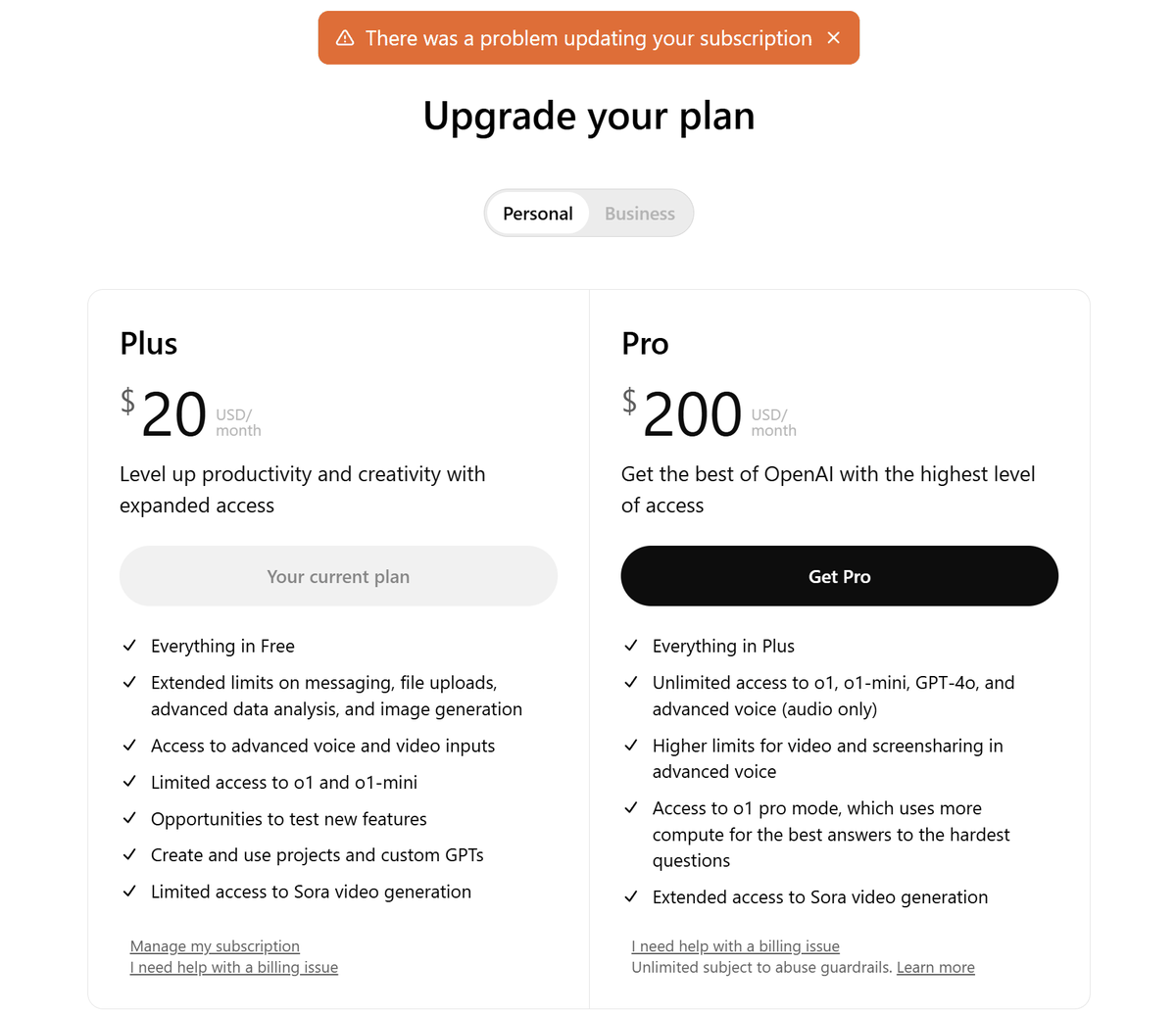
If the card details are correct, do not keep resubmitting the same payment rapidly. Repeated attempts do not solve a bank restriction or a failed authentication step.
Why ChatGPT Plus Renewals Fail
A renewal can fail even if the original ChatGPT Plus purchase worked. The saved card may have expired, available funds may have changed, the bank may block the recurring transaction, or the billing details may no longer match.
OpenAI's current renewal troubleshooting guidance recommends clearing browser cache and cookies for web renewals, checking payment details, contacting the bank, confirming sufficient funds, and verifying that both the user and card issuer are in supported regions.
- Confirm which platform owns the subscription.
- Check whether the saved card or payment method is still valid.
- Verify billing address and expiration date.
- Check available funds and bank security restrictions.
- Clear browser cache and cookies if the renewal is managed on chatgpt.com.
- Confirm that the user and card issuer are in supported regions.
- Contact the billing owner or OpenAI Support if the legitimate payment path still fails.
Browser and 3D Secure Checks
Some payment failures happen before the bank can complete verification. A 3D Secure or SCA prompt may be blocked by browser settings, pop-up restrictions, privacy extensions, redirects, or another local browser issue.
OpenAI recommends allowing pop-ups and redirects during bank authentication. If the verification prompt fails, try a clean or incognito browser session and complete the bank's OTP or app approval without closing or refreshing the checkout.
If the subscribe button itself does not load or the browser repeatedly returns to a sign-in screen, the issue may no longer be a payment problem. Check the account and authentication workflow before changing card details.
When the Subscription Is Missing or on Another Account
A successful charge does not always mean the subscription will appear under the ChatGPT account currently open in the browser. Mobile subscriptions can be associated with the Apple or Google account used for the purchase, while the paid ChatGPT plan still needs to be used with the ChatGPT account tied to that purchase context.
If a subscription appears to be associated with another account, sign out and return to the ChatGPT account that originally made the purchase. Do not buy the plan again immediately, because that can create duplicate charges instead of restoring the existing subscription.
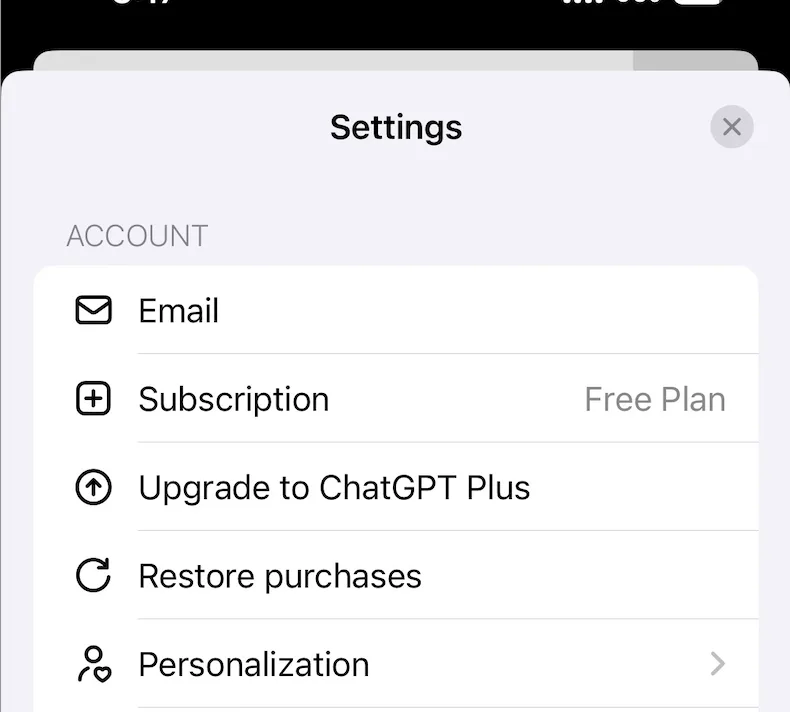
If you use ChatGPT across several devices, you do not need a separate Plus subscription for each device. Use the same ChatGPT account that owns the active subscription.
When It Is Not a Payment Problem
Stop payment troubleshooting when the error clearly belongs to another workflow.
- If the exact message says "OpenAI services are not available in your country", use IPWeb's OpenAI country error guide.
- If ChatGPT loads but the account cannot complete sign-in, use the ChatGPT login troubleshooting guide.
Do not use a false billing country, borrowed account, unofficial virtual-card workaround, or proxy route to change the apparent payment context. Those methods do not repair bank verification, card-issuer eligibility, app-store ownership, or a genuine account problem.
When to Contact Support
Contact support when the billing owner is clear, the country and card issuer are supported, payment details are correct, bank verification has been attempted, and the same failure still repeats.
Include the exact error message, purchase platform, whether the problem is a new subscription or renewal, the approximate time, browser or device, and whether the bank can see an attempted charge. Do not send a full card number.
If Apple or Google owns the subscription, use the corresponding store's subscription and payment support path. If chatgpt.com owns it, use OpenAI Support and ChatGPT billing settings.
Frequently Asked Questions
Final Thoughts
ChatGPT Plus subscription failures are billing problems first, not access hacks. Identify the billing owner, verify the payment details and supported region, complete bank authentication, and separate a first-purchase failure from a renewal or account-ownership issue.
If the failure belongs to country availability or login instead, move to that dedicated troubleshooting path. Keeping billing, country, and authentication problems separate makes the next step clearer and avoids repeated payment attempts that cannot solve the real issue.