Web pages that depend on JavaScript, clicks, form input, or browser state often need more than a plain HTTP request. WebDriver gives test and automation code a standardized way to open a browser, interact with page elements, and inspect the result.
WebDriver is a standardized way for software to control a web browser through commands such as opening a page, finding an element, clicking, typing, reading text, and closing the session. Selenium WebDriver is the best-known implementation used for browser testing and automation. WebDriver is useful when a workflow depends on real browser behavior, including JavaScript rendering and interactive page state.
- WebDriver controls a browser session through a driver and a standard command model.
- Selenium WebDriver is used for testing, browser QA, and controlled public web data checks.
- A driver can open pages, locate elements, perform actions, and read browser state.
- WebDriver is not the same as headless browsing; headless mode is only one way to run a browser.
- WebDriver does not solve account, policy, bot-control, or access-denial problems by itself.
How WebDriver Fits Browser Automation
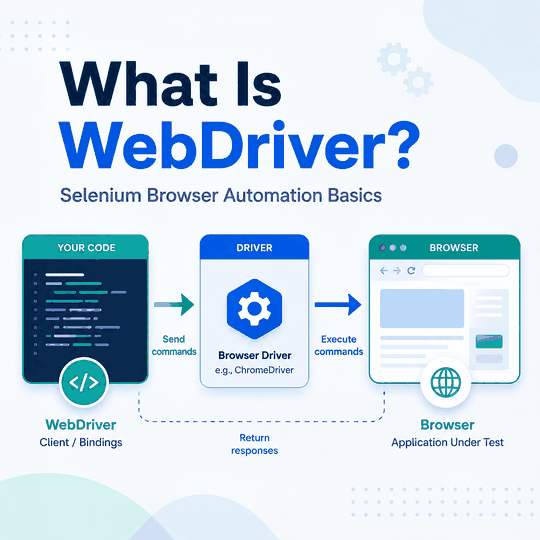
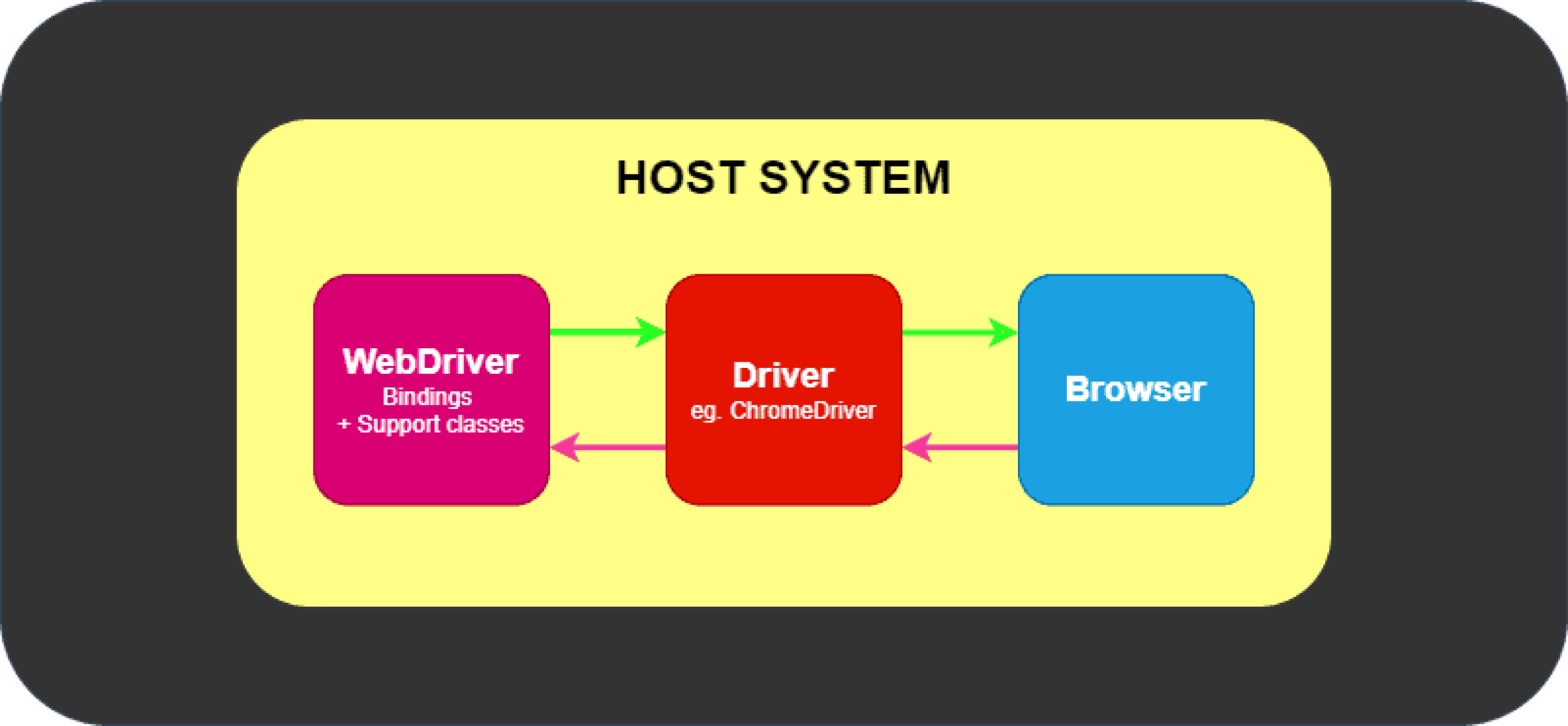
WebDriver is the layer that lets code talk to a browser in a repeatable way. Instead of a person opening Chrome, clicking a button, and checking the result, a script sends commands to a browser driver. The driver translates those commands into browser actions and returns evidence such as page state, element text, status, or an error.
That matters because browser behavior is different from a plain HTTP request. JavaScript can render content after the first page load, forms may respond to clicks, and a page can change after an element appears. WebDriver gives teams a controlled way to observe those states in a real browser context.
The simplest way to think about WebDriver is as a browser-control layer. It can reproduce and inspect what happens inside an automated browser session, while network routing, account permissions, site policies, and server-side access decisions remain separate concerns.
WebDriver, Selenium WebDriver, and Browser Drivers
The W3C WebDriver specification defines a platform- and language-neutral interface for controlling a browser. In practical Selenium work, test code uses a language binding to create a browser session and send WebDriver commands that the browser-specific implementation executes.
A browser driver is specific to the browser family. Chrome uses ChromeDriver, Firefox uses geckodriver, and Safari uses safaridriver. Selenium WebDriver documentation explains the current driver and language-binding workflow, while Selenium Manager can handle much of the driver setup automatically in common environments.
Selenium WebDriver also supports multiple language bindings. Python and JavaScript are common in web data and QA workflows, while Java, C#, Ruby, and other bindings exist for teams that already work in those ecosystems.
In W3C terminology, the local end is the client side of the protocol—typically the Selenium language binding used by your Python, Java, or other test code. The remote end is the server side that receives WebDriver commands and carries them out in the browser. With WebDriver Classic, those commands are mapped to HTTP requests and responses. WebDriver BiDi adds a WebSocket connection so the browser side can also send events back to the client.
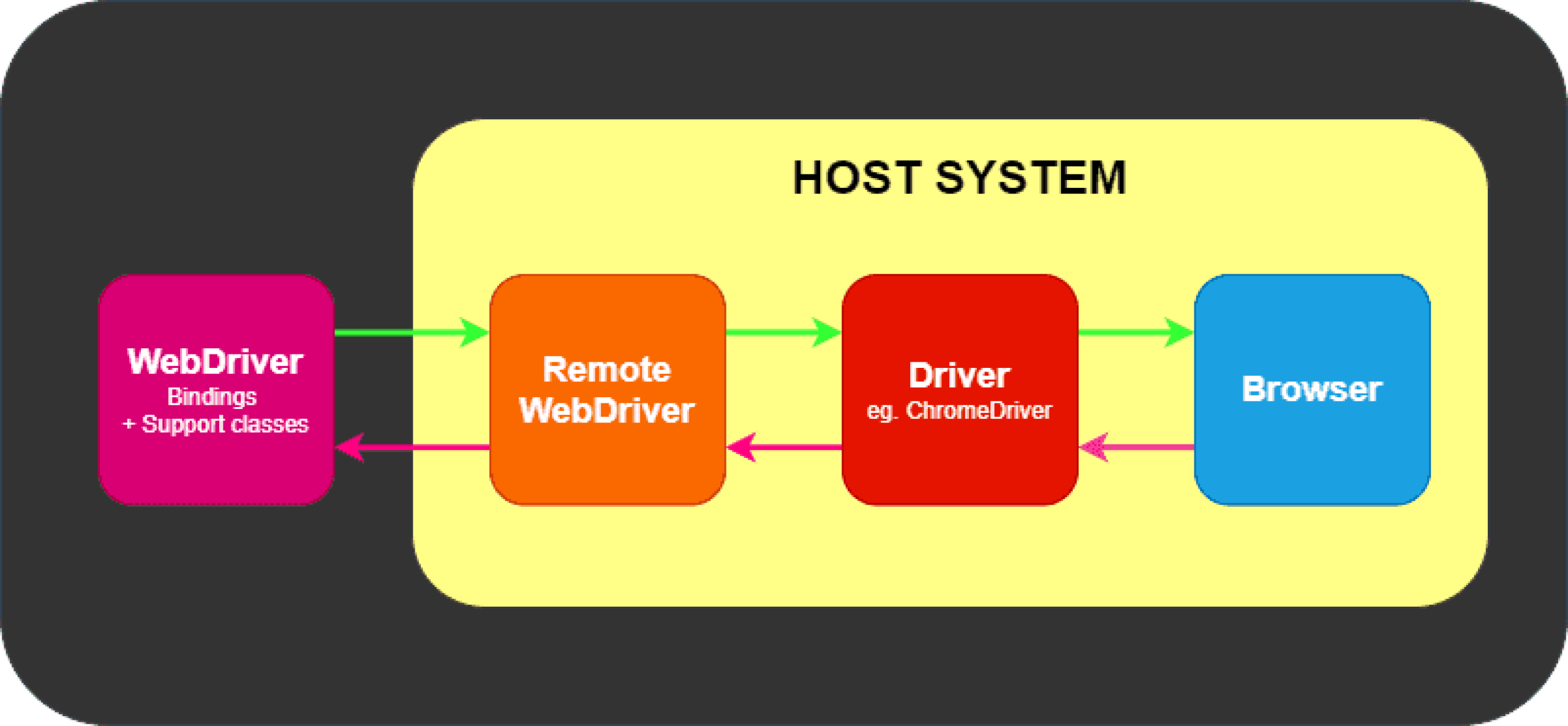
Historically, WebDriver and Selenium began as separate browser-automation projects. They were merged in 2009, and the WebDriver approach later became the basis of the W3C browser-automation standard. Selenium documents this background in its project history.
| Term | What it means | Common mistake |
|---|---|---|
| WebDriver | Standard command model for controlling a browser | Treating it as one browser or one download |
| Selenium WebDriver | Selenium client workflow using WebDriver | Treating Selenium and WebDriver as interchangeable terms |
| Browser driver | Browser-specific bridge that controls the browser | Confusing driver setup with the WebDriver standard itself |
| Browser session | One controlled browser instance with state | Forgetting that cookies and permissions still matter |
In short: WebDriver is the standard control model, Selenium is a framework that uses it, and the browser driver or browser implementation is the component that carries out the commands.
WebDriver Classic vs WebDriver BiDi
Traditional WebDriver, often called WebDriver Classic, follows a request-and-response command model: the client sends a command and receives a result. The newer WebDriver BiDi specification adds a bidirectional protocol so automation code can also receive browser events, which is useful for areas such as network activity, console logs, script events, and browsing-context changes.
For basic browser automation, the familiar WebDriver commands remain the right starting point. BiDi becomes more relevant when a test or automation workflow needs event-driven browser data rather than only one command followed by one response. Selenium documents its current W3C-compliant BiDi APIs separately.
| Item | WebDriver Classic | WebDriver BiDi |
|---|---|---|
| Transport | HTTP | WebSocket |
| Communication model | Command followed by response | Commands plus browser-to-client events |
| Typical strengths | Navigation, element lookup, clicks, typing, browser state | Network activity, logs, script events, browsing-context events |
| Selenium status | Mature core automation model | Growing W3C-compliant API coverage as the BiDi standard evolves |
In short: Classic WebDriver is the established choice for command-driven browser automation, while BiDi adds event-driven capabilities when a workflow needs the browser to report activity back in real time.
Minimal Python WebDriver Example
After installing Selenium with pip install selenium, a minimal browser session can open a page, locate an element, print its text, and close the browser:
from selenium import webdriver
from selenium.webdriver.common.by import By

driver = webdriver.Chrome()

try:
    driver.get("https://example.com")
    heading = driver.find_element(By.TAG_NAME, "h1")
    print(heading.text)
finally:
    driver.quit()
Version note: This example uses Selenium 4 syntax. Selenium Manager has been included since Selenium 4.6 and can automatically resolve missing browser drivers. Since Selenium 4.11, it can also manage supported browser releases in many environments when the requested browser is not already installed. Browser-download behavior and platform limitations vary, so CI environments should still verify their browser and network requirements.
- Avoid fixed
time.sleep()delays when page state is unpredictable. A fixed pause can be longer than necessary on fast runs and still fail on slow ones. - Prefer explicit waits for specific conditions. For example, wait until an element is visible or clickable before interacting with it.
- Do not casually mix implicit and explicit waits. Their combined timing can become difficult to predict and troubleshoot.
- Treat flaky failures as a synchronization problem first. Check whether the script is racing JavaScript rendering, animation, navigation, or a changing element state.
What WebDriver Can and Cannot Do
WebDriver is strongest when the problem is browser state. It can confirm whether a button becomes clickable, whether JavaScript-rendered content appears, whether a form behaves as expected in a test environment, or whether the browser reaches the expected page state after an interaction.
It does not replace the systems that make authorization, rate-limit, verification, account, or server-side access decisions. If an automated browser reaches a CAPTCHA or verification layer, WebDriver can reproduce the browser state, but the verification system still makes its own decision. For that distinction, see the comparison of hCaptcha, reCAPTCHA, and Cloudflare Turnstile.
A useful troubleshooting rule is to separate browser-control problems from access-decision problems. Use WebDriver to reproduce browser behavior; use response evidence, permissions, logs, and the relevant service rules to diagnose why access was accepted or refused.
Browsers also expose the read-only navigator.webdriver property, which indicates whether the user agent is being controlled by automation. It is a standardized browser signal, not a WebDriver error and not something that changes the site's authorization or access rules.
WebDriver Compared With Headless Browsing and Browser APIs
WebDriver and headless browsing are related, but they are not the same topic. WebDriver is the control method. Headless browsing is a browser mode where the browser runs without a visible window. A WebDriver session can run in a visible browser or in headless mode, depending on the configuration.
If your main question is whether a browser can run without a visible UI, read the headless browsing guide. If your question is how Selenium controls a browser, stay with WebDriver.
Puppeteer and Playwright are neighboring browser-automation frameworks with their own APIs and workflows. They solve many of the same practical browser-control problems through different programming models, so the right choice depends on the browser coverage, language, testing stack, and automation features a project needs.
Is Selenium WebDriver Free?
Selenium is an open source project, so the Selenium WebDriver software itself is not licensed like a paid SaaS tool. That does not mean every Selenium workflow is free to operate. Teams may still pay for browsers in CI, test infrastructure, monitoring, maintenance, proxy routing when it is appropriate, or managed browser grids.
The better cost question is not only whether WebDriver is free. It is whether the browser automation workflow is stable enough to maintain. Flaky waits, unclear ownership of drivers, and poorly scoped scraping jobs can make a nominally free stack expensive in engineering time.
When WebDriver Makes Sense for Web Data Teams
WebDriver makes sense when the result depends on real browser behavior. Examples include checking JavaScript-rendered content, validating interactive forms in a test environment, confirming that a client-side state change occurred, or comparing browser behavior across controlled environments.
It is usually unnecessary for simple static HTML or workflows that only need URL discovery and field extraction. A direct HTTP client, an official API, or a lighter scraping workflow can be more efficient when browser interaction adds no value. If the difference between discovery and extraction is still unclear, see Web Scraper vs Web Crawler.
Frequently Asked Questions
Final Thoughts
WebDriver is best understood as a standardized browser-control layer. It is most useful when a workflow depends on real browser rendering, interaction, or state rather than a simple HTTP response. Start with the core WebDriver commands, then add explicit waits when timing becomes important and explore WebDriver BiDi when the workflow needs browser events such as network or console activity.