

“Perplexity login not working” can describe several different failures: the login page may not load, Google or Apple sign-in may return an error, an email link or one-time code may not arrive, the browser may loop back to sign-in, the mobile app may reject the same account that works on desktop, or login may succeed while threads or Pro access appear to be missing.
The fastest fix depends on where the sign-in flow stops. Do not change the account, browser, device, and network at the same time. First identify the failing layer, then change one variable at a time so you can tell which step actually fixes the problem.
If Perplexity login is not working, first match the symptom to the failing layer. Use the exact same account email and sign-in method, request the newest email link or code when applicable, test a clean browser profile, check Perplexity's status page, and then compare another network only if the failure still looks route-specific. Apple Relay, Enterprise SSO, mobile-app login, and API Console access need separate checks. A different network path can diagnose reachability, but it cannot fix the wrong account, an expired login link, an SSO policy, or a service outage.
- Start with the exact symptom: page not loading, provider error, missing email, login loop, missing Pro access, mobile-only failure, SSO failure, API Console issue, or network-specific failure.
- Perplexity links sign-in methods by email identity, so the exact email address matters when switching between email, Google, and Apple.
- For email sign-in, use the newest link or one-time code and open it on the same device where the login attempt started.
- A clean browser profile helps isolate stale cookies, blocked storage, extensions, and redirect problems without destroying evidence in the main profile.
- Check Perplexity's service status before treating a broad failure as a local browser or network problem.
- Never send passwords, one-time codes, magic links, cookies, authorization headers, or API keys to support.
Identify Where Perplexity Login Fails
Before clearing data or changing networks, record the last successful step, the exact error text, the time, the device, and whether the problem affects the web app, mobile app, Enterprise SSO, or API Console. That information separates identity, email delivery, browser state, service availability, and network-path problems.
| What you observe | Likely layer | First check |
|---|---|---|
| Login page does not load | Service or network | Check status, then compare another network |
| Google or Apple returns an error | Identity provider / account identity | Confirm the provider and exact email used for the account |
| Email link or one-time code never arrives or fails | Email delivery / passwordless auth | Request the newest message and use the same device |
| Perplexity keeps returning to the login page | Browser cookies, storage, extension, or redirect state | Test a clean browser profile with the same account |
| Login succeeds but threads or Pro access are missing | Wrong account identity / Apple Relay / account ownership | Compare the exact signed-in email on every device |
| Only the mobile app fails | App link handling, app state, device settings, or network | Use the newest link on the same phone and test the app separately |
| Only an organization account fails | SSO, verified domain, or organization policy | Confirm the organization sign-in path and IdP account |
| Consumer login works but API access does not | API Console / API group / billing / permissions | Check the API Console account and API group separately |
Bottom line: the phrase “login failed” is not a diagnosis. Treat the screen or step that fails as the starting point, then test only the variables that belong to that layer.
Google or Apple Sign-In Fails
Confirm the exact account email first
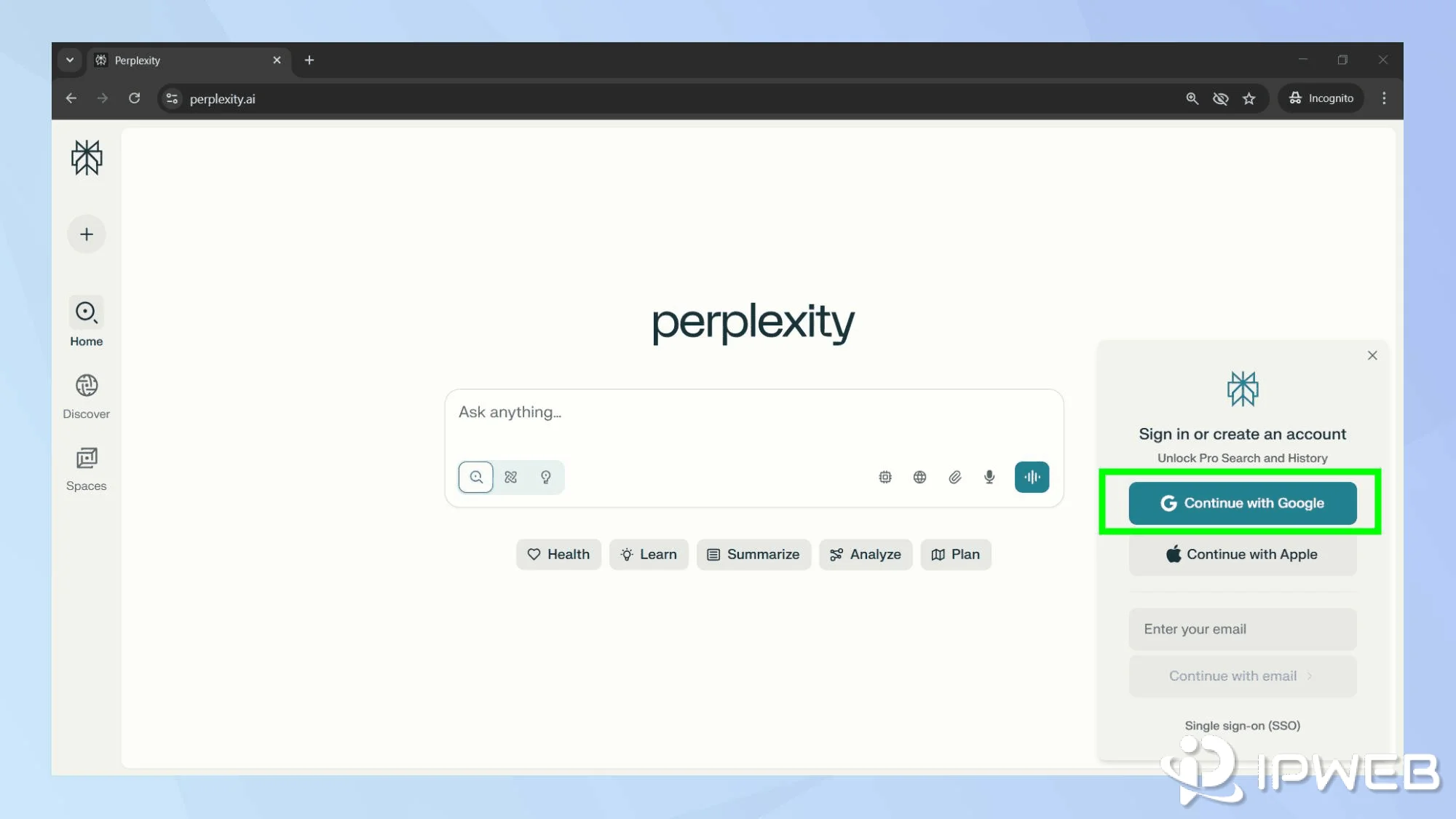
Perplexity supports email, Google, and Apple sign-in for normal accounts, and its current account guidance says those methods connect to the same account when the exact email identity matches. If Google sign-in opens a different account, or Apple sign-in appears to have lost your history, compare the email address before assuming the account was deleted.
This check matters when several Google accounts are signed into the same browser. Confirm which account the identity-provider chooser returned to Perplexity. Changing the browser or network will not fix a provider returning the wrong identity.
Check Apple Hide My Email separately
If you created the account with Sign in with Apple and selected Hide My Email, Perplexity may be registered to a private address ending in @privaterelay.appleid.com. Perplexity's Apple Relay sign-in guide explains how to find that relay address and use it on devices where the normal Apple sign-in option is unavailable.
Using your normal Apple email instead of the relay address can open a different Perplexity account. If the sign-in succeeds but your expected threads or subscription are missing, verify the account email before troubleshooting the network.
Email Login Link or Code Does Not Work
If the sign-in email or one-time code does not arrive, start with delivery rather than the browser. Perplexity's current one-time passcode troubleshooting guide recommends checking spam or junk folders, verifying the email address, and reviewing email delivery before assuming the account is unavailable.
- Confirm the address was entered correctly.
- Check both the mail provider's spam folder and the local mail app's junk folder.
- Request a new sign-in message and use only the newest link or code.
- Open the link on the same device where the Perplexity login attempt started.
- Check whether the email provider or an organization mail gateway is blocking the message or link.
- Temporarily disable email-scanning software if it rewrites or pre-opens login links.
Perplexity's general sign-in troubleshooting guide specifically recommends using the newest login link and opening it on the same device. If several links were requested, an older message may no longer be the useful one to test.
If you use an Apple Relay address and Perplexity emails never arrive, also check that Apple's Forward to setting is enabled for the Perplexity relay address. That is an email-delivery problem, not evidence that the Perplexity account itself is blocked.
Perplexity Keeps Sending You Back to Login
A repeated redirect back to the sign-in screen usually deserves a browser-state test. Use a private window or a separate clean browser profile, keep the same account and sign-in method, allow cookies and site storage, and disable extensions for the test.
If a clean browser profile works
Return to the normal profile and re-enable extensions one at a time. Privacy filters, cookie controls, script blockers, corporate browser policies, and stale site storage can interrupt the handoff between Perplexity and an identity provider.
If the clean browser profile still fails
Stop repeatedly clearing browser data. Capture the URL host before and after the redirect, whether the provider account chooser appeared, and whether the browser accepted cookies. Do not copy the full redirect URL if it contains a token or one-time credential.
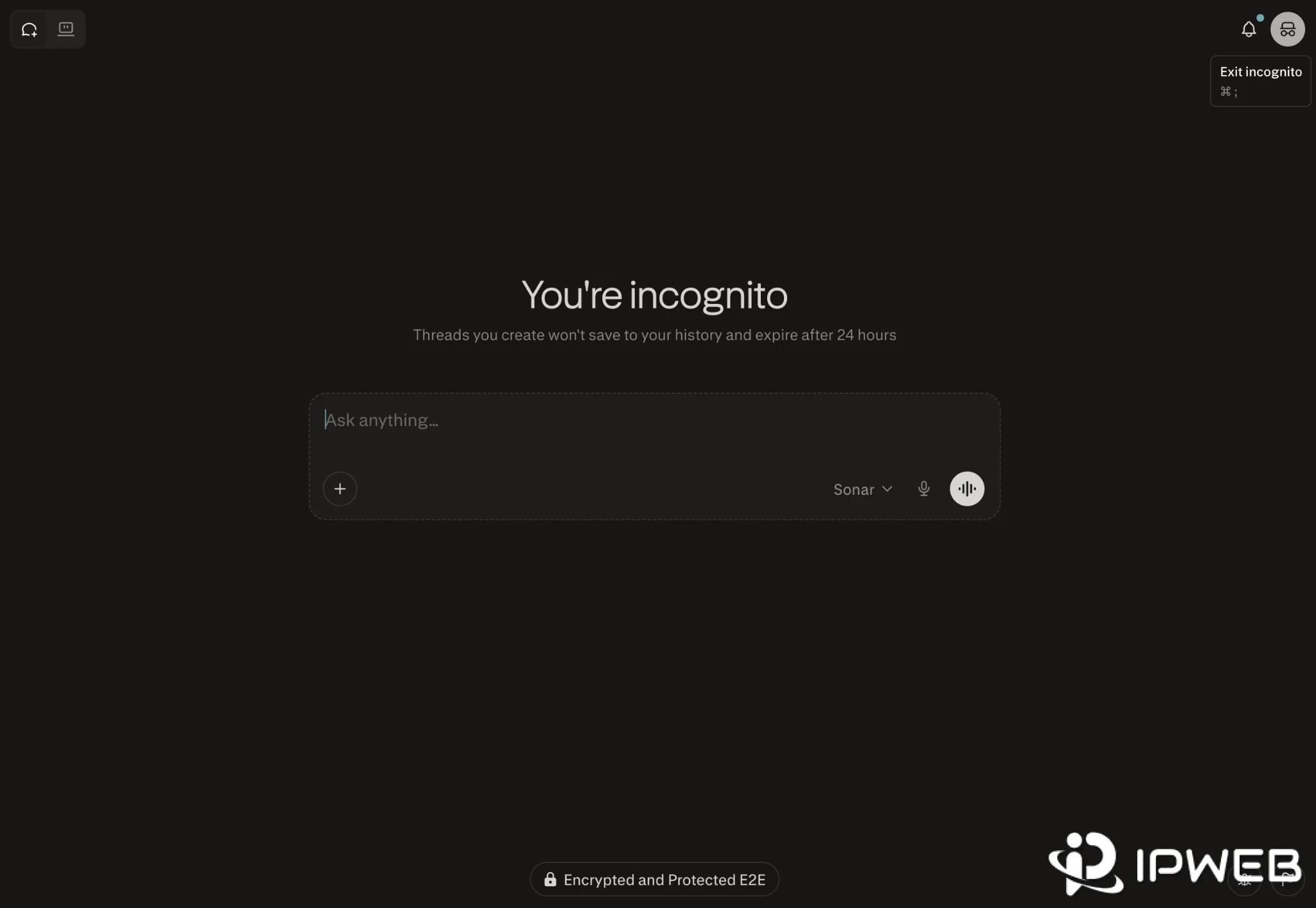
Do not confuse a private browser window with Perplexity's own Incognito mode. Perplexity Incognito changes how conversations are stored inside the product; Chrome or Edge Incognito creates a cleaner browser session for testing cookies, storage, extensions, and redirects.
Login Works but Threads or Pro Are Missing
If Perplexity opens successfully but your expected threads, subscription, or Pro features are missing, treat it as an account-identity problem before calling it a login failure. Perplexity's current threads and Pro access guide tells users to confirm that the same account email is being used on every device.
Compare the exact signed-in email on desktop and mobile. Apple Relay can be the difference: a subscription may be associated with a private relay address rather than the user's normal Apple email. Perplexity also notes that email letter-casing can matter for account identity, so compare the address exactly as shown in the account settings.
If a single conversation is missing, do not assume the entire account changed. A missing thread, a different signed-in account, temporary-session behavior, and missing Pro entitlement are different problems and should be diagnosed separately.
Perplexity Mobile App Login Is Not Working
If login fails only in the mobile app, keep the phone and account unchanged while you test the app-specific path. Perplexity's current sign-in guidance recommends using the newest login link on the same device, confirming that the phone allows the link to open Perplexity, checking whether the email provider blocks the link, and temporarily disabling email scanners.
Perplexity also recommends temporarily disabling a VPN during mobile sign-in troubleshooting. Treat that as a diagnostic comparison, not a permanent requirement. The goal is to learn whether the app behaves differently when the route changes while the account and device remain the same.
If login works in the app but fails in a mobile browser, check browser cookies and site storage. If it works in the mobile browser but not the app, update the app, relaunch it, and repeat the sign-in from a fresh link before changing account settings.
Enterprise SSO Login Is Not Working
Enterprise SSO is a separate login path from a normal personal account. If your organization requires SSO, confirm that you are using the organization-approved identity-provider account and the expected organization domain. A personal Perplexity login succeeding does not prove that the Enterprise SSO configuration is healthy.
For an SSO-only failure, record whether the error appears before the identity provider, inside the provider, or after the provider redirects back to Perplexity. That distinction helps the organization administrator separate a Perplexity-side issue from an IdP, domain, membership, SCIM, or policy problem.
If other users in the same organization are affected at the same time, escalate through the organization administrator rather than changing each user's browser or network independently. If only one user is affected, compare that user's organization membership, domain identity, and assigned access with a working account.
API Console Login Is Not Working
The API Console should be diagnosed separately from the consumer Perplexity web app. Perplexity's API Console sign-in documentation lists Google, Apple, SSO, and passwordless email as sign-in methods, but a successful sign-in does not automatically provide API access.
After login, API availability still depends on the API Console context, including an API group, billing setup, and key access. If the website login succeeds but the API Console does not show the expected group or key, treat that as an API account or permission problem rather than a general Perplexity login failure.
Also compare the email identity used by the API Console. If you have both a normal email account and an Apple Hide My Email account, signing in with different identities can create different account contexts.
Login Works on One Network but Not Another
Check Perplexity's status page before treating a broad failure as a local network problem. A service incident may affect authentication independently from the homepage, so the site loading does not prove that sign-in is healthy.
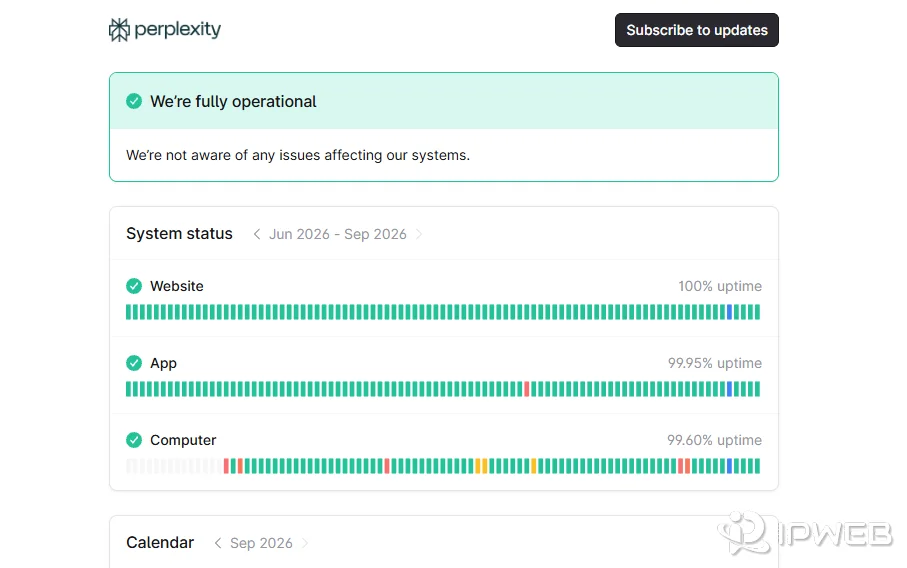
If the status page is operational, repeat the same clean-profile test on a second network while keeping the account, browser profile, sign-in method, and device as consistent as possible.
| Signal | What it suggests | Next check |
|---|---|---|
| DNS error | The hostname is not resolving correctly on that network or device | Compare DNS behavior on another network or resolver |
| TLS / certificate error | The secure connection is being interrupted or validated differently | Check system time, browser warnings, filtering, and corporate interception |
| Long timeout | The route, firewall, or upstream path may be unreachable | Compare the same request from another network |
| Fast 4xx response | The request reached a service that refused or rejected it | Record the exact status and avoid treating it as a generic connectivity failure |
| Only one network fails | The egress route, visible IP, ISP, ASN, firewall, or local policy may differ | Record the network identity before changing more variables |
For a controlled route comparison, start with IPWeb's What Is My IP? guide to record the visible IP, country, ISP or organization, and ASN from the exact browser or app being tested. If the reported country or region looks unexpected, Why Is My IP Location Wrong? explains why geolocation databases, ISP routing, mobile carriers, and shared gateways can disagree.
A different route can help establish whether the problem is tied to one network path, but it cannot correct an account mismatch, expired login link, SSO policy, service outage, or product-eligibility decision. Use the comparison as diagnostic evidence rather than a guaranteed fix.
Build a Support-Ready Record
If the problem remains after you isolate the failing layer, prepare a short reproducible report instead of sending a general “login does not work” message.
- the failing surface: web app, mobile app, Enterprise SSO, or API Console;
- the sign-in method: email, Google, Apple, or SSO;
- a redacted account identifier or email domain;
- the exact final error text or a redacted screenshot;
- browser, operating system, app version if relevant, and whether a clean profile was tested;
- timestamp with time zone;
- status-page result;
- whether a second network produced the same result;
- the last successful step before the failure.
Remove passwords, one-time codes, magic links, cookies, authorization headers, API keys, and any full redirect URL containing a credential. Support needs the failure conditions, not credentials that could grant access to the account.
Frequently Asked Questions
A redirect loop can come from cookies or site storage not being retained, an extension or privacy control interrupting the identity handoff, or the provider returning a different account. Test a clean browser profile with the same sign-in method first.
The homepage and authentication flow can fail at different layers. Check the exact error, Perplexity's service status, and a clean browser session before assuming the account or network is the cause.
Check spam and junk folders, verify the address, request a new message, use only the newest link or code, and open it on the same device. For organization email, also check server-side filtering or mail security tools.
If Hide My Email was used, the Perplexity account may be tied to an @privaterelay.appleid.com address instead of the normal Apple email. Find the Perplexity relay address in Apple settings and compare it with the email shown inside Perplexity.
The most common thing to verify is account identity. Compare the exact signed-in email on each device, including Apple Relay addresses and letter-casing, before assuming the subscription was removed.
Not necessarily. A route change can help diagnose a network-specific reachability problem, but it cannot correct a wrong account, expired email link, Enterprise SSO policy, service outage, or product-eligibility decision.
No. The API Console has separate API-group, billing, key, and permission context. A successful consumer-web login does not prove that the required API group or API key is available.
Send the failing surface, sign-in method, redacted account identifier, exact error, browser or app details, timestamp, clean-profile result, status-page result, and network comparison. Never send passwords, tokens, cookies, magic links, one-time codes, or API keys.
Final Thoughts
Perplexity login troubleshooting becomes much faster when the broad “login failed” label is replaced with the exact symptom. A provider error, missing email, redirect loop, missing Pro entitlement, mobile-app failure, Enterprise SSO problem, API Console issue, and network-specific failure do not have the same cause or the same fix.
Start by identifying the last successful step, keep the account and device stable, and change one variable at a time. Confirm identity first, then email delivery or browser state, then service availability, and only then compare the network path. That sequence preserves useful evidence and makes it easier to tell whether the failure belongs to the account, browser, organization, service, API context, or route.