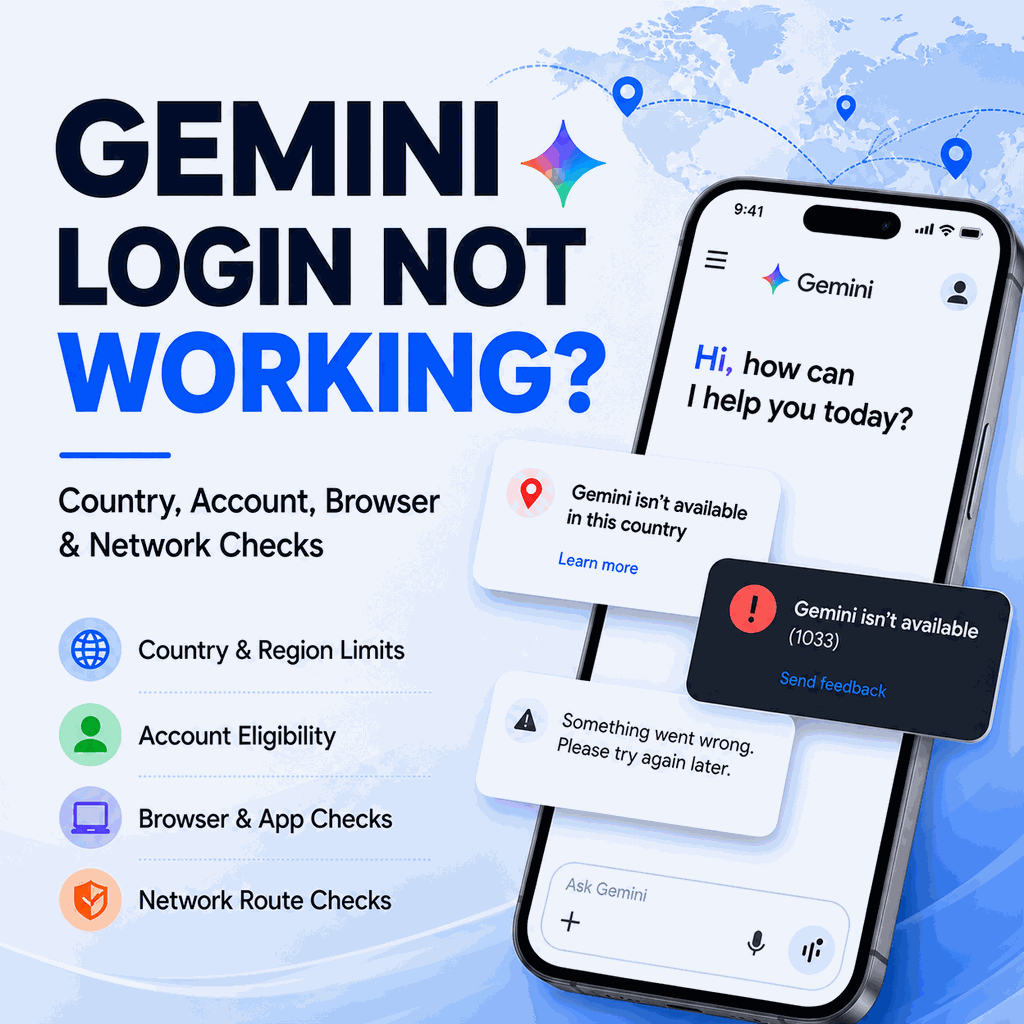
Gemini can fail before or after Google sign-in. You may get stuck in a login loop, see a country-unavailable message, or reach the app only to receive a generic error. Similar symptoms can come from very different causes.
If Gemini login is not working, first determine whether the failure comes from Gemini availability, the Google account, the browser session, a temporary service issue, or the network route. Google states that the Gemini web app is available in more than 230 countries and territories and more than 70 languages, while the mobile app may have different availability. That difference matters when gemini.google.com works in a browser but the mobile app cannot be installed or launched.
Gemini login failures usually come from one of five places: Gemini availability for the web or mobile app, Google account eligibility, browser/session state, temporary service issues, or the network route Gemini sees. Check those layers in that order. A network change can help isolate a route-specific problem, but it cannot change Google's supported-region rules, account eligibility, age checks, Workspace settings, or service outages.
- Start with Google's current Gemini availability page before assuming the problem is local.
- Separate web-app availability from mobile-app availability; Google says they may differ.
- A Google account can fail eligibility checks even when the local network can reach Gemini.
- Browser cookies, extensions, SSO state, and stale sessions can create login loops.
- Route testing is useful evidence, not a guaranteed fix for country or account restrictions.
Start With the Availability Layer
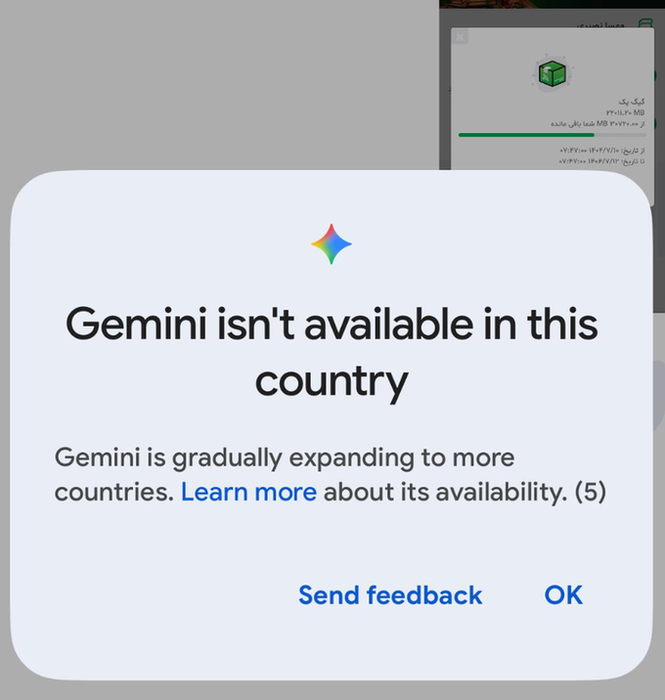
Do not treat every country message as a VPN or proxy problem. Google's current Gemini web-app availability page lists Mainland China as Workspace-only, which is a different situation from a consumer account using a normal personal Google account. If the official availability layer does not match the account type, clearing cookies will not solve the core issue.
| Signal | Most likely layer | Useful check |
|---|---|---|
| Gemini page never opens | Network, DNS, or local firewall | Compare another network and confirm Google service status |
| Country or region message appears | Official availability or account region | Check Google's Gemini availability page |
| Login loops after Google sign-in | Browser session or account state | Use a clean profile and the same Google account intentionally |
| Mobile app unavailable in store | App-store country or mobile-app support | Compare web app support separately |
| Workspace account cannot use Gemini | Admin policy or Workspace eligibility | Ask the Workspace admin to check Gemini settings |
Check the Google Account Before the Network
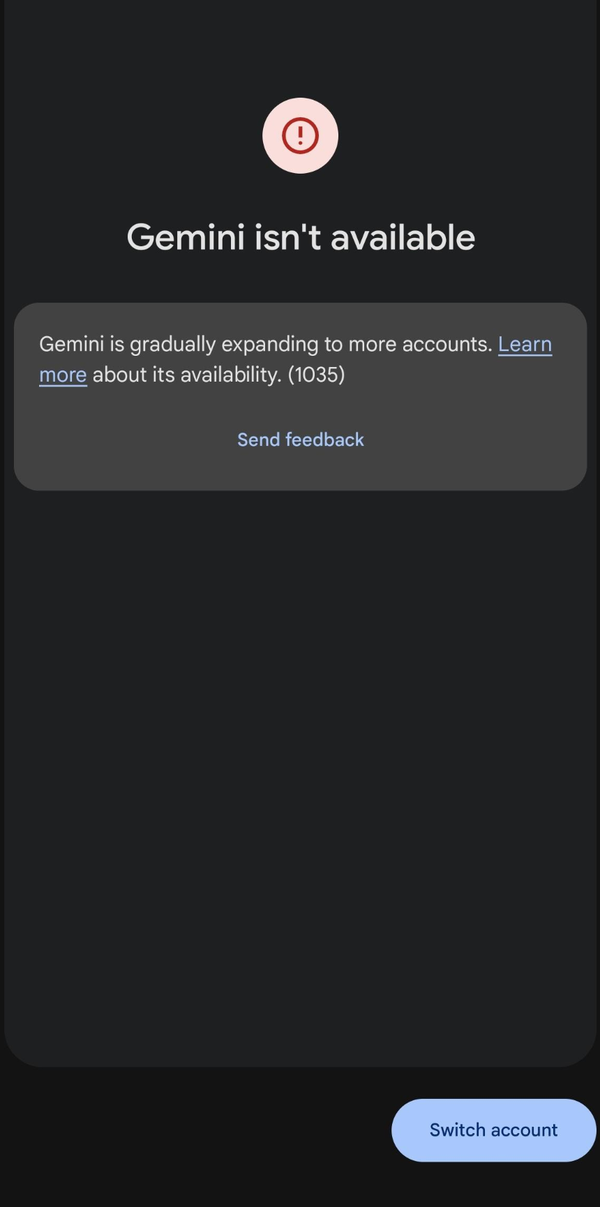
Gemini access is tied to a Google account, not only an IP address. Google's Gemini sign-in requirements distinguish personal, work, and school accounts and also apply age and administrator requirements. A supported network can therefore reach Gemini while the account itself still cannot use the service.
Record the exact Google account type first: personal Google account, school account, company Workspace account, or supervised account. Then test the same account in a clean browser profile. Switching accounts during troubleshooting can blur the result because the browser may keep state from a previous Google session.
Use Browser Checks to Isolate Login Loops
If Gemini is available and the account should be eligible, look at the browser layer. Old Google cookies, blocked third-party storage, aggressive privacy extensions, script blockers, corporate inspection tools, and mixed Google sessions can all interrupt sign-in. A private window is a quick test, but a dedicated clean profile is better because it lets you sign in once and keep the state stable during diagnosis.
Teams should avoid using shared browser profiles for AI access troubleshooting. A shared profile hides the difference between account, device, extension, and route behavior. Keep one clean profile for the account test and one normal profile for comparison.
Check Gemini Service Status Before Changing More Settings
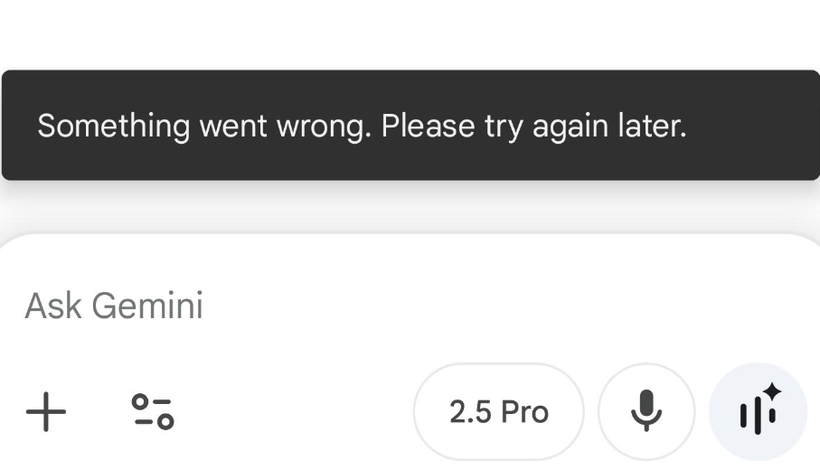
If the same Gemini failure appears across clean browser sessions or several networks, check the Google Workspace Status Dashboard before changing more settings. Gemini is listed as a monitored service, and the dashboard records current disruptions and past incidents that can produce errors unrelated to the account or local route.
If Google reports an active Gemini incident, record the error and time, then avoid changing several browser, account, and network variables at once. If no incident is listed and the account should be eligible, continue with a controlled network comparison.
When Route Testing Helps
Network comparison is useful only after availability, account, browser, and service-status checks look normal. Keep the browser profile and device the same. If the same eligible account works on one ISP but fails on another, the network path may be part of the problem.
Start with a simple baseline. Use IPWeb's What Is My IP? guide to record the visible IP, country, ISP or organization, and ASN from the exact browser or app being tested. If the country or region looks unexpected, Why Is My IP Location Wrong? explains why geolocation databases, ISP routing, and shared gateways can disagree.
If a proxy is already part of an authorized diagnostic setup, confirm that it is active in that same browser or app before interpreting the Gemini result. IPWeb's How to Check If a Proxy Is Working guide covers that validation step. For repeated regional QA, the network endpoint may also need to stay consistent. A static residential proxy can keep the same IP across checks and reduce one changing network variable.
A fixed route is still only a diagnostic control. It does not change Gemini country availability, Google account eligibility, age requirements, Workspace policy, or a Google-side service incident. Keep the evidence clean: account type, browser profile, device, network path, visible country, error text, and time of test.
A Practical Triage Order
Use a fixed order so each test answers one question. Confirm official availability and account eligibility first. Then test a clean browser profile, compare web versus mobile, check service status, and only then compare network routes. The order matters because network results are hard to interpret when account eligibility is still unknown.
If the issue only appears on a company or school account, involve the administrator early. If it only appears on a mobile device, compare the browser version before assuming the Google account itself is blocked. If it only appears from one network, collect route evidence rather than making a guess.
Frequently Asked Questions
Google account sign-in only proves the account can authenticate. Gemini can still apply product availability, age, Workspace, region, or service-specific eligibility checks.
No. Google notes that Gemini mobile app availability may differ from web app availability, so store-region and device checks should be separate.
Google says this message can appear when an account cannot access Gemini at that moment for reasons that may include location, age, or account type. Check the account requirements and service status first, then continue with browser or network diagnostics only if those layers look normal.
A proxy can help compare network routes in legitimate diagnostics. It cannot change official country support, account eligibility, age verification, Workspace policy, or service outages.
Record the exact error text, account type, country or region shown, browser profile used, device, network, and the time of the test.
Gemini web and mobile app availability are not always identical. If Gemini works in a mobile browser but the official app does not, first check whether the mobile app is supported for the device and region. Then confirm the app-store country or region and make sure the same eligible Google account is being used. A working browser session suggests that the account and network may be reachable, so the app-specific layer should be checked separately.
Final Thoughts
Gemini login troubleshooting works best when each layer is checked separately instead of treating every failure as a network problem. Start with Google's current availability rules and confirm the Google account type and eligibility. Then test a clean browser session, compare web and mobile behavior, and check Gemini service status before changing the network route.
If the problem remains, compare networks in a controlled way while keeping the account, browser profile, device, and test conditions as consistent as possible. Focus on which layer actually changes the result. Record the exact error, country or region shown, account type, network, and time of the test instead of assuming that one setting will fix every Gemini login failure.