
If ChatGPT login is not working, first separate login problems from availability problems. If you can reach the login page but cannot get into your account, start with the authentication and session layers. Common possibilities include the wrong sign-in method, blocked cookies, stale browser data, extension interference, browser verification, account-state restrictions, or a temporary OpenAI service issue. Check one layer at a time before changing accounts, devices, or networks.
If ChatGPT loads but you cannot sign in, first use the same authentication method that created the account, such as Google, Microsoft, Apple, or email/password. If OpenAI asks for an email one-time password (OTP) or mobile-app approval, complete that verification instead of repeatedly restarting the login flow. Next, test a clean browser profile, allow cookies and JavaScript, disable interfering extensions, and check OpenAI Status. If you see a suspicious-login warning, follow OpenAI's security steps and avoid rapid repeated attempts. If the account is suspended or deactivated, use the official support path rather than treating it as a browser or network problem.
- Use the same sign-in method you used when creating the account, such as Google, Microsoft, Apple, or email/password.
- Clear site cookies or test a clean browser profile before assuming the account is broken.
- New or unrecognized devices can trigger extra login verification through an email OTP or ChatGPT mobile-app approval.
- If you used Apple Hide My Email, the account may be tied to an
@privaterelay.appleid.comaddress rather than the email you normally type. - A "checking your browser" loop is a verification problem. OpenAI recommends checking cookies, JavaScript, extensions, VPN/proxy use, and the network before changing credentials.
- For a suspicious-login warning after repeated failed attempts, OpenAI recommends clearing browser data, trying another network, disabling a VPN if one is active, and waiting up to one hour before retrying.
- A suspicious-activity alert is an account-security signal: change the password, enable MFA, and log out of other devices before continuing.
- Check OpenAI Status before making multiple changes to the account, browser, or network.
Start With the Login Surface
"ChatGPT login not working" is a broad symptom, so start with the exact screen or message in front of you. A login page that never loads is a different problem from an authentication-method error, a session loop, an OTP prompt, a browser-verification loop, or an account-security warning.
If the login surface is reachable but sign-in does not complete, use the symptom as a routing signal before changing passwords, devices, or networks.
| What you see | Most likely layer | Test first | Do not start with | Escalate when |
|---|---|---|---|---|
| Login page does not load | Service, browser, DNS, or local network | OpenAI Status, another browser, then another stable network | Password resets | The page fails across browsers and networks while no service incident is reported |
| Authentication-method error | Identity / sign-in provider | Use the original Google, Microsoft, Apple, or email/password method | Creating another account | You no longer have access to the original sign-in method |
| Login returns to the same page | Browser session | Clean profile, cookies, JavaScript, extensions | Changing several account settings at once | The loop persists in a clean browser on a stable network |
| Email OTP or mobile approval prompt | Login verification | Complete the current OTP or approve the mobile prompt | Restarting the login flow repeatedly | The code never arrives, expires repeatedly, or the verification method is inaccessible |
| "Checking your browser" loop | Browser / network verification | Cookies, JavaScript, blockers, VPN/proxy state, clean browser, different network | Repeated password changes | The loop persists after a clean-browser and stable-network test |
| Suspicious-login warning | Temporary security check | Clear browser data, use one stable network, disable an active VPN, then wait before retrying | Rapid repeated attempts | The warning persists after the recommended wait and clean-session test |
| Suspended or deactivated account | Account state | Read the exact OpenAI notice and follow the official recovery path | Browser or network troubleshooting | The notice directs you to support or appeal |
This matrix is also useful for ruling causes out. If the correct sign-in provider fixes the problem, browser troubleshooting is unnecessary. If the same session failure survives a clean browser and a second stable network, a purely local browser issue becomes less likely. If OpenAI shows an explicit suspension or deactivation message, changing the network will not change the account state.
Keep the exact error wording, time, browser, device, network, and sign-in method used in each attempt. Those details are more useful than changing every variable at once.
Use the Correct Authentication Method
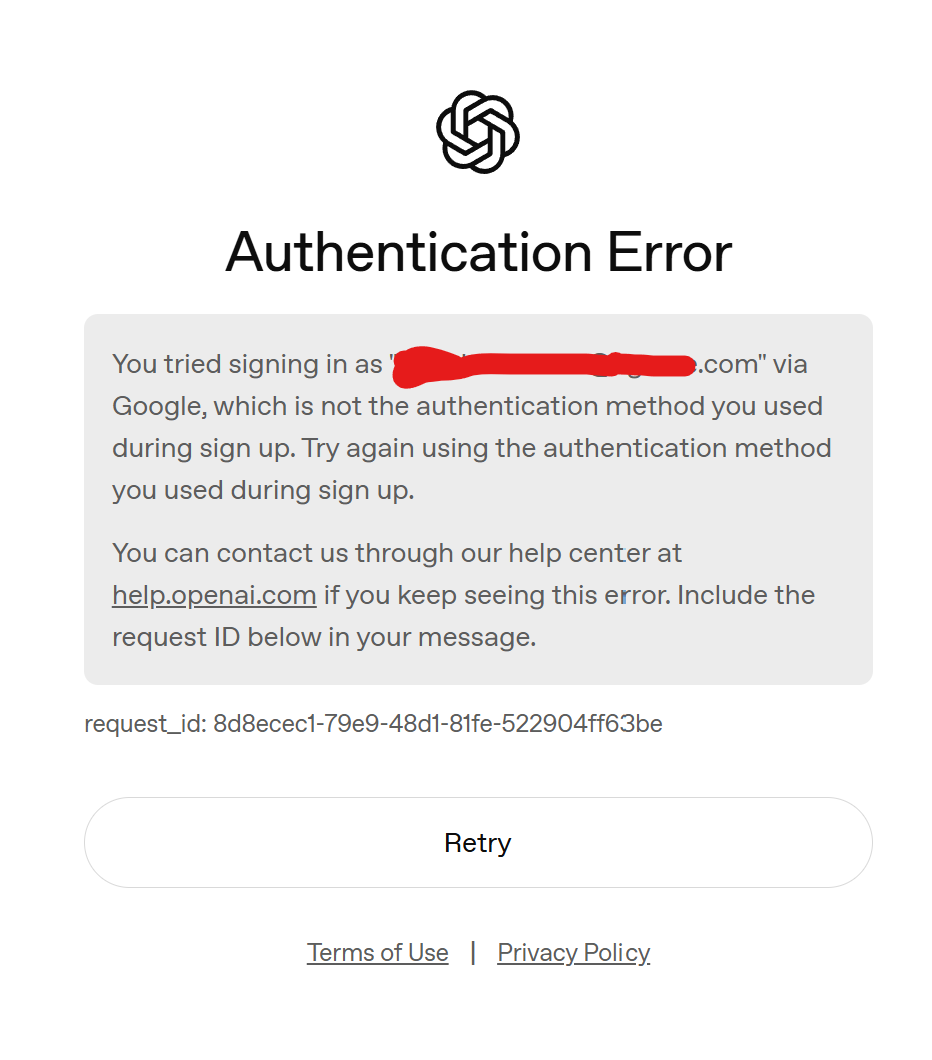
One of the most common ChatGPT login mistakes is using the wrong authentication method. OpenAI's current ChatGPT login troubleshooting guidance says to continue with the same sign-in method used when the account was created.
If the account was created with Google, continue with Google. Use Microsoft for a Microsoft-created account, Apple for an Apple-created account, and email/password only when that was the original sign-in route.
This matters because the same visible email address does not always mean the same login identity. Apple Hide My Email can create a relay address that differs from the address you normally type. A company-managed Google or Microsoft account may also be affected by organization policy, single sign-on restrictions, or admin controls.
Before resetting your password, ask:
- Did I create this ChatGPT account with Google, Microsoft, Apple, or email/password?
- Am I using the same provider now?
- If I used Apple, did I choose Hide My Email?
- Is the email managed by a school, employer, or organization?
- Did I recently change, delete, or lose access to that identity provider account?
Password resets only help if the account uses password-based login. They do not fix a mismatch where you are trying to use password login for an account created with an external provider.
Complete Login Verification When Prompted
Some sign-ins require an extra verification step even when the password or authentication provider is correct. OpenAI says this can happen on a new or unrecognized device, after a login attempt from an unusual location, when sensitive account information is changed, or when an account security check is requested.
Depending on the account and device, verification may arrive as a six-digit email one-time password (OTP) or as an approval request in the ChatGPT mobile app. Follow the verification method shown on the current login screen rather than starting another sign-in attempt.
| Verification problem | First action | What to check next |
|---|---|---|
| OTP email does not arrive | Confirm the registered inbox and check spam or filtered mail | Request a new code only after confirming you are using the correct account email |
| OTP is rejected | Use the newest code and enter it exactly | Older or expired codes should not be reused |
| OTP expires before use | Request a fresh code and enter it promptly | Avoid generating several codes at once |
| Mobile approval does not appear | Confirm you are signed in to the ChatGPT app and notifications are enabled | If available, choose the email verification option instead |
| You receive an approval request you did not initiate | Deny the request | Change the password and review account security settings |
OpenAI's login verification guidance covers OTP and mobile push approval in more detail. If repeated OTP attempts trigger a temporary lock, stop requesting new codes and wait for the restriction to clear before trying again.
Read Browser Verification and Suspicious-Login Signals
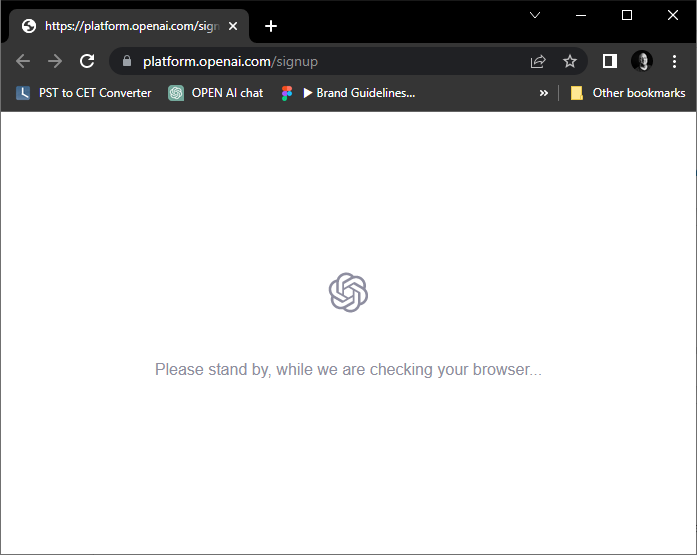
A "checking your browser" loop means the browser-verification step is not completing. OpenAI's current troubleshooting guidance recommends allowing cookies and JavaScript for ChatGPT/OpenAI domains, temporarily disabling ad blockers, privacy tools, or script blockers, testing an incognito or clean browser profile, and trying another network. It also recommends disabling VPN or proxy services while diagnosing a Cloudflare verification loop.
That sequence matters because a verification loop does not prove the password is wrong or the account is suspended. Test the browser and network conditions first. If the page works in a clean profile, restore extensions or privacy controls one at a time instead of changing several variables together.
A separate message such as "We have detected suspicious login behavior" should be handled differently. OpenAI recommends clearing browser cache and cookies, trying another network, disabling a VPN if one is active, and waiting up to one hour before retrying after repeated failed attempts. Rapid refreshing, route switching, or repeated credential attempts can make diagnosis harder.
Do not use borrowed accounts, account marketplaces, or automated login tools during recovery. Keep one account, one trusted device, and one stable network while you determine whether the restriction clears.
Check Account State and Service Status
Some login failures are not local. OpenAI service incidents can affect login, authentication, ChatGPT, billing, or platform systems. Check OpenAI Status if many users appear affected. Do the same if a clean browser and the correct authentication method both fail.
Account state also matters. A suspended, deactivated, deleted, or organization-managed account may not behave like a normal login failure. If OpenAI shows a clear account-state message, follow the official support or recovery path rather than treating it as a browser problem.
If You See a Suspicious Activity Alert
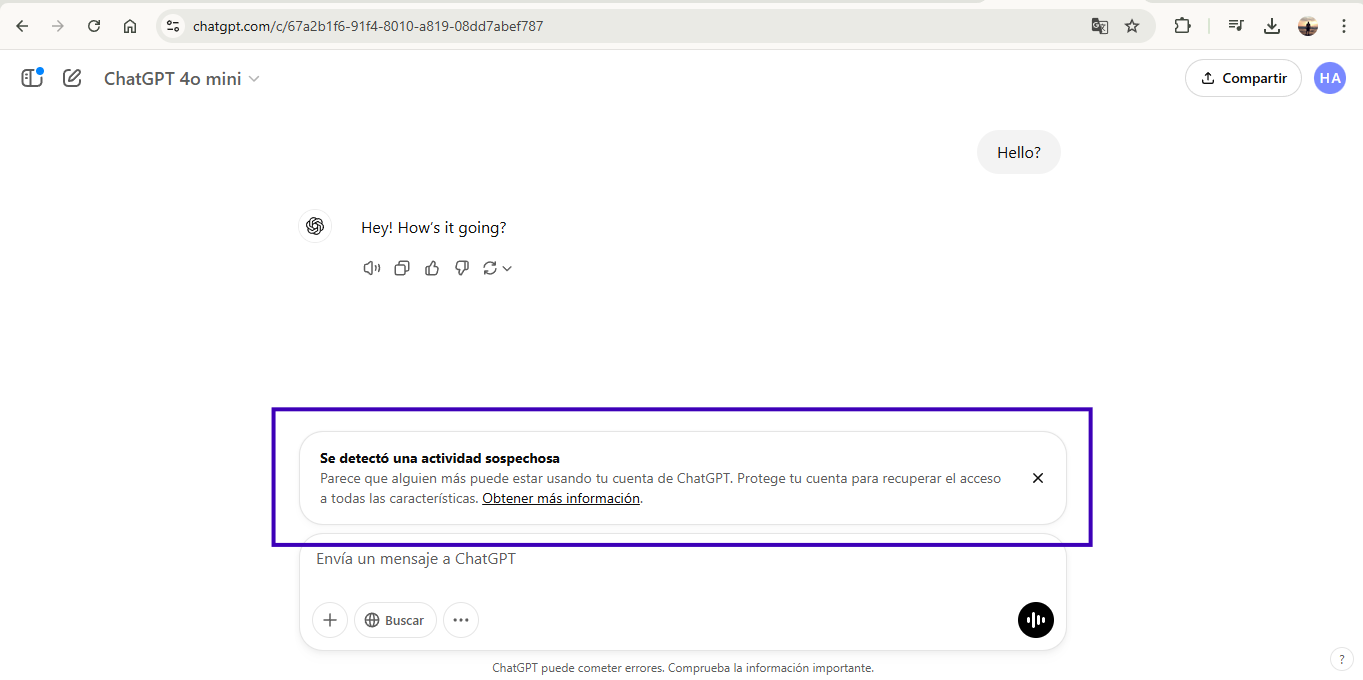
A suspicious-activity alert is broader than a temporary suspicious-login warning. OpenAI says these alerts can be associated with unusual sign-ins, unexpected usage changes, or multiple concurrent sessions. Its account-security guidance recommends changing the password, enabling multi-factor authentication (MFA), and logging out of all devices.
If restrictions continue after the account is secured, sign out of all devices, clear browser cookies and cache, retry from an incognito window or another device, disable VPN/proxy/Private Relay and browser extensions during the test, and use one trusted device and network. If you contact OpenAI Support, include the exact alert, timestamps with timezone, device and browser details, and any request, ray, or device IDs shown in the message.
Use this order:
- Confirm OpenAI Status.
- Confirm the original authentication method.
- Complete any OTP or mobile approval request.
- Test a clean browser profile.
- Try one stable network.
- Secure the account if OpenAI shows a suspicious-activity alert.
- Follow the official recovery path for suspension or deactivation messages.
- Contact official support if the account still cannot sign in.
When the Problem Is Actually Region or Billing
Not every "I cannot log in" problem belongs on a login checklist. If the message says ChatGPT is not available in your country, start with country-availability checks. If the exact wording says "OpenAI services are not available in your country", use IPWeb's OpenAI country error guide instead.
If the problem appears during Plus checkout, payment method, app-store subscription, or currency selection, it belongs to billing diagnosis.
Keeping those workflows separate prevents bad fixes. Clearing cookies will not make an unsupported country supported. Changing payment details will not fix a wrong authentication method. A proxy route does not repair a suspended account.
Frequently Asked Questions
Why can't I log in to ChatGPT even with the right password?
You may be using the wrong authentication method, such as password login for an account created with Google, Microsoft, or Apple. Browser cookies, extensions, verification loops, service incidents, or account-state messages can also block login.
Why does ChatGPT keep sending me back to the login page?
That usually points to session storage, cookies, cached login state, blocked scripts, or extension interference. Try a clean browser profile, allow cookies and JavaScript, and clear ChatGPT/OpenAI site data.
What does a ChatGPT checking your browser loop mean?
It means the browser verification step is not completing. Common causes include blocked cookies, disabled scripts, privacy extensions, network inspection, VPN/proxy routes, or temporary security checks.
Why is ChatGPT asking me to verify my login?
OpenAI may request extra verification on a new or unrecognized device, after an unusual-location sign-in, when sensitive account information changes, or when a security check is required. Complete the email OTP or mobile-app approval shown on the login screen.
What should I do if the ChatGPT OTP does not arrive?
Confirm that you are checking the inbox tied to the account, look for filtered or spam messages, and use the newest code if you request another one. If mobile approval is unavailable, use the email verification option when OpenAI offers it.
Can a VPN or proxy fix ChatGPT login?
Not as a general fix. For Cloudflare verification loops and suspicious-login troubleshooting, OpenAI recommends disabling VPN or proxy services during the test. Changing the route also does not fix a wrong authentication method, blocked cookies, account suspension, unsupported country, or a service incident.
Should I reset my ChatGPT password?
Only reset your password if your account uses email/password login. If you created the account with Google, Microsoft, or Apple, use that same provider instead.
What should I do if my account is suspended or deactivated?
Follow OpenAI's official support or account-recovery guidance. Do not create replacement accounts to evade account-state decisions, and do not buy or borrow accounts.
Final Thoughts
ChatGPT login troubleshooting is faster when the exact symptom determines the next test. Confirm the original authentication method, complete any OTP or mobile approval request, remove browser-state problems, separate browser verification from suspicious-login warnings, and check OpenAI Status before changing several variables at once.
If a clean-browser test, the correct sign-in method, and one stable network still produce the same error, record the exact message, time, browser, device, network, and verification step. For suspicious-activity alerts, secure the account first. For suspension or deactivation messages, follow the official recovery path instead of continuing browser or network experiments.
If the browser or network location still looks inconsistent, see why an IP location can look wrong. For China-specific access and login scenarios, see ChatGPT in China login troubleshooting.