
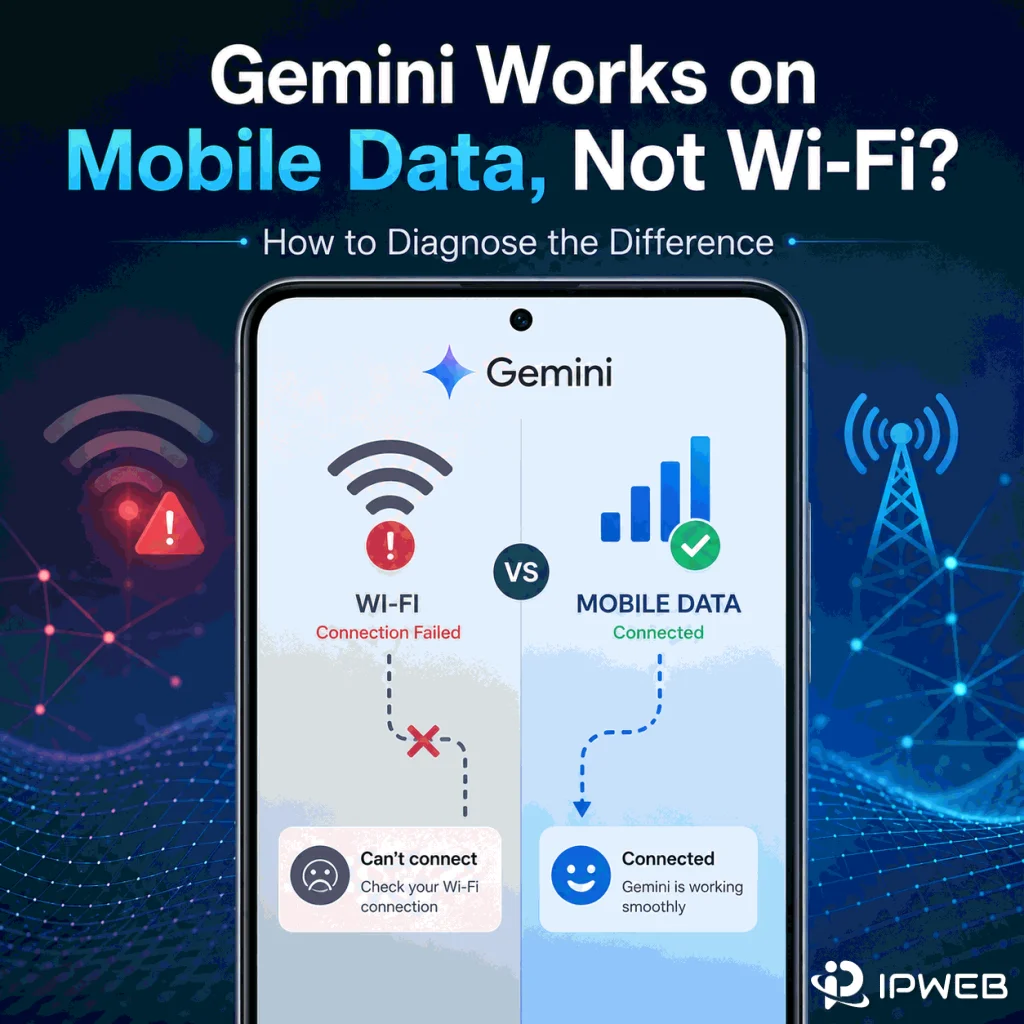
If Gemini works on mobile data but not on Wi-Fi on the same device, that difference is useful evidence. It means the two connections should be compared before you start changing the Google account, reinstalling the app, or rewriting browser settings.
Wi-Fi and mobile data normally use different public IP addresses, network operators, DNS paths, and sometimes different IPv4 or IPv6 routes. If the result changes only when the network changes, the connection path deserves closer inspection. That still does not prove that the Wi-Fi IP is blocked or that one specific network signal is responsible.
If Gemini works on mobile data but fails on Wi-Fi, keep the device, Google account, browser profile, Gemini surface, and test prompt the same. Change only the connection. Record the public IP, country, ISP or organization, ASN, IPv4/IPv6 behavior, DNS information, exact Gemini error, and test time on both networks.
If the failure follows Wi-Fi repeatedly while mobile data works, investigate the Wi-Fi or ISP path before changing account settings. If both connections fail, the problem is no longer Wi-Fi-specific and should move to the broader Gemini login troubleshooting path.
- The strongest clue is a repeatable result on the same device and account when only Wi-Fi versus mobile data changes.
- Wi-Fi and mobile data usually expose different public IPs, ISPs or ASNs, DNS paths, and network routes.
- Different IPv4 and IPv6 paths can make two connections appear to come from different networks or locations.
- A wrong-looking IP location is evidence to investigate, not proof that Gemini is using that exact location signal.
- A network comparison cannot override Gemini account eligibility, supported-region rules, mobile-app availability, or a Google-side service issue.
Confirm the Problem Is Really Network-Specific
Start with an A/B test. Use the same phone or laptop, the same Google account, the same browser profile or Gemini app, and the same prompt. Test once on Wi-Fi, then switch only the connection to mobile data and repeat the test.
This matters because changing several variables at once destroys the value of the comparison. If you sign in with another Google account, switch browsers, clear all cookies, update the app, and change networks at the same time, a working result will not tell you which change mattered.
| Test result | What it suggests | Next step |
|---|---|---|
| Wi-Fi fails, mobile data works | A network-path difference becomes more likely | Compare public IP, ISP/ASN, DNS, IPv4/IPv6, and visible location |
| Both Wi-Fi and mobile data fail | The problem is not Wi-Fi-specific | Use the general Gemini login and access workflow |
| Gemini web works, mobile app fails | The failure may be app-specific | Check mobile-app availability, device, and store/account conditions |
| Both connections work later without a network change | A temporary service or session issue remains possible | Avoid treating one earlier failure as proof of a permanent network problem |
Bottom line: the useful signal is not simply that “mobile works.” It is that the result follows one connection while the account, device, and Gemini session stay as consistent as possible.
Compare Public IP, Country, ISP, and ASN
Wi-Fi and mobile data normally leave the device through different network operators. Your home or office Wi-Fi may use a broadband ISP, while mobile data uses a cellular carrier with its own public address space, gateways, and autonomous system number.
Use IPWeb’s What Is My IP? guide to record the public IP, country, ISP or organization, and ASN on both connections. If you need a refresher on what the provider and network-owner fields mean, What Is an ISP? explains how home, mobile, and business internet connections can be associated with different providers and network identities.
- Public IPv4 address, if present
- Public IPv6 address, if present
- Country and region shown by the lookup
- ISP or organization
- ASN
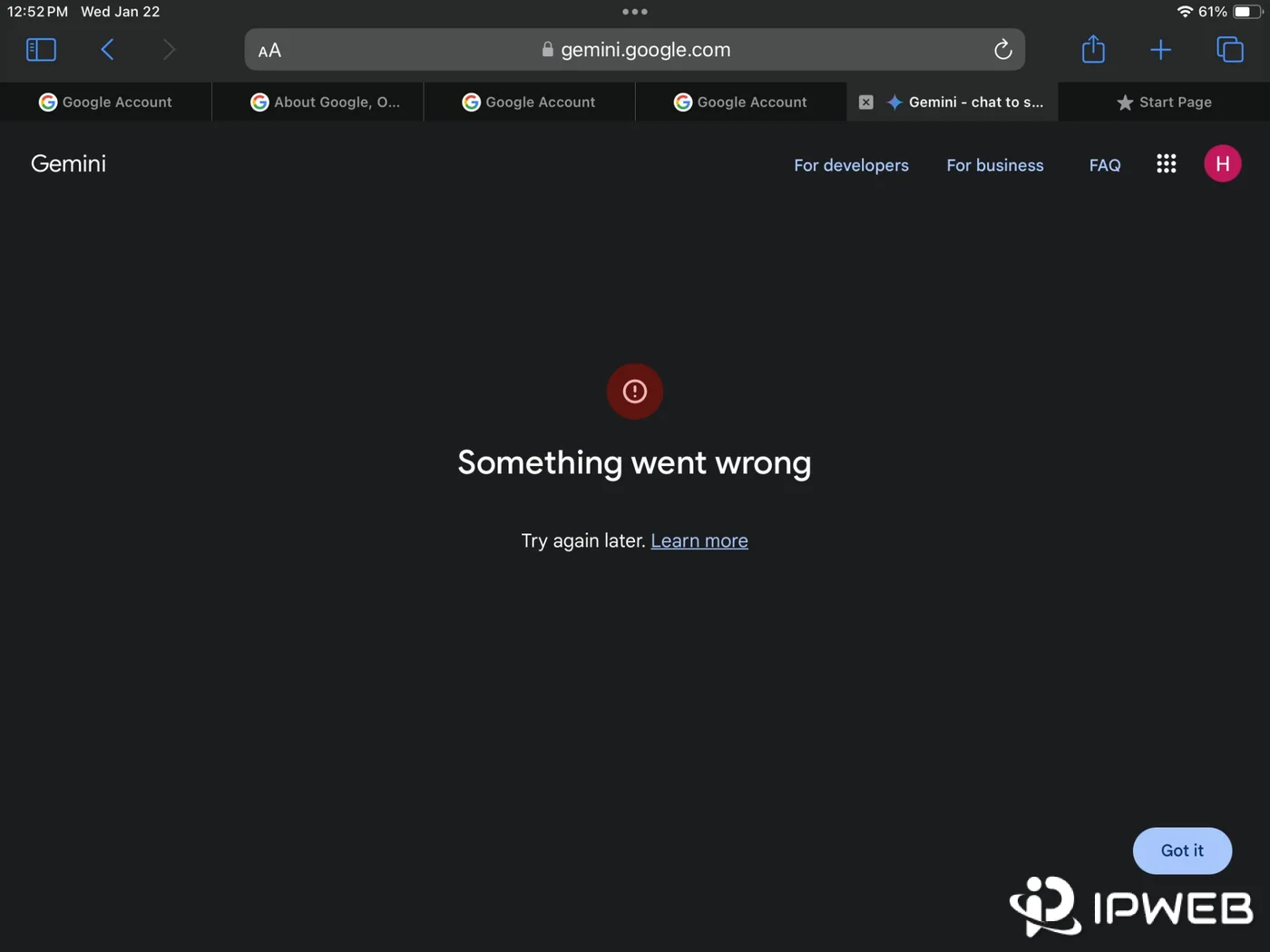
- Exact Gemini error or behavior
- Test time
If mobile data shows the expected country while Wi-Fi appears in another country or an unexpected network, that is worth investigating. It still does not prove that Gemini made its decision from the same geolocation database.
Google’s Gemini Apps Privacy Hub says Gemini Apps use general location by default and can also process precise device location with permission. The public IP is therefore only one part of the location picture.
Check IPv4 and IPv6 Separately
Do not assume Wi-Fi and mobile data use the same IP version or the same route. A Wi-Fi connection may have both IPv4 and IPv6, while a mobile carrier may use a different combination or a different translation and gateway architecture.
This matters because an IPv4 address and an IPv6 address can belong to different ranges, network owners, and geolocation records. A browser or app may also prefer one protocol when both are available. If Wi-Fi and mobile data behave differently, record both address families instead of checking only the first IP address shown by one lookup tool.

The goal is not to prove that “Gemini uses IPv6.” The useful question is whether the failing connection exposes a materially different route or location over IPv4 or IPv6. If one address family appears unexpected, retest carefully before changing router settings or disabling a protocol permanently.
Compare DNS and Router-Level Behavior
DNS is another variable that can differ between Wi-Fi and mobile data. Home routers may forward queries to an ISP resolver, a manually configured resolver, or a secure-DNS provider.
Corporate and school networks may add filtering or gateway controls. Mobile carriers normally use a separate resolver and network path.
A DNS difference does not automatically explain a Gemini failure, but it belongs in the evidence set when only one connection fails. The same applies to router-level security, parental controls, corporate inspection, firewall rules, or filtering services. Ordinary websites can still load while one application or service path behaves differently.
If you want to inspect more than the public IP, IPWeb’s Whoer IP Check guide explains how to read visible IP, DNS, WebRTC, ISP or ASN, and browser-related signals together. Use those values as diagnostic clues rather than assuming any one checker reveals every signal Gemini uses.
Check Whether Wi-Fi Shows the Wrong Location
A Wi-Fi-versus-mobile difference becomes especially useful when the two connections appear in different countries or regions. Google says Gemini Apps can use a general location and, with permission, precise device location. The general location can include information derived from the IP address, while precise device location is a separate signal.
If the Wi-Fi public IP appears in the wrong country or city, use Why Is My IP Location Wrong? to check common causes such as database disagreement, ISP routing, mobile gateways, reassigned IP ranges, or a route that exits somewhere unexpected.
If the question is specifically why Gemini itself shows the wrong place, use the dedicated Gemini wrong country or location guide. That page owns Gemini general location, precise device location, browser location permissions, and the difference between Gemini location and an IP lookup.
Run a Controlled Wi-Fi Diagnostic
Once you have confirmed that the result really follows Wi-Fi, repeat the test in a fixed order. The purpose is to produce evidence that can be compared later instead of trying random network changes.
- Save the exact Gemini error text or screenshot.
- Confirm the same device, Google account, browser profile, and Gemini surface.
- On Wi-Fi, record public IPv4, IPv6, country, ISP/organization, ASN, and DNS evidence.
- Run the same Gemini test and record the time.
- Disable Wi-Fi and switch only to mobile data.
- Record the same network fields again.
- Repeat the exact Gemini prompt or action.
- Compare which network fields changed with the result.
- Repeat once later to reduce the chance that a temporary service issue explains the difference.
If the failure is repeatable, keep the successful and failed samples together. A useful support note contains the exact error, connection type, visible country, ISP or ASN, IP version, DNS evidence, and timestamp rather than a vague statement that “Gemini does not like my Wi-Fi.”
What the Result Means
| Finding | More useful direction | Best next step |
|---|---|---|
| Wi-Fi shows an unexpected country or ISP | IP/geolocation or route diagnosis | Check the wrong-IP-location workflow |
| Same network works, but Gemini sign-in still fails | Account, browser, eligibility, or service layer | Use the Gemini login troubleshooting guide |
| Web works but the official mobile app fails | Mobile-app or store layer | Check Gemini mobile availability separately |
| Only a hosted API runtime fails | Developer runtime/region layer | Use the Gemini API available-regions workflow |
| The result changes only when a VPN, proxy, or WARP route is enabled | Explicit route-configuration diagnosis | Inspect that tunnel or proxy separately instead of treating normal Wi-Fi as the only variable |
Keep the diagnosis narrow. A Wi-Fi problem should stay a Wi-Fi-versus-mobile comparison until the evidence points to a different owner. That prevents a route issue from turning into unnecessary account changes, app reinstalls, or developer-region debugging.
When VPN, Proxy, or WARP Is Involved
If the failure appears only when a VPN, proxy, Cloudflare WARP, browser proxy extension, or another tunnel is active, that is no longer a clean “home Wi-Fi versus mobile data” comparison. The tunnel changes the route that the browser or device presents to the internet. It may also change DNS behavior or the visible network owner.
Some routers, gateways, or network-level appliances can run a VPN or tunnel for the entire Wi-Fi network. In that setup, a phone or laptop may show no local VPN indicator even though its Wi-Fi traffic still exits through the tunnel. Check the router or gateway configuration before treating Wi-Fi as a direct ISP connection.
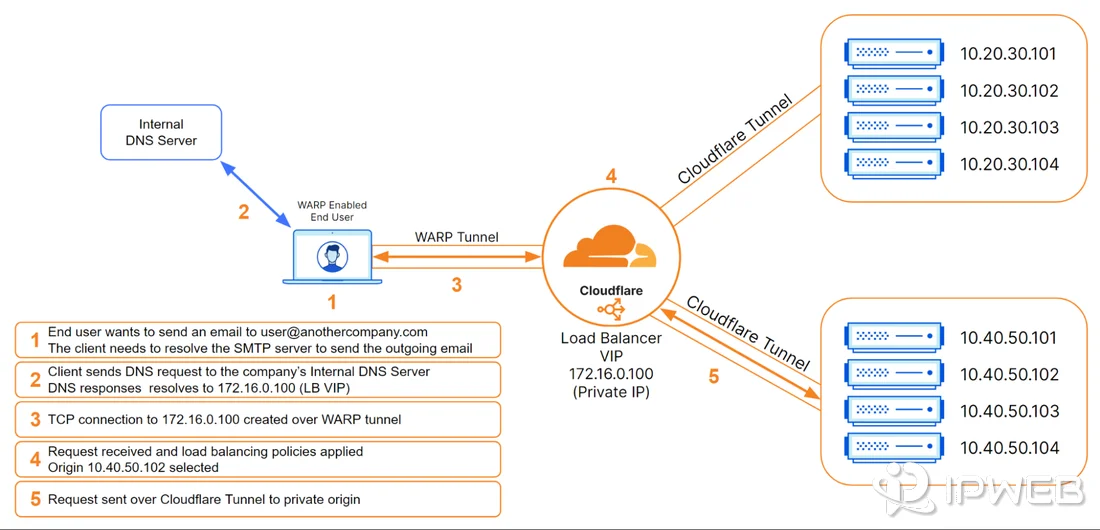
Turn the tunnel state into its own controlled variable. First verify the direct Wi-Fi result. Then enable only the VPN, proxy, or WARP connection and record the visible IP, country, ISP/ASN, DNS evidence, and Gemini result again. Do not assume that a connected icon proves every app or browser is using the same route.
For authorized network or regional QA that requires a repeatable fixed egress, a static residential proxy can provide a consistent ISP-registered IP for controlled comparison. Treat it as a testing route, not as a way to change Gemini eligibility or override Google’s regional rules.
This kind of route check is useful for diagnostics, but it does not change Google’s official Gemini availability or account-eligibility rules. Google currently lists the Gemini web app as available in more than 230 countries and territories, while the mobile app can have different availability.
Frequently Asked Questions
The two connections normally use different public IPs, network operators, DNS paths, and sometimes different IPv4 or IPv6 routes. If the same account and device repeatedly work on mobile data but fail on Wi-Fi, compare those network signals before changing account settings.
An unexpected Wi-Fi IP country or route is useful evidence, but it is not proof of the cause. Gemini can use general location and, with permission, precise device location, so an IP-geolocation result should be compared with the rest of the session rather than treated as the only location signal.
A working general internet connection does not prove that every route, DNS lookup, browser request, or service dependency behaves the same way. Compare the same Gemini action on mobile data and Wi-Fi, then inspect the network differences if the result is repeatable.
IPv4 and IPv6 can use different address ranges, routes, and geolocation records, so they are worth checking when only one network fails. That does not mean Gemini always prefers one protocol or that disabling IPv6 is a general fix.
DNS is one possible network difference to inspect, especially when Wi-Fi and mobile data use different resolvers. Treat it as evidence rather than assuming DNS is the cause until a controlled change reproduces the result.
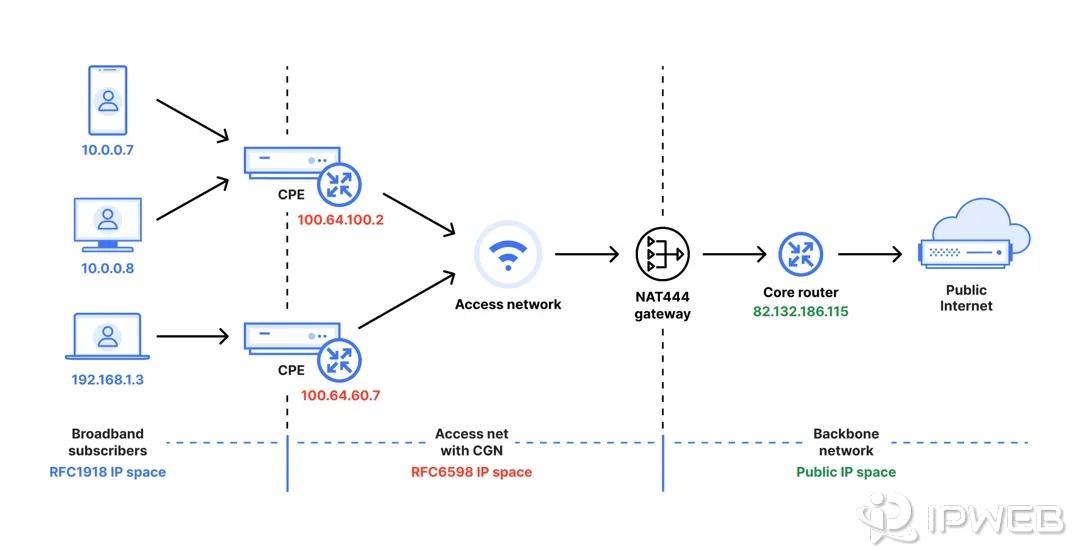
CGNAT can be a useful troubleshooting clue, but it does not automatically break Gemini. Carrier-grade NAT allows multiple subscribers to share public IPv4 addresses, so the visible Wi-Fi IP may not uniquely represent one household. If Gemini behaves differently on Wi-Fi and mobile data, record the public IP, ISP/ASN, and any location differences. Treat CGNAT as one network variable to investigate rather than a confirmed root cause.
A router restart can refresh local network state and may renew some ISP-side connection details, but it does not guarantee a new public IP or fix a Google-side issue. Record the current IP and result first so you can tell whether anything actually changed after the restart.
Another Wi-Fi network can use a different ISP, public IP range, ASN, DNS resolver, IPv4/IPv6 path, gateway, or filtering policy. If Gemini works there with the same device and account, compare those network differences with the failing Wi-Fi connection.
Final Thoughts
When Gemini works on mobile data but not Wi-Fi, the most useful first move is not to guess which network signal Google dislikes. Keep the account, device, browser or app, and test action stable, then compare the two routes one variable at a time.
Start with the public IP, country, ISP or ASN, IPv4/IPv6 behavior, DNS evidence, and exact error. If Wi-Fi consistently fails while mobile data works, follow the network evidence. If both fail, or the symptom moves to a different Gemini surface, hand the problem to the matching login, location, app, or API troubleshooting path instead.